# ows-react-native-sketch-canvas
> react-native-sketch-canvas allows you to draw / sketch on both iOS and Android devices and sync the drawing data between users. Of course you can save as image.
Latest version **1.0.1** (published 2017-11-23) · MIT license · 0 weekly downloads
## Install
```sh
npm install ows-react-native-sketch-canvas
pnpm add ows-react-native-sketch-canvas
yarn add ows-react-native-sketch-canvas
bun add ows-react-native-sketch-canvas
```
## Health
**Score 15/100 (F)** — status: abandoned.
Positive: no vulnerabilities.
Warnings: low downloads; no types; no esm support.
Negative: abandoned; low maintenance score.
## Facts
| | |
|---|---|
| Version | 1.0.1 |
| Published | 2017-11-23 |
| First published | 2017-11-23 |
| Weekly downloads | 0 |
| License | MIT |
| TypeScript types | none |
| Module format | CommonJS |
| Dependencies | 0 |
| Known vulnerabilities | 0 |
| Install scripts | no |
| GitHub stars | 715 |
| Author | Terry Lin |
| Maintainers | khanhlvb |
| Keywords | react-native, react-native-sketch, react-native-svg, react, native, sketch, svg, draw |
## Links
- npm: https://www.npmjs.com/package/ows-react-native-sketch-canvas
- Repository: https://github.com/terrylinla/react-native-sketch-canvas
- Homepage: https://github.com/terrylinla/react-native-sketch-canvas#readme
- Issues: https://github.com/terrylinla/react-native-sketch-canvas/issues
- npm.io page: https://npm.io/package/ows-react-native-sketch-canvas
## Alternatives
- [mobx-react](https://npm.io/package/mobx-react.md) — 2.8M weekly downloads
- [rc-tree](https://npm.io/package/rc-tree.md) — 2.6M weekly downloads
- [@react-oauth/google](https://npm.io/package/@react-oauth/google.md) — 1.3M weekly downloads
- [@wagmi/connectors](https://npm.io/package/@wagmi/connectors.md) — 877.0K weekly downloads
- [vee-validate](https://npm.io/package/vee-validate.md) — 836.4K weekly downloads
## Recent versions
- 1.0.1 (latest) — 2017-11-23
- 1.0.0 — 2017-11-23
## README
ows-react-native-sketch-canvas
===================
A React Native component for drawing by touching on both iOS and Android.
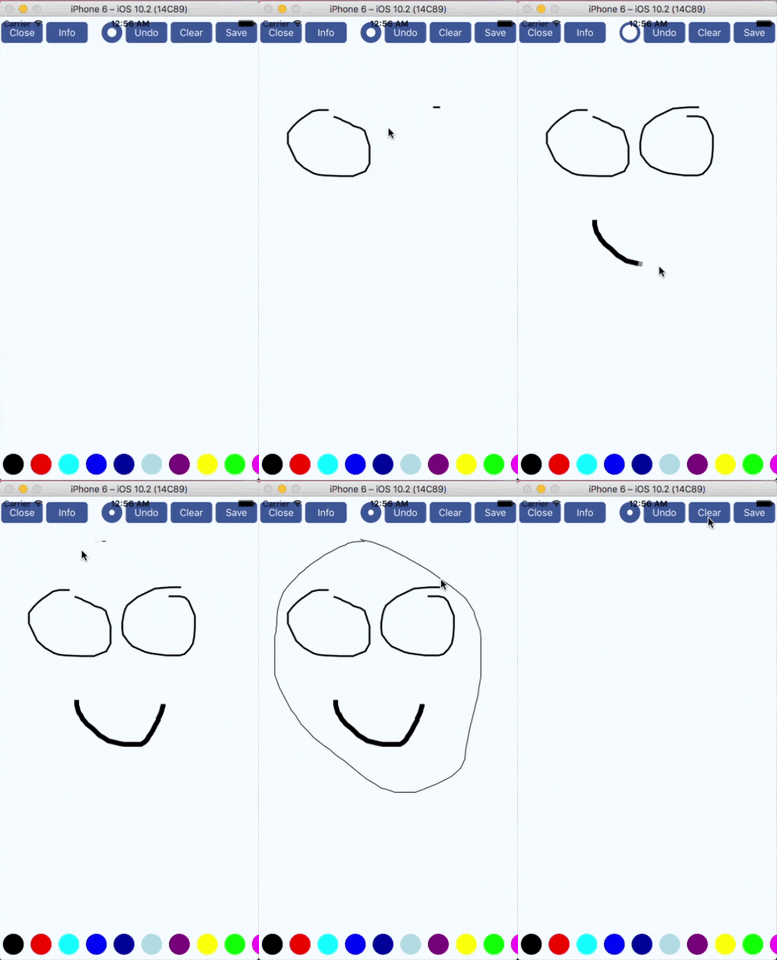
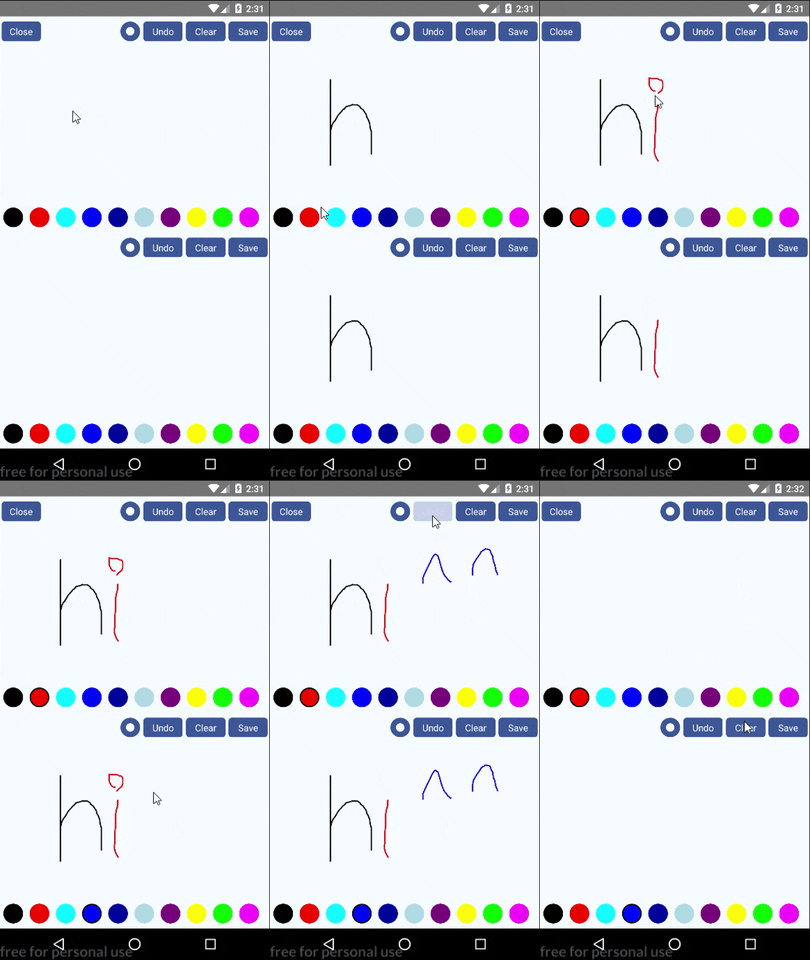 Features
-------------
* Support iOS and Android
* Stroke thickness and color are changable while drawing.
* Can undo strokes one by one.
* Can serialize path data to JSON. So it can sync other devices or someone else and continue to edit.
* Save drawing to a non-transparent image (png or jpg) or a transparent image (png only)
* Use vector concept. So sketches won't be cropped in different sizes of canvas.
## Installation
-------------
Install from `npm` (only support RN >= 0.40)
```bash
npm install ows-react-native-sketch-canvas --save
```
Link native code
```bash
react-native link ows-react-native-sketch-canvas
```
## Usage
-------------
Features
-------------
* Support iOS and Android
* Stroke thickness and color are changable while drawing.
* Can undo strokes one by one.
* Can serialize path data to JSON. So it can sync other devices or someone else and continue to edit.
* Save drawing to a non-transparent image (png or jpg) or a transparent image (png only)
* Use vector concept. So sketches won't be cropped in different sizes of canvas.
## Installation
-------------
Install from `npm` (only support RN >= 0.40)
```bash
npm install ows-react-native-sketch-canvas --save
```
Link native code
```bash
react-native link ows-react-native-sketch-canvas
```
## Usage
-------------
 ### ● Using without UI component (for customizing UI)
```javascript
import React, { Component } from 'react';
import {
AppRegistry,
StyleSheet,
View,
} from 'react-native';
import { SketchCanvas } from 'ows-react-native-sketch-canvas';
export default class example extends Component {
render() {
return (
);
}
}
const styles = StyleSheet.create({
container: {
flex: 1, justifyContent: 'center', alignItems: 'center', backgroundColor: '#F5FCFF',
},
});
AppRegistry.registerComponent('example', () => example);
```
#### Properties
-------------
| Prop | Type | Description |
| :------------ |:---------------:| :---------------|
| style | `object` | Styles to be applied on canvas component |
| strokeColor | `string` | The color of stroke |
| strokeWidth | `number` | The thickness of stroke |
| onStrokeStart | `function` | An optional function called when user's finger touches the canvas (starts to draw) |
| onStrokeChanged | `function` | An optional function called when user's finger moves |
| onStrokeEnd | `function` | An optional function called when user's finger leaves the canvas (end drawing) |
| onSketchSaved | `function` | An optional function which accpets 1 argument `success`, true if image is saved successfully |
| user | `string` | An identifier to identify who draws the path. Useful when undo between two users |
| touchEnabled | `bool` | If false, disable touching. Default is true. |
#### Methods
-------------
| Method | Description |
| :------------ |:---------------|
| clear() | Clear all the paths |
| undo() | Delete the latest path. Can undo multiple times. |
| addPath(path) | Add a path (see [below](#objects)) to canvas. |
| deletePath(id) | Delete a path with its `id` |
| save(imageType, transparent, folder, filename) | Android: Save image in `imageType` format with transparent background (if `transparent` sets to True) to /sdcard/Pictures/`folder`/`filename` (which is Environment.DIRECTORY_PICTURES).
### ● Using without UI component (for customizing UI)
```javascript
import React, { Component } from 'react';
import {
AppRegistry,
StyleSheet,
View,
} from 'react-native';
import { SketchCanvas } from 'ows-react-native-sketch-canvas';
export default class example extends Component {
render() {
return (
);
}
}
const styles = StyleSheet.create({
container: {
flex: 1, justifyContent: 'center', alignItems: 'center', backgroundColor: '#F5FCFF',
},
});
AppRegistry.registerComponent('example', () => example);
```
#### Properties
-------------
| Prop | Type | Description |
| :------------ |:---------------:| :---------------|
| style | `object` | Styles to be applied on canvas component |
| strokeColor | `string` | The color of stroke |
| strokeWidth | `number` | The thickness of stroke |
| onStrokeStart | `function` | An optional function called when user's finger touches the canvas (starts to draw) |
| onStrokeChanged | `function` | An optional function called when user's finger moves |
| onStrokeEnd | `function` | An optional function called when user's finger leaves the canvas (end drawing) |
| onSketchSaved | `function` | An optional function which accpets 1 argument `success`, true if image is saved successfully |
| user | `string` | An identifier to identify who draws the path. Useful when undo between two users |
| touchEnabled | `bool` | If false, disable touching. Default is true. |
#### Methods
-------------
| Method | Description |
| :------------ |:---------------|
| clear() | Clear all the paths |
| undo() | Delete the latest path. Can undo multiple times. |
| addPath(path) | Add a path (see [below](#objects)) to canvas. |
| deletePath(id) | Delete a path with its `id` |
| save(imageType, transparent, folder, filename) | Android: Save image in `imageType` format with transparent background (if `transparent` sets to True) to /sdcard/Pictures/`folder`/`filename` (which is Environment.DIRECTORY_PICTURES).
iOS: Save image in `imageType` format with transparent background (if `transparent` sets to True) to camera roll. (`folder` and `filename` are ignored automatically) |
| getPaths() | Get the paths that drawn on the canvas |
### ● Using with build-in UI components
 ```javascript
import React, { Component } from 'react';
import {
AppRegistry,
StyleSheet,
Text,
View,
Alert,
} from 'react-native';
import RNSketchCanvas from 'ows-react-native-sketch-canvas';
export default class example extends Component {
render() {
return (
Close}
undoComponent={Undo}
clearComponent={Clear}
infoComponent={Info}
strokeComponent={color => (
)}
strokeSelectedComponent={(color, index, changed) => {
return (
)
}}
strokeWidthComponent={(w) => {
return (
)}}
saveComponent={Save}
savePreference={() => {
return {
folder: 'RNSketchCanvas',
filename: String(Math.ceil(Math.random() * 100000000)),
transparent: false,
imageType: 'png'
}
}}
/>
);
}
}
const styles = StyleSheet.create({
container: {
flex: 1, justifyContent: 'center', alignItems: 'center', backgroundColor: '#F5FCFF',
},
strokeColorButton: {
marginHorizontal: 2.5, marginVertical: 8, width: 30, height: 30, borderRadius: 15,
},
strokeWidthButton: {
marginHorizontal: 2.5, marginVertical: 8, width: 30, height: 30, borderRadius: 15,
justifyContent: 'center', alignItems: 'center', backgroundColor: '#39579A'
},
functionButton: {
marginHorizontal: 2.5, marginVertical: 8, height: 30, width: 60,
backgroundColor: '#39579A', justifyContent: 'center', alignItems: 'center', borderRadius: 5,
}
});
AppRegistry.registerComponent('example', () => example);
```
#### Properties
-------------
| Prop | Type | Description |
| :------------ |:---------------:| :---------------|
| containerStyle | `object` | Styles to be applied on container |
| canvasStyle | `object` | Styles to be applied on canvas component |
| onStrokeStart | `function` | See [above](#properties) |
| onStrokeChanged | `function` | See [above](#properties) |
| onStrokeEnd | `function` | See [above](#properties) |
| onClosePressed | `function` | An optional function called when user taps closeComponent |
| onInfoPressed | `function` | An optional function called when user taps infoComponent |
| onUndoPressed | `function` | An optional function that accepts a argument `id` (the deleted id of path) and is called when user taps "undo" |
| onClearPressed | `function` | An optional function called when user taps clearComponent |
| user | `string` | See [above](#properties) |
| closeComponent | `component` | An optional component for closing |
| infoComponent | `component` | An optional component for showing info |
| undoComponent | `component` | An optional component for undoing |
| clearComponent | `component` | An optional component for clearing |
| saveComponent | `component` | An optional component for saving |
| strokeComponent | `function` | An optional function which accpets 1 argument `color` and should return a component. |
| strokeSelectedComponent | `function` | An optional function which accpets 3 arguments `color`, `selectedIndex`, `isColorChanged` and should return a component. `isColorChanged` is useful for animating when changing color. Because rerendering also calls this function, we need `isColorChanged` to determine whether the component is rerendering or the selected color is changed. |
| strokeWidthComponent | `function` | An optional function which accpets 1 argument `width` and should return a component. |
| strokeColors | `array` | An array of colors. Example: `[{ color: '#000000' }, {color: '#FF0000'}]` |
| defaultStrokeIndex | `numbber` | The default index of selected stroke color |
| defaultStrokeWidth | `number` | The default thickness of stroke |
| minStrokeWidth | `number` | The minimum value of thickness |
| maxStrokeWidth | `number` | The maximum value of thickness |
| strokeWidthStep | `number` | The step value of thickness when tapping `strokeWidthComponent`. |
| savePreference | `function` | A function which is called when saving image and should return an object (see [below](#objects)). |
| onSketchSaved | `function` | See [above](#properties) |
## Objects
### Use for saving image
```javascript
{
folder: 'RNSketchCanvas', // use in Android, the folder name in Pictures
filename: 'image', // use in Android, the file name of image
transparent: true, // true for transparent background, ignored when imageType sets to 'jpg'
imageType: 'jpg' // one of 'jpg' or 'png'
}
```
### Path format
```javascript
{
drawer: 'user1',
size: { // the size of drawer's canvas
width: 480,
height: 640
},
path: {
id: 8979841, // path id
color: '#000000',
width: 5,
data: [
"296.11,281.34", // x,y
"293.52,284.64",
"290.75,289.73"
]
}
}
```
## Example
-------------
The source code includes 3 examples, using build-in UI components, using with only canvas, and sync between two canvases.
Check full example app in the [example](./example) folder
> **Note:** The example which showing synchronization between two canvases only works on Android device. For iOS, only one canvas can be shown at the same time. So if the path data can be transmitted to another device via internet, it still works.
---
_Source: https://npm.io/package/ows-react-native-sketch-canvas · Machine-readable twin of the npm.io package page. Health data is recomputed on every publish._
```javascript
import React, { Component } from 'react';
import {
AppRegistry,
StyleSheet,
Text,
View,
Alert,
} from 'react-native';
import RNSketchCanvas from 'ows-react-native-sketch-canvas';
export default class example extends Component {
render() {
return (
Close}
undoComponent={Undo}
clearComponent={Clear}
infoComponent={Info}
strokeComponent={color => (
)}
strokeSelectedComponent={(color, index, changed) => {
return (
)
}}
strokeWidthComponent={(w) => {
return (
)}}
saveComponent={Save}
savePreference={() => {
return {
folder: 'RNSketchCanvas',
filename: String(Math.ceil(Math.random() * 100000000)),
transparent: false,
imageType: 'png'
}
}}
/>
);
}
}
const styles = StyleSheet.create({
container: {
flex: 1, justifyContent: 'center', alignItems: 'center', backgroundColor: '#F5FCFF',
},
strokeColorButton: {
marginHorizontal: 2.5, marginVertical: 8, width: 30, height: 30, borderRadius: 15,
},
strokeWidthButton: {
marginHorizontal: 2.5, marginVertical: 8, width: 30, height: 30, borderRadius: 15,
justifyContent: 'center', alignItems: 'center', backgroundColor: '#39579A'
},
functionButton: {
marginHorizontal: 2.5, marginVertical: 8, height: 30, width: 60,
backgroundColor: '#39579A', justifyContent: 'center', alignItems: 'center', borderRadius: 5,
}
});
AppRegistry.registerComponent('example', () => example);
```
#### Properties
-------------
| Prop | Type | Description |
| :------------ |:---------------:| :---------------|
| containerStyle | `object` | Styles to be applied on container |
| canvasStyle | `object` | Styles to be applied on canvas component |
| onStrokeStart | `function` | See [above](#properties) |
| onStrokeChanged | `function` | See [above](#properties) |
| onStrokeEnd | `function` | See [above](#properties) |
| onClosePressed | `function` | An optional function called when user taps closeComponent |
| onInfoPressed | `function` | An optional function called when user taps infoComponent |
| onUndoPressed | `function` | An optional function that accepts a argument `id` (the deleted id of path) and is called when user taps "undo" |
| onClearPressed | `function` | An optional function called when user taps clearComponent |
| user | `string` | See [above](#properties) |
| closeComponent | `component` | An optional component for closing |
| infoComponent | `component` | An optional component for showing info |
| undoComponent | `component` | An optional component for undoing |
| clearComponent | `component` | An optional component for clearing |
| saveComponent | `component` | An optional component for saving |
| strokeComponent | `function` | An optional function which accpets 1 argument `color` and should return a component. |
| strokeSelectedComponent | `function` | An optional function which accpets 3 arguments `color`, `selectedIndex`, `isColorChanged` and should return a component. `isColorChanged` is useful for animating when changing color. Because rerendering also calls this function, we need `isColorChanged` to determine whether the component is rerendering or the selected color is changed. |
| strokeWidthComponent | `function` | An optional function which accpets 1 argument `width` and should return a component. |
| strokeColors | `array` | An array of colors. Example: `[{ color: '#000000' }, {color: '#FF0000'}]` |
| defaultStrokeIndex | `numbber` | The default index of selected stroke color |
| defaultStrokeWidth | `number` | The default thickness of stroke |
| minStrokeWidth | `number` | The minimum value of thickness |
| maxStrokeWidth | `number` | The maximum value of thickness |
| strokeWidthStep | `number` | The step value of thickness when tapping `strokeWidthComponent`. |
| savePreference | `function` | A function which is called when saving image and should return an object (see [below](#objects)). |
| onSketchSaved | `function` | See [above](#properties) |
## Objects
### Use for saving image
```javascript
{
folder: 'RNSketchCanvas', // use in Android, the folder name in Pictures
filename: 'image', // use in Android, the file name of image
transparent: true, // true for transparent background, ignored when imageType sets to 'jpg'
imageType: 'jpg' // one of 'jpg' or 'png'
}
```
### Path format
```javascript
{
drawer: 'user1',
size: { // the size of drawer's canvas
width: 480,
height: 640
},
path: {
id: 8979841, // path id
color: '#000000',
width: 5,
data: [
"296.11,281.34", // x,y
"293.52,284.64",
"290.75,289.73"
]
}
}
```
## Example
-------------
The source code includes 3 examples, using build-in UI components, using with only canvas, and sync between two canvases.
Check full example app in the [example](./example) folder
> **Note:** The example which showing synchronization between two canvases only works on Android device. For iOS, only one canvas can be shown at the same time. So if the path data can be transmitted to another device via internet, it still works.
---
_Source: https://npm.io/package/ows-react-native-sketch-canvas · Machine-readable twin of the npm.io package page. Health data is recomputed on every publish._