# pk-view
> pk项目的组件库
Latest version **1.2.1** (published 2020-09-03) · ISC license · 0 weekly downloads
## Install
```sh
npm install pk-view
pnpm add pk-view
yarn add pk-view
bun add pk-view
```
## Health
**Score 15/100 (F)** — status: abandoned.
Positive: no vulnerabilities.
Warnings: low downloads; no types; no esm support; large bundle.
Negative: abandoned; low maintenance score.
## Facts
| | |
|---|---|
| Version | 1.2.1 |
| Published | 2020-09-03 |
| First published | 2020-06-10 |
| Weekly downloads | 0 |
| License | ISC |
| TypeScript types | none |
| Module format | CommonJS |
| Dependencies | 7 |
| Unpacked size | 14.4 MB |
| Known vulnerabilities | 0 (+28 in 3 direct dependencies) |
| Install scripts | no |
| GitHub stars | 0 |
| Author | cpa0701 |
| Maintainers | cpa666666 |
| Keywords | markdown, wysiwyg, emoji, iconSvg |
## Links
- npm: https://www.npmjs.com/package/pk-view
- Repository: https://github.com/cpa0701/pumpkin-component
- Issues: https://github.com/cpa0701/pumpkin-component/issues
- npm.io page: https://npm.io/package/pk-view
## Dependencies (7)
- [vue](https://npm.io/package/vue.md) 2.6.11
- [axios](https://npm.io/package/axios.md) 0.19.2
- [jquery](https://npm.io/package/jquery.md) 3.4.1
- [core-js](https://npm.io/package/core-js.md) 3.6.4
- [v-viewer](https://npm.io/package/v-viewer.md) 1.4.2
- [spark-md5](https://npm.io/package/spark-md5.md) 3.0.1
- [tui-editor](https://npm.io/package/tui-editor.md) 1.4.10
## Alternatives
- [@fortawesome/react-fontawesome](https://npm.io/package/@fortawesome/react-fontawesome.md) — 2.2M weekly downloads
- [roboto-fontface](https://npm.io/package/roboto-fontface.md) — 196.0K weekly downloads
- [@react-native-vector-icons/common](https://npm.io/package/@react-native-vector-icons/common.md) — 150.4K weekly downloads
- [stockfish](https://npm.io/package/stockfish.md) — 27.0K weekly downloads
- [@procore/core-icons](https://npm.io/package/@procore/core-icons.md) — 4.6K weekly downloads
## Recent versions
- 1.2.1 (latest) — 2020-09-03
- 1.2.0 — 2020-08-24
- 1.1.2 — 2020-08-13
- 1.1.1 — 2020-08-13
- 1.1.0 — 2020-08-12
- 1.0.5 — 2020-08-11
- 1.0.4 — 2020-08-11
- 1.0.3 — 2020-08-11
- 1.0.1 — 2020-06-22
- 1.0.0 — 2020-06-22
- 0.0.1 — 2020-06-10
## README
# pk-view




[pk生态服务平台](https://www.ccyunchina.com/#/) ellipsis组件,基于容器高度计算,可实现多行文本省略
[pk生态服务平台](https://www.ccyunchina.com/#/) 断点续传组件,基于websocket
[pk生态服务平台](https://www.ccyunchina.com/#/) markdown组件,基于tui.editor,所见即所得(wysiwyg)
## 一、pk-ellipsis
实现思路:根据lineHeight算出容器高度,在超出高度后逐字添加,在超出高度后停止
```javascript
let temp = ''
targetElement.innerHTML = temp
while (targetElement.offsetHeight <= at) {
temp = tempStr.substring(0, i + 1)
i++
targetElement.innerHTML = temp
}
const slen = temp.length
tempStr = temp.substring(0, slen - 1)
len = tempStr.length
const lastChar = tempStr[len - 1]
// 判断是否是中文
if (/[\u4E00-\u9FA5]/.test(lastChar) || len < 4) {
targetElement.innerHTML = tempStr.substring(0, len - 1 - extraContent.length) + '...' // 替换string后面三个字符
targetElement.height = at + 'px' // 修改文本高度 为了让CSS样式overflow:hidden生效
} else {
// 如果倒数第二个是中文,则只切两个
const shearLen = /[\u4E00-\u9FA5]/.test(tempStr[len - 2]) ? 2 : 3
targetElement.innerHTML = tempStr.substring(0, len - shearLen - extraContent.length) + '...' // 替换string后面三个字符
targetElement.height = at + 'px' // 修改文本高度 为了让CSS样式overflow:hidden生效
}
```
## 二、pk-upload
实现思路:利用FileReader类去实现文件切片,然后通过websocket建立持续连接,切一段传一段,中途可暂停和恢复
```javascript
const blob = this.file.slice(this.cuLoaded, this.cuLoaded + this.step)
this.reader.readAsArrayBuffer(blob)
```
## 三、pk-markdown
### 1.文档地址与demo
[tui.editor](https://nhn.github.io/tui.editor/latest/)
[线上demo](https://rc001.chenpengan.top:81/markdown/)或dist目录下为demo文件
### 2.使用
`npm i pk-markdown`
```vue
```
### 3.自定义属性
```javascript
{
value: { // 默认值
type: String,
default: ''
},
id: { // dom ID值,当一个页面有多个markdown时用id值进行区分
type: String,
required: false,
default() {
return `markdown-editor-${Math.floor(Math.random() * 100)}`
}
},
options: { // editor 选项值,可参考官方文档
type: Object,
default() {
return {}
}
},
mode: { // 模式,有wysiwyg(所见即所得)和 markdown
type: String,
default: 'wysiwyg'
},
height: { // 容器高度
type: String,
required: false,
default: '300px'
},
language: { // 语言
type: String,
required: false,
default: 'zh_CN' // https://github.com/nhnent/tui.editor/tree/master/src/js/langs
},
viewer: { // 是否展示页
type: Boolean,
required: false,
default: false
},
divideImg: { // 是否需要将图片与文字分隔展示(需要有一个.img-list的dom容器装图片,且默认最多九张
type: Boolean,
required: false,
default: false
},
placeholder: { // placeholder
type: String,
default: ''
},
uploadUrl: { // 上传图片的地址,没有则默认转Base64
type: String,
default: ''
},
inputMode: { // 是否显示为输入框模式
type: Boolean,
default: false
},
imageMaxWidth: { // 图片展示时最大宽度
type: Number,
default: 800
},
imageMaxHeight: { // 图片展示时最大高度
type: Number,
default: 500
}
}
```
### 4.自定义功能
1. viewer模式处理
在viewer模式下调用viewer组件进行图片查看
```javascript
viewerHandle() {
const mainDom = $(`#${this.id}`)
mainDom.hide()
this.$nextTick(() => {
setTimeout(() => {
const length = mainDom.find('img:not(.viewer-image)').length
if (length !== 0) {
const style = { maxHeight: this.imageMaxHeight + 'px', maxWidth: this.imageMaxWidth + 'px' }
mainDom.find('img:not(.viewer-image)').each((i, v) => {
const markedVue = new Vue({
components: {
Viewer
},
data() {
return {
image: v.src,
style
}
},
template: `
![${v.alt}]() `
}).$mount()
if (this.divideImg) {
$(v).remove()
const $targetDom = mainDom.next('.img-list')
$targetDom.children().length < 9 ? $targetDom.append(markedVue.$el) : ''
} else {
$(v).replaceWith(markedVue.$el)
}
})
mainDom.show()
} else {
mainDom.show()
}
})
})
}
```

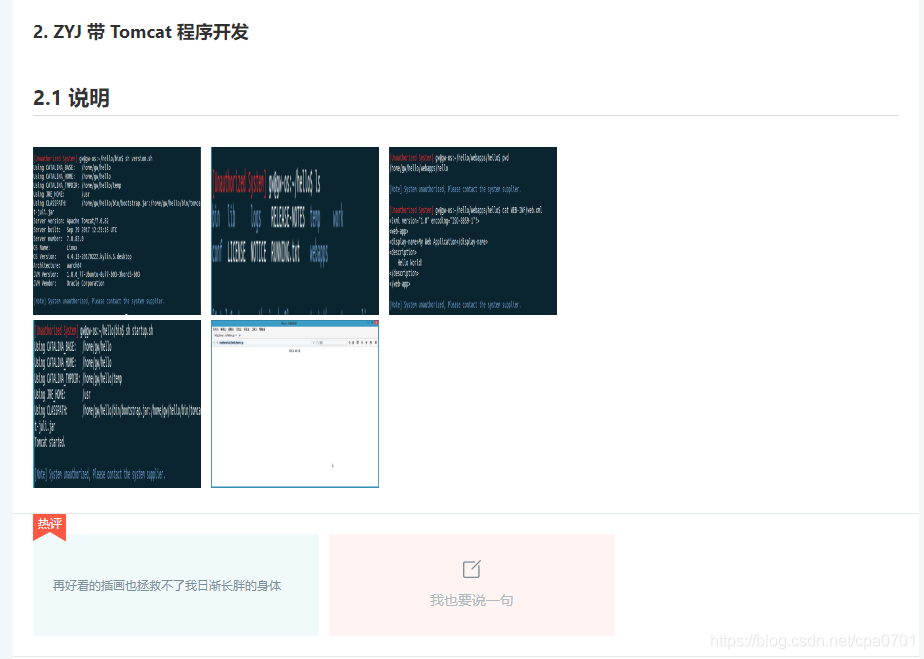
2. 文字与图片分离展示功能
根据需求传入参数divideImg可以将此图片抽出加入至临近的.img-list元素中进行展示
```javascript
if (this.divideImg) {
$(v).remove()
const $targetDom = mainDom.next('.img-list')
$targetDom.children().length < 9 ? $targetDom.append(markedVue.$el) : ''
} else {
$(v).replaceWith(markedVue.$el)
}
```
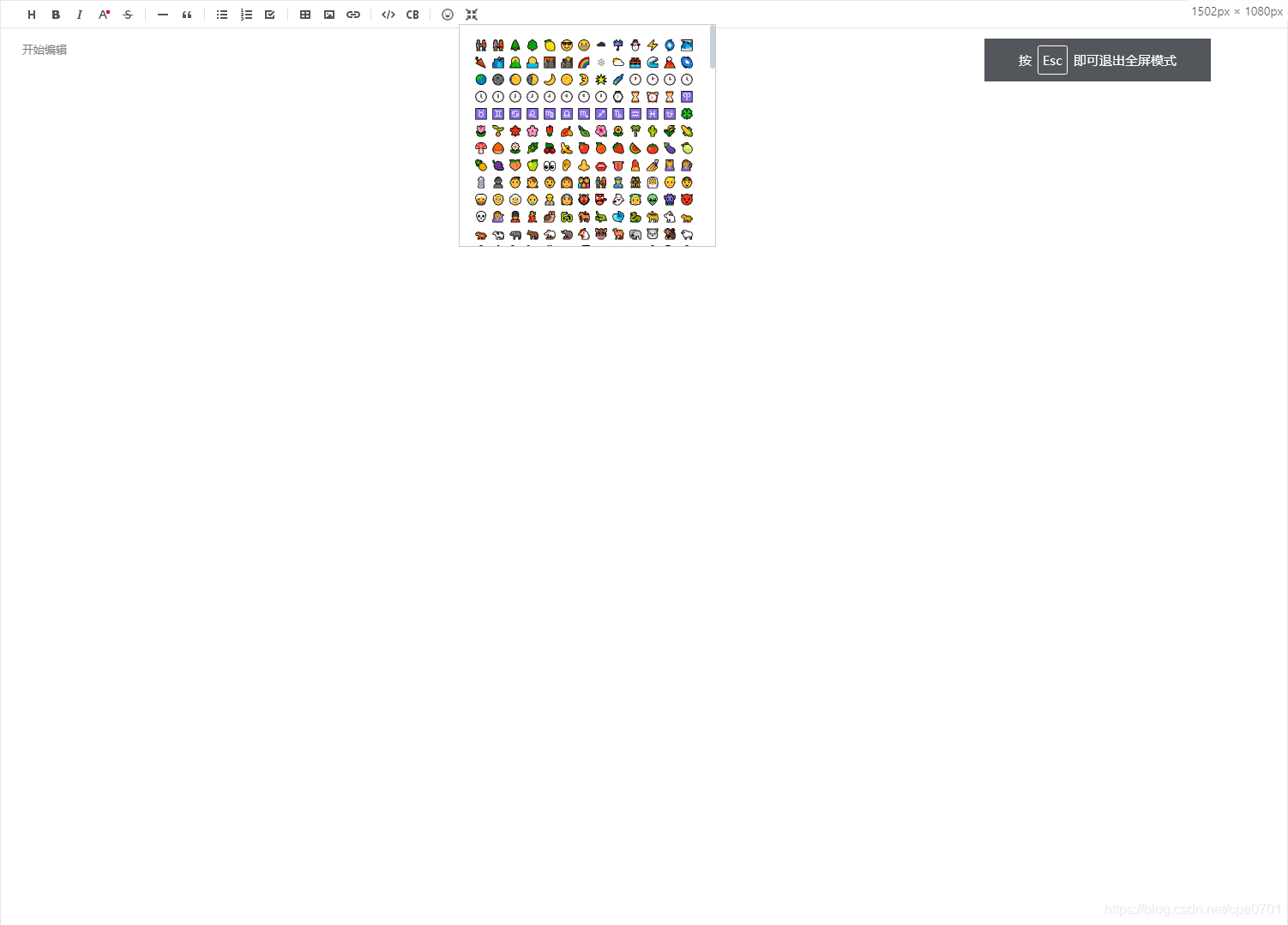
3. 添加emoji表情
```javascript
/**
* 生成emoji按钮
*/
initEmojiItem() {
const emoji = ``
// 添加emoji
this.toolbar.insertItem(this.currentMode === 'wysiwyg' ? 21 : 22, {
type: 'button',
options: {
name: 'emoji',
$el: $(emoji),
event: 'emojiButtonClicked',
tooltip: 'emoji表情'
}
})
const $emojiRoot = $('')
Object.values(emojiJson).map(v => {
const emojiText = `&#x${v[0].substring(2)};`
const $emoji = $(`${emojiText}`)
$emoji.on('click', (e) => {
this.editor.insertText(e.target.innerHTML)
popup.hide()
})
$emojiRoot.append($emoji)
})
// 绑定点击emoji按钮事件
const emojiButtonIndex = this.toolbar.indexOfItem('emoji')
const $button = this.toolbar.getItem(emojiButtonIndex).$el
this.editor.eventManager.addEventType('emojiButtonClicked')
this.editor.eventManager.listen('emojiButtonClicked', () => {
if (popup.isShow()) {
popup.hide()
return
}
const _$button$get = $button.get(0)
const offsetTop = _$button$get.offsetTop
const offsetLeft = _$button$get.offsetLeft
popup.$el.css({
top: offsetTop + $button.outerHeight(),
right: _$button$get.parentElement.offsetWidth - offsetLeft - _$button$get.offsetWidth
})
popup.show()
})
// 生成emoji弹框
const popup = this.editor.getUI().createPopup({
header: false,
title: false,
content: $emojiRoot,
className: 'emoji-list',
$target: this.editor.getUI().getToolbar().$el,
css: {
'width': '300px',
'height': '260px',
'position': 'absolute'
}
})
// 聚焦时弹框消失
this.editor.eventManager.listen('focus', function() {
popup.hide()
})
}
```

4. 添加全屏功能
```javascript
/**
* 生成全屏非全屏按钮
*/
initFullScreenItem() {
const $root = this.editor.getUI().$el
this.editor.eventManager.addEventType('toggleFullScreen')
this.editor.eventManager.listen('toggleFullScreen', function() {
const $fullscreen = $($root).find('.fullscreen')
if ($fullscreen.hasClass('exit-fullscreen')) {
$fullscreen.removeClass('exit-fullscreen')
} else {
$fullscreen.addClass('exit-fullscreen')
}
toggle.toggleFullScreen($root[0])
})
this.toolbar.insertItem(this.currentMode === 'wysiwyg' ? 22 : 23, {
type: 'button',
options: {
name: 'fullScreen',
tooltip: '全屏/非全屏',
event: 'toggleFullScreen',
$el: $('')
}
})
},
```
5. 限制图片展示时的比例大小
```javascript
const style = { maxHeight: this.imageMaxHeight + 'px', maxWidth: this.imageMaxWidth + 'px' }
```
---
_Source: https://npm.io/package/pk-view · Machine-readable twin of the npm.io package page. Health data is recomputed on every publish._