# react-simple-code-editor

> Simple no-frills code editor with syntax highlighting

Latest version **0.14.1** (published 2024-07-04) · MIT license · 0 weekly downloads

## Install

```sh
npm install react-simple-code-editor
pnpm add react-simple-code-editor
yarn add react-simple-code-editor
bun add react-simple-code-editor
```

## Health

**Score 20/100 (F)** — status: abandoned.

Positive: has types; no vulnerabilities.

Warnings: low downloads; no esm support; pre 1.0.

Negative: abandoned; low maintenance score.

## Facts

| | |
|---|---|
| Version | 0.14.1 |
| Published | 2024-07-04 |
| First published | 2018-06-22 |
| Weekly downloads | 0 |
| License | MIT |
| TypeScript types | bundled |
| Module format | CommonJS |
| Dependencies | 0 |
| Unpacked size | 68.1 KB |
| Known vulnerabilities | 0 |
| Install scripts | no |
| GitHub stars | 1728 |
| Author | Satyajit Sahoo |
| Maintainers | satya164, oliviertassinari |
| Keywords | code, editor, react |

## Links

- npm: https://www.npmjs.com/package/react-simple-code-editor
- Repository: https://github.com/react-simple-code-editor/react-simple-code-editor
- Homepage: https://github.com/react-simple-code-editor/react-simple-code-editor#readme
- Issues: https://github.com/react-simple-code-editor/react-simple-code-editor/issues
- npm.io page: https://npm.io/package/react-simple-code-editor

## Alternatives

- [flatbuffers](https://npm.io/package/flatbuffers.md) — 6.0M weekly downloads
- [jwt-simple](https://npm.io/package/jwt-simple.md) — 259.5K weekly downloads
- [@exodus/patch-broken-hermes-typed-arrays](https://npm.io/package/@exodus/patch-broken-hermes-typed-arrays.md) — 28.5K weekly downloads
- [@native-to-anchor/buffer-layout](https://npm.io/package/@native-to-anchor/buffer-layout.md) — 12.2K weekly downloads
- [binary-parser-encoder](https://npm.io/package/binary-parser-encoder.md) — 5.3K weekly downloads

## Recent versions

- 0.14.1 (latest) — 2024-07-04
- 0.14.0 — 2024-07-02
- 0.13.1 — 2022-09-27
- 0.13.0 — 2022-08-18
- 0.12.0 — 2022-08-18
- 0.11.3 — 2022-08-09
- 0.11.2 — 2022-05-30
- 0.11.1 — 2022-05-30
- 0.11.0 — 2020-01-17
- 0.10.0 — 2019-09-30
- 0.9.15 — 2019-09-30
- 0.9.14 — 2019-07-20
- 0.9.13 — 2019-07-12
- 0.9.12 — 2019-07-12
- 0.9.11 — 2019-06-07
- … 28 more at https://npm.io/package/react-simple-code-editor/versions

## README

# react-simple-code-editor

[![Build Status][build-badge]][build]
[![MIT License][license-badge]][license]
[![Version][version-badge]][package]
[![Bundle size (minified + gzip)][bundle-size-badge]][bundle-size]

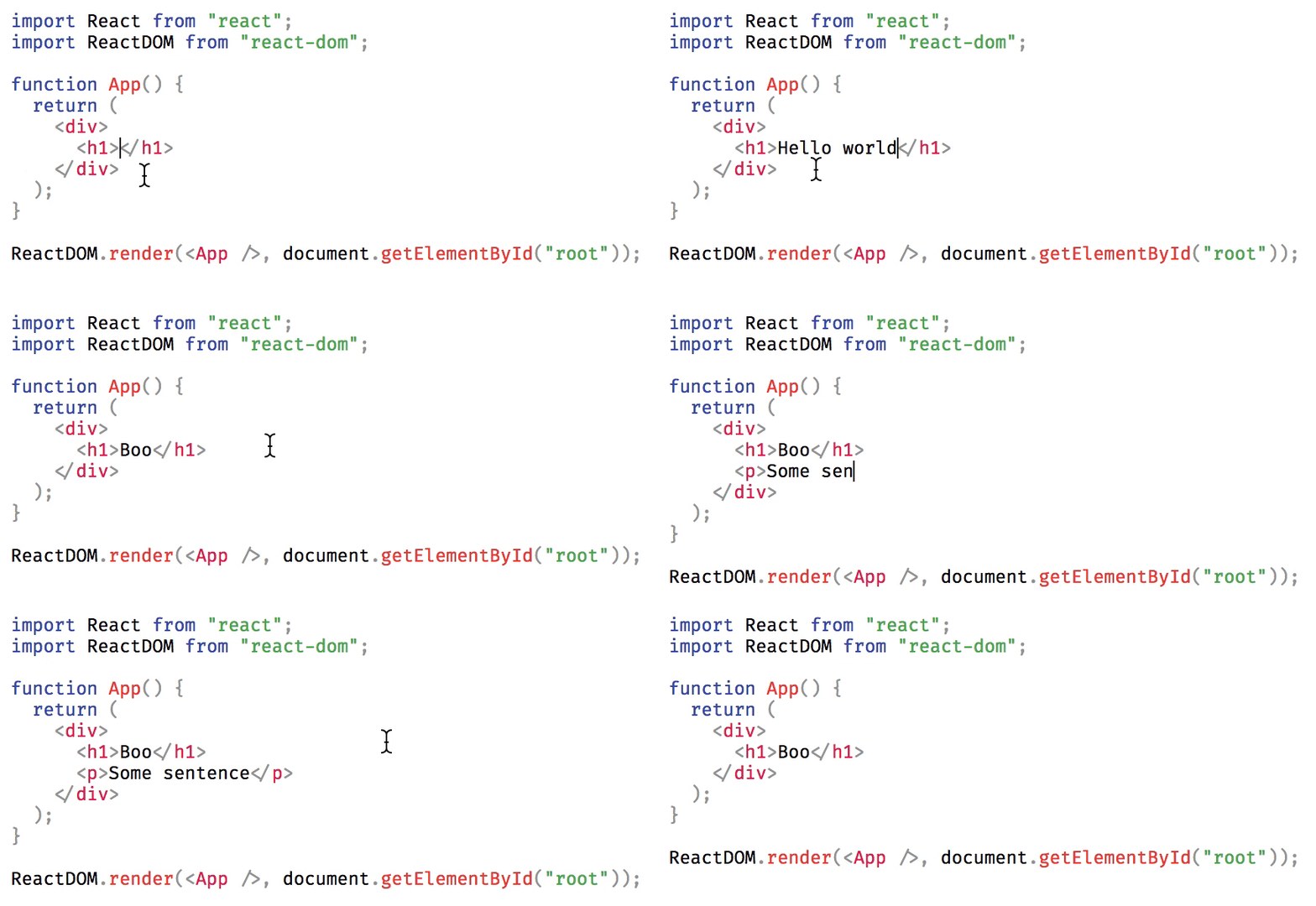
Simple no-frills code editor with syntax highlighting.

<a href="https://raw.githubusercontent.com/react-simple-code-editor/react-simple-code-editor/main/demo/demo.gif"><img src="https://raw.githubusercontent.com/react-simple-code-editor/react-simple-code-editor/main/demo/demo.gif" width="400"></a>

## Why

Several browser based code editors such as Ace, CodeMirror, Monaco etc. provide the ability to embed a full-featured code editor in your web page. However, if you just need a simple editor with syntax highlighting without any of the extra features, they can be overkill as they don't usually have a small bundle size footprint. This library aims to provide a simple code editor with syntax highlighting support without any of the extra features, perfect for simple embeds and forms where users can submit code.

## Features

- Modular syntax highlighting with third party library
- Indent line or selected text by pressing tab key, with customizable indentation
- Automatic indent on new lines
- Wrap selected text in parens, brackets, or quotes
- Undo whole words instead of letter by letter
- Accessible, use `Ctrl+Shift+M` (Mac) / `Ctrl+M` to toggle capturing tab key

## Installation

```sh
npm install react-simple-code-editor
```

or

```sh
yarn add react-simple-code-editor
```

## Usage

You need to use the editor with a third party library which provides syntax highlighting. For example, it'll look like following with [`prismjs`](https://prismjs.com):

```js
import React from 'react';
import Editor from 'react-simple-code-editor';
import { highlight, languages } from 'prismjs/components/prism-core';
import 'prismjs/components/prism-clike';
import 'prismjs/components/prism-javascript';
import 'prismjs/themes/prism.css'; //Example style, you can use another

function App() {
  const [code, setCode] = React.useState(
    `function add(a, b) {\n  return a + b;\n}`
  );
  return (
    <Editor
      value={code}
      onValueChange={code => setCode(code)}
      highlight={code => highlight(code, languages.js)}
      padding={10}
      style={{
        fontFamily: '"Fira code", "Fira Mono", monospace',
        fontSize: 12,
      }}
    />
  );
}
```

Note that depending on your syntax highlighter, you might have to include additional CSS for syntax highlighting to work.

## Props

The editor accepts all the props accepted by `textarea`. In addition, you can pass the following props:

- `value` (`string`): Current value of the editor i.e. the code to display. This must be a [controlled prop](https://reactjs.org/docs/forms.html#controlled-components).
- `onValueChange` (`string => mixed`): Callback which is called when the value of the editor changes. You'll need to update the value prop when this is called.
- `highlight` (`string => string | React.Node`): Callback which will receive text to highlight. You'll need to return an HTML string or a React element with syntax highlighting using a library such as [`prismjs`](https://prismjs.com).
- `tabSize` (`number`): The number of characters to insert when pressing tab key. For example, for 4 space indentation, `tabSize` will be `4` and `insertSpaces` will be `true`. Default: `2`.
- `insertSpaces` (`boolean`): Whether to use spaces for indentation. Default: `true`. If you set it to `false`, you might also want to set `tabSize` to `1`.
- `ignoreTabKey` (`boolean`): Whether the editor should ignore tab key presses so that keyboard users can tab past the editor. Users can toggle this behaviour using `Ctrl+Shift+M` (Mac) / `Ctrl+M` manually when this is `false`. Default: `false`.
- `padding` (`number`): Optional padding for code. Default: `0`.
- `textareaId` (`string`): An ID for the underlying `textarea`, can be useful for setting a `label`.
- `textareaClassName` (`string`): A className for the underlying `textarea`, can be useful for more precise control of its styles.
- `preClassName` (`string`): A className for the underlying `pre`, can be useful for more precise control of its styles.

## Demo

[react-simple-code-editor.github.io/react-simple-code-editor](https://react-simple-code-editor.github.io/react-simple-code-editor/)

## How it works

It works by overlaying a syntax highlighted `<pre>` block over a `<textarea>`. When you type, select, copy text etc., you interact with the underlying `<textarea>`, so the experience feels native. This is a very simple approach compared to other editors which re-implement the behaviour.

The syntax highlighting can be done by any third party library as long as it returns HTML and is fully controllable by the user.

The vanilla `<textarea>` doesn't support inserting tab characters for indentation, so we re-implement it by listening to `keydown` events and programmatically updating the text. One caveat with programmatically updating the text is that we lose the undo stack, so we need to maintain our own undo stack. As a result, we can also implement improved undo behaviour such as undoing whole words similar to editors like VSCode.

## Limitations

Due to the way it works, it has certain limitations:

- The syntax highlighted code cannot have different font family, font weight, font style, line height etc. for its content. Since the editor works by aligning the highlighted code over a `<textarea>`, changing anything that affects the layout can misalign it.
- The custom undo stack is incompatible with undo/redo items browser's context menu. However, other full featured editors don't support browser's undo/redo menu items either.
- The editor is not optimized for performance and large documents can affect the typing speed.
- We hide text in the textarea using `-webkit-text-fill-color: transparent`, which works in all modern browsers (even non-webkit ones such as Firefox and Edge). On IE 10+, we use `color: transparent` which doesn't hide the cursor. Text may appear bolder in unsupported browsers.

## Contributing

While developing, you can run the example app to test your changes:

```sh
yarn example
```

Make sure your code passes TypeScript and ESLint. Run the following to verify:

```sh
yarn typescript
yarn lint
```

To fix formatting errors, run the following:

```sh
yarn lint -- --fix
```

<!-- badges -->

[build-badge]: https://img.shields.io/circleci/project/github/react-simple-code-editor/react-simple-code-editor/main.svg?style=flat-square
[build]: https://circleci.com/gh/react-simple-code-editor/react-simple-code-editor
[license-badge]: https://img.shields.io/npm/l/react-simple-code-editor.svg?style=flat-square
[license]: https://opensource.org/licenses/MIT
[version-badge]: https://img.shields.io/npm/v/react-simple-code-editor.svg?style=flat-square
[package]: https://www.npmjs.com/package/react-simple-code-editor
[bundle-size-badge]: https://img.shields.io/bundlephobia/minzip/react-simple-code-editor.svg?style=flat-square
[bundle-size]: https://bundlephobia.com/result?p=react-simple-code-editor

---
_Source: https://npm.io/package/react-simple-code-editor · Machine-readable twin of the npm.io package page. Health data is recomputed on every publish._