# uni-lb-action-sheet
> uniapp自定义可左右互动Action操作列表
Latest version **1.0.2** (published 2020-08-01) · MIT license · 0 weekly downloads
## Install
```sh
npm install uni-lb-action-sheet
pnpm add uni-lb-action-sheet
yarn add uni-lb-action-sheet
bun add uni-lb-action-sheet
```
## Health
**Score 15/100 (F)** — status: abandoned.
Positive: no vulnerabilities.
Warnings: low downloads; no types; no esm support.
Negative: abandoned; low maintenance score.
## Facts
| | |
|---|---|
| Version | 1.0.2 |
| Published | 2020-08-01 |
| First published | 2020-07-05 |
| Weekly downloads | 0 |
| License | MIT |
| TypeScript types | none |
| Module format | CommonJS |
| Dependencies | 0 |
| Unpacked size | 160.3 KB |
| Known vulnerabilities | 0 |
| Install scripts | no |
| GitHub stars | 1 |
| Author | https://ext.dcloud.net.cn/plugin?id=1111 |
| Maintainers | xunmeng |
| Keywords | uni-lb-action-sheet |
## Links
- npm: https://www.npmjs.com/package/uni-lb-action-sheet
- Repository: https://github.com/liub1934/uni-lb-action-sheet
- Homepage: https://github.com/liub1934/uni-lb-action-sheet#readme
- Issues: https://github.com/liub1934/uni-lb-action-sheet/issues
- npm.io page: https://npm.io/package/uni-lb-action-sheet
## Recent versions
- 1.0.2 (latest) — 2020-08-01
- 1.0.1 — 2020-07-26
- 1.0.0 — 2020-07-05
## README





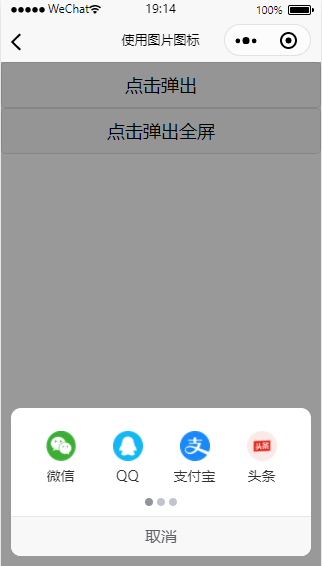
工做项目需要,开发了一个可自定义的 Action 操作列表,支持左右滑动,可配置性强,可自定义性高。
Github:[uni-lb-action-sheet](https://github.com/liub1934/uni-lb-action-sheet)
插件市场:[uni-lb-action-sheet](https://ext.dcloud.net.cn/plugin?id=2236)
H5 Demo:[在线预览](https://github.liubing.me/uni-lb-action-sheet)
## 兼容性
App + H5 + 各平台小程序(快应用、360、nvue 未测试)
## 引入插件
单独引入,在需要使用的页面上 import 引入即可
```html
```
全局引入,`main.js`中 import 引入并注册即可全局使用
```jsvascript
import LbActionSheet from '@/components/lb-action-sheet'
Vue.component("lb-action-sheet", LbActionSheet)
```
easycom 引入
`pages.json`加上如下配置:
```json
"easycom": {
"autoscan": true,
"custom": {
"lb-action-sheet": "@/components/lb-action-sheet/index.vue"
}
}
```
npm 安装引入:
```shell
npm install uni-lb-action-sheet
```
```jsvascript
import LbActionSheet from 'uni-lb-action-sheet'
```
## 操作列表数据基本格式,更多字段详情见下`Actions`字段详解
```json
[
{
"name": "wx",
"label": "微信",
"image": "/static/wx.png"
},
{
"name": "qq",
"label": "QQ",
"image": "/static/qq.png"
},
{
"name": "zfb",
"label": "支付宝",
"image": "/static/zfb.png"
},
{
"name": "tt",
"label": "头条",
"image": "/static/tt.png"
}
]
```
## 调用显示
通过`ref`形式手动调用`show`方法显示,隐藏同理调用`hide`
```text
this.$refs.actionSheet.show() // 显示
this.$refs.actionSheet.hide() // 隐藏
```
## 小程序开放能力支持,同 Button
```JSON
actions: [
{
"name": "wx",
"label": "微信",
"image": "/static/wx.png",
"openType": "getUserInfo" // 开放能力的获取用户信息
}
]
```
```HTML
getuserinfo (e) {
console.log(res) // 获取的用户信息
}
```
## 插槽使用
选择器支持一些可自定义化的插槽,如自定义底部取消按钮,可使用插槽,使用方法如下:
```html
我是自定义取消
```
其他插槽见下。
## 参数及事件
### Props
| 参数 | 说明 | 类型 | 可选值 | 默认值 |
| :--------------------- | :----------------------------------- | :------ | :--------- | :----------------- |
| actions | 操作列表数据,详细说明见下`Actions` | Array | - | - |
| full | 是否整屏宽度显示 | Boolean | true/false | false |
| column-num | 每列的图标个数 | Number | - | 4 |
| row-num | 行数 | Number | - | 2 |
| grid-height | 每个格子的高度,单位 px | Number | - | 80 |
| image-width | 图片图标的宽度 | String | - | 30px |
| image-height | 图片图标的高度,未指定同 image-width | String | - | - |
| icon-prefix | icon 图标指定前缀 | String | - | - |
| icon-size | icon 图标大小 | String | - | 30px |
| icon-color | icon 图标颜色,彩色图标不支持此属性 | String | - | - |
| label-color | 图标文字颜色 | String | - | #303133 |
| label-size | 图标文字大小 | String | - | 14px |
| radius | 弹出区域圆角支持 | String | - | 10px |
| cancel-text | 取消文字 | String | - | 取消 |
| cancel-color | 取消文字颜色 | String | - | #606266 |
| cancel-size | 取消文字大小 | String | - | 16px |
| close-on-click | 点击图标是否关闭弹出区域 | Boolean | true/false | true |
| close-on-click-mask | 点击遮罩层是否关闭弹出区域 | Boolean | true/false | true |
| mask-color | 遮罩层背景色 | String | - | rgba(0, 0, 0, 0.4) |
| indicator-dots | 是否显示面板指示点 | Boolean | true/false | true |
| indicator-size | 面板指示点大小 | String | - | 8px |
| indicator-color | 面板指示点颜色 | String | - | #c0c4cc |
| indicator-active-color | 当前选中的指示点颜色 | String | - | #909399 |
| animation | 是否显示动画效果 | Boolean | true/false | true |
| inline | 是否 inline 模式 | Boolean | true/false | false |
| z-index | 层级,遮罩层层级默认-1 | Boolean | true/false | false |
### Actions
| 字段 | 说明 | 类型 | 可选值 | 默认值 |
| :-------------------------------------- | :-------------------------------------------------------------------------------- | :------------ | :----- | :----- |
| name | 数据 name,需唯一 | String/Number | - | - |
| label | 数据文字 | String | - | - |
| image | 图片地址,与 icon 只需要设置一个 | String | - | - |
| imageWdith | 图标宽度,如无设置,取`props`中的`image-width` | String | - | - |
| imageHeight | 图标宽度, 如无设置,取`props`中的`image-height`,需要小于`props`中的`grid-height` | String | - | - |
| icon | 图标 icon,与 image 只需要设置一个 | String | - | - |
| iconSize | 图标大小, 如无设置,取`props`中的`icon-size` | String | - | - |
| iconColor | 图标颜色, 如无设置,取`props`中的`icon-color`,彩色图标不支持此属性 | String | - | - |
| disabled | 是否禁用 | Boolean | - | - |
| 开放能力:`openType` `、appParameter`等 | 小程序开放能力参数,同`button`组件 | - |
### 方法
| 方法名 | 说明 | 参数 |
| :----- | :----------- | :--- |
| show | 打开操作面板 | - |
| hide | 关闭操作面板 | - |
### Events
| 事件名称 | 说明 | 回调参数 |
| :----------- | :--------------------------------------------------- | :------- |
| show | 打开操作面板时触发 | - |
| hide | 关闭操作面板时触发 | - |
| cancel | 点击面板取消时触发,会同时触发`hide`事件 | - |
| 开放能力事件 | 小程序开放能力事件,同`button`组件,如`@getuserinfo` | - |
### 插槽
| 插槽名 | 说明 |
| :----- | :----------- |
| footer | 底部取消按钮 |
## iconfont 彩色图片使用方法
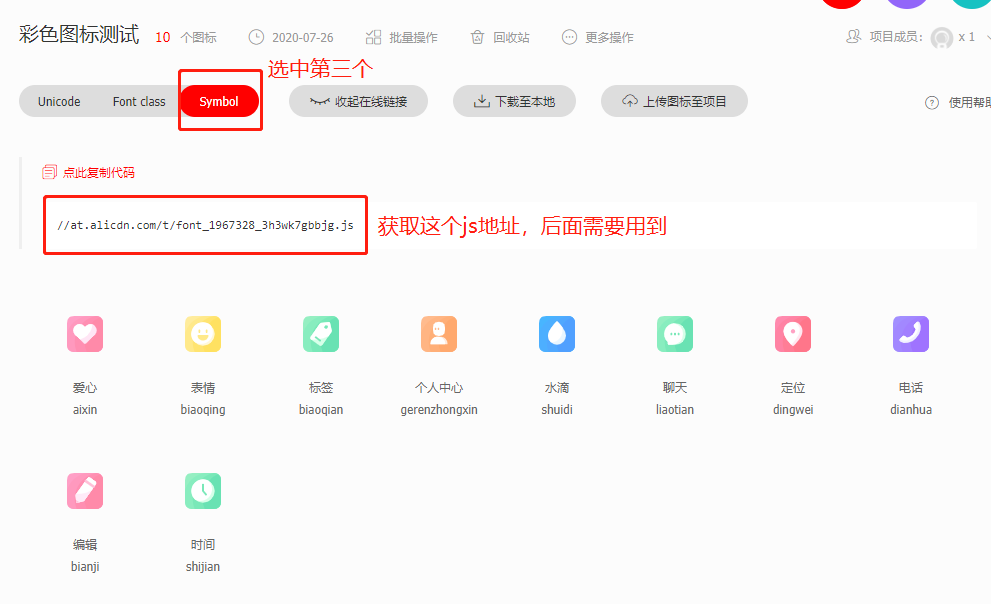
在[iconfont](https://www.iconfont.cn/)中,将需要的彩色图标加入到项目中,点击`Symbol`,生成下面的一个 js 地址,如图所示:
然后参考该教程使用即可:[https://github.com/HuaRongSAO/iconfont-tools](https://github.com/HuaRongSAO/iconfont-tools)。
下面简单说下步骤:
1.全局安装`iconfont-tools`:执行该`npm i -g iconfont-tools`进行安装
2.在项目根目录,执行下面的命令,将命令中的`//at.alicdn.com/t/font_1967328_3h3wk7gbbjg.js`换成上图自己的图标的文件 js 地址,一路回车至结束
(备注:如果你是用 HX 编辑器,直接点击启动项目的右侧的`新建终端标签卡`,输入下面的命令即可)

```shell
iconfont-tools --from //at.alicdn.com/t/font_1967328_3h3wk7gbbjg.js --to ./
```

期间也可以按提示修改输出的文件夹名称、css 文件名称等等。
3.删除其他文件,我们只需要保留一个`iconfont-weapp-icon.css`css 文件即可,这个文件的位置可以随意放到哪儿,最后只需要在`main.js`中引入即可
```shell
import './iconfont-weapp/iconfont-weapp-icon.css'
```
4.剩下的参考`demo6`即可,注意需要设置`icon-prefix`,值为执行`iconfont-tools`中的`设置css文件的prefix`
## 其他
其他功能参考示例 Demo 代码。
---
_Source: https://npm.io/package/uni-lb-action-sheet · Machine-readable twin of the npm.io package page. Health data is recomputed on every publish._