@a11y-ngx/color-scheme v1.0.5
Color Scheme
An easy way to manage the defaults and custom Color Schemes for your components, libraries and web sites.
The purpose of this library is to allow your own components/libraries to implement the use of color schemes, so you can give the users the option to choose or update them as needed.
- All given Color Schemes will be added as new
<style>tags within the<head>element. - The default (system's) or given Color Scheme will be established in the
<html>tag.
This library was generated with Angular CLI version 12.2.0.
Index
Installation
Install npm package:
npm install @a11y-ngx/color-scheme --saveImport
A11yColorSchemeModuleinto your module or standalone component:
import { A11yColorSchemeModule } from '@a11y-ngx/color-scheme';

@NgModule({
    declarations: [...],
    imports: [
        ...
        A11yColorSchemeModule,
    ],
})
export class AppModule { }
CHECK ALSO: The rootConfig() and setColorScheme() methods.
The rootConfig() Method
Serves the purpose of configuring the basics for the entire Color Scheme system within your website.
⚠️ IMPORTANT: It's not meant to be used within a component/library. For that, please use the
setColorScheme()method.
Accepts a single parameter config of type ColorScheme or the ColorSchemeGlobalConfig object.
A11yColorSchemeModule.rootConfig('dark'),
// or...
A11yColorSchemeModule.rootConfig({
    useScheme: 'dark',
    ...
}),
The setColorScheme() Method
Serves to establish one or more sub level configurations based on a given selector.
This comes handy when you need to add a custom set of properties and styles for the Color Scheme on a particular component or library.
Accepts a single parameter config of type ColorSchemeConfig or an array of them, so you can provide multiple selectors.
A11yColorSchemeModule.setColorScheme({
    selector: 'my-custom-library',
    ...
}),
// or...
A11yColorSchemeModule.setColorScheme([
    {
        selector: 'my-custom-library-1',
        ...
    },
    {
        selector: 'my-custom-library-2',
        ...
    },
]),
The use within the App or a Custom Library
Whether you have to use Color Schemes in your app or a custom library, it will depend on which methods you have to use.
For your app:
Will allow you to create custom styles and/or add new schemes into the two generic ones already provided (light & dark). All the styles will live under the :root selector so your app can have full access.
- Init the config by using the
rootConfig()method and provide: - You can make use of any of the components to allow the user to change the schemes:
- Dropdown Selector:
- It will show all the available schemes, plus the "auto" option to use the system's current configuration.
- Checkbox:
- It will allow to change between
lightanddarkschemes.
- It will allow to change between
- Dropdown Selector:
- You can also subscribe to the
colorSchemeChangedBehavior Subject in order to make any updates when the color scheme changes.
Please check the examples for your app.
For a custom library/component:
Same as above, but for a custom selector, allowing you to have any of your components with custom color schemes.
- Init the config (or configs) by using the
setColorScheme()method and provide: - The above will initialize the styles for your custom library/component.
- Now, you can make use of any of the available properties and/or methods to get or update your config:
Please check the examples for your library.
The Types
The Color Scheme
- Type:
ColorScheme. - Of type:
string, it accepts the values:- Generics:
'light','dark'or'auto'(defined by the system). - Custom: Any given code-name from the new custom Color Scheme.
- Generics:
The Global Config
- Type:
ColorSchemeGlobalConfig. - Properties:
The global configuration comes with a set of pre-established properties of CSS variables ready to be used:
| Property | CSS Variable | Light | Dark |
|---|---|---|---|
a11yBackgroundColor | --a11y-bg-color | 'rgb(255 255 255 / 98%)' | 'rgb(31 31 31 / 98%)' |
a11yTextColor | --a11y-text-color | '#222' | '#FFF' |
a11yBorderColor | --a11y-border-color | '#656565' | '#666' |
a11yShadow | --a11y-shadow | '5px 5px 10px -5px' | '5px 5px 10px -5px' |
a11yShadowColor | --a11y-shadow-color | '#444' | '#444' |
a11yFocusVisible | --a11y-focus-visible | '0 0 0 2px #FFF, 0 0 0 4px #444' | '0 0 0 2px #666, 0 0 0 4px #FFF' |
NOTE: All these properties (or new ones, provided via the
appendStylesMapin the config) will be added as CSS in two ways:
Under the
:rootselector ("root" level):
In here, the variables will be differentiated by the scheme's code-name as suffix, so they can always be available and accessed, if needed.
:root {
    --a11y-bg-color-light: rgb(255 255 255 / 98%);
    --a11y-text-color-light: #222;
    ...
    --a11y-bg-color-dark: rgb(31 31 31 / 98%);
    --a11y-text-color-dark: #FFF;
    ...
    --a11y-bg-color-red-velvet: #FFEEEE;
    --a11y-text-color-red-velvet: #590811;
    ...
}
Under the
[color-scheme="<CODE_NAME>"]selector ("scheme" level):
These rules will allow you to use the original variable name within your CSS in order for your elements to take the value from the current selected Color Scheme.
[color-scheme="light"] {
    --a11y-bg-color: var(--a11y-bg-color-light);
    --a11y-text-color: var(--a11y-text-color-light);
    ...
}
[color-scheme="dark"] {
    --a11y-bg-color: var(--a11y-bg-color-dark);
    --a11y-text-color: var(--a11y-text-color-dark);
    ...
}
[color-scheme="red-velvet"] {
    --a11y-bg-color: var(--a11y-bg-color-red-velvet);
    --a11y-text-color: var(--a11y-text-color-red-velvet);
    ...
}
The whole idea is for you to use, for instance,
background-color: var(--a11y-bg-color);and the right color will be retrieved according to the currently selected scheme.If, at any time, you want to force an element to have the
red-velvettext color, even while you are in another selected scheme, you can usecolor: var(--a11y-text-color-red-velvet);.Check also the Appending New Styles Example.
The Global Config: Use Scheme
To set which Color Scheme to be used by default.
- Config Property:
useScheme(optional). - Type:
ColorScheme. - Default:
'auto'(system's current).
The Global Config: Allow User to Change Scheme
To allow the user to change the Color Scheme.
- Config Property:
allowUserToChangeScheme(optional). - Type:
boolean. - Default:
true.
The Global Config: Defaults
To set some generic styles and the default names and/or values for the basic Color Schemes properties: light, dark or auto.
- Config Property:
defaults(optional). - Type:
ColorSchemeDefaults. - Default:
{}(unset).
NOTE: The
ColorSchemeDefaultstype accepts the properties:
genericsof typeColorSchemeProperties:
- It's just an object containing a set of properties with their values. They can be used as variables (which will be used as is within the root styles) or can be also mapped against the styles map.
- Since these are considered "generics", the idea is for you to set a variable, so all of the properties that don't start with "--" will be ignored, i.e.:
{ '--app-header-animation-ms': '200ms' }// valid{ background: '#000' }// not valid, it'll be ignored (unless "background" is being used as a key in the styles map)lightanddark:
- Accepts all the pre-established properties.
- All properties you may have set in
appendStylesMap.nameof typestring: To set the default name.auto:
nameof typestring: To set the default name.
See how to Update the Defaults Example.
The Global Config: New Schemes
To provide new Color Schemes.
- Config Property:
newSchemes(optional). - Type:
ColorSchemeItemNew[]. - Default:
[].
The Global Config: New Scheme Item
The new Scheme item.
- Type:
ColorSchemeItemNew. - Properties:
valueof typeColorScheme: The unique code-name (hyphen separated) of the Color Scheme.nameof typestring: The readable name of the Color Scheme.schemeof typeColorSchemeProperties: The properties for the Color Scheme.useMissingPropsFromof typeColorScheme(optional): To indicate where to get the missing properties from if they are not present within this new scheme.- The default value will be
'light'if none was provided. - ⚠️ IMPORTANT: Be aware that, in case you had added new properties by using the
appendStylesMap, and those properties were not provided in both, the new scheme and thelightscheme (or whatever value you choose foruseMissingPropsFrom), you will get anundefinedvalue.
- The default value will be
Check the New Schemes example.
The Global Config: Append Styles Map
To provide new properties to the current styles map. See the pre-established properties within the styles map.
IMPORTANT: The current properties values are not going to be override, since they are being used by other libraries.
- Config Property:
appendStylesMap(optional). - Type:
ColorSchemeCSSMap.
The Global Config: Attribute Selector Match
The CSS attribute's name to match the Color Scheme.
- Config Property:
attributeSelectorMatch(optional). - Type:
string. - Default:
'color-scheme'.
As mentioned above, the default is set to 'color-scheme', which will result on color-scheme="..." applied to the <html> element.
Check the Attribute Selector Match example.
The Color Scheme Config
Used inside the setColorScheme() method, it serves the purpose of configuring the Color Scheme for a new component or library based on a given selector.
- Type:
ColorSchemeConfig. - Properties:
selector.styles.stylesMap.cssTagID.- It also implements the properties from the Styles Config type.
Check the Color Scheme Config example.
The Color Scheme Config: Selector
The element's selector to apply the Color Scheme config to.
- Config Property:
selector. - Type:
string.
The Color Scheme Config: Styles Object
An object with the properties and values for each style your component/library needs.
- Config Property:
styles. - Type:
ColorSchemePropertiesorColorSchemesObject.
The ColorSchemeProperties is a basic group of properties, it won't contain individual schemes. It will serve the sole purpose of create a root set of CSS properties.
const STYLES: ColorSchemeProperties = {
    backgroundColor: '#DDD',
    textColor: '#999',
    borderSize: 1,
    fadeMs: 200,
};
The ColorSchemesObject is a more complex group of properties, which will contain generic items as well as individual schemes.
Properties:
genericsof typeColorSchemeProperties:- In here we can add those properties that are generic (not color related).
schemesof typeColorSchemes:- In here we have to specify each color scheme by its code-name and, within, the properties (of type
ColorSchemeProperties):lightis mandatory, as it will be used as the default scheme.darkis optional.- 'code-name' also optional, you can add as many custom color schemes as you need.
- In here we have to specify each color scheme by its code-name and, within, the properties (of type
const STYLES: ColorSchemesObject = {
    generics: {
        borderSize: 1,
        fadeMs: 200,
    },
    schemes: {
        light: { // mandatory
            backgroundColor: '#DDD',
            textColor: '#999',
        },
        dark: {}, // optional
        red: {}, // being 'red' the code-name
        blue: {}, // being 'blue' the code-name
    },
};
The Color Scheme Config: Styles Map Object
The properties to map within each config.
- Config Property:
stylesMap. - Type:
ColorSchemeCSSMap.- The property will be a string of your choosing, which will be used later to map the value inside the scheme.
- The value could be:
string: The CSS variable name to use.ColorSchemeCSSProperty: It's an object that could contain:propertyof typestring: The CSS variable name to use.suffix(optional) of typestring: The suffix to apply to the CSS property.ignoreIfUsingBS(optional) of typeboolean: Read the note below.
NOTE: The use of
ignoreIfUsingBSapplies only if you are allowing the use of Bootstrap and/or custom styles, then you allow the property to be ignored in caseuseBootstrapStyleswas set totruewithin the Color Scheme Config.
- The map will be conformed by a list of properties (a name of your choosing) and their values (the CSS variable), meaning that you can not use
'background-color'as the value, but'--bg-color'instead. - Those values will be applied as the final CSS property.
- For those values that you need to be numeric, for internal calculation purposes within your library, but applied as "px" or "ms" in the final CSS, you can make use of the
suffix. See the use ofborderSizeandfadeMsin the Color Scheme Config Example.
The Color Scheme Config: CSS Tag ID
The ID to apply to the <style> tag.
NOTE: If no value is passed, a generic one will be assigned based on the provided selector.
- Config Property:
cssTagID(optional). - Type:
string.
The Color Scheme Config: Styles Config
This type is meant to be implemented within a custom library, so you can give the user the power to choose among two more options.
- Type:
ColorSchemeStylesConfig. - Properties:
The Color Scheme Config: Force Scheme
To force the use of the given Color Scheme.
- Config Property:
forceScheme. - Type:
ColorScheme. - Default: unset.
The Color Scheme Config: Use Bootstrap Styles
Whether it will use Bootstrap 5.3 (or above) styles or custom (by default).
- Config Property:
useBootstrapStyles. - Type:
boolean. - Default:
false.
The Service
The Service: Public Methods, Properties, Getters and Setters
| Name | Type | Of Type | Description |
|---|---|---|---|
colorSchemeChanged | property | BehaviorSubject<ColorSchemeChange> | See the Color Scheme Change |
isSystemThemeDark | get | boolean | The know if the current scheme from the system is set to dark |
colorSchemes | get | ColorSchemeItem[] | The saved color schemes |
userChosen | get/set | ColorScheme | See the Service: User Chosen |
allowUserToChangeScheme | get | boolean | See the Config: Allow User to Change Scheme |
rootConfig | get | ColorSchemeConfig | The root (global) configuration |
useBootstrapStyles() | method | boolean | See the Use Bootstrap Styles method |
getCurrentScheme() | method | ColorSchemeProperties | See the Get Current Scheme method |
getConfig() | method | ColorSchemeConfig | See the Get Config method |
setConfig() | method | void | See the Set Config method |
updateConfig() | method | void | See the Update Config method |
getCustomStyles() | method | CSSStyleDeclaration | See the Get Custom Styles method |
The Service: Color Scheme Change
To subscribe and get notified when the color scheme has changed, either by the user or the system.
- Property:
colorSchemeChanged. - Type:
ColorSchemeChange. - Properties:
colorSchemePreviousof typeColorScheme: The previous scheme.colorSchemeCurrentof typeColorScheme: The current scheme.changedByof type'user'or'system': Who changed the scheme.
The Service: User Chosen
The color scheme the user has chosen.
- Property:
userChosen. - Type:
ColorScheme.- Get: Either the code-name of the chosen color scheme or
auto, which means that will use the system's. - Set: To set what the user has chosen.
- If
'auto'is set (as by default):- The current system scheme will be applied.
- An event listener will start listening for changes from the system to apply it as soon as it gets triggered.
- If a code-name is set:
- The event listener will be stopped.
- If
- Get: Either the code-name of the chosen color scheme or
The Service: useBootstrapStyles() Method
To know whether the given selector was configured to use Bootstrap styles or not. See the Config: Use Bootstrap Styles.
Accepts a single parameter selector of type string and returns a boolean.
The Service: getCurrentScheme() Method
To get the current Color Scheme values for a given selector.
Accepts a single parameter selector of type string and returns an object with all the properties of the scheme of type ColorSchemeProperties.
The Service: getConfig() Method
To get the config from a given selector.
Accepts a single parameter selector of type string and returns the config object of type ColorSchemeConfig.
The Service: setConfig() Method
To set a new config.
Accepts a single parameter config of type ColorSchemeConfig.
The Service: updateConfig() Method
To update a config with new values from a given selector.
If you are creating your own component/library with custom color schemes, you can use this method to update it whenever you need.
Accepts three parameters:
selectorof typestring.configof typeany,ColorSchemePropertiesorColorSchemesObject.colorSchemesProperty(optional) of typestring:- To specify a custom property within the given
config(if typeanywas provided) to search for the properties to update.
- To specify a custom property within the given
The Service: getCustomStyles() Method
Compares the given config against the saved Scheme (based on the given selector) and returns a string with all the CSS properties and values that are different, ready to be inserted as inline style of an element of your choosing.
The method accepts three parameters:
selectorof typestring.customConfigof typeColorSchemeProperties:- The custom properties to compare against the ones already saved.
fromSchemeof typeColorScheme(optional):- To get the properties from this specific scheme, if it doesn't exist,
'light'value will be used instead.
- To get the properties from this specific scheme, if it doesn't exist,
This serves the purpose to allow the user to customize a single instance of that selector, while the rest will use the global values set for it.
NOTE: If, within the
customConfig, one or more of the values are equal to the global's, they will be ignored and won't be returned, since they are already set in the<style>tag created when thesetColorScheme()method was invoked the first time.
Check the Get Custom Styles example.
The Service: getAttributeSelector() Method
Returns an object with the current (or given) Color Scheme value and attribute selector to implement locally on any of your elements.
The method accepts a single parameter forceScheme (optional) of type ColorScheme and returns an object with the attribute and its value.
NOTE: The
attributewill be the result of what you had configured when using the Attribute Selector Match.
Assuming the current Color Scheme is
dark:const { attribute, value } = this.colorSchemeService.getAttributeSelector(); // attribute => 'color-scheme' // value => 'dark'Then you can add the attribute to your element and the result will be
[color-scheme="dark"].When we provide a value to the
forceSchemeparameter:const { attribute, value } = this.colorSchemeService.getAttributeSelector('red-velvet'); // attribute => 'color-scheme' // value => 'red-velvet'
The Components
Two basic components to allow the user to change the Color Scheme on the page.
NOTE: For both components:
- The
disabledstate will depend not only on the@Input()but also on theallowUserToChangeSchemeproperty set on the global config.- The
useBootstrapStyleswill make use of the class names within Bootstrap 5.3 (or above) so, in case you are using it within your site, either of the components will look with those styles.
The Component: Dropdown Selector
A simple dropdown selector to allow the user to choose between any of the basic, custom or auto (system's) schemes.
- Selector:
'a11y-color-scheme-select'. Inputs:
Name Type Default labelstring'Color Scheme'disabledbooleanfalseuseBootstrapStylesbooleanfalse
Dropdown Selector - Default Use
<a11y-color-scheme-select>
</a11y-color-scheme-select>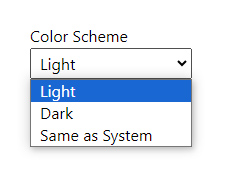
Dropdown Selector - Custom Label
For this example, two new Color Schemes were added using the Global Config New Schemes (see also the New Schemes Example).
<a11y-color-scheme-select label="Pick a Scheme">
</a11y-color-scheme-select>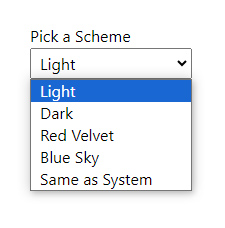
Dropdown Selector - Using Bootstrap
<a11y-color-scheme-select
    label="Pick a Scheme"
    [useBootstrapStyles]="true">
</a11y-color-scheme-select>
The Component: Checkbox
A simple checkbox to allow the user to choose between light or dark schemes.
- Selector:
'a11y-color-scheme-checkbox'. Inputs:
Name Type Default labelstring'Dark Mode'disabledbooleanfalseuseBootstrapStylesbooleanfalse
Checkbox - Default Use
<a11y-color-scheme-checkbox>
</a11y-color-scheme-checkbox>
<a11y-color-scheme-checkbox [disabled]="true">
</a11y-color-scheme-checkbox>
Checkbox - Using Bootstrap
<a11y-color-scheme-checkbox [useBootstrapStyles]="true">
</a11y-color-scheme-checkbox>
Examples for your App
The Attribute Selector Match Example
NOTE: If you are using Bootstrap 5.3 (or above), they make use of
'data-bs-theme'attribute selector, so you can change it to that value.
Let's say you want to define the default scheme to 'dark':
A11yColorSchemeModule.rootConfig('dark'),Will result on:
<html lang="en" color-scheme="dark">
    ...
</html>
Now, you want to implement your own custom CSS selector for your themes called 'current-theme' and set the default scheme as 'red-velvet':
A11yColorSchemeModule.rootConfig({
    useScheme: 'red-velvet',
    attributeSelectorMatch: 'current-theme'
}),
Will result on:
<html lang="en" current-theme="red-velvet">
    ...
</html>
The New Schemes Example
Now you want to define a new color scheme "Red Velvet" for your project and use it as default:
A11yColorSchemeModule.rootConfig({
    useScheme: 'red-velvet', // to use it as default
    newSchemes: [
        {
            value: 'red-velvet',
            name: 'Red Velvet',
            scheme: {
                a11yBackgroundColor: '#FFEEEE',
                a11yTextColor: '#590811',
                ...
            },
        }
    ],
}),
Updating the Defaults Example
In the next couple of examples you'll see how to update the name and/or values for the default color schemes.
NOTE: This applies to use the library within your main app through the
defaultsproperty inside therootConfig()static method.
You can:
- Change the names of the Schemes.
- Change the default values of the Schemes.
- Add generic styles, usually for all the non color related styles.
Changing the Default Names Example
Lets say your website is in spanish, so you want to provide the right translation for the generic names for when you use the Dropdown Selector component or at any moment you want to consume the configured color schemes list of items by using the colorSchemes getter from the service.
A11yColorSchemeModule.rootConfig({
    defaults: {
        light: { name: 'Claro' },
        dark: { name: 'Oscuro' },
        auto: { name: 'Igual al Sistema' },
    },
}),
<a11y-color-scheme-select label="Esquema de Color">
</a11y-color-scheme-select>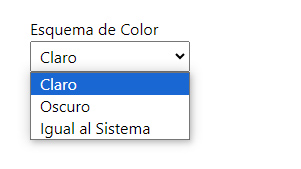
Changing the Default Values Example
You might not like one or more of the default values already set for the schemes light or dark. See the pre-established properties and values within the styles map.
Now you want to change the value for the text color, which comes with a default value of '#222' for the light scheme.
The property to update within the object would be a11yTextColor.
A11yColorSchemeModule.rootConfig({
    defaults: {
        light: { a11yTextColor: '#111' },
    },
}),
Which will result on:
:root {
    --a11y-text-color-light: #111;
    ...
}
Add Generic Styles Example
In here you can set anything that it's not color related, like a border width or a timeout for an animation.
As explained in setting the defaults config, you have to set variables only, i.e.:
So, for instance:
A11yColorSchemeModule.rootConfig({
    defaults: {
        generics: {
            '--app-header-animation-ms': '200ms',
            '--app-header-txt-size': '16px',
        },
    },
}),
Will result on:
:root {
    --app-header-animation-ms: 200ms;
    --app-header-txt-size: 16px;
    ...
}
And you can use it like:
header {
    transition: background-color var(--app-header-animation-ms) ease-in-out;
    font-size: var(--app-header-txt-size);
}
Appending New Styles Example
To provide more versatility to the 6 pre-established styles the library provides, you can add as many as you need for your project.
Lets say you want to provide styles for your header.
IMPORTANT: Since you are actually adding new properties to the main map, these are not known by the library, so you will have to provide them for all the available schemes (defaults and new).
NOTE: In the following example we'll making use of the variable
'--app-header-animation-ms'within the map. Thelightscheme will have a value and thedarkanother, just to play a bit with our options and you can see the results.
A11yColorSchemeModule.rootConfig({
    // The new map of properties to append to the current one
    appendStylesMap: {
        appHeaderTextColor: '--app-header-txt-color',
        appHeaderBackgroundColor: '--app-header-bg-color',
        appHeaderAnimationTimeout: {
            property: '--app-header-animation-ms',
            suffix: 'ms',
        },
    },
    // The pre-established Color Schemes
    defaults: {
        light: {
            appHeaderTextColor: '#333',
            appHeaderBackgroundColor: '#DDD',
            appHeaderAnimationTimeout: 150,
        },
        dark: {
            appHeaderTextColor: '#DDD',
            appHeaderBackgroundColor: '#333',
            appHeaderAnimationTimeout: 250,
        },
    },
    // Continuing the new 'red-velvet' Color Scheme
    newSchemes: [
        {
            value: 'red-velvet',
            name: 'Red Velvet',
            useMissingPropsFrom: 'dark',
            scheme: {
                ..., // To set the pre-established properties, if needed
                appHeaderTextColor: '#F9BBBB',
                appHeaderBackgroundColor: '#590811',
            },
        }
    ],
}),
NOTE: As you can see, in the new addition of the 'red-velvet' scheme, we never defined the
appHeaderAnimationTimeoutproperty, and we establisheduseMissingPropsFrom: 'dark', which will tell the library to look and use for that missing property within the'dark'theme.
The CSS will result on:
:root {
    --app-header-animation-ms-light: 150ms;
    --app-header-bg-color-light: #DDD;
    --app-header-txt-color-light: #333;
    ...
    --app-header-animation-ms-dark: 250ms;
    --app-header-bg-color-dark: #333;
    --app-header-txt-color-dark: #DDD;
    ...
    /*
        As explained above, since the property "appHeaderAnimationTimeout" was
        not provided for "red-velvet" Scheme and "useMissingPropsFrom" was set
        to "dark", the value will be using dark's theme value.
    */
    --app-header-animation-ms-red-velvet: var(--app-header-animation-ms-dark);
    --app-header-bg-color-red-velvet: #590811;
    --app-header-txt-color-red-velvet: #F9BBBB;
    ...
}

[color-scheme="light"] {
    --app-header-animation-ms: var(--app-header-animation-ms-light);
    --app-header-bg-color: var(--app-header-bg-color-light);
    --app-header-txt-color: var(--app-header-txt-color-light);
    ...
}
[color-scheme="dark"] {
    /* This variable will retrieve the dark's theme value, as configured. */
    --app-header-animation-ms: var(--app-header-animation-ms-dark);
    --app-header-bg-color: var(--app-header-bg-color-dark);
    --app-header-txt-color: var(--app-header-txt-color-dark);
    ...
}
[color-scheme="red-velvet"] {
    --app-header-animation-ms: var(--app-header-animation-ms-red-velvet, var(--app-header-animation-ms-light));
    --app-header-bg-color: var(--app-header-bg-color-red-velvet, var(--app-header-bg-color-light));
    --app-header-txt-color: var(--app-header-txt-color-red-velvet, var(--app-header-txt-color-light));
    ...
}
And now you can easily use those variables inside your CSS without worrying on establishing any crazy rules for each color scheme:
.header {
    background-color: var(--app-header-bg-color);
    transition: background-color var(--app-header-animation-ms) ease-in-out;

    a {
        color: var(--app-header-txt-color);
    }
}
The results for 'light' Color Scheme:

The results for 'dark' Color Scheme:

The results for 'red-velvet' Color Scheme:

Examples for your Custom Library
The Color Scheme Config Example
Let's say you want to create a library with custom background color, text color, fade timeout and border size for each of your schemes (light, dark and red-velvet), you should create the styles and map objects as follows:
The Styles Map Object:
In here you will configure the property (to map inside the styles object) and the CSS variable name of what you need.
IMPORTANT: If you use the value as a normal CSS property like
border-width, it will be ignored. Please use only variables, like--border-width.
const STYLES_MAP: ColorSchemeCSSMap = {
    backgroundColor: '--bg-color',
    textColor: '--txt-color',
    borderStyle: 'border-style', // it'll be ignored!
    borderSize: {
        property: '--border-width',
        suffix: 'px',
    },
    fadeMs: {
        property: '--fade-ms',
        suffix: 'ms',
    },
};
The Styles Object:
NOTE: Remember that, in this case, the border size and fade timeout are generic to your styles, you can set them into the
genericsgroup and the rest, since they are color related, into theschemesgroup. See theColorSchemesObject.
const STYLES: ColorSchemesObject = {
    generics: {
        borderStyle: 'dashed', // it'll be ignored!
        borderSize: 1,
        fadeMs: 200,
    },
    schemes: {
        light: {
            backgroundColor: '#DDD',
            textColor: '#999',
        },
        dark: {
            backgroundColor: '#999',
            textColor: '#DDD',
        },
        'red-velvet': {
            backgroundColor: '#BE1F31',
            textColor: '#FFD9A1',
        },
    },
};
The Import of the Color Scheme Module in your Library:
@ngModule({
    imports: [
        A11yColorSchemeModule.setColorScheme({
            selector: 'my-custom-component', // your component's selector
            styles: STYLES,
            stylesMap: STYLES_MAP,
            cssTagID: 'my-custom-component-styles',
        }),
    ],
    ...
})
The Styles Results:
<style id="my-custom-component-styles">
/* Generics */
my-custom-component {
    --fade-ms: 200ms;
    --border-width: 1px;
}
/* Light Color Scheme */
my-custom-component,
[color-scheme="light"] my-custom-component:not([color-scheme]),
my-custom-component[color-scheme="light"] {
    color-scheme: light;
    --bg-color: #DDD;
    --txt-color: #202020;
}
/* Dark Color Scheme */
[color-scheme="dark"] my-custom-component:not([color-scheme]),
my-custom-component[color-scheme="dark"] {
    color-scheme: dark;
    --bg-color: #202020;
    --txt-color: #DDD;
}
/* Red Velvet Color Scheme */
[color-scheme="red-velvet"] my-custom-component:not([color-scheme]),
my-custom-component[color-scheme="red-velvet"] {
    color-scheme: normal;
    --bg-color: #BE1F31;
    --txt-color: #FFD9A1;
}
</style>
Get Custom Styles Example
Lets continue with the Color Scheme Config example.
In your component, let's say you are allowing three inputs:
@Input() bgColor: string;
@Input() textColor: string;
@Input() fadeMs: number;
Now, when the view inits, you can establish those custom styles to your main element:
@HostBinding('style') private customVariables: CSSStyleDeclaration;

constructor(private colorSchemeService: ColorSchemeService) {}

ngAfterViewInit(): void {
    const config = {
        // remember that the config's property needs to match the one
        // from the styles map you established when using setColorScheme()
        backgroundColor: this.bgColor,
        textColor: this.textColor,
        fadeMs: this.fadeMs,
    } as ColorSchemeProperties;

    this.customVariables = this.colorSchemeService.getCustomStyles(
        'my-custom-component',
        config
    );
}
This way, when the user sets the values for each input as:
<my-custom-component
    bgColor="#000"
    textColor="white"
    fadeMs="300">
</my-custom-component>
Your main component will be rendered as follows:
<my-custom-component style="
    --bg-color: #000;
    --txt-color: white;
    --fade-ms: 300ms;">
</my-custom-component>
...and your stylesheet will do the rest, since you are using CSS variables and will take those from this specific instance of the component.