@clare-codex/green-year v1.0.1
Green Year CLI 🌳
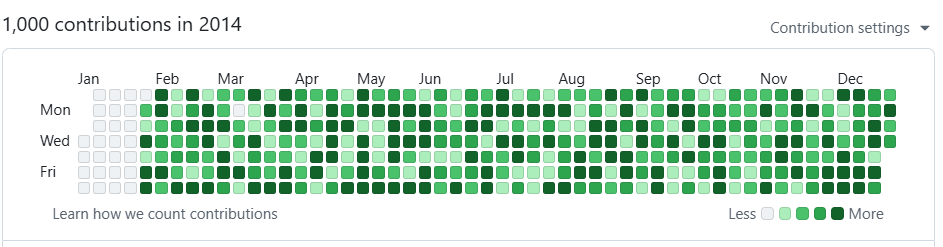
A command-line tool to fill your GitHub contribution graph with fake commits. Make every day look like a productive day!
Ever wanted to paint your GitHub contribution graph a solid green? Or maybe you're testing tools that interact with Git history? green-year is a simple CLI tool that allows you to generate a commit history for any given date range, with a randomized number of commits per day to make it look more authentic.
🤔 Why?
- Aesthetics: For developers who love seeing a fully green contribution graph.
- Testing: Create repositories with a dense commit history for testing Git-related tools or scripts.
- Privacy: If you work in a private repository, your contributions don't show up. This tool can help you maintain a green public profile without exposing proprietary work.
✨ Features
- Custom Date Ranges: Specify any start and end date.
- Randomized Commit Frequency: Creates a variable number of commits each day to look more natural.
- Configurable Intensity: You can control the minimum and maximum number of commits per day.
- Easy to Use: A simple, straightforward command-line interface.
- Safe: Operates in a specific directory, preventing accidental changes to other projects.
⚠️ Important Warning
This tool rewrites Git history. It is highly recommended to use it only on a new, empty repository created specifically for this purpose. Using it on an existing repository with important history can lead to data loss. The final step requires a force push, which is a destructive action. Use with caution!
📦 Installation
You can install green-year globally using npm, which will make the green-year command available in your terminal.
npm install -g green-year(Note: You need to publish your package to npm for this to work. The package name green-year might already be taken.)
🚀 Usage
The basic command requires a start date and an end date in YYYY-MM-DD format.
Command
green-year <startDate> <endDate> [options]Arguments
<startDate>: The start date for generating commits (e.g.,2024-01-01).<endDate>: The end date for generating commits (e.g.,2024-12-31).
Options
--repo,-r: Path to the local Git repository. (Default: current directory.)--min: The minimum number of commits per day. (Default:1)--max: The maximum number of commits per day. (Default:5)--help,-h: Display the help menu.--version,-v: Display the package version.
Examples
1. Fill the entire year of 2024 with default activity (1-5 commits/day):
# First, create and navigate to a new directory
mkdir my-green-year
cd my-green-year
git init

# Run the command
green-year 2024-01-01 2024-12-31
2. Create a more intense commit history for a specific quarter:
green-year 2025-01-01 2025-03-31 --min 5 --max 153. Create subtle activity, allowing for days with no commits:
green-year 2024-07-01 2024-09-30 --min 0 --max 2After Running the Command
Once the script finishes, you need to push the history to your GitHub repository.
# 1. Add your GitHub repository as the remote origin
git remote add origin https://github.com/your-username/your-repo-name.git

# 2. Force push the new history to the main branch
git push -u origin main --force
🛠️ How It Works
The script iterates through each day in your specified date range. For each day, it:
- Generates a random number of commits based on your
--minand--maxsettings. - For each commit, it creates a unique message and content.
- It then uses the
GIT_AUTHOR_DATEandGIT_COMMITTER_DATEenvironment variables to set the commit's timestamp to the correct historical date. - Finally, it runs
git commitwith the backdated information.
💻 Development
Interested in contributing? Here’s how to get started.
Clone the repository:
git clone https://github.com/clare-codex/green-year.git
cd green-year
Install dependencies:
npm installLink the package for local testing:
npm linkcreates a global symlink to your local project directory. This allows you to run thegreen-yearcommand anywhere on your system and have it execute your local development code.npm linkMake your changes and test them! You can now open a new terminal window, navigate to a test repository, and run the
green-yearcommand with your changes.
📄 License
This project is licensed under the MIT License. See the LICENSE file for details.