@philippnagel/docusaurus-next-terminology v1.3.0
Docusaurus Terminology
!WARNING This package is now diverging from the original package. The core of the package is ESM only and tested with Docusaurus v3. This fork includes newer fixes.

docusaurus-terminology is a node package for creating a terminology structure in your Docusaurus project. This plugin allows you to use terms in your pages that 'stick out' of the surrounding text, while hovering over them makes a popup appear with a short explanation of the term and clicking on the term navigates the user to the page that documents the concept.
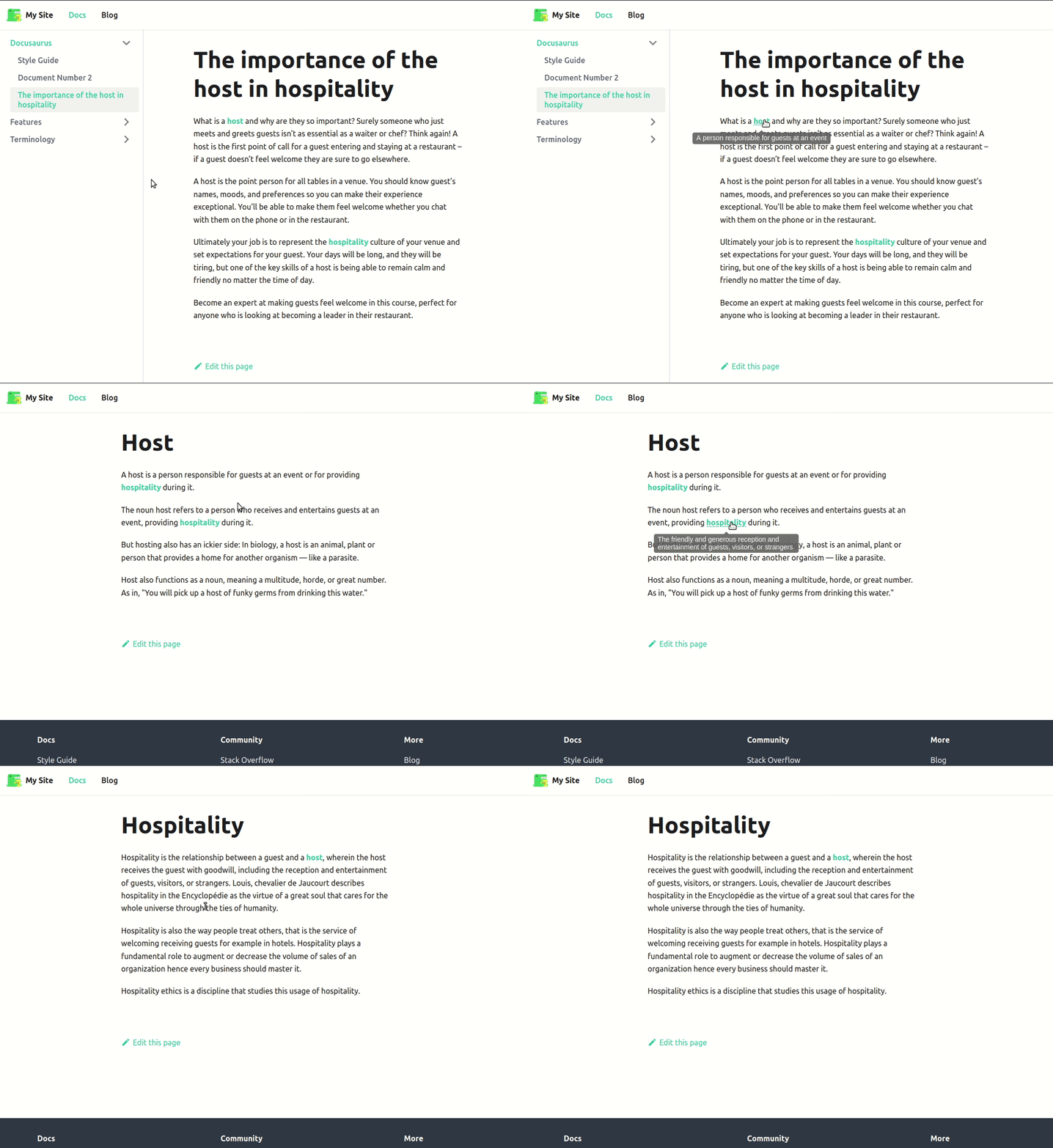
You can also generate a glossary with the list of your terms.
How It Works
This plugin, once it's installed in a Docusaurus project, parses docs in two ways:
- Parses all
*.md(x)files underdocs/and replaces each pattern with an appropriate React component supporting a tooltip functionality (see below). - Generates a glossary page with all terms corresponding to the
*.md(x)files underdocs/terms/.
Compatibility
The plugin has been tested with Docusaurus v3.0 and above. The same default environment used by docusaurus satisfies the plugin requirements.
Installation
To install the plugin to your Docusaurus repository, use the command:
npm install @philippnagel/docusaurus-next-terminologyThen, you can add the plugin to docusaurus.config.js file of your repository:
module.exports = {
  // ...
  plugins: [
    '@philippnagel/docusaurus-next-terminology'
  ]
}
Or, you can use it with extra options defined (with more examples in the next sections):
  plugins: [
    [
      "@philippnagel/docusaurus-next-terminology",
      {
        //options
      }
    ]
  ]
Usage
Defining a Term
This plugin assumes that you follow a specific pattern. Each term
should have its own .md(x) file, inside the ./docs/terms
directory, and it needs to consist of the following structure:
---
id: term_name
title: Term page
hoverText: This hover text will appear in the documentation page that you reference this term
---

### Term explanation

content here
Pay attention to the
hoverTextattribute, as it is important to provide this attribute (along with the default Docusaurus attributes), so the plugin can fetch the correct popup text to show when referencing a term.
Use Patterns to Reference a Term
When writing docs inside docs/*.md(x) files, in order to refer to a term,
you may use the following syntax:
%%term_text|term_name%%where:
term_text: The terminology text you want it to be visible in the documentation pageterm_name: The value of theidattribute, which resides in the header of the term file:--- id: term_name ... ---
After successfully running the script, the above occurrence will be replaced by
a reference (technically a React component) that will render term_text as a
link to the corresponding term page, which is in turn generated from the
term_name attribute; furthermore, hovering over term_text displays a term
summary, as extracted from the corresponding term page.
Set Display Type Option
The plugin supports two display types for term references:
- Tooltip (default): Shows a small popup when hovering over the term
- Popover: Shows a larger popup when clicking on the term, which is better for longer descriptions
You can configure this in two ways:
1. Global Default
Set the default display type for all terms in your docusaurus.config.js:
plugins: [
  [
    '@philippnagel/docusaurus-next-terminology',
    {
      // ...other options
      defaultDisplayType: "popover" // or "tooltip" (default)
    }
  ]
]
2. Per Term
Set the display type for individual terms in their markdown files:
---
id: term_name
title: Term page
hoverText: This hover text will appear in the documentation page
displayType: popover
---

#### Term explanation
content here
The displayType attribute in the term file will override the global default.
Example Usage
Say you want to reference a term that exists under the ./docs/terms/ directory,
e.g., ./docs/terms/party.md. You can use the following syntax to reference
this term in your documentation page:
Some content that wants to reference the %%Party|party%% termWhen the script runs, this will be replaced as follows:
Some content that wants to reference the <Term reference="party" popup="Popup text">Party</Term> termwhich supports the functionality explained above.
And finally, all you will see in your compiled documentation page, will be:
Some content that wants to reference the Party termwith the word Party containing the described functionality.
Testing the Changes Locally
After writing terms and patterns in your .md files, you can always validate
these changes, by running a dry-run command, in order to see compile errors
and a sample output of all the changes that will be made from the actual
script. You can do that by running:
npm docusaurus parse --dry-runand you will see in the command line the expected output of the actual command.
Generating the Terminology Documentation
When you are finished referencing terms and have written corresponding term pages, you can test this locally by running:
npm docusaurus parseThis will replace all %%term_text|term_name%% occurrences with the React
component supporting the required functionality.
Generating the Glossary Page
If everything works well with the above procedure, you can then generate a glossary page, by running:
npm docusaurus glossaryThis will generate a file in ./docs/glossary.md where every term that has been
mentioned above will be populated in the glossary.md page.
When to Generate the Terminology Docs
As the terminology plugin actually edits all markdown files, your Git repository
will show changes in the git diff command. It is highly recommended to avoid
committing the changes, as the plugin will no longer be able to detect
patterns that have been altered.
Your best case scenario will be to use the scripts in CI, just before building and deploying the documentation.
The following example of a Gitlab CI job shows how to perform these steps in the CI environment:
...

generate-docs:
	image: node:lts
	stage: build
	before_script:
		- yarn install
	script:
		- yarn docusaurus parse
		- yarn docusaurus glossary
		- yarn build
and then you can use the build directory to serve your documentation.
Configuration Options
For using the plugin with the default options, you can provide just the plugin
name in docusaurus.config.js file of your repository:
  plugins: [
    '@philippnagel/docusaurus-next-terminology'
  ]
You can also use some of the following options specified by wrapping the name and an options object in an array inside your configuration:
| Option | Description | Type | Default value |
|---|---|---|---|
| termsDir | the directory used to collect the term files | string | ./docs/terms |
| glossaryFilepath | specify the directory and name of the glossary file | string | ./docs/glossary.md |
| patternSeparator | the special character used to separate term_text and term_name in the replace pattern for parsing | string | | |
| noParseFiles | array of files to be excluded from search/replace | array | [] |
| noGlossaryFiles | array of term files to not be listed on the glossary page | array | [] |
| glossaryTermPatterns | array of type values, to choose category/ies of terms to be included in the glossary | array | [] |
type: optional attribute in the header of the Markdown files
IMPORTANT NOTE: All file paths need to be relative to the
project's root directory. If you want to exclude a file, you should
write ./docs/excude-me.md.
Example:
plugins: [
  [
    '@philippnagel/docusaurus-next-terminology',
    {
      termsDir: './docs/terminology/',
      noParseFiles: ['./docs/terminology/agent.md', './docs/terminology/actor.md'],
      noGlossaryFiles: ['./docs/terminology/agent.md'],
      glossaryTermPatterns: ['concept']
    }
  ]
]
To Do
- Include addtional options in the
Termtag to control classes
Original Author
This plugin has been originally developed by Thanasis Katsadas kathan@admin.grnet.gr and the Greek Government. The original work is still available on GRNet Gitlab.