

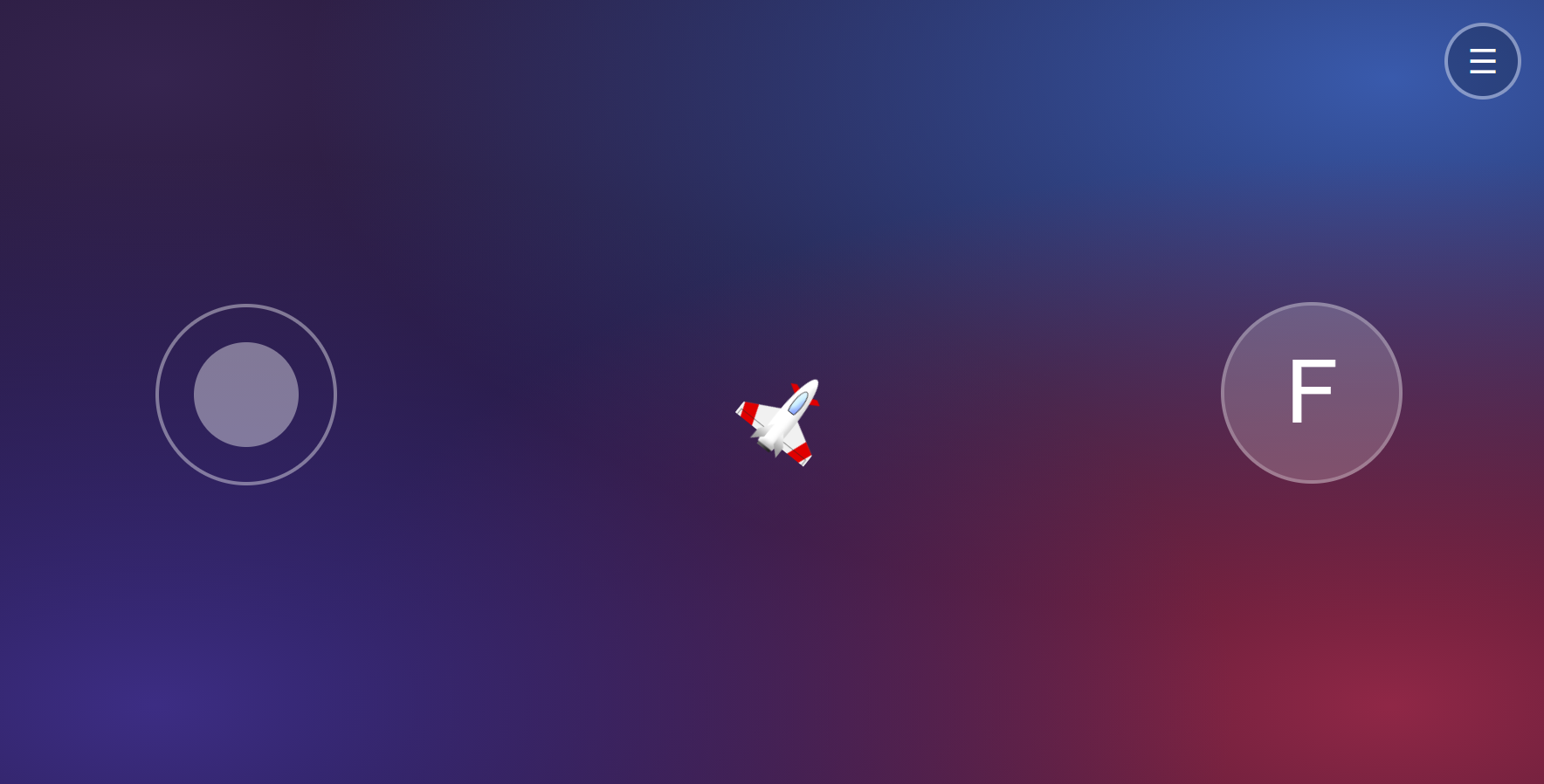
Virtual multi-touch joysticks, buttons, and D-pads for JavaScript games, apps, and IoT. Works with mouse, pen, and touch. Includes JSDoc types for editor hints and type checking.
Install
npm install @rbuljan/gamepadUsage
Create a container with a position and height:
<div id="controls" style="position: relative; height: 300px;"></div>Add your controls. Gamepad initializes them automatically:
import { Gamepad } from "@rbuljan/gamepad";

const gamepad = new Gamepad([
    {
        id: "move",
        type: "joystick",
        parent: "#controls",
        position: { left: "20%", top: "50%" },
        onInput() {
            console.log("Strength:", this.value, "Angle:", this.angle);
        },
    },
    {
        id: "navigate",
        type: "dpad",
        parent: "#controls",
        position: { left: "50%", top: "50%" },
        onInput() {
            console.log("Direction:", this.value ? this.direction : "idle");
        },
    },
    {
        id: "fire",
        type: "button",
        parent: "#controls",
        position: { left: "80%", top: "50%" },
        text: "Fire",
        onInput() {
            if (this.value) console.log("Fire!");
        },
    },
]);

// Read the latest input from your game loop.
console.log(gamepad.controllers.move.value);
Use method syntax for onInput() as shown, so this refers to the controller.
It runs when input changes through a press, drag, or release, rather than on every animation frame.
Standalone controls
Each controller also works on its own. These independent examples use the same
#controls container; call init() to display the control and destroy() to remove it.
IDs are generated automatically and are available as controller.id. Set id
when you want a name for lookup, such as gamepad.controllers.move.
Horizontal joystick
import { Joystick } from "@rbuljan/gamepad";

const joystick = new Joystick({
    parent: "#controls",
    axis: "x",
    onInput() {
        console.log("Rotation:", this.value); // -1 (left) to 1 (right)
    },
});

joystick.init();
Toggle button
import { Button } from "@rbuljan/gamepad";

const button = new Button({
    parent: "#controls",
    text: "Menu",
    spring: false,
    onInput() {
        console.log("Menu open:", Boolean(this.value));
    },
});

button.init();
Horizontal D-pad
import { DPad } from "@rbuljan/gamepad";

const dpad = new DPad({
    parent: "#controls",
    axis: "x",
    onInput() {
        const horizontal = this.value ? (this.direction === 0 ? 1 : -1) : 0;
        console.log("Steering:", horizontal); // -1 left, 0 idle, 1 right
    },
});

dpad.init();
Use axis: "y" for a vertical D-pad (2 down, 6 up), or axis: "all"
for all eight directions. Its value is always 0 or 1; check it before reading direction.
Options
Pass these options to Gamepad entries or standalone controllers:
| Option | Default | Description |
|---|---|---|
id |
Auto-generated | Optional unique controller ID. Omitted or empty IDs are generated once and retained on reinitialization. |
type |
"joystick" |
"joystick", "button", or "dpad". Standalone classes set this automatically. |
parent |
"body" |
CSS selector of the container. |
position |
{ left: "50%", top: "50%" } |
CSS position inside the container. |
radius |
50 |
Radius in pixels. |
axis |
"all" |
"all", "x", or "y" for joysticks and D-pads. |
fixed |
true |
Set to false to reposition a joystick or button where the press starts. D-pads always stay fixed. |
spring |
true |
Reset input on release. With false, joysticks and D-pads retain input, and buttons toggle on each press. |
deadZone |
0.2 for an all-axis D-pad; otherwise 0 |
Inactive fraction of the D-pad radius, from 0 to 1. Applies only to D-pads. |
directionsTot |
8 |
Number of direction regions for joysticks and D-pads. |
text |
"" |
Label or HTML content, typically for buttons. |
style |
{} |
CSS styles, e.g. { color: "#3498db" }. |
onInput() |
No action | Input callback; this is the controller. |
With spring: false, releasing does not call onInput().
For multiple non-fixed controls, use separate positioned containers so their touch areas do not overlap.
Input values
Read these inside onInput() using this, or through gamepad.controllers[id]:
| Property | Meaning |
|---|---|
value |
Joystick: 0 to 1 on all axes, or -1 to 1 on a single axis. Button and D-pad: 0 or 1. |
angle |
Joystick/D-pad angle in radians, clockwise from right, from 0 up to (but excluding) 2π. |
direction |
Joystick/D-pad direction index, clockwise from right. |
angleDirection |
Angle in radians snapped to the current direction. |
isPress |
Whether a pointer is currently held down. |
isDrag |
Whether a joystick or D-pad has moved during the current press. |
isActive |
Active state; for toggle buttons, whether the button is on. |
A single-axis joystick is positive to the right on X and up on Y.
With eight directions, direction is:
| Right | Down-right | Down | Down-left | Left | Up-left | Up | Up-right |
|---|---|---|---|---|---|---|---|
0 |
1 |
2 |
3 |
4 |
5 |
6 |
7 |
A D-pad has value: 0 inside its dead zone and, with the default spring: true,
on release. Its last direction is retained on release.
Methods
new Gamepad([...]) accepts controller options or existing Joystick, Button,
and DPad instances. The array is optional.
| Gamepad method | Description |
|---|---|
add(...controllers) |
Add and initialize controller options or instances. |
remove(...idsOrControllers) |
Remove and destroy controllers by ID or instance. |
destroy() |
Remove all controllers and the fullscreen listener. Pass an ID or instance to remove only that controller. |
requestFullScreen() |
Enable fullscreen requests on clicks/taps. |
exitFullScreen() |
Exit fullscreen. |
isVibrationSupported() |
Return whether browser vibration is supported. |
vibrate(100) |
Vibrate for a duration in milliseconds, or pass a pattern such as [100, 30, 100]. |
Gamepad methods return the gamepad for chaining, except isVibrationSupported(),
which returns a boolean. Fullscreen and vibration depend on browser support.
Standalone controllers have init() to create their UI and destroy() to remove
it and its listeners. To let a gamepad manage them instead, use gamepad.add(controller).
Styling
Use style for individual controls, or CSS for their pressed appearance:
.Gamepad-controller.is-active {
    box-shadow: 0 0 20px currentColor;
}
Development
npm install
npm run dev        # Run the example locally; open the URL printed by Vite
npm run typecheck  # Check library JSDoc types
npm test
npm run build      # Build the library and example
npm run build:pages # Build the GitHub Pages demo
See live demo