@zonke-cloud/cli v0.1.7
Zonké CLI
Deploy and manage Next.js, React, and Remix preview environments to your AWS account(s). Build your code locally and share with your team. Preview sites are deployed on serverless infrastructure, so environments are free to low-cost.
Features
- Build locally and deploy to your AWS account in minutes.
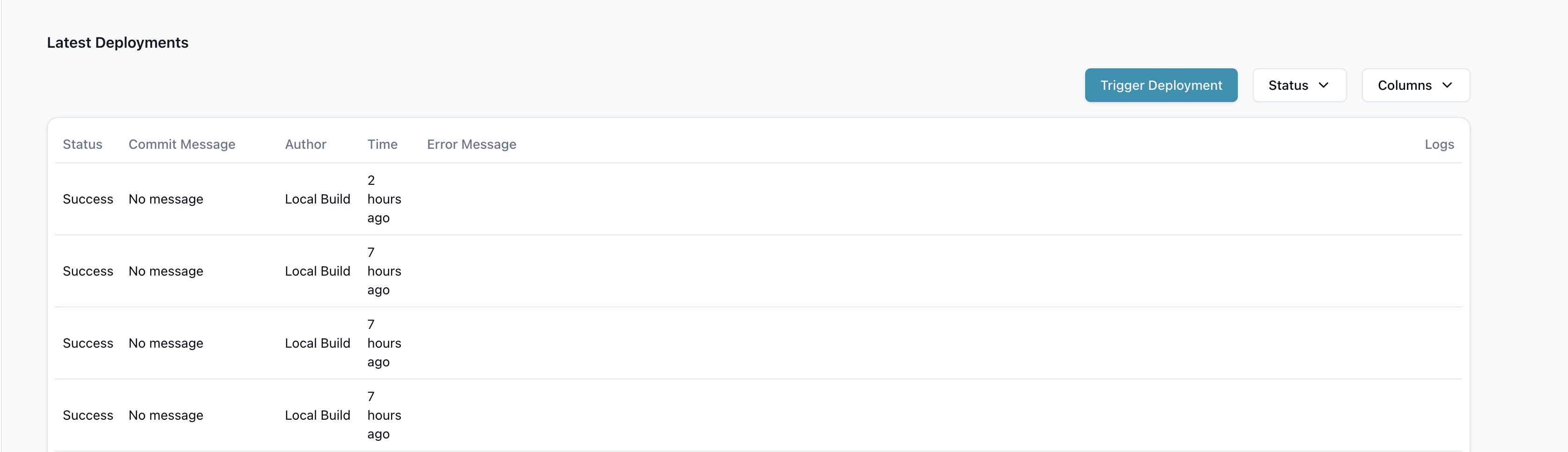
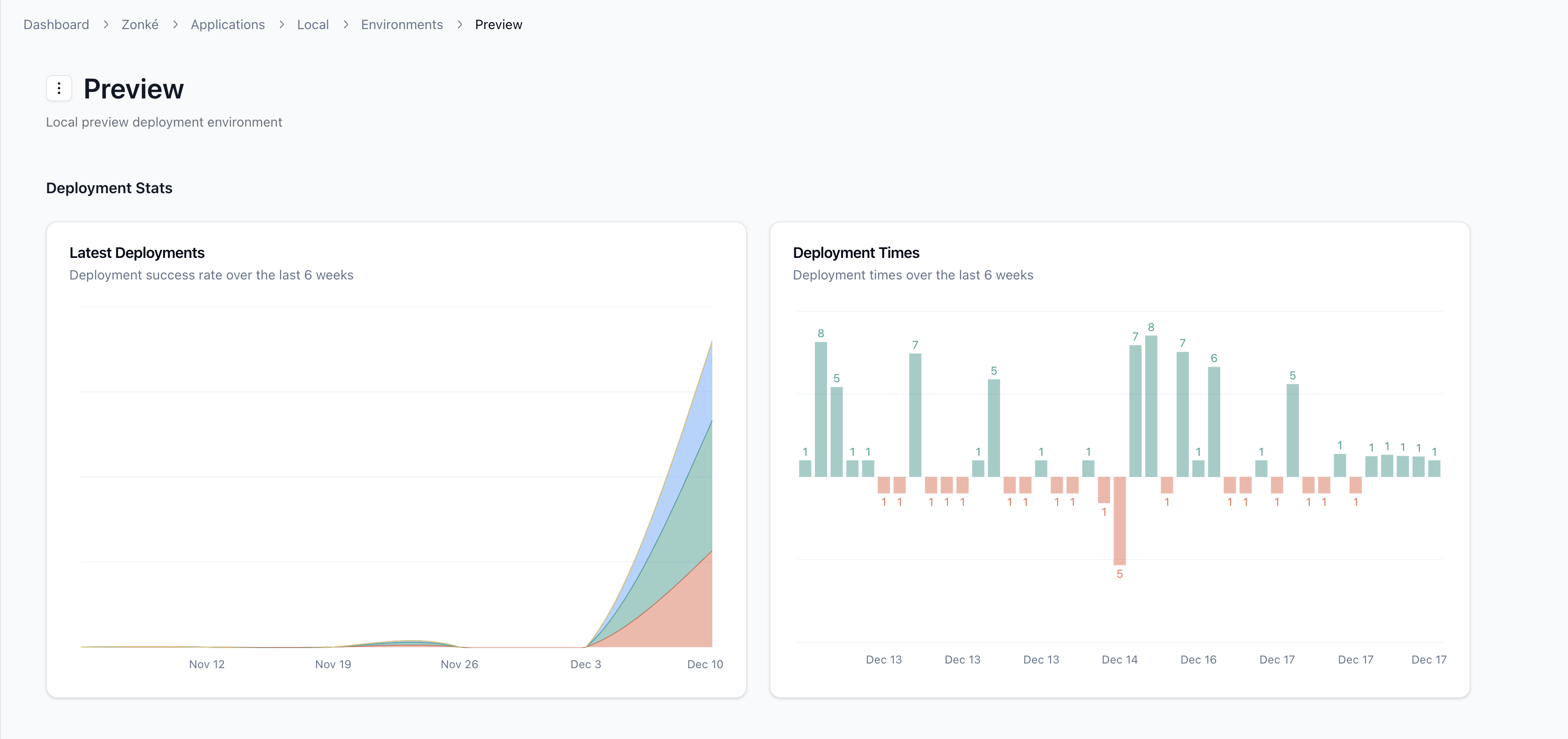
- Monitor and manage deployment infrastructure in dashboard.
- Delete preview environments when not in use.
Getting Started
- Create an account on Zonké
- Link your AWS on the dashboard: https://zonke.dev/dashboard. Learn how to create and link an IAM role in the docs.
- Install the GitHub App to your target repositories.
- Create and deploy your preview environment from the dashboard.
- Get your API keys from your account settings page.
Installation
To install the Zonké CLI, run:
npm install -g @zonke-cloud/cliUsage
The CLI provides several commands to interact with your preview environments. Below are the available commands and their descriptions.
Pre-requisites
- API key and token from account settings dashboard.
- AWS hosted zone in the linked AWS account.
- If deploying a Next.js app, set the output type in your config before building:
# export - Static output deployed to CDN
# standalone - Static output + SSR lambda
const nextConfig = {
  output: 'standalone' | 'export',
};
Build Folder by Framework
Each environment specifies a dedicated build output folder that the CLI zips and deploys. These are the expected folders for each framework:
- Astro -
dist. SSR deployments should havedist/clientfor static assets anddist/serverfor SSR lambda. - Dash - The source folder with your Dash
app.pyfile. The CLI internally callsopen-dashto build static assets. - Next.js:
export-outordist, depending on build tool.standalone-.next. Make sure the.next/standalonefolder exists.
- React -
outordist, depending on build tool. - Remix -
buildwithbuild/clientfor static assets andbuild/serverfor SSR lambda. - Vue.js -
dist. SSR deployments should havedist/clientfor static assets anddist/serverfor SSR lambda.
Initialize Preview Environment
To initialize a new Zonké project, use the init command and follow the prompts:
zonke initDeploy Code
To deploy code to a preview environment, use the deploy command. This zips your local build output and uploads it to your AWS account to trigger a deployment. To create a new deployment from the build folder specified on init:
zonke deploy -m <message-to-show-on-dashboard>To revert to a specific build version:
zonke deploy -m <message-to-show-on-dashboard> -v <previous-deployment-version>Deployed versions can be found in the zonke.config.json created when initializing the preview environment.
Check Deployment Status
To check the status of the latest deployment, use the deployment-status command. Note that you should wait about 10 seconds after deploying before checking the deployment status.
zonke deployment-statusDelete Preview Environment
To delete a preview environment, use the delete command. Note that this only deletes the current preview environment. Visit the Zonké dashboard to delete all preview infrastructure.
zonke delete-environmentMonitor Deployments
Build Times
Build History