angular2-froala-wysiwyg v2.6.0
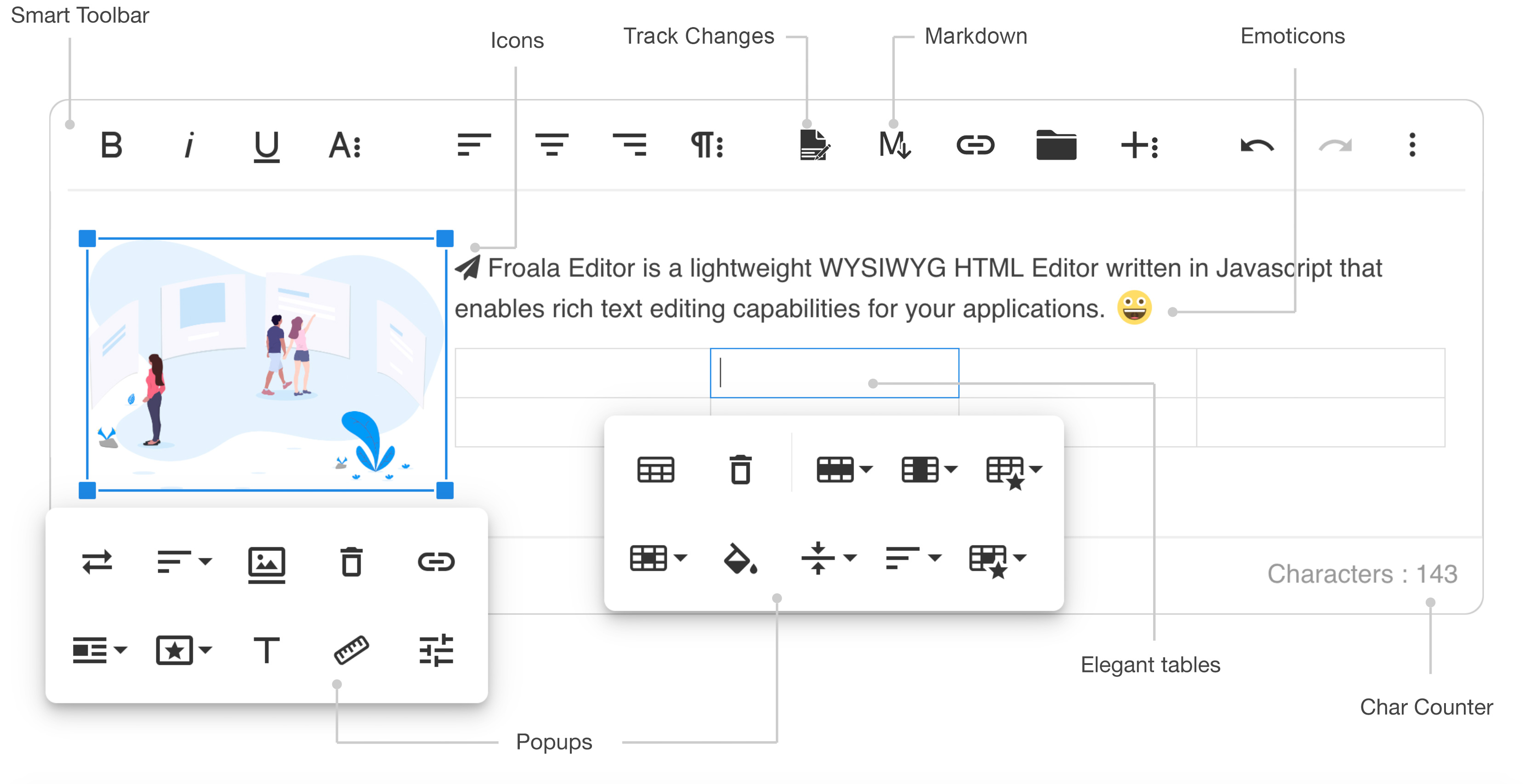
Angular 2 Froala WYSIWYG Editor - Demo
angular2-froala-wyswiyg provides Angular2 bindings to the Froala WYSIWYG editor.
Table of contents
- Installation instructions
- Integration
- Usage
- Manual Initialization
- Displaying HTML
- License
- Development environment setup
Installation instructions
Install angular2-froala-wysiwyg from npm
npm install angular2-froala-wysiwyg --saveYou will need CSS styles and Font Awesome
<!-- index.html -->
<link href="node_modules/froala-editor/css/froala_editor.pkgd.min.css" rel="stylesheet">
<link href="node_modules/font-awesome/css/font-awesome.min.css" rel="stylesheet">
Integration
Use with angular-cli
Installing angular-cli
Important: please check angular-cli version, it should be => "1.0.0-beta.24".
Note: you can skip this part if you already have application generated by ng-cli and webpack.
npm i -g angular-cli
ng new my-app
cd my-app
Adding angular2-froala-wysiwyg
- install
angular2-froala-wysiwyg
npm install angular2-froala-wysiwyg --save- open
src/app/app.module.tsand add
# Import Angular2 plugin.
import { FroalaEditorModule, FroalaViewModule } from 'angular2-froala-wysiwyg';
...

@NgModule({
   ...
   imports: [FroalaEditorModule.forRoot(), FroalaViewModule.forRoot() ... ],
   ...
})- open
angular-cli.jsonand insert a new entry into thestylesarray
"styles": [
  "styles.css",
  "../node_modules/font-awesome/css/font-awesome.css",
  "../node_modules/froala-editor/css/froala_editor.pkgd.min.css"
],- in
angular-cli.jsonand insert a new entry into thescriptsarray
"scripts": [
  "../node_modules/jquery/dist/jquery.min.js",
  "../node_modules/froala-editor/js/froala_editor.pkgd.min.js"
],- in
angular-cli.jsonadd the following to load Font Awesome fonts
"addons": [
  "../node_modules/font-awesome/fonts/*.+(otf|eot|svg|ttf|woff|woff2)"
],- open
src/app/app.component.htmland add
<div [froalaEditor]>Hello, Froala!</div>Run angular-cli
ng serveUse with ionic v2
Adding ionic2-froala-wysiwyg
Installing Froala Wysiwyg Editor in Ionic is fairly easy, it can be done using npm:
npm install angular2-froala-wysiwyg --save- open
src/app/app.module.tsand add
# Import Froala Editor.
import "froala-editor/js/froala_editor.pkgd.min.js";

# Import Angular2 plugin.
import { FroalaEditorModule, FroalaViewModule } from 'angular2-froala-wysiwyg';
...

@NgModule({
   ...
   imports: [FroalaEditorModule.forRoot(), FroalaViewModule.forRoot() ... ],
   ...
})- open
src/app/main.tsand add
import * as $ from 'jquery';
window["$"] = $;
window["jQuery"] = $;
This install will come with Font Awesome as a dependency so there are needed a few more steps to finish the install.
- In the package.json from your project add this:
"config": {
    "ionic_copy": "./config/copy.config.js",
    "ionic_sass": "./config/sass.config.js"
}
On the root of your project you need to create a new folder called config and place inside 2 files:copy.config.js & sass.config.js". These files can be copied to new config folder from node_modules/@ionic/app-scripts/config/{{name_of_file}}.js
Modify the copied files. In sass.config.js add the reference to font-awesome, verify that you have something similar to this:
 /**
   * includePaths: Used by node-sass for additional
   * paths to search for sass imports by just name.
   */
  includePaths: [
    'node_modules/ionic-angular/themes',
    'node_modules/ionicons/dist/scss',
    'node_modules/ionic-angular/fonts',
    'node_modules/font-awesome/scss'   // <------ Newly added.
  ],
In copy.config add this before copyAssets property:
copyFroalaEditorCss: {
    src: '{{ROOT}}/node_modules/froala-editor/css/froala_editor.pkgd.min.css',
    dest: '{{SRC}}/assets/'
},
copyFontAwesome: {
    src: '{{ROOT}}/node_modules/font-awesome/css/font-awesome.min.css',
    dest: '{{SRC}}/assets/'
},
copyFontsAwesomeFonts: {
   src: 'node_modules/font-awesome/fonts/*',
   dest: '{{WWW}}/fonts/'
},
copyAssets: {    //<-------- this should be last.
   src: ['{{SRC}}/assets/**/*'],
   dest: '{{WWW}}/assets'
}
You should have the files in your {{ROOT}} and {{WWW}} folders ready for further development.
- The last step is to add in file
src/theme/variables.css:,
@import "font-awesome";Refrence the new scripts on your view html file and everything should work fine.
<link rel="stylesheet" href="/assets/font-awesome.min.css">
<link rel="stylesheet" href="/assets/froala_editor.pkgd.min.css">
In your desired view add the Froala Editor like this:
<div [froalaEditor]>Hello, Froala!</div>Use with webpack
Create webpack app
Note: you can skip this part if you already have application generated.
git clone --depth 1 https://github.com/angularclass/angular2-webpack-starter.git
cd angular2-webpack-starter
npm install
Adding angular2-froala-wysiwyg
- install
angular2-froala-wysiwyg
npm install angular2-froala-wysiwyg --save- open
src/app/app.module.tsand add
# Import the Froala Editor plugin.
import "froala-editor/js/froala_editor.pkgd.min.js";

# Import Angular2 plugin.
import { FroalaEditorModule, FroalaViewModule } from 'angular2-froala-wysiwyg';
...

@NgModule({
   ...
   imports: [FroalaEditorModule.forRoot(), FroalaViewModule.forRoot(), ... ],
   ...
})- open
src/app/app.component.tsand add to the template
<div [froalaEditor]>Hello, Froala!</div>- open
config/webpack.common.jsand add the following toCopyWebpackPlugin
{
  from: 'node_modules/froala-editor/css/',
  to: 'assets/froala-editor/css/',
},
{
  from: 'node_modules/font-awesome/css/font-awesome.min.css',
  to: 'assets/font-awesome/css/font-awesome.min.css',
},
{
  from: 'node_modules/font-awesome/fonts',
  to: 'assets/font-awesome/fonts'
}- in
config/webpack.common.jscopy the following toplugins
new webpack.ProvidePlugin({
  $: "jquery",
  jQuery: "jquery"
})- open
config/head-config.common.jsand add a new entry to link
{ rel: 'stylesheet', href: '/assets/font-awesome/css/font-awesome.min.css' },
{ rel: 'stylesheet', href: '/assets/froala-editor/css/froala_editor.pkgd.min.css' }
Run webpack app
npm run startUse with angular-seed
Create angular-seed app
Note: you can skip this part if you already have application generated. For more details please also read: https://github.com/mgechev/angular-seed.
git clone --depth 1 https://github.com/mgechev/angular-seed.git
cd angular-seed
npm install
Adding angular2-froala-wysiwyg
- install
angular2-froala-wysiwyg
npm install angular2-froala-wysiwyg --save- open
tools/config/projesct.config.tsand uncomment the following line from the top of the file
import { ExtendPackages } from './seed.config.interfaces';- in
tools/config/projesct.config.tsadd
...

this.NPM_DEPENDENCIES = [
  ...this.NPM_DEPENDENCIES,
  { src: 'jquery/dist/jquery.min.js', inject: 'libs'},
  { src: 'froala-editor/js/froala_editor.pkgd.min.js', inject: 'libs' },
  { src: 'font-awesome/css/font-awesome.min.css', inject: true },
  { src: 'froala-editor/css/froala_editor.pkgd.min.css', inject: true }
];

...

let additionalPackages: ExtendPackages[] = [
  // required for dev build
  {
    name:'angular2-froala-wysiwyg',
    path:'node_modules/angular2-froala-wysiwyg/bundles/angular2-froala-wysiwyg.umd.min.js'
  },

  // required for prod build
  {
    name:'angular2-froala-wysiwyg/*',
    path:'node_modules/angular2-froala-wysiwyg/bundles/angular2-froala-wysiwyg.umd.min.js'
  }
]

this.addPackagesBundles(additionalPackages);- open
src/client/app/home/home.module.tsand add
# Import Angular2 plugin.
import { FroalaEditorModule, FroalaViewModule } from 'angular2-froala-wysiwyg';
...

@NgModule({
   ...
   imports: [FroalaEditorModule.forRoot(), FroalaViewModule.forRoot() ... ],
   ...
})- open
src/client/app/home/home.component.htmland add
<div [froalaEditor]>Hello, Froala!</div>Run webpack app
npm run startUse with system.js, jit and aot
Create Angular app
Note: you can skip this part if you already have application generated.
git clone https://github.com/angular/quickstart.git quickstart
cd quickstart
npm install
For AOT configuration, please follow the detailed guides from Angular: https://angular.io/docs/ts/latest/cookbook/aot-compiler.html.
Adding angular2-froala-wysiwyg
- install
angular2-froala-wysiwyg
npm install angular2-froala-wysiwyg --save- open
src/index.htmland add
<link rel="stylesheet" href="node_modules/font-awesome/css/font-awesome.min.css">
<link rel="stylesheet" href="node_modules/froala-editor/css/froala_editor.pkgd.min.css">

<script src="node_modules/jquery/dist/jquery.min.js"></script>
<script src="node_modules/froala-editor/js/froala_editor.pkgd.min.js"></script>- open
src/app/app.module.tsand add
# Import Angular2 plugin.
import { FroalaEditorModule, FroalaViewModule } from 'angular2-froala-wysiwyg';
...

@NgModule({
   ...
   imports: [FroalaEditorModule.forRoot(), FroalaViewModule.forRoot(), ... ],
   ...
})- open
src/app/app.component.tsand add to the template
<div [froalaEditor]>Hello, Froala!</div>- only if you're using AOT open
rollup-config.jsand add the following
//paths are relative to the execution path
export default {
  ...
  plugins: [
    ...
    commonjs({
      include: [
        'node_modules/rxjs/**',
        'node_modules/angular2-froala-wysiwyg/**'
      ]
    }),
    ...
  ]
}
only if you're using AOT Compile
ngc -p tsconfig-aot.json && rollup -c rollup-config.jsRun app
npm run startUsage
Options
You can pass editor options as Input (optional).
[froalaEditor]='options'
You can pass any existing Froala option. Consult the Froala documentation to view the list of all the available options:
public options: Object = {
  placeholderText: 'Edit Your Content Here!',
  charCounterCount: false
}
Aditional option is used:
- immediateAngularModelUpdate: (default: false) This option synchronizes the angular model as soon as a key is released in the editor. Note that it may affect performances.
Events and Methods
Events can be passed in with the options, with a key events and object where the key is the event name and the value is the callback function.
public options: Object = {
  placeholder: "Edit Me",
  events : {
    'froalaEditor.focus' : function(e, editor) {
      console.log(editor.selection.get());
    }
  }
}
Using the editor instance from the arguments of the callback you can call editor methods as described in the method docs.
Froala events are described in the events docs.
Model
The WYSIWYG HTML editor content model.
[(froalaModel)]="editorContent"
Pass initial content:
public editorContent: string = 'My Document\'s Title'Use the content in other places:
<input [ngModel]="editorContent"/>
<input [(ngModel)]="editorContent"/> <!-- For two way binding -->
Other two way binding example:
<div [froalaEditor] [(froalaModel)]="editorContent"></div>
<div [froalaEditor] [(froalaModel)]="editorContent"></div>
Use it with reactive forms:
<form [formGroup]="form" (ngSubmit)="onSubmit()">
  <textarea [froalaEditor] formControlName="formModel"></textarea>
  <button type="submit">Submit</button>
</form>
If you want to use two-way binding to display de form model in other places you must include [(froalaModel)]:
<form [formGroup]="form" (ngSubmit)="onSubmit()">
  <textarea [froalaEditor] formControlName="formModel" [(froalaModel)]="form.formModel"></textarea>
  <div [froalaView]="form.formModel"></div>
  <button type="submit">Submit</button>
</form>
If you want to wrap froalaEditor directive into a component that supports reactive forms please see froala.component.ts from demo.
Special tags
You can also use the editor on img, button, input and a tags:
<img [froalaEditor] [(froalaModel)]="imgObj"/>The model must be an object containing the attributes for your special tags. Example:
public imgObj: Object = {
  src: 'path/to/image.jpg'
};
The froalaModel will change as the attributes change during usage.
- froalaModel can contain a special attribute named innerHTML which inserts innerHTML in the element: If you are using 'button' tag, you can specify the button text like this:
public buttonModel: Object = {
  innerHTML: 'Click Me'
};
As the button text is modified by the editor, the innerHTML attribute from buttonModel model will be modified too.
Specific option for special tags
- angularIgnoreAttrs: (default: null) This option is an array of attributes that you want to ignore when the editor updates the froalaModel:
public inputOptions: Object = {
  angularIgnoreAttrs: ['class', 'id']
};
Manual Initialization
Gets the functionality to operate on the editor: create, destroy and get editor instance. Use it if you want to manually initialize the editor.
(froalaInit)="initialize($event)"
Where initialize is the name of a function in your component which will receive an object with different methods to control the editor initialization process.
public initialize(initControls) {
  this.initControls = initControls;
  this.deleteAll = function() {
  	this.initControls.getEditor()('html.set', '');
  };
}
The object received by the function will contain the following methods:
- initialize: Call this method to initialize the Froala Editor
- destroy: Call this method to destroy the Froala Editor
- getEditor: Call this method to retrieve the editor that was created. This method will return null if the editor was not yet created
Displaying HTML
To display content created with the froala editor use the froalaView directive.
[froalaView]="editorContent"
<div [froalaEditor] [(froalaModel)]="editorContent"></div>
<div [froalaView]="editorContent"></div>
License
The angular2-froala-wyswiyg project is under MIT license. However, in order to use Froala WYSIWYG HTML Editor plugin you should purchase a license for it.
Froala Editor has 3 different licenses for commercial use. For details please see License Agreement.
Development environment setup
If you want to contribute to angular2-froala-wyswiyg, you will first need to install the required tools to get the project going.
Prerequisites
- Node Package Manager (NPM)
- Git
Install dependencies
$ npm installBuild
$ npm run demo.buildRun Demo
$ npm run start