bull-board-fast-gui v0.0.3
Bull Board Fast GUI
A Lightning-Fast Dashboard for Bull Queue Management
About
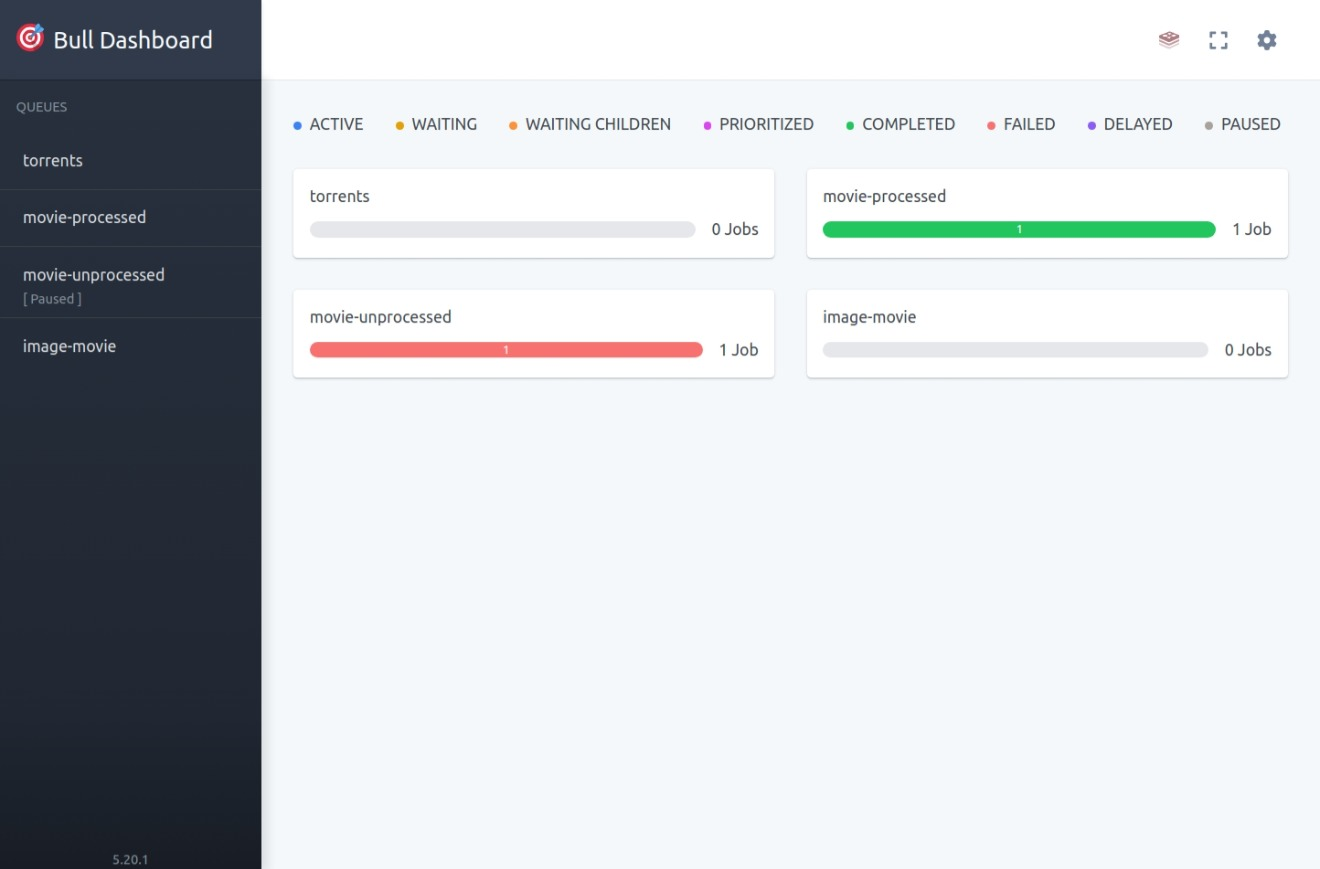
Bull Board Fast GUI provides a quick and efficient way to visualize and manage your Bull queues through a user-friendly dashboard. It's designed for developers who need to set up and monitor their queues rapidly without the need for installation or configuration in their own projects.
Features
- Super fast setup and configuration
- Supports multiple queues
- Customizable UI base path
- Detailed job management
Quick Start
You can run Bull Board Fast GUI directly using npx without needing to install it in your project.
Example
To visualize and manage multiple queues (torrents, movie-processed, movie-unprocessed, image-movie) with a Redis server running locally:
BULL_CONNECTION=redis://localhost:6379 \
BULL_QUEUES=torrents,movie-processed,movie-unprocessed,image-movie \
BULL_PORT=3000 \
npx bull-board-fast-gui
Environment Variables
Before running Bull Board Fast GUI, you need to set the following environment variables:
BULL_CONNECTION: The Redis connection string (default:redis://127.0.0.1:6379)BULL_QUEUES: A comma-separated list of queue names (default:messages)BULL_UI_BASE_PATH: The base path for the UI (default:/admin/queues)BULL_PORT: The port on which the dashboard will run (default:3000)
Running the Dashboard
To run the dashboard, simply use the following command:
BULL_CONNECTION=redis://localhost:6379 \
BULL_QUEUES=torrents,movie-processed,movie-unprocessed,image-movie \
BULL_PORT=3000 \
npx bull-board-fast-gui
Then visit the dashboard in your browser:
http://localhost:3000/admin/queuesConfiguration Options
BULL_CONNECTION
The connection string for your Redis instance. This is where your Bull queues are stored.
Example:
BULL_CONNECTION=redis://localhost:6379BULL_QUEUES
A comma-separated list of Bull queue names that you want to monitor.
Example:
BULL_QUEUES=torrents,movie-processed,movie-unprocessed,image-movieBULL_UI_BASE_PATH
The base path where the dashboard will be accessible.
Example:
BULL_UI_BASE_PATH=/admin/queuesBULL_PORT
The port on which the dashboard will be served.
Example:
BULL_PORT=3000Contributing
We welcome contributions! Please see the CONTRIBUTING.md for details on how to get started.
License
This project is licensed under the MIT License - see the LICENSE file for details.
Contact
For any issues or suggestions, please open an issue on the GitHub repository.
Happy queue managing! 🚀