
Direct Drop Area
A lightweight, feature-rich drag-and-drop file upload component for React.
No dependencies. No bloat. Just works.



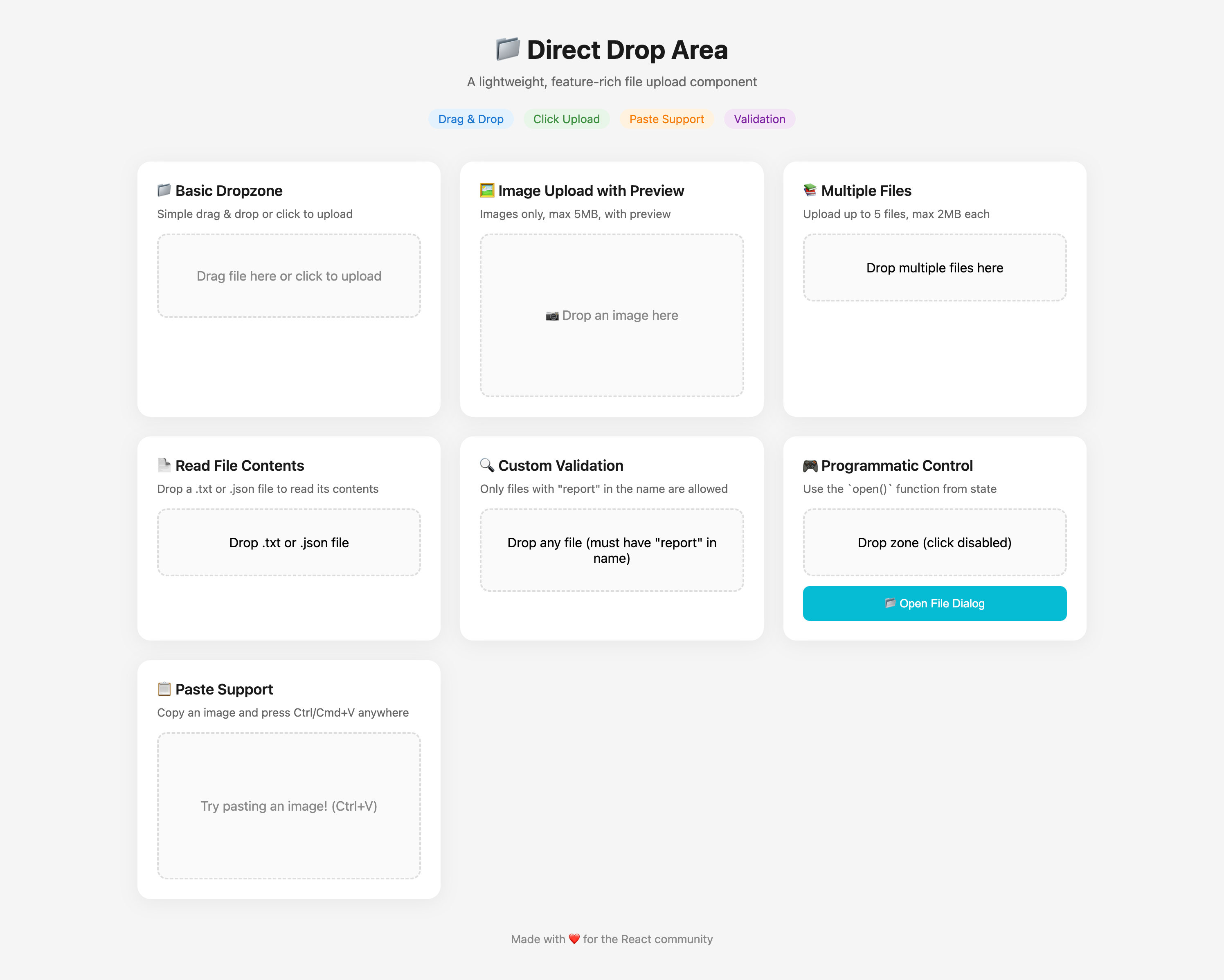
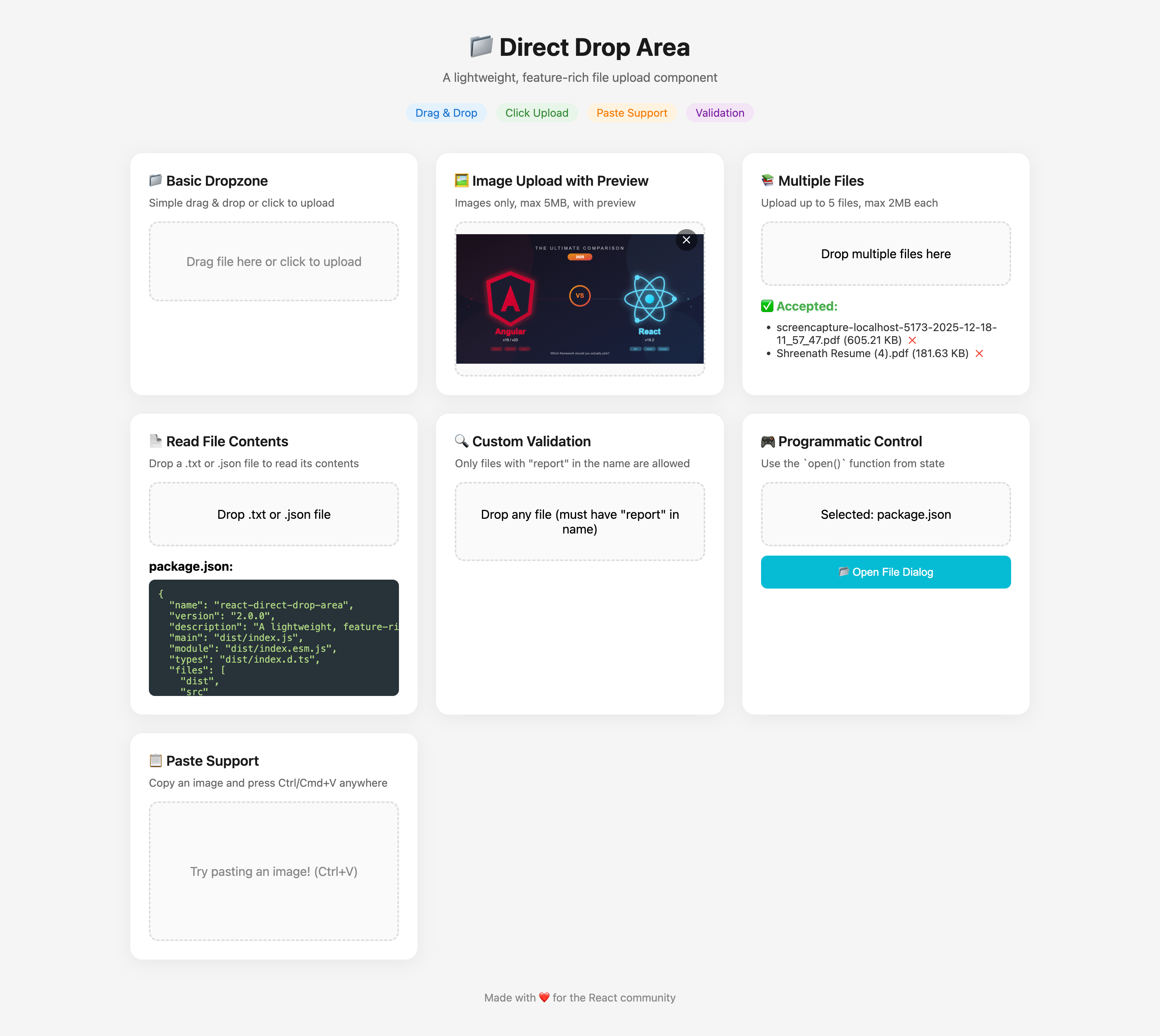
Features
- Drag & Drop - Drop files anywhere on the zone
- Click to Upload - Opens native file picker
- Keyboard Accessible - Full keyboard navigation support
- Paste Support - Paste images directly from clipboard
- Image Previews - Auto-generates preview URLs for images
- Validation - File type, size, and custom validation
- Multiple Files - Support for single or multiple file selection
- Directory Upload - Upload entire folders
- Browser URL Drop - Drag images directly from other websites
- Lightweight - Zero dependencies, ~4KB gzipped
- TypeScript - Full type definitions included
- SSR Safe - Works with Next.js, Gatsby, etc.
Installation
# npm
npm install direct-drop-area

# yarn
yarn add direct-drop-area

# pnpm
pnpm add direct-drop-area
Quick Start
Basic Usage
import DirectDropArea from "direct-drop-area";

function App() {
  return (
    <DirectDropArea
      onDrop={(file) => {
        console.log("File dropped:", file);
      }}
    >
      {({ isDraggedOver }) => (
        <div
          style={{
            padding: "40px",
            border: `2px dashed ${isDraggedOver ? "green" : "gray"}`,
            background: isDraggedOver ? "#e8f5e9" : "white",
            textAlign: "center",
          }}
        >
          {isDraggedOver
            ? "Drop it here!"
            : "Drag file here or click to upload"}
        </div>
      )}
    </DirectDropArea>
  );
}
Image Upload with Preview
import { useState } from "react";
import DirectDropArea from "direct-drop-area";

function ImageUploader() {
  const [preview, setPreview] = useState(null);

  return (
    <DirectDropArea
      accept="image/*"
      maxSize={5 * 1024 * 1024} // 5MB
      onDrop={(file) => {
        setPreview(file.preview);
        console.log("Uploaded:", file.name, file.sizeFormatted);
      }}
      onDropRejected={(rejected) => {
        alert(rejected[0].errors[0].message);
      }}
    >
      {({ isDraggedOver, isProcessing }) => (
        <div
          style={{
            width: "300px",
            height: "200px",
            border: `2px dashed ${isDraggedOver ? "#4caf50" : "#ccc"}`,
            borderRadius: "12px",
            display: "flex",
            alignItems: "center",
            justifyContent: "center",
            cursor: "pointer",
            background: isDraggedOver ? "#f0fff0" : "#fafafa",
          }}
        >
          {isProcessing ? (
            <span>Processing...</span>
          ) : preview ? (
            <img
              src={preview}
              alt="Preview"
              style={{ maxWidth: "100%", maxHeight: "100%" }}
            />
          ) : (
            <span>📷 Drop image or click to upload</span>
          )}
        </div>
      )}
    </DirectDropArea>
  );
}
Multiple Files with Validation
import DirectDropArea from "direct-drop-area";

function MultiUploader() {
  return (
    <DirectDropArea
      multiple
      maxFiles={5}
      accept=".pdf,.doc,.docx"
      maxSize={10 * 1024 * 1024} // 10MB per file
      onDropAccepted={(files) => {
        files.forEach((f) => {
          console.log(`✅ ${f.name} (${f.sizeFormatted})`);
        });
      }}
      onDropRejected={(rejected) => {
        rejected.forEach(({ file, errors }) => {
          console.log(`❌ ${file.name}: ${errors[0].message}`);
        });
      }}
    >
      {({ isDraggedOver }) => (
        <div className={`dropzone ${isDraggedOver ? "active" : ""}`}>
          Drop up to 5 documents here (PDF, DOC)
        </div>
      )}
    </DirectDropArea>
  );
}
Read File Contents
<DirectDropArea
  accept=".json,.txt"
  readAs="text"
  onDrop={(file, content) => {
    console.log("File name:", file.name);
    console.log("File content:", file.content);

    if (file.name.endsWith(".json")) {
      const data = JSON.parse(file.content);
      console.log("Parsed JSON:", data);
    }
  }}
>
  {({ isDraggedOver }) => <div>Drop a JSON or text file</div>}
</DirectDropArea>
Custom Styled Dropzone
import DirectDropArea from "direct-drop-area";
import "./styles.css";

function StyledDropzone() {
  return (
    <DirectDropArea accept="image/*" onDrop={(file) => console.log(file)}>
      {({ isDraggedOver, isDraggedOverDocument, isProcessing, open }) => (
        <div
          className={`
          dropzone
          ${isDraggedOver ? "dropzone--active" : ""}
          ${isDraggedOverDocument ? "dropzone--document-drag" : ""}
        `}
        >
          <div className="dropzone__icon">📁</div>
          <div className="dropzone__text">
            {isProcessing ? (
              "Processing..."
            ) : isDraggedOver ? (
              "Release to upload!"
            ) : (
              <>
                Drag & drop files here, or{" "}
                <button onClick={open} className="dropzone__button">
                  browse
                </button>
              </>
            )}
          </div>
          <div className="dropzone__hint">
            Supports: JPG, PNG, GIF up to 10MB
          </div>
        </div>
      )}
    </DirectDropArea>
  );
}
/* styles.css */
.dropzone {
padding: 40px;
border: 2px dashed #d0d0d0;
border-radius: 16px;
text-align: center;
transition: all 0.2s ease;
cursor: pointer;
}
.dropzone:hover {
border-color: #2196f3;
background: #f3f9ff;
}
.dropzone--active {
border-color: #4caf50;
background: #f0fff0;
transform: scale(1.02);
}
.dropzone--document-drag {
border-color: #ff9800;
}
.dropzone__icon {
font-size: 48px;
margin-bottom: 16px;
}
.dropzone__text {
font-size: 18px;
color: #333;
}
.dropzone__hint {
font-size: 14px;
color: #888;
margin-top: 8px;
}
.dropzone__button {
color: #2196f3;
background: none;
border: none;
cursor: pointer;
text-decoration: underline;
font-size: inherit;
}API Reference
Props
| Prop | Type | Default | Description |
|---|---|---|---|
children |
function | ReactNode |
required | Render prop function receiving state, or static children |
onDrop |
function |
- | Called with processed file(s) and content(s) |
onDropAccepted |
function |
- | Called only with valid files |
onDropRejected |
function |
- | Called with rejected files and errors |
onError |
function |
- | Called on processing errors |
accept |
string |
null |
Accepted file types (e.g., "image/*", ".pdf") |
multiple |
boolean |
false |
Allow multiple files |
directory |
boolean |
false |
Allow folder upload |
maxFiles |
number |
null |
Max files (with multiple: true) |
maxSize |
number |
null |
Max file size in bytes |
minSize |
number |
null |
Min file size in bytes |
validate |
function |
null |
Custom validation function |
disabled |
boolean |
false |
Disable the component |
noClick |
boolean |
false |
Disable click to open dialog |
noDrag |
boolean |
false |
Disable drag and drop |
noKeyboard |
boolean |
false |
Disable keyboard interaction |
noPaste |
boolean |
false |
Disable paste support |
readAs |
string |
null |
Read files as 'text', 'dataURL', or 'arrayBuffer' |
encoding |
string |
'UTF-8' |
Encoding for text reading |
Render Prop State
The render function receives an object with:
{
  isDraggedOver: boolean      // File is dragged over the drop zone
  isDraggedOverDocument: boolean  // File is dragged anywhere on the page
  isProcessing: boolean       // Files are being processed
  isDisabled: boolean         // Component is disabled
  open: () => void            // Programmatically open file dialog
}
File Object
Each processed file includes:
{
  file: File                  // Original File object
  id: string                  // Unique identifier
  name: string                // File name
  size: number                // Size in bytes
  type: string                // MIME type
  sizeFormatted: string       // Human readable size (e.g., "1.5 MB")
  content?: string | ArrayBuffer  // File content (if readAs specified)
  preview?: string            // Data URL for images
}
Rejected File Object
{
  file: File
  errors: Array<{
    code: 'FILE_TYPE_INVALID' | 'FILE_TOO_LARGE' | 'FILE_TOO_SMALL' | 'TOO_MANY_FILES' | 'CUSTOM_VALIDATION'
    message: string
  }>
}
Utility Functions
The package exports useful utility functions:
import {
  formatFileSize,
  readAsText,
  readAsDataURL,
  openFileDialog,
  isFileTypeValid,
} from "direct-drop-area";

// Format bytes to human readable
formatFileSize(1536000); // "1.5 MB"

// Read file contents
const text = await readAsText(file);
const dataURL = await readAsDataURL(file);

// Open file dialog programmatically
const file = await openFileDialog({ accept: "image/*" });
const files = await openFileDialog({ multiple: true });

// Validate file type
isFileTypeValid(file, "image/*"); // true/false
Styling Tips
Using isDraggedOverDocument
Show a full-page overlay when files are dragged anywhere on the page:
function App() {
  return (
    <>
      <DirectDropArea onDrop={handleDrop}>
        {({ isDraggedOver, isDraggedOverDocument }) => (
          <>
            {isDraggedOverDocument && (
              <div className="full-page-overlay">Drop anywhere to upload</div>
            )}
            <div className={`dropzone ${isDraggedOver ? "active" : ""}`}>
              Your drop zone content
            </div>
          </>
        )}
      </DirectDropArea>
    </>
  );
}
Disable During Upload
const [isUploading, setIsUploading] = useState(false)

<DirectDropArea
  disabled={isUploading}
  onDrop={async (file) => {
    setIsUploading(true)
    await uploadToServer(file)
    setIsUploading(false)
  }}
>
  {({ isDisabled }) => (
    <div style={{ opacity: isDisabled ? 0.5 : 1 }}>
      {isDisabled ? 'Uploading...' : 'Drop files here'}
    </div>
  )}
</DirectDropArea>
FAQ
How do I upload to a server?
<DirectDropArea
  onDrop={async (file) => {
    const formData = new FormData()
    formData.append('file', file.file)

    const response = await fetch('/api/upload', {
      method: 'POST',
      body: formData
    })

    const result = await response.json()
    console.log('Uploaded:', result)
  }}
>
Can I use it without the render prop?
Yes! Just pass children directly:
<DirectDropArea onDrop={handleDrop}>
  <div className="my-dropzone">Drop files here</div>
</DirectDropArea>
But you won't get access to isDraggedOver state this way.
Does it work with Next.js / SSR?
Yes! The component checks for browser environment and won't break during server-side rendering.
How do I clear the preview?
The component is stateless - manage previews in your own state:
const [preview, setPreview] = useState(null)

<DirectDropArea onDrop={(f) => setPreview(f.preview)}>
  {() => (
    <>
      {preview && (
        <>
          <img src={preview} />
          <button onClick={() => setPreview(null)}>Remove</button>
        </>
      )}
    </>
  )}
</DirectDropArea>
Contributing
Contributions are welcome! Please feel free to submit a Pull Request.
- Fork the repository
- Create your feature branch (
git checkout -b feature/amazing-feature) - Commit your changes (
git commit -m 'Add amazing feature') - Push to the branch (
git push origin feature/amazing-feature) - Open a Pull Request
License
Support
If this package helped you, consider giving it a on GitHub!
Found a bug? Open an issue