hexo-seo-link-visualizer v0.0.3
hexo-seo-link-visualizer
Analyze link and visualize the site structure for Hexo .
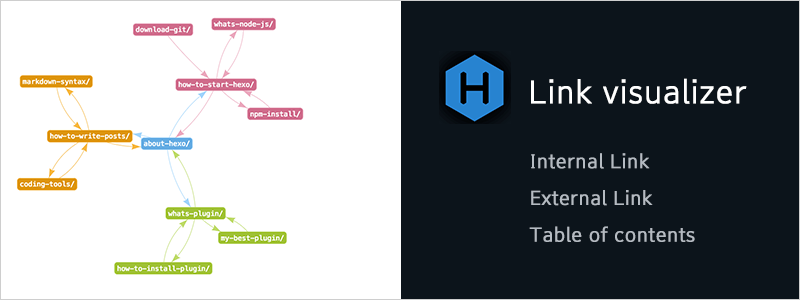
Overview
Plugin analyze internal links and external links and Table of Contents in your site. This plugin can be used to visualize internal link and find quickly problems for site structure. Show Article Map for WordPress was very helpful to me :D
Installation
$ npm install hexo-seo-link-visualizer --saveUsage
First of all , you should to add npm script. Please insert as follow code at package.json.
"scripts": {
    "show-article-map": "node node_modules/hexo-seo-link-visualizer/app/show-article-map.js"
},
Next , Please run server and excute npm script. ($ hexo clean be sure to run.)
$ hexo clean
$ hexo server
$ npm run show-article-map
Last , Please run server of link visualizer. Since the default URL is localhost:1234, open this URL.
Options
You can change plugin settings with as follow option. Please edit _config.yml.
# hexo-seo-link-visualizer's option
seoLinkVisualizer:
  enable: true
  cache: cache/seo-link-visualizer.json
  port: 1234
  previewHost: localhost:4000/
  categoryDepthLimits: 1
  allowedSourcePath:
    - _posts/
    # - _drafts
  ignoreLink:
    int:
    ext:
      - amazon
      - amz
      - flickr
toc:enableYou can enable or disable this plugin. Default value is
true.cacheThe location of the file to save the analysis data. Default location is
/seo-link-visualizer.json.portPort of link visualizer page. Default port is
1234(localhost:1234).previewHostThe address of the hexo's local server. Default url is
localhost:4000/categoryDepthLimitsThe depth limit of the category to parse. The deeper the category, the more color-coded. Default value is
1. With0disables the restriction.allowedSourcePathSource directory of article to be analyzed. By default, all articles below
source/_postsare parsed. When you do not want to analyzesource/_drafts, explicitly specify_posts/with this option.ignoreLinkSpecify a character string that you do not want to analyze link.
License
MIT