
Ninesh


Ajiu9's daily shell companion — a CLI toolkit that supercharges your terminal workflow with Obsidian template generation, shell configuration, and structured repository management.
Features
- Obsidian Integration — Generate daily/weekly/task templates for Obsidian
- Shell Bootstrap — One-command setup for zsh/bash plugins (oh-my-zsh, starship, syntax highlighting, etc.)
- Repository Manager — Clone repos into a clean
host/user/repodirectory structure - Shell Manager — Detect, list, switch, and configure shells (bash/zsh/fish)
- Skills Sync — Sync skills directories across applications via symlinks (Claude, Multica, WorkBuddy)
- Self-update — Built-in update checker with one-command upgrade
Install
npm install -g nineshCommands
ninesh <command> [options]| Command | Description |
|---|---|
obsidian |
Generate Obsidian templates (daily, weekly, task, empty) |
init |
Bootstrap zsh/bash with common plugins and aliases |
add |
Clone a repository into a structured directory layout |
shell |
Detect, list, switch, or configure your terminal shell |
skills |
Sync skills directories across apps via symlinks |
update |
Check for and install the latest version |
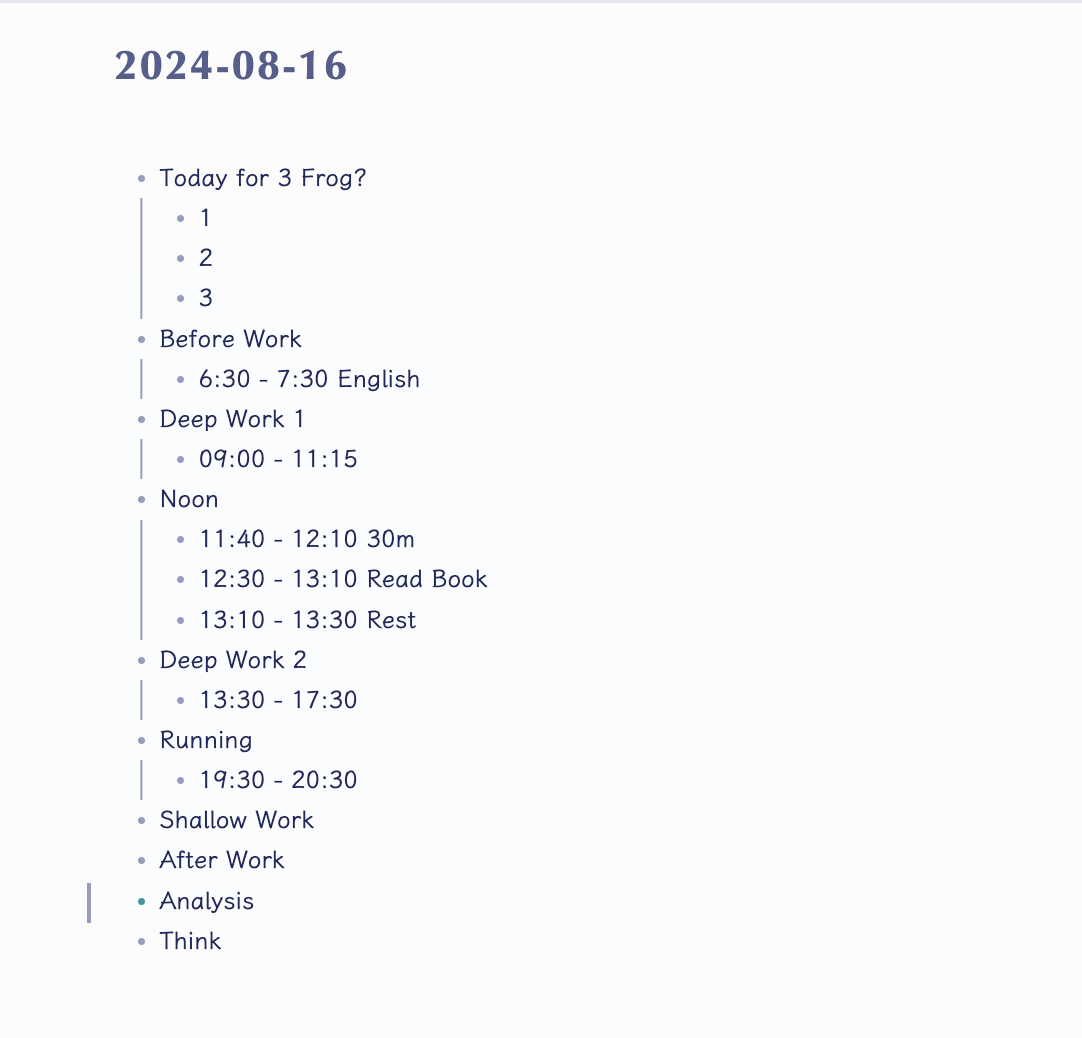
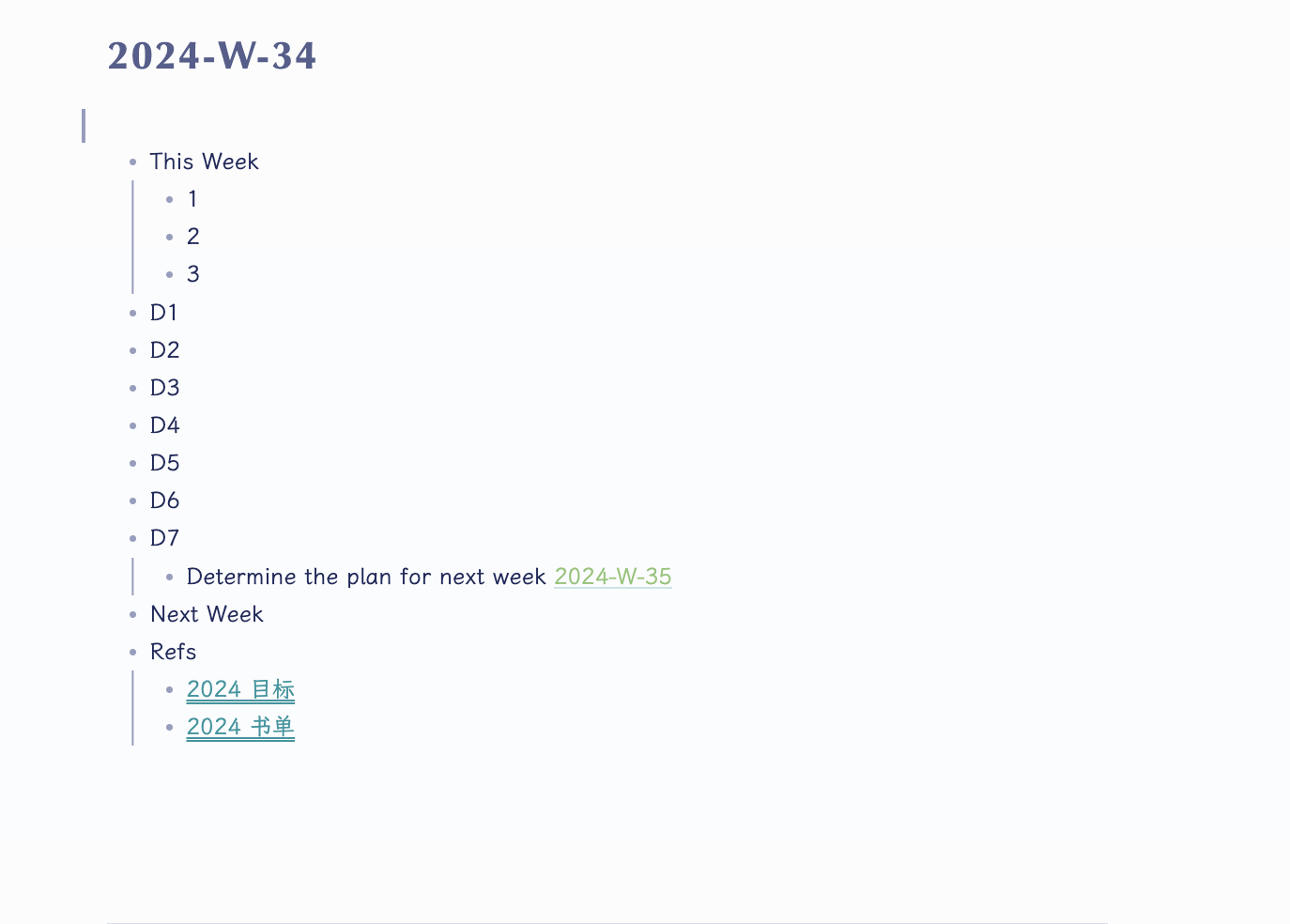
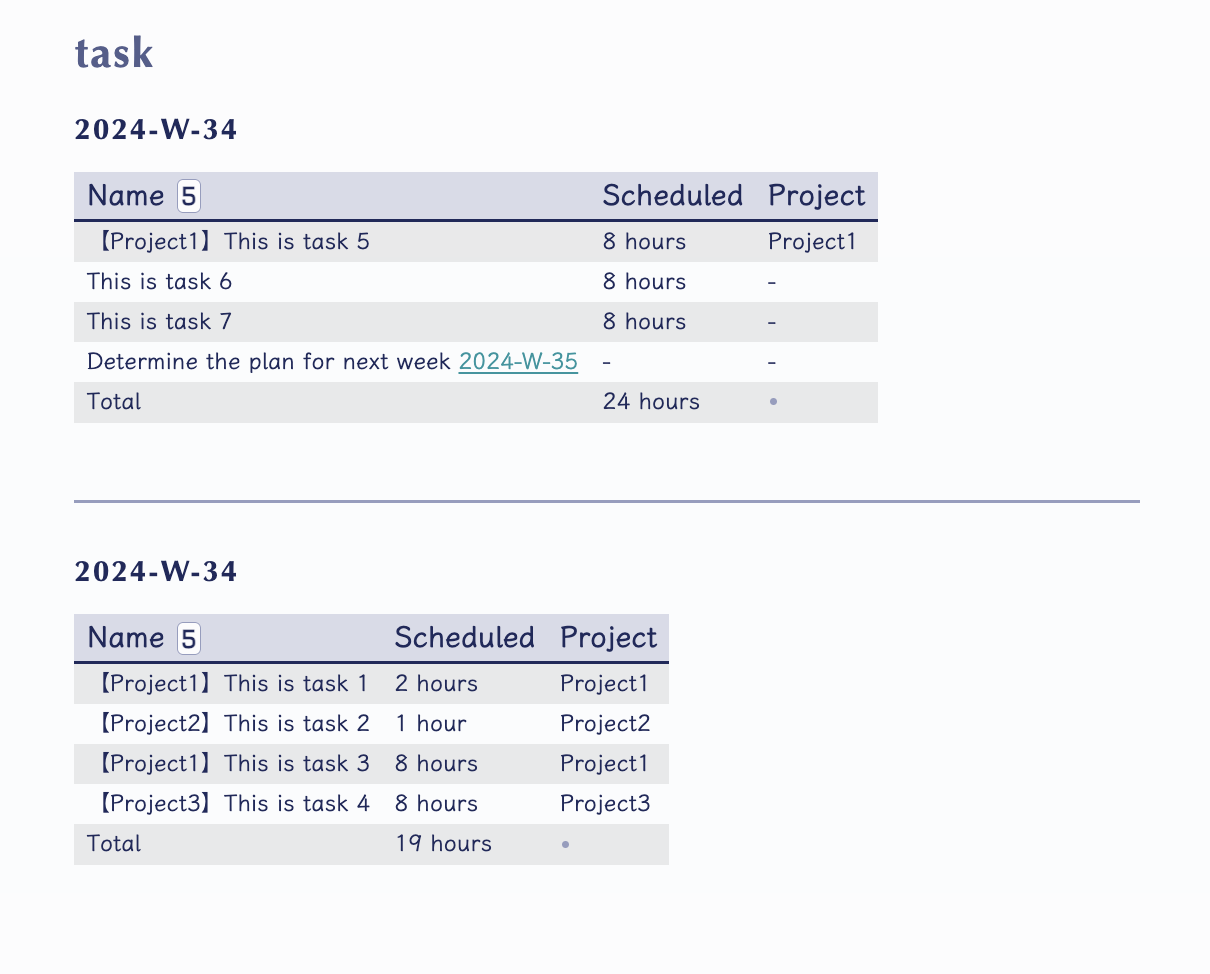
ninesh obsidian
Generate Obsidian note templates from the command line.
ninesh obsidian [options]| Option | Alias | Description |
|---|---|---|
--daily |
-d |
Generate daily plan template |
--weekly |
-w |
Generate weekly plan template |
--empty |
-e |
Generate blank template |
--task |
-t |
Generate task report (choices: weekly, yearly) |
--next |
-n |
Generate for the next period (next day / next week) |
Examples:
# Daily note
ninesh obsidian -d

# Weekly plan
ninesh obsidian -w

# Task report (weekly)
ninesh obsidian -t weekly -w

# Next day's daily note
ninesh obsidian -d -n
Screenshots:
| Daily | Weekly | Task Report |
|---|---|---|
 |
 |
 |
On first run, a config file is created at ~/.config/ninesh/.obsidian/config.json where you can customize template paths and target directories.
ninesh init
Bootstrap your shell environment with common plugins and handy aliases.
ninesh init [options]| Option | Alias | Description |
|---|---|---|
--zsh |
-z |
Add custom zsh plugins to ~/.zshrc |
--bash |
-b |
Add custom bash plugins to ~/.bashrc |
--omz |
-o |
Install oh-my-zsh plugins (autosuggestions, completions, syntax highlighting) |
--starship |
-s |
Add Starship prompt to ~/.zshrc |
--ninesh |
-n |
Add ninesh shortcut aliases (n, na, no, ni) |
Examples:
# Full zsh setup: custom plugins + omz + starship + shortcuts
ninesh init -z -o -s -n

# Bash setup
ninesh init -b -n

# Just add ninesh aliases
ninesh init -n
What gets installed:
| Flag | Installs |
|---|---|
-z |
Custom ninesh zsh plugin (aliases, git helpers, etc.) |
-b |
Custom ninesh bash plugin |
-o |
zsh-autosuggestions, zsh-completions, fast-syntax-highlighting |
-s |
Starship prompt via eval "$(starship init zsh)" |
-n |
Shortcuts: n → ninesh, na → ninesh add, no → ninesh obsidian, ni → ninesh init |
ninesh add
Clone a repository into an organized directory structure.
ninesh add <repository-url> [options]| Option | Alias | Description |
|---|---|---|
--base |
-b |
Set base directory (skips interactive prompt) |
What it does:
Clones https://github.com/ajiu9/ninesh into:
$BASE
└── github.com
    └── ajiu9
        └── ninesh
Examples:
# Clone with interactive base directory selection
ninesh add https://github.com/user/repo.git

# Clone using a shorthand alias (configurable)
ninesh add github://user/repo

# Clone with explicit base directory
ninesh add https://github.com/user/repo.git -b ~/Projects
The target directory path is automatically copied to your clipboard after cloning.
ninesh shell
Inspect and manage your terminal shells.
ninesh shell [action] [target]| Action | Description |
|---|---|
info |
Show current shell details (name, path, version, config file) |
list |
List all installed shells and available ones to install |
switch |
Change your default shell (interactive or by name) |
install |
Show install commands for zsh/fish on your platform |
config |
Configure shell plugins interactively (bash/fish supported) |
Examples:
# Show current shell info
ninesh shell

# List all installed shells
ninesh shell list

# Switch to zsh
ninesh shell switch zsh

# Show how to install fish
ninesh shell install fish

# Configure current shell interactively
ninesh shell config
ninesh skills
Sync skills directories across applications via symlinks. Manage all your Claude, Multica, and WorkBuddy skills from a single source directory.
ninesh skills [action]| Action | Description |
|---|---|
init |
Scan installed apps, configure source and targets interactively |
sync |
Create/update symlinks from source to selected target directories |
unsync |
Remove symlinks from selected target directories |
How it works:
ninesh skills sync creates a symlink for each first-level subdirectory in the source directory into each target directory. Files are ignored — only directories are linked.
~/.claude/skills/          # source
├── graphify/
├── app-refactor/
└── tool-usage/

~/.multica/skills/         # target (after sync)
├── graphify/       → ~/.claude/skills/graphify/
├── app-refactor/   → ~/.claude/skills/app-refactor/
└── tool-usage/     → ~/.claude/skills/tool-usage/
Examples:
# First time: scan and configure
ninesh skills init

# Sync all (interactive target selection)
ninesh skills sync

# Remove all symlinks from selected targets
ninesh skills unsync
Sync behavior:
| Scenario | Behavior |
|---|---|
| Target already correct symlink | Skip |
| Target is a real directory | Backup (→ name.bak), then symlink |
| Target is a wrong symlink | Replace with correct one |
| Source adds new directory | Auto-detected, creates symlink |
| Source deletes a directory | Dead symlink cleaned up |
| Source contains files | Ignored (directories only) |
| Nothing changed | "all synced, nothing to do" |
Configuration:
Stored in ~/.ninesh/config.json under the skills key:
{
  "skills": {
    "source": "~/.claude/skills",
    "targets": {
      "claude": "~/.claude/skills",
      "multica": "~/.multica/skills",
      "workbuddy": "~/.workbuddy/skills"
    }
  }
}
ninesh update
Check for and install updates.
ninesh update [options]| Option | Alias | Description |
|---|---|---|
--check |
-c |
Only check for updates (don't install) |
Examples:
# Check and install latest version
ninesh update

# Only check (no install)
ninesh update -c
Ninesh also checks for updates automatically in the background when you run any command.
Configuration
Configuration files are stored under ~/.ninesh/:
| File | Purpose |
|---|---|
config.json |
Base directories, URL aliases, hooks, skills sync config |
shell.json |
Shell detection and configuration state |
jump.json |
Jump command directory database |
.obsidian/config.json |
Obsidian template paths and target directories |
Development
# Clone and install
git clone https://github.com/ajiu9/ninesh.git
cd ninesh
pnpm install

# Build
pnpm build

# Link for local development
pnpm dev