primo-explore-login-backgrounds v1.0.1
primo-explore-login-backgrounds


Features
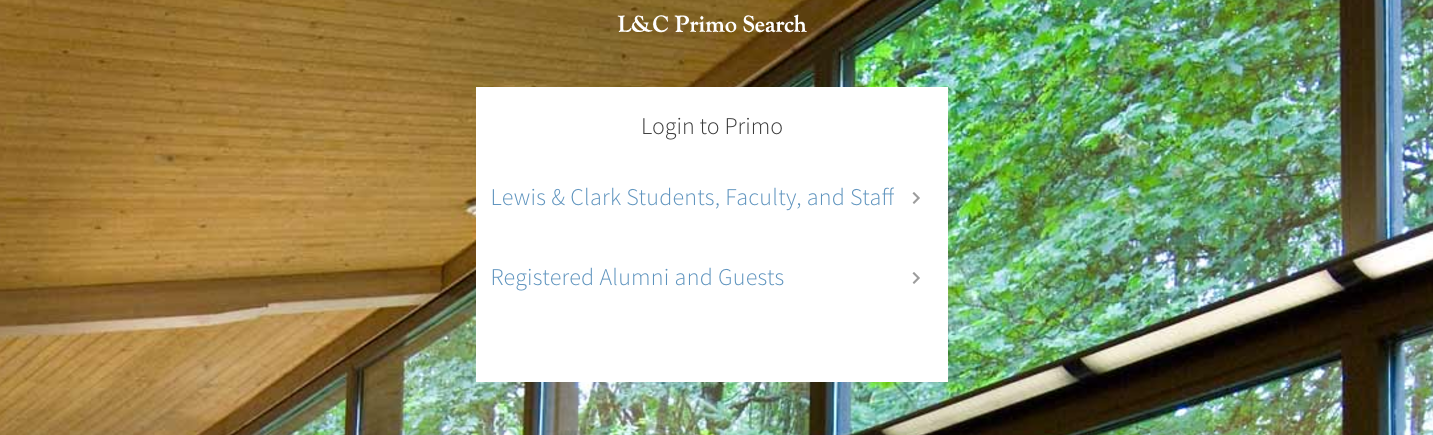
Full-screen background images appear on the standalone login page when a user navigates to /primo-explore/login. Images can be included with the view package in a login subfolder and enumerated in a config option. A new image is randomly chosen from the configured options each time the page is visited.
Screenshot
Install
- Make sure you've installed and configured primo-explore-devenv.
- Navigate to your template/central package root directory. For example:
cd primo-explore/custom/MY_VIEW_ID- If you do not already have a
package.jsonfile in this directory, create one:
npm init -y- Install this package:
npm install primo-explore-login-backgrounds --save-devUsage
Once this package is installed, add loginBackgrounds as a dependency for your custom module definition.
var app = angular.module('viewCustom', ['loginBackgrounds'])Note: If you're using the --browserify build option, you will need to first import the module with:
import 'primo-explore-login-backgrounds';You can set up the images by adding them to a new folder login inside the img directory of your view package. When you have finished adding images, you can add a configuration block like the one below listing the ones you wish to make available.
Example
The example below adds three images, one of which will be randomly chosen each time a user logs in. We assume lib1.jpg, lib2.jpg, and lib3.jpg all reside in MY_VIEW/img/login.
app.constant('loginImages', [
  'lib1.jpg',
  'lib2.jpg',
  'lib3.jpg'
])
Running tests
- Clone the repo
- Run
npm install - Run
npm test