
react-native-vision-camera-mlkit
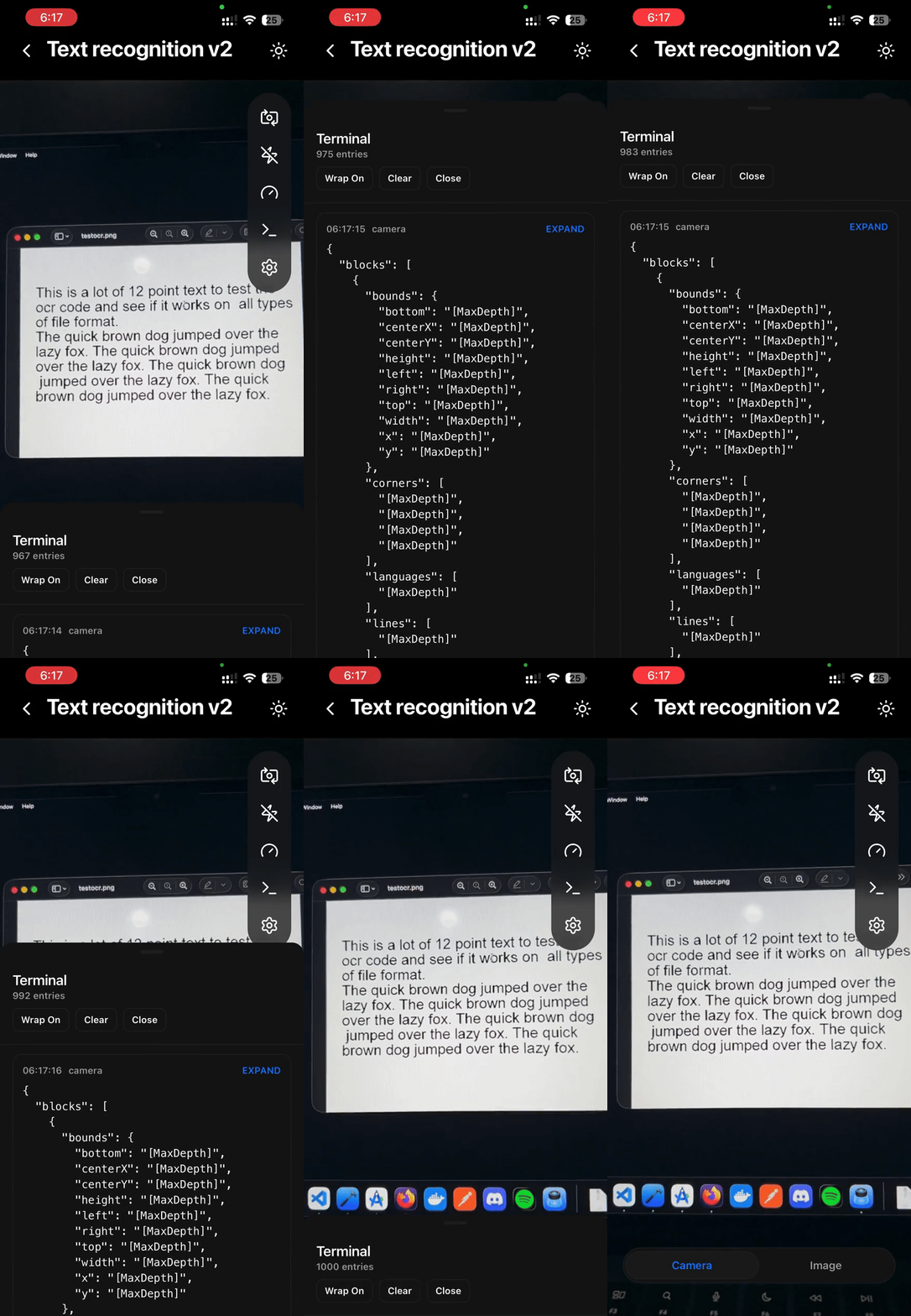






A React Native Vision Camera plugin that exposes high-performance Google ML Kit frame processor features such as text recognition (OCR), face detection, barcode scanning, pose detection, and more.
The example app is intentionally heavy and demo-focused. For integration details, follow the documentation below.
Requirements
- iOS 12+ and Android SDK 21+
- react-native-vision-camera
- react-native-worklets-core
Install Vision Camera (React Native):
npm i react-native-vision-camera
cd ios && pod install
Install Worklets Core:
npm i react-native-worklets-core
# or
yarn add react-native-worklets-core
Add the Babel plugin in babel.config.js:
module.exports = {
  plugins: [['react-native-worklets-core/plugin']],
};
For Expo, follow the Vision Camera guide: react-native-vision-camera.com/docs/guides
Installation
npm install react-native-vision-camera-mlkit
# or
yarn add react-native-vision-camera-mlkit

cd ios && pod install
ML Kit Models Installation (Selective)
By default, all ML Kit features are enabled. You can selectively include only the models you need to reduce binary size.
Android (Gradle)
In your app's android/build.gradle (root project), add:
ext["react-native-vision-camera-mlkit"] = [
  mlkit: [
    textRecognition: true,
    textRecognitionChinese: false,
    textRecognitionDevanagari: false,
    textRecognitionJapanese: false,
    textRecognitionKorean: false,
    faceDetection: false,
    faceMeshDetection: false,
    poseDetection: false,
    poseDetectionAccurate: false,
    selfieSegmentation: false,
    subjectSegmentation: false,
    documentScanner: false,
    barcodeScanning: true,
    imageLabeling: false,
    objectDetection: false,
    digitalInkRecognition: false,
  ]
]
iOS (Podfile)
In your ios/Podfile, add a configuration hash before target:
$VisionCameraMLKit = {
  'textRecognition' => true,
  'textRecognitionChinese' => false,
  'textRecognitionDevanagari' => false,
  'textRecognitionJapanese' => false,
  'textRecognitionKorean' => false,
  'faceDetection' => false,
  'poseDetection' => false,
  'poseDetectionAccurate' => false,
  'selfieSegmentation' => false,
  'barcodeScanning' => true,
  'imageLabeling' => false,
  'objectDetection' => false,
  'digitalInkRecognition' => false,
}
Android-only keys: faceMeshDetection, subjectSegmentation, documentScanner.
Usage
Text Recognition (Frame Processor)
import {
  useFrameProcessor,
  runAsync,
  runAtTargetFps,
} from 'react-native-vision-camera';
import { useTextRecognition } from 'react-native-vision-camera-mlkit';

const { textRecognition } = useTextRecognition({
  language: 'LATIN',
  scaleFactor: 1,
  invertColors: false,
});

const frameProcessor = useFrameProcessor(
  (frame) => {
    'worklet';

    runAtTargetFps(10, () => {
      'worklet';
      runAsync(frame, () => {
        'worklet';
        const result = textRecognition(frame, {
          outputOrientation: 'portrait',
        });
        console.log(result.text);
      });
    });
  },
  [textRecognition]
);TextRecognitionOptions:
language?: 'LATIN' | 'CHINESE' | 'DEVANAGARI' | 'JAPANESE' | 'KOREAN'scaleFactor?: number(0.9-1.0)invertColors?: booleanframeProcessInterval?: number(deprecated, userunAtTargetFps)
TextRecognitionArguments:
outputOrientation?: 'portrait' | 'portrait-upside-down' | 'landscape-left' | 'landscape-right'(iOS only)
Image Processing (Static Images)
Use processImageTextRecognition to analyze a file path or URI without the camera (for example, images picked from the gallery).
import { processImageTextRecognition } from 'react-native-vision-camera-mlkit';

const result = await processImageTextRecognition(imageUri, {
  language: 'LATIN',
  orientation: 'portrait',
  invertColors: false,
});

console.log(result.blocks);TextRecognitionImageOptions:
language?: 'LATIN' | 'CHINESE' | 'DEVANAGARI' | 'JAPANESE' | 'KOREAN'orientation?: 'portrait' | 'portrait-upside-down' | 'landscape-left' | 'landscape-right'invertColors?: boolean
The native bridge normalizes URIs (file:// is removed on iOS and added on Android if missing). Supported formats: JPEG, PNG, WebP.
Feature Utilities
The package also exposes helpers from the plugin factory:
import {
  getFeatureErrorMessage,
  isFeatureAvailable,
  assertFeatureAvailable,
  getAvailableFeatures,
} from 'react-native-vision-camera-mlkit';
getAvailableFeatures(): MLKitFeature[]isFeatureAvailable(feature: MLKitFeature): booleanassertFeatureAvailable(feature: MLKitFeature): voidgetFeatureErrorMessage(feature: MLKitFeature): string
Error Handling
Frame processors throw a setup error when the feature is not enabled in Gradle/Podfile. For static image processing, the following error strings are exported:
IMAGE_NOT_FOUND_ERRORINVALID_URI_ERRORIMAGE_PROCESSING_FAILED_ERRORUNSUPPORTED_IMAGE_FORMAT_ERROR
Use the feature helpers to provide user-friendly configuration hints:
import {
  assertFeatureAvailable,
  MLKIT_FEATURE_KEYS,
} from 'react-native-vision-camera-mlkit';

assertFeatureAvailable(MLKIT_FEATURE_KEYS.TEXT_RECOGNITION);
Performance
- Follow the Vision Camera performance guide
- Prefer
runAsync(...)for heavy ML work to keep the frame processor responsive. - Use
runAtTargetFps(...)to throttle processing instead offrameProcessInterval.
iOS Orientation Notes (Text Recognition)
iOS camera sensors are fixed in landscape orientation. The frame buffer stays landscape-shaped even when the UI rotates, so ML Kit needs an explicit orientation hint to rotate text correctly. On iOS, pass outputOrientation to textRecognition(frame, { outputOrientation }) so ML Kit can map the buffer to upright text. Android handles rotation automatically.
iOS Simulator (Apple Silicon) – Heads-up
On Apple Silicon Macs, building for the iOS Simulator (arm64) may fail after installing this package.
This is a known limitation of Google ML Kit, which does not currently ship an arm64-simulator slice for some iOS frameworks.
The library works correctly on physical iOS devices and on the iOS Simulator when running under Rosetta.
Google ML Kit Vision Features Roadmap
| # | Feature | Status | Platform |
|---|---|---|---|
| 0 | Text recognition v2 |  |
  |
| 1 | Face detection |  |
|
| 2 | Face mesh detection | |
|
| 3 | Pose detection | |
|
| 4 | Selfie segmentation | |
|
| 5 | Subject segmentation | |
|
| 6 | Document scanner | |
|
| 7 | Barcode scanning | |
|
| 8 | Image labeling | |
|
| 9 | Object detection and tracking | |
|
| 10 | Digital ink recognition | |
|
Sponsor on GitHub
If this project helps you, please consider sponsoring its development
react-native-vision-camera-mlkit is provided as is and maintained in my free time.
If you’re integrating this library into a production app, consider funding the project.