virtual-scroller v1.13.1
VirtualScroller
A universal open-source implementation of Twitter's VirtualScroller component: a component for efficiently rendering large lists of variable height items. Supports grid layout.
- For React users, includes a React component.
- For those who prefer "vanilla" DOM, there's a DOM component.
- For everyone else, there's a low-level core component that supports any type of rendering engine, not just DOM. Use it to create your own implementation for any framework or environment.
Demo
DOM (no frameworks):
Rationale
Rendering really long lists in HTML can be performance intensive which sometimes leads to slow page load times and wasting mobile users' battery. For example, consider a chat app rendering a list of a thousand of the most recent messages: when using React the full render cycle can take up to 100 milliseconds or more on a modern PC. If the chat message component is complex enough (rich text formatting, pictures, videos, attachments, buttons) then it could take up to a second or more (on a modern PC). Now imagine users viewing the website on their aged low-tier smartphones and it quickly results in annoying user experience resulting in them closing the website and the website losing its user base.
In 2017 Twitter completely redesigned their website with responsiveness and performance in mind using the latest performance-boosting techniques available at that time. They wrote an article about it where they briefly mentioned this:
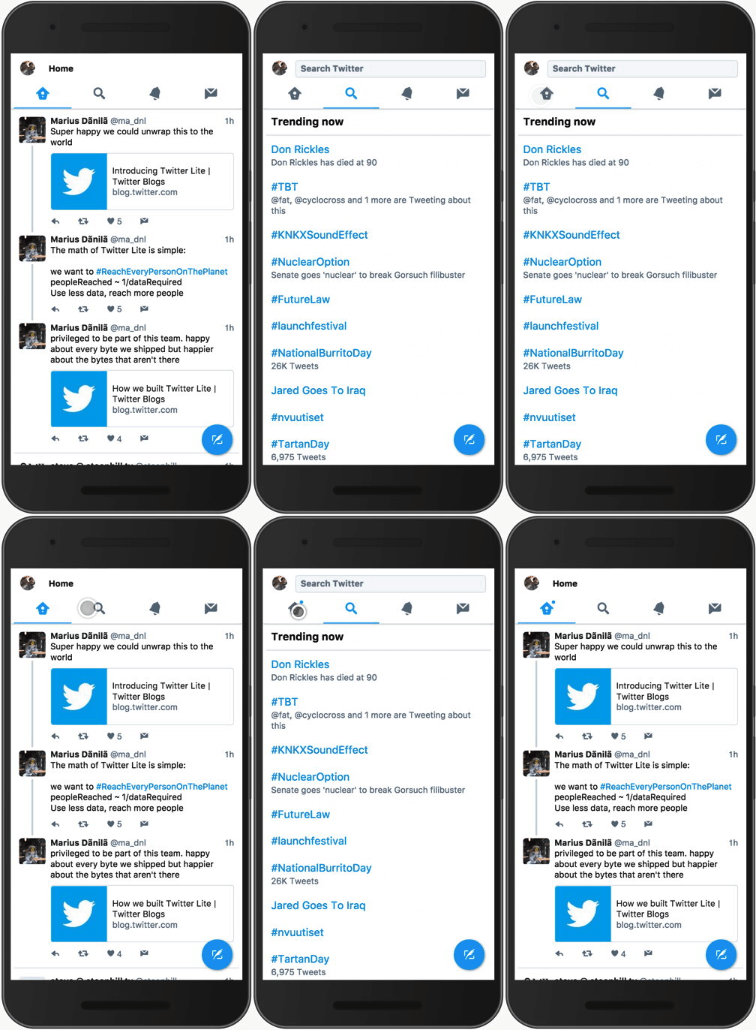
On slower devices, we noticed that it could take a long time for our main navigation bar to appear to respond to taps, often leading us to tap multiple times, thinking that perhaps the first tap didn’t register. It turns out that mounting and unmounting large trees of components (like timelines of Tweets) is very expensive in React. Over time, we developed a new infinite scrolling component called VirtualScroller. With this new component, we know exactly what slice of Tweets are being rendered into a timeline at any given time, avoiding the need to make expensive calculations as to where we are visually.
However, Twitter didn't share the code for their VirtualScroller component (unlike Facebook, Twitter doesn't share much of their code). This library is an attempt to create an open-source implementation of such VirtualScroller component for anyone to use in their projects.
There's also an "RFC" for a native VirtualScroller component where they try to formulate what is a VirtualScroller component and how it should behave.
How it works
VirtualScroller works by measuring each list item's height as it's being rendered, and then, as the user scrolls, it hides the items that are no longer visible, and shows the now-visible items as they're scrolled to. The hidden items at the top are compensated by setting padding-top on the list element, and the hidden items at the bottom are compensated by setting padding-bottom on the list element. The component listens to scroll / resize events and re-renders the currently visible items as the user scrolls (or if the browser window is resized).
To observe list item elements being dynamically mounted and unmounted, go to the demo page, open Developer Tools ("Elements" tab), find <div id="root"/> element, expand it, see <div id="messages"/> element, expand it and observe the changes to it while scrolling the page.
To add some inter-item spacing, one could use margin-top / margin-bottom or border-top / border-bottom: see the Gotchas section for more details on how to do that properly.
Install
npm install virtual-scroller --saveIf you're not using a bundler then use a standalone version from a CDN.
Core
The default export is a low-level VirtualScroller class: it implements the core logic of a VirtualScroller component and can be used for building a VirtualScroller component for any UI framework or even any rendering engine other than DOM. This core class is not meant to be used in applications directly. Instead, prefer using one of the high-level components provided by this library: virtual-scroller/dom or virtual-scroller/react packages. Or implement your own: see source/test folder for an example of using the core class to build an "imaginary" renderer implementation.
State
The core VirtualScroller component works by dynamically updating its state as the user scrolls the page. The state provides the calculations on which items should be rendered (and which should not be) depending on the current scroll position.
A higher-level wrapper around the core VirtualScroller component must manage the rendering of the items using the information from the state. At any given time, state should correspond exactly to what's rendered on the screen: whenever state gets updated, the corresponding changes should be immediately (without any "timeout" or "delay") rendered on the screen.
The main state properties are:
items: any[]— The list of items (can be updated via.setItems()).firstShownItemIndex: number— The index of the first item that should be rendered.lastShownItemIndex: number— The index of the last item that should be rendered.beforeItemsHeight: number— Thepadding-topwhich should be applied to the "container" element: it emulates all items beforefirstShownItemIndexas if they were rendered.afterItemsHeight: number— Thepadding-bottomwhich should be applied to the "container" element: it emulates all items afterlastShownItemIndexas if they were rendered.
The following state properties are only used for saving and restoring VirtualScroller state, and normally shouldn't be accessed:
itemStates: any[]— The "states" of all items. If an item's appearance is not "static" and could change, then every aspect of the item's appearance that could change should be represented in the item's "state", and that "state" must be preserved somewhere. That's because of the nature of howVirtualScrollerworks: no-longer-visible items get un-rendered, and when they later become visible again, they should precisely restore their latest-rendered appearance by re-rendering from a previously preserved "state".The item "state" could be preserved anywhere in the application, or the developer could use
VirtualScroller's built-in item "state" storage. To preserve an item's state in the built-in storage, call.setItemState(i, itemState)instance method (described below) immediately after an item's state has changed.An example would be an item representing a social media comment, with a "Show more"/"Show less" button that shows or hides the full text of the comment. Immediately after the full text of a comment has been shown or hidden, it should call
.setItemState(i, { showMore: true/false })instance method along with.onItemHeightDidChange(i)instance method (described below), so that next time when the item is rendered, it could restore its appearance fromvirtualScroller.getState().itemStates[i].For another similar example, consider a social network feed, where each post optionally has an attachment. Suppose there's a post in the feed having a YouTube video attachment. The attachment is initially shown as a small thumbnail that expands into a full-sized embedded YouTube video player when a user clicks on it. If the expanded/collapsed state of such attachment wasn't preserved, then the following "glitch" would be observed: the user expands the video, then scrolls down so that the post with the video is no longer visible, the post gets unmounted due to going off screen, then the user scrolls back up so that the post with the video is visible again, the post gets mounted again, but the video is not expanded and instead a small thumbnail is shown because there's no previous "state" to restore from.
- In this example, besides preserving the item state itself, one should also call
.onItemHeightDidChange(i)instance method (described below) right after the YouTube video has been expanded/collapsed.
- In this example, besides preserving the item state itself, one should also call
itemHeights: number[]— The measured heights of all items. If an item's height hasn't been measured yet then it'sundefined.By default, items are only measured once: when they're initially rendered. If an item's height changes afterwards, then
.onItemHeightDidChange(i)instance method must be called right after it happens (described later in the document), otherwiseVirtualScroller's calculations will be off. For example, if an item is a social media comment, and there's a "Show more"/"Show less" button that shows the full text of the comment, then it must call.onItemHeightDidChange(i)immediately after the comment text has been expanded or collapsed.- Besides the requirement of calling
.onItemHeightDidChange(i), every change in an item's height must also be reflected in the actual data: the change in height must be either a result of the item's internal properties changing or it could be a result of changing the item's "state". The reason is that when an item gets hidden, it's no longer rendered, so when it becomes visible again, it should precisely restore its last-rendered appearance based on the item's properties and any persisted "state".
- Besides the requirement of calling
verticalSpacing: number?— Vertical item spacing. Isundefineduntil it has been measured. Is only measured once, when at least two rows of items have been rendered.columnsCount: number?— The count of items in a row. Isundefinedif nogetColumnsCount()parameter has been passed toVirtualScroller, or if the columns count is1.scrollableContainerWidth: number?— The width of the scrollable container. For DOM implementations, that's gonna be either the browser window width or some scrollable parent element width. Isundefineduntil it has been measured after theVirtualScrollerhas beenstart()-ed.
Example
A general idea of using the low-level VirtualScroller class:
import VirtualScroller from 'virtual-scroller'

const items = [
  { name: 'Apple' },
  { name: 'Banana' },
  ...
]

const getContainerElement = () => document.getElementById(...)

const virtualScroller = new VirtualScroller(getContainerElement, items, {
  render(state) {
    // Re-renders the list based on its `state`.
    const {
      items,
      firstShownItemIndex,
      lastShownItemIndex,
      beforeItemsHeight,
      afterItemsHeight
    } = state

    container.paddingTop = beforeItemsHeight
    container.paddingBottom = afterItemsHeight

    container.children = items
      .slice(firstShownItemIndex, lastShownItemIndex + 1)
      .map(createItemElement)
  }
})

// Start listening to scroll events.
virtualScroller.start()

// Stop listening to scroll events.
virtualScroller.stop()getContainerElement()— Returns the list "element" that is gonna contain all list item "elements".items— The list of items.render(state, prevState)— "Renders" the list.
import VirtualScroller from 'virtual-scroller'

const items = [
  { title: 'Apple' },
  { title: 'Banana' },
  { title: 'Cranberry' }
]

function renderItem(item) {
  const div = document.createElement('div')
  div.innerText = item.title
  return div
}

const container = document.getElementById('list')

function render(state, prevState) {
  const {
    items,
    beforeItemsHeight,
    afterItemsHeight,
    firstShownItemIndex,
    lastShownItemIndex
  } = state

  // Set `paddingTop` and `paddingBottom` on the container element:
  // it emulates the non-visible items as if they were rendered.
  container.style.paddingTop = Math.round(beforeItemsHeight) + 'px'
  container.style.paddingBottom = Math.round(afterItemsHeight) + 'px'

  // Perform an intelligent "diff" re-render as the user scrolls the page.
  // This also requires that the list of `items` hasn't been changed.
  // On initial render, `prevState` is `undefined`.
  if (prevState && items === prevState.items) {

    // Remove no longer visible items.
    let i = prevState.lastShownItemIndex
    while (i >= prevState.firstShownItemIndex) {
      if (i >= firstShownItemIndex && i <= lastShownItemIndex) {
        // The item is still visible.
      } else {
        // The item is no longer visible. Remove it.
        container.removeChild(container.childNodes[i - prevState.firstShownItemIndex])
      }
      i--
    }

    // Add newly visible items.
    let prependBefore = container.firstChild
    let i = firstShownItemIndex
    while (i <= lastShownItemIndex) {
      if (i >= prevState.firstShownItemIndex && i <= prevState.lastShownItemIndex) {
        // The item is already being rendered.
        // Next items will be appended rather than prepended.
        prependBefore = undefined
      } else {
        if (prependBefore) {
          container.insertBefore(renderItem(items[i]), prependBefore)
        } else {
          container.appendChild(renderItem(items[i]))
        }
      }
      i++
    }
  }
  else {
    // Re-render the list from scratch.
    while (container.firstChild) {
      container.removeChild(container.firstChild)
    }
    let i = firstShownItemIndex
    while (i <= lastShownItemIndex) {
      container.appendChild(renderItem(items[i]))
      i++
    }
  }
}

const virtualScroller = new VirtualScroller(() => element, items, { render })

// Start VirtualScroller listening for scroll events.
virtualScroller.start()

// Stop VirtualScroller listening for scroll events
// when the user navigates to another page:
// router.onPageUnload(virtualScroller.stop)
Options
state: object— The initial state forVirtualScroller. Can be used, for example, to quicky restore the list when it's re-rendered on "Back" navigation.render(state: object, previousState: object?)— When a developer doesn't pass customgetState()/updateState()parameters (more on that later),VirtualScrolleruses the default ones. The defaultupdateState()function relies on a developer-suppliedrender()function that must "render" the currentstateof theVirtualScrolleron the screen. See DOMVirtualScrollerimplementation for an example of such arender()function.onStateChange(newState: object, previousState: object?)— An "on change" listener for theVirtualScrollerstatethat gets called wheneverstategets updated, including when setting the initialstate.Is not called when individual item heights (including "before resize" ones) or individual item states are updated: instead, individual item heights or states are updated in-place, as
state.itemHeights[i] = newItemHeightorstate.itemStates[i] = newItemState. That's because thosestateproperties are the ones that don’t affect the presentation, so there's no need to re-render the list when those properties do change — updates to those properties are just an effect of a re-render rather than a cause for a new re-render.onStateChange()parameter could be used to keep a copy ofVirtualScrollerstateso that it could be quickly restored in case theVirtualScrollercomponent gets unmounted and then re-mounted back again — for example, when the user navigates away by clicking on a list item and then navigates "Back" to the list.(advanced) If state updates are done "asynchronously" via a custom (external)
updateState()function, thenonStateChange()gets called after such state updates get "rendered" (aftervirtualScroller.onRender()gets called).
getScrollableContainer(): Element— (advanced) If the list is being rendered in a "scrollable container" (for example, if one of the parent elements of the list is styled withmax-heightandoverflow: auto), then passing the "scrollable container" DOM Element is required for correct operation. "Gotchas":If
getColumnsCount()parameter depends on the "scrollable container" argument for getting the available area width, then the "scrollable container" element must already exist when creating aVirtualScrollerclass instance, because the initialstateis calculated at construction time.When used with one of the DOM environment
VirtualScrollerimplementations, the width and height of a "scrollable container" should only change when the browser window is resized, i.e. not manually viascrollableContainerElement.width = 720, becauseVirtualScrolleronly listens to browser window resize events, and any other changes in "scrollable container" width won't be detected.
getColumnsCount(container: ScrollableContainer): number— (advanced) Provides support for "grid" layout. Should return the columns count. Thecontainerargument provides a.getWidth()method for getting the available area width.
"Advanced" (rarely used) options
bypass: boolean— Passtrueto turn offVirtualScrollerbehavior and just render the full list of items.getInitialItemState: (item: any) => any?— Creates the initial state for an item. It can be used to populate the default initial states for list items. By default, an item's state isundefined.initialScrollPosition: number— If passed, the page will be scrolled to thisscrollYposition.onScrollPositionChange(scrollY: number)— Is called whenever a user scrolls the page.
getItemId(item)— (advanced) Whenitemsare dynamically updated via.setItems(),VirtualScrollerdetects an "incremental" update by comparing "new" and "old" item "references": this way,VirtualScrollercan understand that the "new"itemsare (mostly) the same as the "old"itemswhen some items get prepended or appended to the list, in which case it doesn't re-render the whole list from scratch, but rather just renders the "new" items that got prepended or appended. Sometimes though, some of the "old" items might get updated: for example, ifitemsis a list of comments, then some of those comments might get edited in-between the refreshes. In that case, the edited comment object reference should change in order to indicate that the comment's content has changed and that the comment should be re-rendered (at least that's how it has to be done in React world). At the same time, changing the edited comment object reference would breakVirtualScroller's "incremental" update detection, and it would re-render the whole list of comments from scratch, which is not what it should be doing in such cases. So, in cases like this,VirtualScrollershould have some way to understand that the updated item, even if its object reference has changed, is still the same as the old one, so that it doesn't break "incremental" update detection. For that,getItemId(item)parameter could be passed, whichVirtualScrollerwould use to compare "old" and "new" items (instead of the default "reference equality" check), and that would fix the "re-rendering the whole list from scratch" issue. It can also be used whenitemsare fetched from an external API, in which case all item object references change on every such fetch.onItemInitialRender(item)— (advanced) Will be called for eachitemwhen it's about to be rendered for the first time. This function could be used to somehow "initialize" an item before it gets rendered for the first time. For example, consider a list of items that must be somehow "preprocessed" (parsed, enhanced, etc) before being rendered, and such "preprocessing" puts some load on the CPU (and therefore takes some time). In such case, instead of "preprocessing" the whole list of items up front, the application could "preprocess" only the items that're actually visible, preventing the unnecessary work and reducing the "time to first render".- The function is guaranteed to be called at least once for each item that ever gets rendered.
In more complex and non-trivial cases it could be called multiple times for a given item, so it should be written in such a way that calling it multiple times wouldn't do anything. For example, it could set a boolean flag on an item and then check that flag on each subsequent invocation.
- One example of the function being called multiple times would be when run in an "asynchronous" rendering framework like React. In such frameworks, "rendering" and "painting" are two separate actions separated in time, so one doesn't necessarily cause the other. For example, React could render a component multiple times before it actually gets painted on screen. In that example, the function would be called for a given item on each render until it finally gets painted on screen.
- Another example would be calling
VirtualScroller.setItems()function with a "non-incremental"itemsupdate. Anitemsupdate would be "non-incremental", for example, if some items got removed from the list, or some new items got inserted in the middle of the list, or the order of the items changed. In case of a "non-incremental"itemsupdate,VirtualScrollerresets then previous state and basically "forgets" everything about the previous items, including the fact that the function has already been called for some of the items.
measureItemsBatchSize: number— (advanced) (experimental) Imagine a situation when a user doesn't gradually scroll through a huge list but instead hits an End key to scroll right to the end of such huge list: this will result in the whole list rendering at once (because an item needs to know the height of all previous items in order to render at correct scroll position) which could be CPU-intensive in some cases (for example, when using React due to its slow performance when initially rendering components on a page). To prevent freezing the UI in the process, ameasureItemsBatchSizecould be configured, that would limit the maximum count of items that're being rendered in a single pass for measuring their height: ifmeasureItemsBatchSizeis configured, then such items will be rendered and measured in batches. By default it's set to100. This is an experimental feature and could be removed in future non-major versions of this library. For example, the future React 17 will come with Fiber rendering engine that is said to resolve such freezing issues internally. In that case, introducing this option may be reconsidered.getEstimatedItemHeight: () => numberorgetEstimatedVisibleItemRowsCount: () => number— These functions are only used during the initial render of the list to estimate how many of the list items should be rendered initially to cover the screen space plus some extra vertical margin (called "prerender margin") for future scrolling. The list will then immediately re-render itself the second time anyway, just to make sure that the layout has been calculated correctly, so the values returned by these functions doesn't have to be 100% accurate. But the more accurate they are, the more accurate is the initial render. The only purpose for the existence of these parameters is eliminating any potential initial "flash" of empty space on screen caused by the list of items being only half-rendered. These two parameters are mutually exclusive: one may only provide one of them. If none of these parameters is provided, then the list initially renders with just the first item being shown, then measures the first item's size, and then rerenders itself again using the measured item height as a substitute forgetEstimatedItemHeight().prerenderMargin— The list component renders not only the items that're currently visible but also the items that lie within some extra vertical margin (called "prerender margin") on top and bottom for future scrolling: this way, there'll be significantly less layout recalculations as the user scrolls, because now it doesn't have to recalculate layout on each scroll event. By default, the "prerender margin" is equal to the screen height: this seems to be the optimal value for "Page Up" / "Page Down" navigation and optimized mouse wheel scrolling. This parameter is currently ignored because the default value seems to fit all possible use cases.
start()—VirtualScrollerstarts listening for scroll events. Should be called after the list has been rendered initially.stop()—VirtualScrollerstops listening for scroll events. Should be called when the list is about to be removed from the page. To re-start theVirtualScroller, call.start()method again.getState(): object— ReturnsVirtualScrollerstate.setItems(newItems: any[], options: object?)— UpdatesVirtualScrolleritems. For example, it can be used to prepend or append new items to the list. See Dynamically Loaded Lists section for more details. Available options:preserveScrollPositionOnPrependItems: boolean— Set totrueto enable "restore scroll position after prepending new items" feature (should be used when implementing a "Show previous items" button).
Custom (External) State Management
A developer might prefer to use custom (external) state management rather than the default one. That might be the case when a certain high-order VirtualScroller implementation comes with a specific state management paradigm, like in React. In such case, VirtualScroller provides the following instance methods:
onRender()— When using custom (external) state management,.onRender()function must be called every time right after the list has been "rendered" (including the initial render). The list should always "render" only with the "latest" state where the "latest" state is defined as the argument of the latestsetState()call. Otherwise, the component may not work correctly.getInitialState(): object— Returns the initialVirtualScrollerstate for the cases when a developer configuresVirtualScrollerfor custom (external) state management.useState({ getState, setState, updateState? })— Enables custom (external) state management.getState(): object— Returns the externally managedVirtualScrollerstate.setState(newState: object)— Sets the externally managedVirtualScrollerstate. Must call.onRender()right after the updatedstategets "rendered". A higher-orderVirtualScrollerimplementation could either "render" the list immediately in itssetState()function, in which case it would be better to use the default state management instead and pass a customrender()function, or thesetState()function could "schedule" an "asynchronous" "re-render", like the React implementation does, in which case suchsetState()function would be called an "asynchronous" one, meaning that state updates aren't "rendered" immediately and are instead queued and then "rendered" in a single compound state update for better performance.updateState(stateUpdate: object)— (optional)setState()parameter could be replaced withupdateState()parameter. The only difference between the two is thatupdateState()gets called with just the portion of the state that is being updated whilesetState()gets called with the whole updated state object, so it's just a matter of preference.
For a usage example, see ./source/react/VirtualScroller.js. The steps are:
Create a
VirtualScrollerinstance.Get the initial state value via
virtualScroller.getInitialState().Initialize the externally managed state with the initial state value.
Define
getState()andupdateState()functions for reading or updating the externally managed state.Call
virtualScroller.useState({ getState, updateState })."Render" the list and call
virtualScroller.start().
When using custom (external) state management, contrary to the default (internal) state management approach, the render() function parameter can't be passed to the VirtualScroller constructor. The reason is that VirtualScroller wouldn't know when exactly should it call such render() function because by design it can only be called right after the state has been updated, and VirtualScroller doesn't know when exactly does the state get updated, because state updates are done via an "external" updateState() function that could as well apply state updates "asynchronously" (after a short delay), like in React, rather than "synchronously" (immediately). That's why the updateState() function must re-render the list by itself, at any time it finds appropriate, and right after the list has been re-rendered, it must call virtualScroller.onRender().
"Advanced" (rarely used) instance methods
onItemHeightDidChange(i: number)— (advanced) If an item's height could've changed, this function should be called immediately after the item's height has potentially changed. The function re-measures the item's height (the item must still be rendered) and re-calculatesVirtualScrollerlayout. An example for using this function would be having an "Expand"/"Collapse" button in a list item.There's also a convention that every change in an item's height must come as a result of changing the item's "state". See the descripton of
itemStatesanditemHeightsproperties of theVirtualScrollerstate for more details.Implementation-wise, calling
onItemHeightDidChange()manually could be replaced with detecting item height changes automatically via Resize Observer in some future version.
setItemState(i: number, itemState: any?)— (advanced) Preserves a list item's "state" insideVirtualScroller's built-in item "state" storage. See the descripton ofitemStatesproperty of theVirtualScrollerstate for more details.A developer could use it to preserve an item's "state" if it could change. The reason is that offscreen items get unmounted and any unsaved state is lost in the process. If an item's state is correctly preserved, the item's latest-rendered appearance could be restored from that state when the item gets mounted again due to becoming visible again.
Calling
setItemState()doesn't trigger a re-layout ofVirtualScrollerbecause changing a list item's state doesn't necessarily mean a change of its height, so a re-layout might not be required. If an item's height did change as a result of changing its state, thenVirtualScrollerlayout must be updated, and to do that, one should callonItemHeightDidChange(i)right after the change in the item's state has been reflected on screen.
getItemScrollPosition(i: number): number?— (advanced) Returns an item's scroll position inside the scrollable container. Returnsundefinedif any of the items before this item haven't been rendered yet.
updateLayout()— (advanced) Triggers a re-layout ofVirtualScroller. It's what's called every time on page scroll or window resize. You most likely won't ever need to call this method manually. Still, one could imagine a hypothetical case when a developer might want to call this method. For example, when the list's top position changes not as a result of scrolling the page or resizing the window, but rather because of some unrelated "dynamic" changes of the page's content. For example, if some DOM elements above the list are removed (like a closeable "info" notification element) or collapsed (like an "accordion" panel), then the list's top position changes, which means that now some of the previoulsy shown items might go off screen, revealing an unrendered blank area to the user. The area would be blank because the "shift" of the list's vertical position happened not as a result of the user scrolling the page or resizing the window, and, therefore, it won't be registered by theVirtualScrollercomponent. To fix that, a developer might want to trigger a re-layout manually.
DOM
virtual-scroller/dom component implements a VirtualScroller in a standard Document Object Model environment (a web browser).
The DOM VirtualScroller component constructor accepts arguments:
container— Container DOMElement.items— The list of items.renderItem(item)— A function that "renders" anitemas a DOMElement.options— (optional) CoreVirtualScrolleroptions.
It .start()s automatically upon being created, so there's no need to call .start() after creating it.
import VirtualScroller from 'virtual-scroller/dom'

const messages = [
  {
    username: 'john.smith',
    date: new Date(),
    text: 'I woke up today'
  },
  ...
]

function renderMessage(message) {
  // Message element.
  const root = document.createElement('article')

  // Message author.
  const author = document.createElement('a')
  author.setAttribute('href', `/users/${message.username}`)
  author.textContent = `@${message.username}`
  root.appendChild(author)

  // Message date.
  const time = document.createElement('time')
  time.setAttribute('datetime', message.date.toISOString())
  time.textContent = message.date.toString()
  root.appendChild(time)

  // Message text.
  const text = document.createElement('p')
  text.textContent = message.text
  root.appendChild(text)

  // Return message element.
  return root
}

const virtualScroller = new VirtualScroller(
  document.getElementById('messages'),
  messages,
  renderMessage
)

// When the `VirtualScroller` component is no longer needed on the page:
// virtualScroller.stop()onItemUnmount(itemElement)— Is called after aVirtualScrolleritem DOMElementis unmounted. Can be used to add DOMElement"pooling".
start()— A proxy for the correspondingVirtualScrollermethod.stop()— A proxy for the correspondingVirtualScrollermethod.setItems(items, options)— A proxy for the correspondingVirtualScrollermethod.onItemHeightDidChange(i)— A proxy for the correspondingVirtualScrollermethod.setItemState(i, itemState)— A proxy for the correspondingVirtualScrollermethod.
React
virtual-scroller/react component implements a VirtualScroller in a React environment.
The required properties are:
items— The list of items.itemComponent— List item React component.The
itemComponentwill receive properties:item: any— The item object itself (an element of theitemsarray).state: any?— Item's state. See the description ofitemStatesproperty ofVirtualScrollerstatefor more details.setState(newState: any?)— Can be called to replace item's state. See the description ofsetItemState(i, newState)function ofVirtualScrollerfor more details.onHeightDidChange(i)— If an item's height could change after the initial render, this function should be called immediately after the item's height has potentially changed — in auseLayoutEffect(). See the description ofonItemHeightDidChange()function ofVirtualScrollerfor more details.
For best performance, make sure that
itemComponentis aReact.memo()component or aReact.PureComponent. Otherwise, list items will keep re-rendering themselves as the user scrolls because the containing<VirtualScroller/>component gets re-rendered on scroll.
import React from 'react'
import PropTypes from 'prop-types'
import VirtualScroller from 'virtual-scroller/react'

function Messages({ messages }) {
  return (
    <VirtualScroller
      items={messages}
      itemComponent={Message}
    />
  )
}

function Message({ item: message }) {
  const {
    username,
    date,
    text
  } = message
  return (
    <article>
      <a href={`/users/${username}`}>
        @{username}
      </a>
      <time dateTime={date.toISOString()}>
        {date.toString()}
      </time>
      <p>
        {text}
      </p>
    </article>
  )
}

const message = PropTypes.shape({
  username: PropTypes.string.isRequired,
  date: PropTypes.instanceOf(Date).isRequired,
  text: PropTypes.string.isRequired
})

Messages.propTypes = {
  messages: PropTypes.arrayOf(message).isRequired
}

Message.propTypes = {
  item: message.isRequired
}
If the itemComponent has any internal state, it should be stored in the VirtualScroller state. The need for saving and restoring list item component state arises because item components get unmounted as they go off screen. If the item component's state is not persested somehow, it would be lost when the item goes off screen. If the user then decides to scroll back up, that item would get re-rendered "from scratch", potentually causing a "jump of content" if it was somehow "expanded" prior to being hidden.
For example, consider a social network feed where feed items (posts) can be expanded or collapsed via a "Show more"/"Show less" button. Suppose a user clicks a "Show more" button on a post resulting in that post expanding in height. Then the user scrolls down and since the post is no longer visible it gets unmounted. Since no state is preserved by default, when the user scrolls back up and the post gets mounted again, its previous state will be lost and it will render as a collapsed post instead of an expanded one, resulting in a perceived "jump" of page content by the difference in height of the post being expanded and collapsed.
To fix that, itemComponent receives the following state management properties:
state— Saved state of the item component. Use this property to render the item component.In the example described above,
statemight look like{ expanded: true }.This is simply a proxy for
virtualScroller.getState().itemStates[i].
setState(newItemState)— Use this function to save the item component state whenever it changes.In the example described above,
setState()would be called whenever a user clicks a "Show more"/"Show less" button.This is simply a proxy for
virtualScroller.setItemState(i, itemState).
onHeightDidChange()— Call this function immediately after (if ever) the item element height has changed.In the example described above,
onHeightDidChange()would be called immediately after a user has clicked a "Show more"/"Show less" button and the component has re-rendered itself, because that results in a change of the item element's height, soVirtualScrollershould re-measure it in order for its internal calculations to stay correct.This is simply a proxy for
virtualScroller.onItemHeightDidChange(i).
function ItemComponent({
  item,
  state,
  setState,
  onHeightDidChange
}) {
  const [internalState, setInternalState] = useState(state)

  const hasMounted = useRef()

  useLayoutEffect(() => {
    if (hasMounted.current) {
      setState(internalState)
      onHeightDidChange()
    } else {
      // Skip the initial mount.
      // Only handle the changes of the `internalState`.
      hasMounted.current = true
    }
  }, [internalState])

  return (
    <section>
      <h1>
        {item.title}
      </h1>
      {internalState && internalState.expanded &&
        <p>{item.text}</p>
      }
      <button onClick={() => {
        setInternalState({
          ...internalState,
          expanded: !expanded
        })
      }}>
        {internalState && internalState.expanded ? 'Show less' : 'Show more'}
      </button>
    </section>
  )
}
Note: When passing any core VirtualScroller class options, only the initial values of those options will be applied, and any updates to those options will be ignored. That's because those options are only passed to the VirtualScroller base class constructor at initialization time. That means that none of those options should depend on any variable state or props. For example, if getColumnsCount() parameter was defined as () => props.columnsCount, then, if the columnsCount property changes, the underlying VirtualScroller instance won't see that change.
itemComponentProps: object— The props passed toitemComponent.getColumnsCount(): number— ThegetColumnsCount()option ofVirtualScroller.as— A component used as a container for the list items. Is"div"by default.initialState: object— The initial state forVirtualScroller. For example, one could snapshot the<VirtualScroller/>state before it is unmounted and then pass it back as thestateproperty when the<VirtualScroller/>is re-mounted, like in the cases when navigating "Back" to a page in a web browser. This is simply thestateoption ofVirtualScrollerconstructor.getInitialItemState: (item: any) => any?— Creates the initial state for an item. It can be used to populate the default initial states for list items. By default, an item's state isundefined. This is simply thegetInitialItemStateoption ofVirtualScrollerconstructor.
onStateChange(newState: object, previousState: object?)— TheonStateChangeoption ofVirtualScroller. Could be used to restore aVirtualScrollerstate on "Back" navigation:
import {
  readVirtualScrollerState,
  saveVirtualScrollerState
} from './globalStorage'

function Example() {
  const virtualScrollerState = useRef()

  useEffect(() => {
    return () => {
      // Save `VirtualScroller` state before the page unmounts.
      saveVirtualScrollerState(virtualScrollerState.current)
    }
  })

  return (
    <VirtualScroller
      items={...}
      itemComponent={...}
      state={hasUserNavigatedBack ? readVirtualScrollerState() : undefined}
      onStateChange={state => virtualScrollerState.current = state}
    />
  )
}
preserveScrollPositionOnPrependItems: boolean— ThepreserveScrollPositionOnPrependItemsoption ofVirtualScroller.setItems()method.getItemId(item): any— ThegetItemIdoption ofVirtualScrollerclass. The React component also uses it as a source for a Reactkeyfor rendering anitem. IfgetItemId()is not supplied, then itemkeys are autogenerated from a random-generated prefix (that changes every timeitemsare updated) and anitemindex. Can be used to prevent<VirtualScroller/>from re-rendering all visible items every timeitemsproperty is updated.readyToStart: boolean— One could passfalseto delay thestart()of theVirtualScrolleruntil everything's "ready".- For example, when navigating "Back" to a "Catalog" page, the application could fully restore the
VirtualScrollerstate from a snapshot, but for that to work, the scroll position has to be restored independently by the application "router". WhenVirtualScrollerattempts to "rehydrate" itself from a state snapshot, the scroll position should already be restored by the application "router". By default,<VirtualScroller/>component "rehydrates" itself in auseLayoutEffect(), which happens beforeuseLayoutEffect()oruseEffect()of the application "router" component according to the order in which React effects get executed: from child to parent. But at the same time, the application "router" component typically restores the scroll position inuseEffect()meaning that the scroll position is not yet restored at the time<VirtualScroller/>component "rehydrates" itself. So the<VirtualScroller/>component should somehow "wait" for the application "router" to restore the scroll position, after which it should attempt to "rehydrate" itself. That's what thereadyToStartproperty is for: until the scroll position is restored, it should passreadyToStart={false}property to the<VirtualScroller/>.
- For example, when navigating "Back" to a "Catalog" page, the application could fully restore the
bypass: boolean— Thebypassoption ofVirtualScrollerclass.tbody: boolean— Thetbodyoption ofVirtualScrollerclass.getEstimatedItemHeight: () => number— ThegetEstimatedItemHeightoption ofVirtualScrollerclass.getEstimatedVisibleItemRowsCount: () => number— ThegetEstimatedVisibleItemRowsCountoption ofVirtualScrollerclass.measureItemsBatchSize: number— ThemeasureItemsBatchSizeoption ofVirtualScroller.
onItemInitialRender(item)— TheonItemInitialRenderoption ofVirtualScrollerclass.
getScrollableContainer(): Element— ThegetScrollableContaineroption ofVirtualScrollerclass. The scrollable container DOM Element must exist by the time<VirtualScroller/>component is mounted.
updateLayout()— A proxy for the correspondingVirtualScrollermethod.
Dynamically Loaded Lists
All previous examples described cases with static items list. When there's a need to update the items list dynamically, one can use virtualScroller.setItems(newItems) instance method. For example:
- When the user clicks "Show previous items" button, the
newItemsargument should bepreviousItems.concat(currentlyShownItems). - When the user clicks "Show next items" button, the
newItemsargument should becurrentlyShownItems.concat(nextItems).
When using virtual-scroller/dom component, a developer should call .setItems(newItems) instance method in order to update items.
When using virtual-scroller/react React component, it calls .setItems(newItems) method automatically when new items property is passed.
The basic equality check (===) is used to intelligently compare newItems to the existing items. If getItemId() parameter is passed, then items are compared by their ids rather than by themselves. If a simple append and/or prepend operation is detected, then the update is an "incremental" one, and the list seamlessly transitions from the current state to the new state, preserving its state and scroll position. If, however, the items have been updated in such a way that it's not a simple append and/or prepend operation, then such update is a "non-incremental" one, and the entire list is rerendered from scratch, losing its state and resetting the scroll position. There're valid use cases for both situations.
For example, suppose a user navigates to a page where a list of items: object[] is shown using a VirtualScroller. When a user scrolls down to the last item in the list, a developer might want to query the database for the newly added items, and then show those new items to the user. In that case, the developer could send a query to the API with afterId: number parameter being the id: number of the last item in the list, and the API would then return a list of the newItems: object[] whose id: number is greater than the afterId: number parameter. Then, the developer would append the newItems: object[] to the items: object[], and then call VirtualScroller.setItems() with the updated items: object[], resulting in a "seamless" update of the list, preserving its state and scroll position.
Another example. Suppose a user navigates to a page where they can filter a huge list by a query entered in a search bar. In that case, when the user edits the query in the search bar, VirtualScroller.setItems() method is called with a list of filtered items, and the entire list is rerendered from scratch. In this case, it's ok to reset the VirtualScroller state and the scroll position.
When new items are appended to the list, the page scroll position remains unchanged. Same's for prepending new items to the list: the scroll position of the page stays the same, resulting in the list "jumping" down when new items get prepended. To fix that, pass preserveScrollPositionOnPrependItems: true option to the VirtualScroller. When using virtual-scroller/dom component, pass that option when creating a new instance, and when using virtual-scroller/react React component, pass preserveScrollPositionOnPrependItems property.
For implementing "infinite scroll" lists, a developer could also use on-scroll-to component.
Grid Layout
To display items using a "grid" layout (i.e. multiple columns in a row), supply a getColumnsCount(container: ScrollableContainer): number parameter to VirtualScroller.
For example, to show a three-column layout on screens wider than 1280px:
function getColumnsCount(container) {
  // The `container` argument provides a `.getWidth()` method.
  if (container.getWidth() > 1280) {
    return 3
  }
  return 1
}

<VirtualScroller getColumnsCount={getColumnsCount} .../>
.container {
display: flex;
flex-wrap: wrap;
}
.item {
flex-basis: 33.333333%;
box-sizing: border-box;
}
@media screen and (max-width: 1280px) {
.item {
flex-basis: 100%;
}
}Gotchas
Images
VirtualScroller measures item heights as soon as they've rendered and later uses those measurements to determine which items should be rendered when the user scrolls. This means that things like <img/>s require special handling to prevent them from changing their size. For example, when rendering a simple <img src="..."/> first it renders an element with zero width and height and only after the image file header has been parsed does it resize itself to the actual image's width and height. When used inside VirtualScroller items such images would result in scroll position "jumping" as the user scrolls. To avoid that, any <img/>s rendered inside VirtualScroller items must either have their width and height set explicitly or have their aspect ratio set explicitly by making them position: absolute and wrapping them in a parent <div/> having position: relative and padding-bottom: ${100/aspectRatio}%.
Margin collapse
If any vertical CSS margin is set on the list items, then this may lead to page content "jumping" by the value of that margin while scrolling. The reason is that when the top of the list is visible on screen, no padding-top gets applied to the list element, and the CSS spec states that having padding on an element disables its "margin collapse", so, while there's no padding-top on the list element, its margins do "collapse" with outer margins, but when the first item is no longer visible (and no longer rendered), padding-top gets applied to the list element to compensate for the non-rendered items, and that padding-top prevents the list's margins from "collapsing" with outer margins. So that results in the page content "jumping" when the first item in the list becomes invisible or becomes visible again. To fix that, don't set any margin-top on the first item of the list, and don't set any margin-bottom on the last item of the list. An example of fixing margin for the first and the last items of the list:
/* This margin is supposed to "collapse" with the outer ones
   but requires a fix below to work correctly with `VirtualScroller`. */
.list-item {
  margin: 10px;
}
/* Fixes margin "collapse" for the first item. */
.list-item:first-child {
  margin-top: 0;
}
/* Fixes margin "collapse" for the last item. */
.list-item:last-child {
  margin-top: 0;
}
Styling :first-child and :last-child
When styling the first and the last items of the list via :first-child and :last-child, one should also check that such styles don't change the item's height, which means that one should not add any border or padding styles to :first-child and :last-child, otherwise the list items will jump by that extra height during scrolling.
An example of a :first-child/:last-child style that will not work correctly with VirtualScroller:
.list-item {
  border-bottom: 1px solid black;
}
.list-item:first-child {
  border-top: 1px solid black;
}
Resize
When the container width changes, all items' heights must be recalculated because:
If item elements render multi-line text, the lines count might've changed because there's more or less width available now.
Some CSS
@media()rules might have been added or removed, affecting item layout.
If the list currently shows items starting from the N-th one, then all N - 1 previous items have to be remeasured. But they can't be remeasured until they're rendered again, so VirtualScroller temporarily uses their old heights until those items get re-measured after they become visible again as the user scrolls up.
When such upper items get rendered and re-measured, the scroll position is automatically corrected to avoid "content jumping".
(was reproduced in Chrome web browser on a desktop)
When the user scrolls up past the "prerender margin", which equals to the screen height by default, the list content does "jump" because the web browser doesn't want to apply the scroll position correction while scrolling for some weird reason. Looks like a bug in the web browser.
[virtual-scroller] The user is scrolling: perform a re-layout when they stop scrolling
Current scroll position: 7989
[virtual-scroller] The user is scrolling: perform a re-layout when they stop scrolling
Current scroll position: 7972
[virtual-scroller] The user is scrolling: perform a re-layout when they stop scrolling
Current scroll position: 7957
[virtual-scroller] The user has scrolled far enough: perform a re-layout
[virtual-scroller] ~ Update Layout (on scroll) ~
...
[virtual-scroller] ~ Rendered ~
[virtual-scroller] State ...
[virtual-scroller] ~ Measure item heights ~
[virtual-scroller] Item index 27 height 232
[virtual-scroller] Item index 28 height 178
[virtual-scroller] ~ Clean up "before resize" item heights and correct scroll position ~
[virtual-scroller] For item indexes from 27 to 28 — drop "before resize" heights [340, 259]
[virtual-scroller] Correct scroll position by -189
Scroll to position: 7768
[virtual-scroller] Set state ...
[virtual-scroller] ~ Rendered ~
[virtual-scroller] State ...
Current scroll position: 7944
[virtual-scroller] The user is scrolling: perform a re-layout when they stop scrolling
Current scroll position: 7933
[virtual-scroller] The user is scrolling: perform a re-layout when they stop scrolling
Current scroll position: 7924
[virtual-scroller] The user is scrolling: perform a re-layout when they stop scrolling
...
var listener = () => {
console.log('Current scroll position:', window.pageYOffset)
}
document.addEventListener('scroll', listener)
var unlisten = () => document.removeEventListener('scroll', listener)
// Also add `console.log('Scroll to position:', scrollY)` in
// `scrollToY()` method in `./source/DOM/ScrollableContainer.js`.Also, pressing the "Home" key wouldn't scroll up past the "prerender margin", which is equal to the screen height by default. The reason is the same: applying scroll position correction while the "Home" key is pressed cancels the effect of pressing the "Home" key.
A hypothetical workaround for this edge case bug could be rewriting the scroll position automatic correction code to postpone scroll position correction until the user stops scrolling, and instead change margin-bottom of some "spacer" element at the top of the list (or maybe even before the list). When the user stops scrolling, the scroll position would get corrected by the value of margin-bottom of that "spacer" element, after which the margin-bottom value on that "spacer" element would be reset. But this type of a workaround would only work in a DOM environment because it requires the support of "negative" margin.
For now, I don't see it as a bug that would be worth fixing. The user could just refresh the page, or not scroll up at all because they've already seen that content.
The "before resize" layout parameters snapshot is stored in VirtualScroller state in beforeResize object:
itemHeights: number[]verticalSpacing: numbercolumnsCount: number
<tbody/>
Due to the inherent limitations of the <tbody/> HTML tag, when a <tbody/> is used as a container for the list items, the VirtualScroller code has to use a workaround involving CSS variables, and CSS variables aren't supported in Internet Explorer, so using a <tbody/> as a list items container won't work in Internet Explorer: in such case, VirtualScroller renders in "bypass" mode (render all items). In all browsers other than Internet Explorer it works as usual.
Search, focus management.
Due to offscreen list items not being rendered native browser features like "Find on page", moving focus through items via Tab key, screen reader announcement and such won't work. A workaround for "search on page" is adding a custom "🔍 Search" input field that would filter items by their content and then call VirtualScroller.setItems().
"Item index N height changed unexpectedly" warning on page load in dev mode.
VirtualScroller assumes there'd be no "unexpected" (unannounced) changes in items' heights. If an item's height changes for whatever reason, a d
2 years ago
2 years ago
2 years ago
2 years ago
3 years ago
3 years ago
3 years ago
3 years ago
3 years ago
3 years ago
3 years ago
3 years ago
3 years ago
3 years ago
3 years ago
4 years ago
4 years ago
4 years ago
4 years ago
5 years ago
5 years ago
5 years ago
5 years ago
5 years ago
5 years ago
5 years ago
5 years ago
5 years ago
5 years ago
5 years ago
5 years ago
5 years ago
5 years ago
5 years ago
5 years ago
5 years ago
5 years ago
6 years ago
6 years ago
6 years ago
6 years ago
6 years ago
6 years ago
6 years ago
6 years ago
6 years ago
6 years ago
6 years ago
6 years ago
6 years ago
6 years ago
6 years ago
6 years ago
6 years ago
6 years ago
6 years ago
6 years ago
6 years ago
6 years ago
6 years ago
6 years ago
6 years ago
6 years ago
6 years ago
6 years ago
7 years ago
7 years ago
7 years ago
7 years ago
7 years ago
7 years ago
7 years ago
7 years ago
7 years ago
7 years ago
7 years ago
7 years ago
7 years ago