wsl-link v1.0.6
WSL Link
Allows WSL users to run any CMD commands on host Windows system from within linux subsystem.
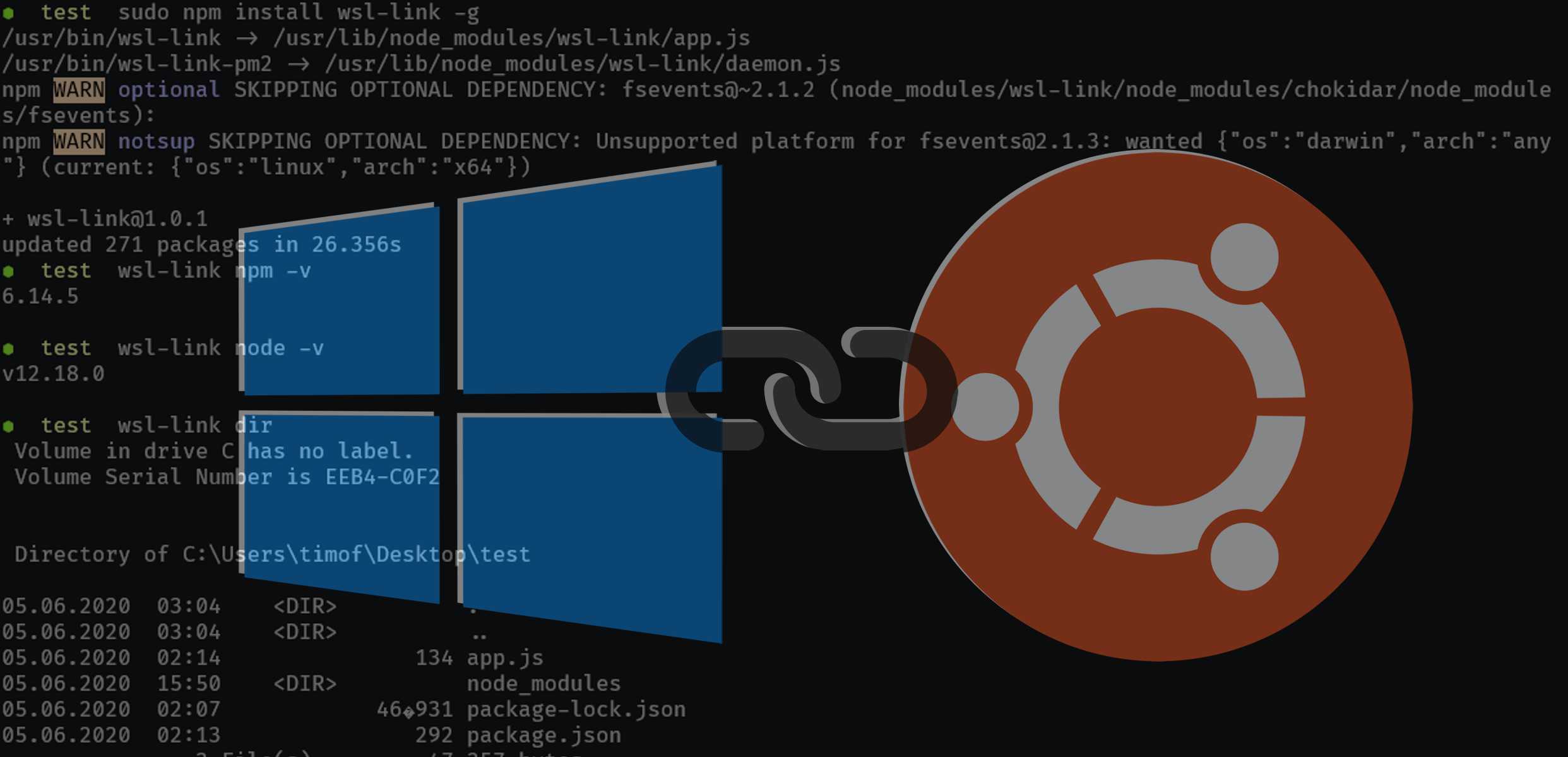
WHY
When doing web development on Windows using Windows Subsystem for Linux you sometimes have to install and run Windows versions of npm packages. This will require you to switch shells and/or terminal application to use node and npm installed on the Windows host.
This package will allow you to link wsl to your host system through wsl-link command. You will be able to run your Windows npm applications directly from you WSL shell.
WSL 2
This package will not work for WSL2 but it is fortunately not needed. In WSL 2 you can just use .exe commands in linux to achive the same result:
powershell.exe node -v
powershell.exe start .
Requirements
- Windows 10
- WSL
- Node.js
- NPM
Node and NPM have to be installed both in linux subsystem and on Windows host system.
Install
wsl-link has to be installed separately in subsystem and on Windows host
On subsystem linux:
npm i wsl-link -gOn Windows host:
npm i wsl-link -gWindows Startup
To run script at startup on windows I use PM2 with supplied daemon script.
Install pm2 and pm2-windows-startup on Windows host:
npm i pm2 pm2-windows-startup -gInstall pm2-startup:
pm2-startup installRun wsl-link pm2 daemon:
wsl-link-pm2Save pm2 list of processes
pm2 saveYou can now confirm that the wsl-link app is running, with:
pm2 status
Usage
On Windows start server (if not using startup setup with pm2):
wsl-linkUse on subsystem linux (npm -v will be run on host Windows):
wsl-link npm -vCase
On subsystem linux setup a project (or use existing):
mkdir wsl-link-test
cd wsl-link-test
touch app.js
npm init
app.js:
const Nightmare = require('nightmare');

(async () => {
  await Nightmare({
    show: true
  })
  .goto('https://google.com');
})();
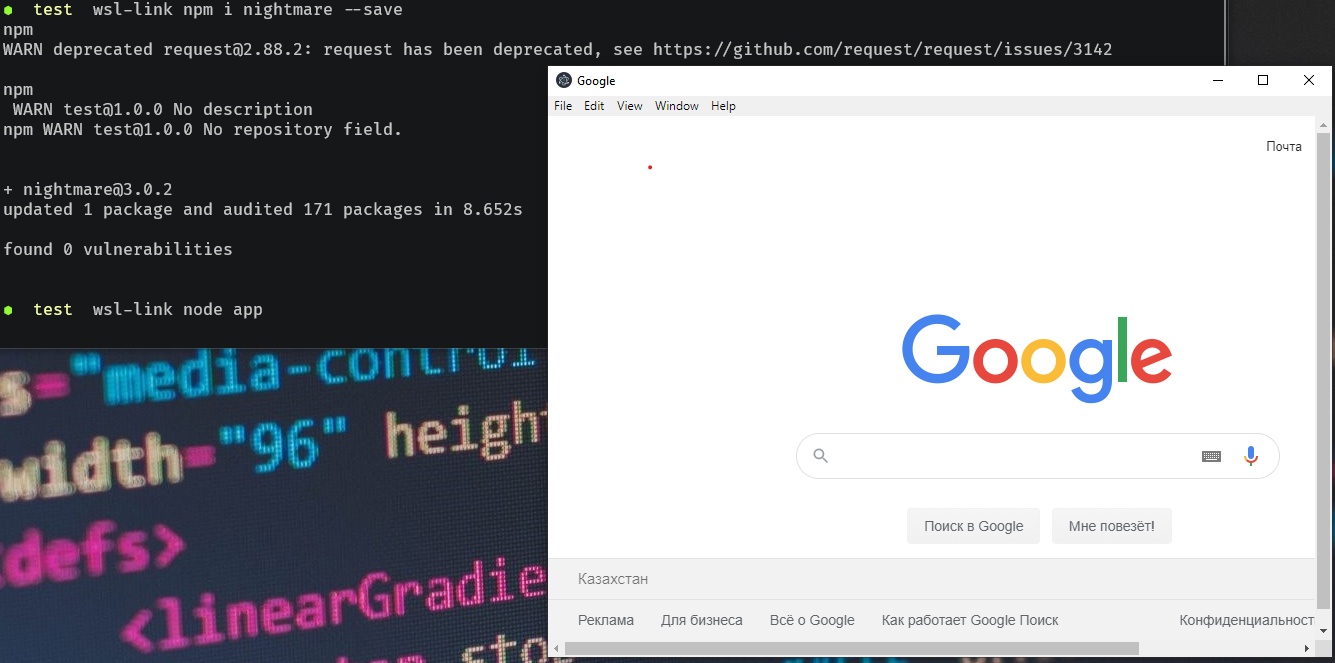
Install Windows version of Nightmare.js and run it on Windows.
wsl-link npm i nightmare --save
wsl-link node app
You should see Electron browser open on your Windows host.
Config
Optionally both Windows and WSL commands will use env vars for host/port configuration.
- Set
WSL_PORTenv to change default port. - Set
WSL_HOSTenv to change default host, ie '127.0.0.1'.
Port and host must be configured to be the same both on WSL and on Windows host.
Windows specific config.
For running commands not in /mnt/* Windows wsl-link server will need to know your linux root path on Windows.
By default it is set to
C:\\Users\\%USERNAME%\\AppData\\Local\\Packages\\CanonicalGroupLimited.Ubuntu18.04onWindows_79rhkp1fndgsc\\LocalState\\rootfs
that is what it is on my machine. If it is different for you, you can set a custom WIN_BASE_DIR env var and point it to your linux root.
- Set
WIN_BASE_DIRevn to change base win dir to operate outside/mnt/*folders on linux.