

AI-assisted workflows create editable animation projects you can refine visually.
Edit timing, assets, animations, and layouts before exporting the final result.







Overview · Showcase · Visual Editor · Motion Files · Agent and LLM Support · Contributing
Showcase
| Visual Editor |
|---|
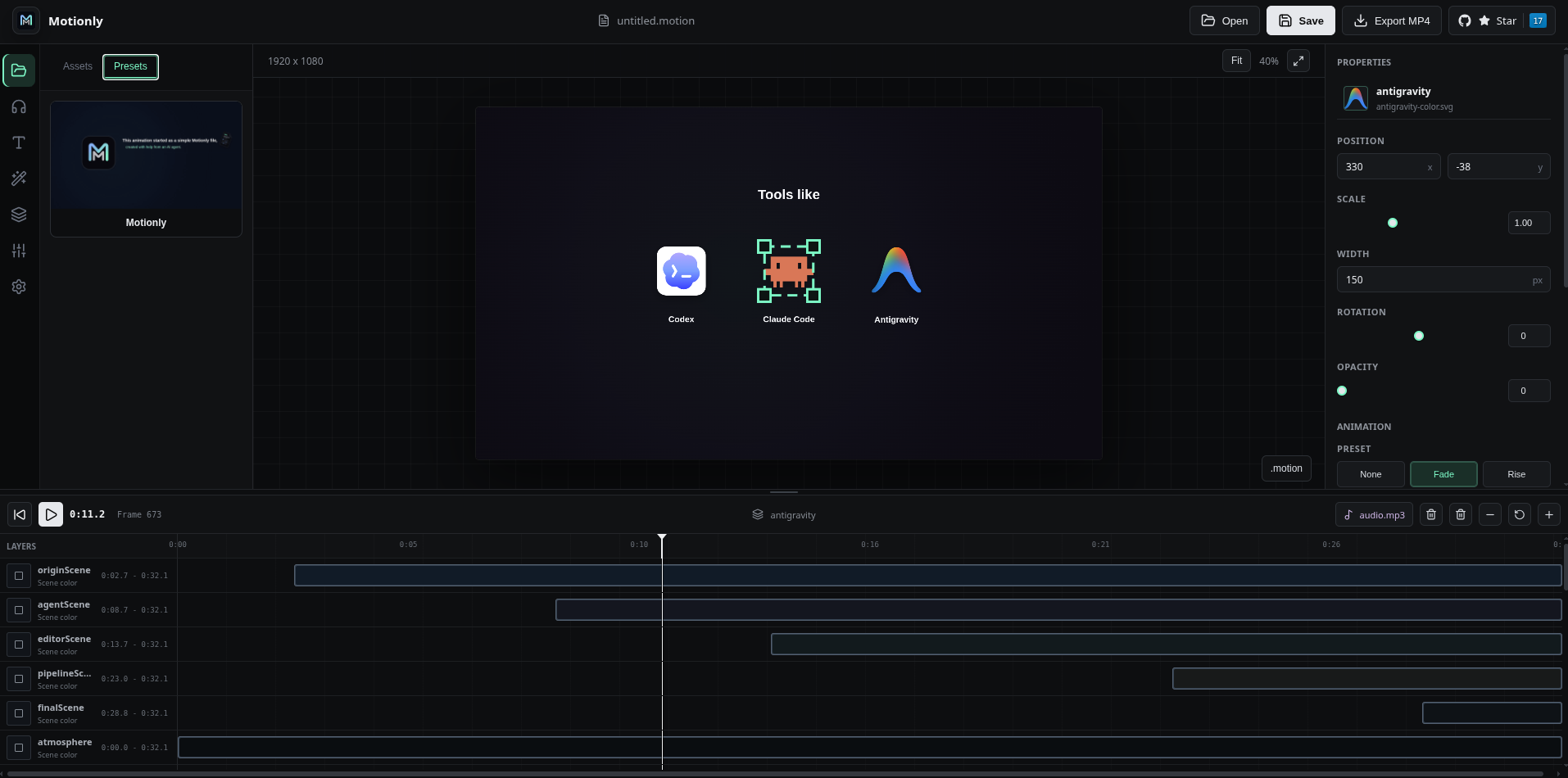 |
| Animation Preview |
|---|
 |
Overview
Motionly is a motion graphics editor where AI-assisted workflows create editable animation projects that you can refine visually. Edit timing, assets, animations, and layouts through a timeline and canvas editor before exporting the final result.
The current focus is the core editing loop: reliable preview, direct manipulation, useful animation presets, clear timeline control, clean serialization, and dependable export.
Visual Editor
Current editor features:
Interface:
- Left navigation rail with icon-based navigation (Media, Audio, Text, Effects, Scenes, AI Config, Settings)
- Organized Assets panel with folder structure showing audio and visual assets
- Assets panel tabs: Assets and Presets
- AI Config (rail): enabled skills and an AI context preview
- Settings (rail): brand profile editor
- Preset browser with animated GIF previews
- Professional properties panel with custom sliders, styled inputs, and visual preset cards
Canvas & Preview:
- Centered canvas preview with the project aspect ratio
- Play, pause, reset, timeline scrubber, timecode, and frame display
- Fit, zoom, and fullscreen preview controls
- Click asset thumbnails for temporary full-screen preview (no timeline disruption)
Editing:
- Drag-to-move and corner scaling for elements
- Visual position, scale, rotation, opacity, text, color, timing, and easing controls
- Add text, delete layers, resize the timeline, and trim layer ranges
- Scene, canvas, and timeline selection
Timeline Editing:
- Persistent Main, Overlay, and Audio track roles saved through
.motion - Uniform visual layers with free gaps/overlaps and no ripple behavior
- Horizontal timing changes stay on the current layer; vertical drag moves to any visual layer
- Optional clip-edge/playhead snapping is off by default
- Grab a clip's center to move it in time or across layers; a dashed ghost previews the persisted landing position (mouse and touch)
- On-timeline GSAP keyframes: selecting an animated element shows draggable keyframe diamonds on its row with per-keyframe easing controls, add-at-playhead, and right-click delete; edits persist into
.motion - Playhead-based Split for media, text, images, overlays, and effects
- Timeline zoom controls plus
Ctrl/Cmdwheel or trackpad pinch - Undo/Redo history and persistent track hide/mute controls
- Visual media clips with thumbnails and transition markers
Audio:
- Audio defined in
.motionformat (persists with project) - Synchronized audio preview playback
- Audio shown in organized Assets panel
Project Management:
- Open and save
.motionprojects - Load presets with confirmation dialog
- All edits automatically serialize to
.motionformat
AI Assistant:
- BYOK Motionly Assistant that generates and loads editable
.motionprojects - OpenAI, Anthropic, OpenRouter, Google Gemini, Hugging Face, and custom OpenAI-compatible endpoints
- Locally stored keys and model overrides
- AI Config (rail) manages enabled skills fed to the assistant; Settings (rail) holds a brand profile (BRAND.md). Both become assistant knowledge.
Export:
- Canvas-frame MP4 export through the local Motionly/FFmpeg server with progress and project-audio mixing
Current limits:
- MP4/WebM/MOV clips use the browser's native codecs and render decoded frames during preview, scrub, trim, and export
- GIF uses frame-accurate
ImageDecoderwhen available, Lottie uses the official dotLottie Canvas renderer, and animated SVG uses a real-time SVG-to-Canvas runtime - Video clip audio is muted and is not mixed into export yet; use the project audio track
- Two simultaneous clips that reference one video alias cannot seek that decoder to two source times; import a second alias when needed
- Project audio exports at its timeline offset; embedded audio from video clips remains muted
- Animated SVG and GIF fallback export in real time because those runtimes do not expose deterministic seeking
- Canvas resolution, aspect ratio, and FPS still come from
.motion - WebM, GIF, still-image, and image-sequence export are not exposed yet
Motion Files
The main sample project is:
video-motion/motionly.motionIts sample assets live in:
video-motion/assets/motionly/Example:
canvas {
  size 1920x1080
  fps 60
  duration 8s
  background #020308
}

camera {
  zoom 1
  x 0
  y 0
}

audio "/assets/my-project/background.mp3"

import "/video-motion/assets/my-project/logo.svg" as mark
import "/video-motion/assets/my-project/video.mp4" as bgVideo

mark {
  center
  layer hero
  width 220
  opacity 0
  animation maskReveal(delay 1s duration 900ms direction down ease power3.out)
}

text title {
  value "Motion graphics, written."
  center
  layer text
  size 72
  textAnimation keynoteText(split words stagger 80ms duration 800ms delay 1s ease power3.out)
}

clip bgVideo {
  track 1
  start 0s
  duration 5s
  trimIn 0s
  trimOut 0s
}
Motionly supports semantic layers, camera animation, reusable presets, SVG/image assets, text reveals, generated background effects, timeline clips, audio, preview playback, and MP4 export.
Use Your Own Assets
For a new animation:
- Copy
video-motion/motionly.motionto a new.motionfile or replace its contents. - Remove sample files you do not need from
video-motion/assets/motionly/. - Prefer creating a separate folder such as
video-motion/assets/my-project/. - Add your own images, SVGs, logos, audio files, and videos.
- Update every
importpath in the.motionproject. - Open the project in Motionly and finish positioning and timing visually.
- Or drag assets from the Assets panel onto the timeline to create clips.
Images, SVGs, and videos can be imported and used as timeline clips. Audio persists in .motion format. Drag assets onto the timeline to create clips that persist in the project file.
Note: Timeline clips reference assets by filename. Keep original files in the same location to reload projects with clips.
See AI Authoring Guide for a complete asset and prompting workflow.
Agent And LLM Support
Motionly includes a built-in AI Chat panel and repository guidance for external agent tools.
Open Motionly Assistant beside Assets, enter your own provider key, and describe the animation you want. Motionly detects OpenAI, Anthropic, OpenRouter, Google Gemini, and Hugging Face keys, or accepts a custom OpenAI-compatible endpoint. You can leave the model blank for Motionly's default or enter an exact model ID. The key and chat history stay in browser storage; requests go directly from the browser to that provider, never through a Motionly server. The assistant receives the current project and imported asset list, returns a .motion draft, and exposes a Load into Editor action that validates the source through the normal parser and scene-graph pipeline.
Model quality matters. The AI model you choose directly affects composition, timing, and correct preset use. Smaller models may generate valid syntax but weaker visual decisions. Prefer a current, high-capability model with strong code-generation and instruction-following performance.
For coding agents working inside a project, install the skill with npx @coppsary/motionly skills add (or npx @coppsary/motionly init, which asks which agent). This writes the SKILL.md contract plus a full references/ library into your agent's folder — Codex (.agents/), Claude Code (.claude/), Gemini CLI (.gemini/), opencode (.opencode/), or Kiro (.kiro/):
| Path | Purpose |
|---|---|
<agent>/skills/motionly/SKILL.md |
Quick .motion contract |
<agent>/skills/motionly/references/llms.txt |
Discovery index for the focused skills |
<agent>/skills/motionly/references/skills/*/SKILL.md |
Full library: motion-dsl, svg, animation, timeline, and more |
Point the agent at AGENTS.md and the installed SKILL.md, then let it load references/llms.txt and the reference skills the task needs. Working inside a clone of this repository instead? The same guidance lives at AGENTS.md and .agents/skills/write-motionly/. See the AI Authoring Guide for prompting details.
Use this short prompt with an LLM or agent working inside the repository:
/motionly
Read AGENTS.md and .agents/skills/write-motionly/SKILL.md first.
Inspect my assets, storyboard the animation, then create a valid .motion project.
Use only supported Motionly syntax and presets. Keep one focal subject per shot,
avoid overlap and repeated fade-only scenes, and validate the final project.
Open the result for visual refinement instead of treating the generated file as final.
The in-app assistant or external agent creates the first editable version. Motionly remains the place where you preview, adjust, save, and export it.
Goals
Current product goals:
- Make visual editing, selection, timeline trimming, and saving feel reliable.
- Improve preview and MP4 frame pacing on longer projects.
- Add visual canvas controls for FPS, resolution, duration, and aspect ratio.
- Add image, video, and persistent audio clips to the timeline.
- Improve existing animation presets and add a small set of distinct transitions.
- Add more export formats only after MP4 is dependable.
- Provide a hosted editor/sandbox without removing local or self-hosted use.
- Explore optional Remotion and Hyperframe support for code-based composition and rendering workflows while keeping
.motionas the editable source format. - Keep BYOK AI drafting optional, local-first, and compatible with external providers.
See the Roadmap for the planned order of work.
Architecture
.motion source
  -> parser
  -> AST
  -> scene graph
  -> animation preset compiler
  -> animation evaluator
  -> canvas renderer
  -> preview / export
Core folders:
| Path | Purpose |
|---|---|
AGENTS.md |
Agent guidance and product boundaries |
.agents/skills/write-motionly |
Reusable agent skill for authoring .motion |
src/ui |
Svelte editor and app shell |
src/language |
Tokenizer, parser, AST, and serializer |
src/scene |
Scene graph normalization and layer/camera structure |
src/animation |
Deterministic animation evaluation |
src/animation-library |
Reusable animation presets |
src/render |
Canvas renderer |
src/export |
MP4 and export pipeline |
video-motion |
Sample .motion projects and assets |
Open Source
Motionly is licensed under the Apache License 2.0.
Project docs:
- Introduction
- Quick Start
- Installation
- User Guide
- UI Guide
- Motion Language Overview
- Animation Presets
- Export Overview
- AI Authoring Guide
- Contributing
- Code of Conduct
- Security Policy
- Roadmap
- Changelog
Export
Motionly currently exposes MP4 export through the editor when the browser supports MP4 MediaRecorder output.
Known limitations:
- Export runs in real time and still needs pacing and reliability improvements.
- Attached audio is not included yet.
- Resolution and FPS use the current canvas settings.
- WebM, GIF, PNG, and image-sequence export are roadmap work.
Install and use
Motionly ships on npm — no clone and no global install. It needs Node.js 20.19.0 or newer, and every command runs through npx.
Create a project
npx @coppsary/motionly init demoinit scaffolds the project and asks which agent you're using, then installs the Motionly agent skill for just that one (or choose "All supported agents"). Supported agents: Codex, Claude Code, Gemini CLI, opencode, and Kiro. The install is not a single file: it writes the SKILL.md contract plus a full references/ library (motion-dsl, svg, animation, timeline, and more) with an llms.txt discovery index.
Skip the prompt with flags:
npx @coppsary/motionly init demo --provider opencode   # install for one agent, no prompt
npx @coppsary/motionly init demo --all                 # every supported agent
npx @coppsary/motionly init demo --skip-skills          # no agent skills
Provider names are codex, claude, gemini, opencode, and kiro. Use --scope project (default) or --scope global to install for every project on your machine.
The scaffolded project:
demo/
├── AGENTS.md
├── assets/
├── project.motion
├── meta.json
└── README.md
Add skills to an existing project
npx @coppsary/motionly skills add                      # pick scope and agents
npx @coppsary/motionly skills add --all --scope project
npx @coppsary/motionly skills add --provider codex --scope global
Re-running is safe: existing skill files are kept, never overwritten.
Open and edit
cd demo
npx @coppsary/motionly dev
Motionly opens http://localhost:4173/editor, loads project.motion, serves media from assets/, and saves editor changes back to the project. Add --port <n> to change the port or --no-open to skip launching the browser. For the no-setup browser editor, run npx @coppsary/motionly.
Development from source
For local development from source:
npm install
npm run dev
Open:
http://localhost:5173To serve your own production build locally:
npm run build
npm run serve
Test
npm run build
npm test -- --run
Contributing
Repository:
https://github.com/COPPSARY/Motionly
Contribution priorities:
- Improve the visual editor and timeline experience.
- Fix preview and MP4 export performance and correctness.
- Add focused tests for parser, serialization, presets, editor workflows, and export.
- Keep
.motionexamples and implementation files readable. - Avoid large dependencies unless they clearly simplify the core workflow.
Before opening a PR:
- Run
npm test -- --run - Run
npm run build - Keep
.motionexamples readable - Avoid hidden state in rendering
- Do not mutate imported assets
- Prefer deterministic frame evaluation over runtime side effects
Links
Effortless Animation