
pi-computer-use
macOS computer-use for pi
Semantic desktop interaction via Accessibility targets — clicks, types, reads visible windows.




macOS computer-use for Pi via harness server and CLI.
pi-computer-use gives Pi agents a semantic computer-use surface for visible macOS windows. It prefers Accessibility (AX) targets such as @e1, returns semantic state after every action, and attaches screenshots to /tmp/pi-computer-use/ only when AX coverage is too weak for reliable operation.
Table of Contents
- Quick Start
- How It Works
- Command Reference
- Documentation
- Development & Benchmarks
- Release & Install Notes
- License
- See Also
Quick Start
Install the Pi package:
pi install https://github.com/monotykamary/pi-computer-useStart Pi in interactive mode. On the first session, grant macOS permissions to:
~/.pi/agent/helpers/pi-computer-use/bridgeRequired permissions: Accessibility + Screen Recording.
Some browser automation paths use JavaScript from Apple Events. If the browser blocks that, Pi surfaces a model-readable hint asking the user to enable Allow JavaScript from Apple Events in the browser's developer menu, then retry.
Then use the CLI in any Pi bash session:
pi-computer-use list_apps
pi-computer-use list_windows --app Safari
pi-computer-use screenshot --window @w1
pi-computer-use click --ref @e1
pi-computer-use set_text --ref @e2 --text "hello"
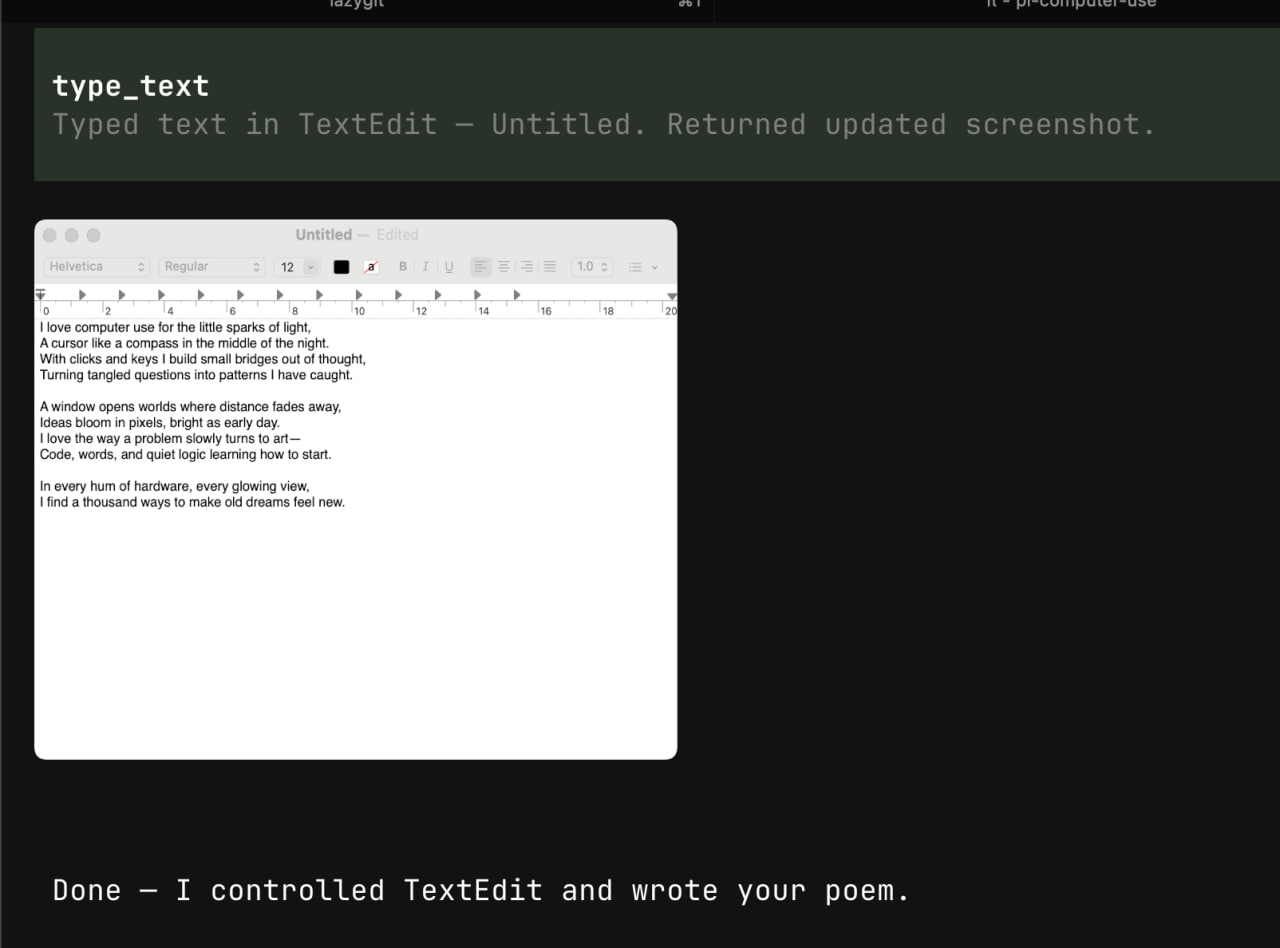
If screenshot returns a file path like /tmp/pi-computer-use/<stateId>.png, read it with Pi's read tool to view the image inline.
Use /computer-use in Pi to inspect the effective config.
How It Works
pi-computer-use has four pieces:
- The CLI (
harness/cli.ts) —pi-computer-use screenshot,pi-computer-use click @e1, etc. Auto-spawns the harness server on first use. - The harness server (
harness/server.ts) — a long-lived HTTP server that holds the native Swift helper process and all runtime state (current window, AX targets, capture metadata). Every CLI call dispatches to the same server, so state survives across calls. - The TypeScript bridge (
src/*.ts) — modular bridge split across nine files: types, constants, runtime state, helper IPC, discovery, targeting, capture, actions, and the public perform* API. Imported by the harness server. - The native Swift helper (
native/macos/bridge.swift) — talks to macOS Accessibility, ScreenCaptureKit, AppKit, and CoreGraphics. - The Pi extension (
extensions/computer-use.ts) — thin lifecycle shell: installs the CLI alias, starts/stops the harness server, provides/computer-usefor config inspection. Registers no tools — all interactions go through the CLI.
Command Reference
Discovery
pi-computer-use list_apps
pi-computer-use list_windows [--app Safari] [--bundleId com.apple.Safari] [--pid 123]
Screenshot
pi-computer-use screenshot [--app Safari] [--windowTitle "Google"] [--window @w1] [--image auto|always|never]Actions
pi-computer-use click [--ref @e1] [-x 320] [-y 180] [--button left|right|middle] [--window @w1] [--stateId ...] [--image auto|always|never]
pi-computer-use double_click [--ref @e1] [-x 320] [-y 180] [--window @w1] [--image auto|always|never]
pi-computer-use move_mouse -x 100 -y 200 [--window @w1] [--image auto|always|never]
pi-computer-use drag --path '[{"x":10,"y":20},{"x":100,"y":200}]' [--ref @e1] [--window @w1] [--image auto|always|never]
pi-computer-use scroll [-x 400] [-y 300] [--ref @e3] [--scrollY 600] [--window @w1] [--image auto|always|never]
pi-computer-use keypress --keys '["Enter"]' [--window @w1] [--image auto|always|never]
pi-computer-use type_text --text "hello" [--window @w1] [--image auto|always|never]
pi-computer-use set_text --text "hello" [--ref @e2] [--window @w1] [--image auto|always|never]
pi-computer-use wait [--ms 1000] [--window @w1] [--image auto|always|never]
Window management
pi-computer-use arrange_window [--window @w1] [--preset center_large] [-x 0] [-y 0] [--width 1200] [--height 800] [--image auto|always|never]
pi-computer-use navigate_browser --url "https://example.com" [--window @w1] [--image auto|always|never]
Batched actions
pi-computer-use computer_actions --actions '[{"type":"click","ref":"@e1"},{"type":"type_text","text":"hello"},{"type":"keypress","keys":["Enter"]}]' [--window @w1] [--stateId ...] [--image auto|always|never]JSON passthrough
pi-computer-use '{ "action": "click", "ref": "@e1" }'
pi-computer-use '{ "action": "screenshot", "window": "@w1" }'
Server management
| Command | Behavior |
|---|---|
pi-computer-use --status |
Print health JSON or exit 1 if down |
pi-computer-use --start |
Start the harness server |
pi-computer-use --stop |
Graceful shutdown |
pi-computer-use --restart |
Stop + start fresh |
pi-computer-use --logs |
tail -f the server log |
Documentation
- Configuration: config files, environment overrides, browser control, and stealth mode.
- Development: local setup, helper builds, validation, release signing notes, and PR workflow.
- Troubleshooting: permissions, helper setup, stale refs, browser refusal, and strict mode errors.
- Benchmarks: benchmark commands, metrics, regression policy, and local comparison workflow.
- Contributing: issue-first contribution rules and PR checklist.
Development & Benchmarks
Install dependencies:
npm installRun type checks:
npm run typecheckRun the local checkout in Pi without loading another installed copy:
pi --no-extensions -e .Run the default QA benchmark:
npm run benchmark:qaRun the wider benchmark that may open apps:
npm run benchmark:qa:fullRelease & Install Notes
The package is published on npm as @monotykamary/pi-computer-use.
npm install @monotykamary/pi-computer-use
npm install @monotykamary/pi-computer-use@0.3.0
Pi installs should pin a GitHub release tag:
pi install https://github.com/monotykamary/pi-computer-use@v0.3.0
pi install -l https://github.com/monotykamary/pi-computer-use@v0.3.0
pi install /absolute/path/to/pi-computer-use
Remove:
pi remove https://github.com/monotykamary/pi-computer-use@v0.3.0
npm remove @monotykamary/pi-computer-use
Screenshots
License
MIT