@olton/terminal v0.6.0
Terminal
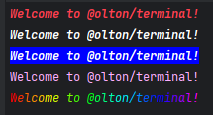



Terminal - a JavaScript library for styling text output in a terminal, and screen and cursor control.
Installation
npm install @olton/terminalTerminal output
You can create colored and styled outputs using term and termx functions.
term()
With term(msg, options) function you can put text into terminal and styling it with options.
Options can be set as an object in the second argument.
import { term, termx } from '@olton/terminal'

console.log(term('Hello World!', { style: 'bold, italic', color: 'redBright' }))
termx()
With termx you can use chainable methods to set text style and color.
Chain must be ended with write(msg) method.
import { term, termx } from '@olton/terminal'

console.log(termx.bold.italic.redBright.write('Hello World!'))
Text style
You can set the text style using the style option. This is a comma-separated list of styles. The available styles are:
bold- bold textdim- dim textitalic- italic textunderline- underlined textinverse- inverse texthidden- hidden textstrike- strikethrough text
Text color
You can set the text color using the color option. This is a comma-separated list of colors where first color is the text color and the second color is the background color. You can use next color values:
1. Named colors:
black, red, green, yellow, blue, magenta, cyan, white, gray
blackBright, redBright, greenBright, yellowBright, blueBright, magentaBright, cyanBright, whiteBright, grayBright
import { term } from '@olton/terminal';

console.log(term('Hello World!', { color: 'yellowBright, blue' }))
console.log(termx.yellowBright.bgBlue.write('Hello World!'))
2. Hex colors:
#ff0000, #00ff00, #00f, ...
import { term } from '@olton/terminal';

console.log(term('Hello World!', { color: '#ff0000, #00ff00' }))
console.log(termx.hex('#ff0000', '#00ff00').write('Hello World!'))
3. Color index: from 0 to 255.
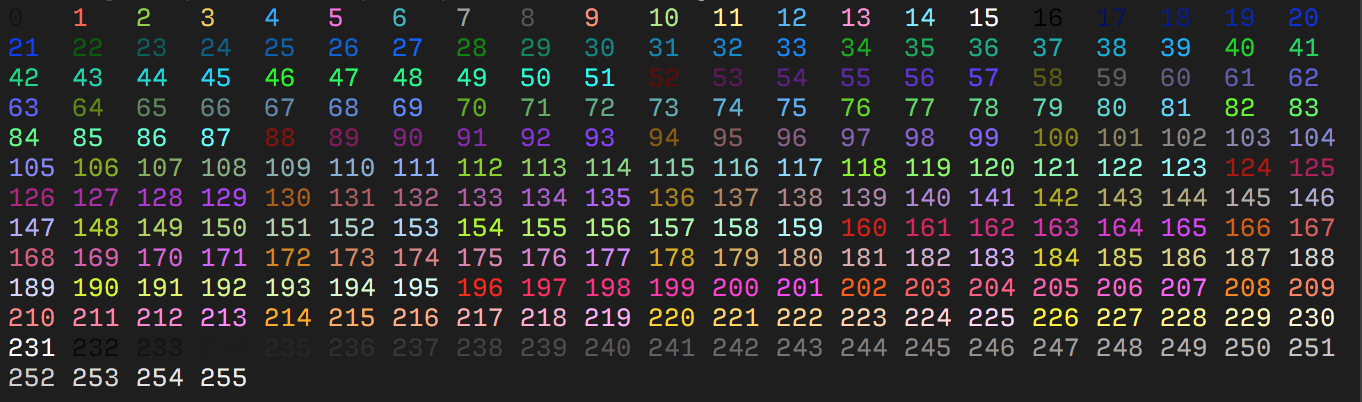
.png "npm.io")
import { term } from '@olton/terminal';

console.log(term('Hello World!', { color: '212, 27' }))
console.log(termx.ind(212, 27).write('Hello World!'))
Gradient color
You can set the gradient color using the gradient option.
This is a comma-separated list of colors.
Colors can be in hex format.
console.log(term('Hello World!', { gradient: "#ff0000, #0000ff" }))
console.log(term('Hello World!', { gradient: ["#f00", "#00f"] }))
console.log(termx.gradient("#f00", "#00f").write('Hello World!'))
Themes
You can use predefined themes to style your text or add your one theme. Predefined themes are:
default- default themesunset- sunset themeocean- ocean themeforest- forest themedesert- desert themetwilight- twilight themematrix- matrix themeerror- error themesuccess- success themewarning- warning themeinfo- info theme
Using themes with term()
term('Hello World!', { theme: 'sunset' })Using themes with termx()
termx.sunset.write('Hello World!')Global setup
You can set the default theme for all text using Themes.set() method.
import { Themes } from '@olton/terminal'

Themes.set('sunset')
Reset theme
You can reset the theme to default using Themes.reset() method.
import { Themes } from '@olton/terminal'

Themes.reset()
Adding custom theme
You can add your own theme using Themes.add() method.
import { Themes } from '@olton/terminal'

Themes.add('myTheme', {
  color: ['red', 'blue'],
  style: ['bold', 'italic']
})
Cursor
You can use Cursor class to manipulate the cursor position or visibility in the terminal.
Use fabric method cursor to create a new instance of Cursor.
import { term, Cursor } from '@olton/terminal'

console.log(term('Hello World!'))
Cursor.hide()
setTimeout(() => {
  Cursor.show()
}, 2000)
Cursor methods
hide()- hide the cursorshow()- show the cursorto(x, y)- move the cursor to the specified positionup(n)- move the cursor upnlinesdown(n)- move the cursor downnlinesleft(n)- move the cursor leftncharactersright(n)- move the cursor rightncharacterssave()- save the current cursor positionrestore()- restore the cursor positionlineUp()- move the cursor uplinesUp(n)- move the cursor upnlines and save the positionlinesDown(n)- move the cursor downnlines and save the positiongetPos()- get the current cursor position. This method returns a promise with the position object{ x, y }shape- set the cursor shape. This property contains methods to change cursor shape. Argumentblickcan befalseortrueand sets blinking cursor mode. The available shapes are:block(blink)- block cursorline(blink)- underline cursorbar(blink)- bar cursor
// Get cursor position
import { Cursor } from '@olton/terminal'

const pos = await Cursor.getPos()
console.log(`Cursor position is: column: ${pos.x}, row: ${pos.y}`)
// Set cursor shape
import { Cursor } from '@olton/terminal'
Cursor.shape.block(true) // set block cursor with blinkingScreen
You can use Screen class to manipulate the screen in the terminal.
Use fabric method screen to create a new instance of Screen.
import { term } from '@olton/terminal'
import { screen } from '@olton/terminal'
console.log(term('Hello World!'))
setTimeout(() => {
  screen.clear()
}, 2000)
Screen methods
clear()- clear the screenclearLine()- clear the current lineclearLeft()- clear the left side of the current lineclearRight()- clear the right side of the current lineclearDown()- clear the screen from the current line downclearUp()- clear the screen from the current line upsize()- get the current screen size.
import { Screen } from '@olton/terminal'

// Clear terminal screen
// and set cursor to the top left corner
Screen.clear()
!NOTE Methods
clearLine,clearLeft,clearRight,clearDown,clearUpnot moved a cursor.
License
This project is licensed under the MIT License. See the LICENSE file for details.
Code Standards

Support
If you like this project, please consider supporting it by:
- Star this repository on GitHub
- Sponsor this project on GitHub Sponsors
- PayPal to
serhii@pimenov.com.ua. - Patreon https://www.patreon.com/metroui
Copyright (c) 2025 by Serhii Pimenov