
JavaScript Block Editor Component
Using this package with an AI coding agent
Before generating Syncfusion code, ask your AI coding agent to run the Syncfusion setup using the following prompt:
Set up this project for Syncfusion before generating code. Fetch
and follow the official instructions at https://ai.syncfusion.com,
then report the detected platform, installed skill pack, MCP
status, and any required licensing action.
The setup detects your project’s platform and loads the appropriate Syncfusion skill pack. No Syncfusion account or MCP key is required to install or read Syncfusion agent skills.
Platform reference: https://ai.syncfusion.com/javascript/llms.txt
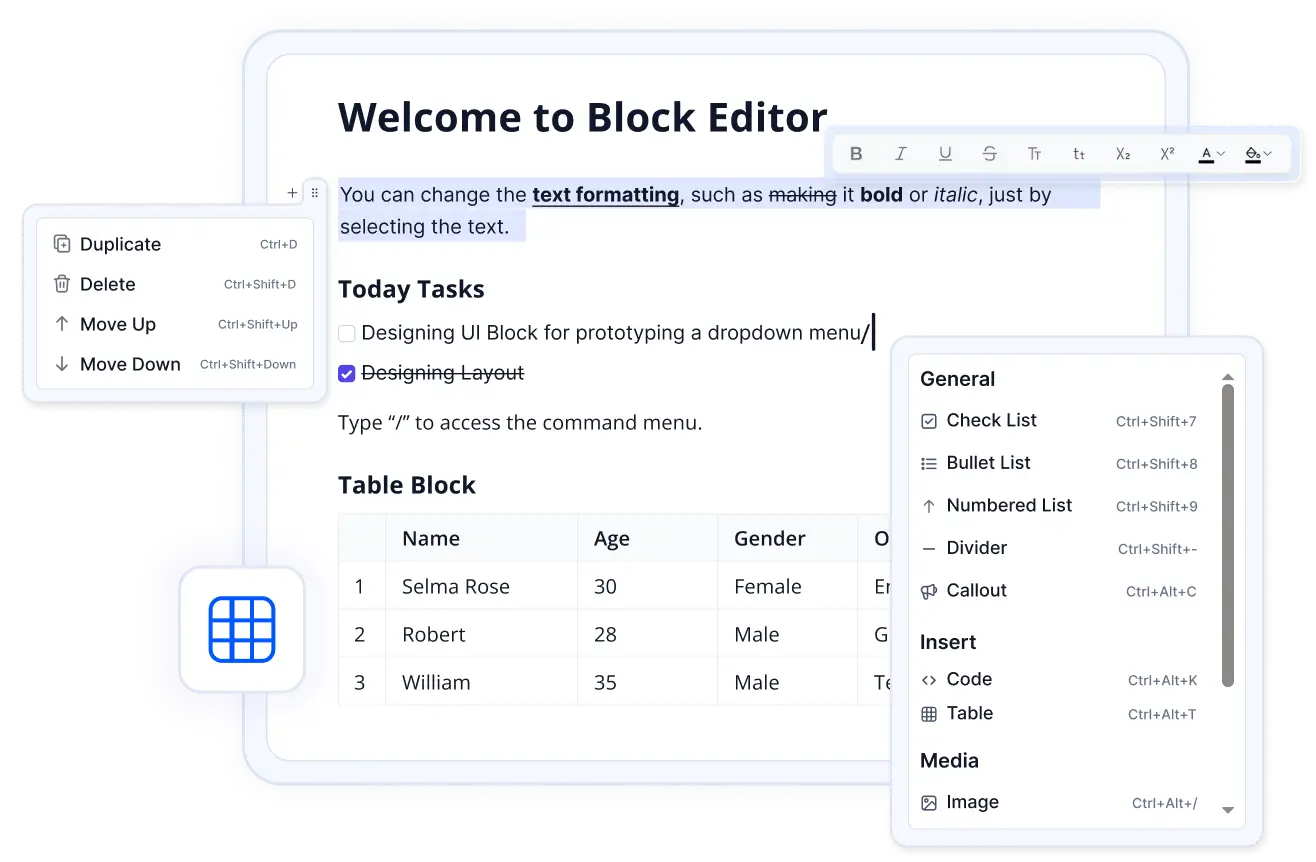
The Syncfusion JavaScript Block Editor is a modern, block-based editor for creating rich and structured content. It is ideal for document editing, knowledge bases, note-taking, and content creation applications. The editor features an intuitive user interface, mobile support, and a modular architecture. It supports a variety of block types, inline elements such as mentions, links, and labels, slash commands, contextual menus, and real-time collaboration for simultaneous multi-user editing. The editor also provides well-structured content models and can generate valid HTML when required.
Getting Started . Online demos . Learn more
️ Quick Start
This guide uses Vite as the bundler and development environment for the JavaScript Block Editor. Install Node.js 24.13.0 or higher before proceeding. For detailed information about Vite's capabilities and configuration options, refer to the Vite documentation.
Create a TypeScript application
To set up a TypeScript application, run the following command.
npm create vite@latest my-app -- --template vanilla-tsThis command will prompt you to install the required packages and start the application. As Syncfusion packages are not installed yet, select the No option.
Then, navigate to the project directory and install the dependencies:
cd my-app
npm install
Install the Block Editor package
npm install @syncfusion/ej2-blockeditorAdd the CSS reference
Install the Syncfusion Tailwind 3 theme package:
npm install @syncfusion/ej2-tailwind3-theme --saveThen add the following CSS reference to the src/style.css file:
@import "../node_modules/@syncfusion/ej2-tailwind3-theme/styles/blockeditor/index.css";Add the Block Editor component to your application
In the index.html file, add a target element:
<!DOCTYPE html>
<html>
  <body>
    <!-- Your Block Editor container -->
    <div id="blockEditor"></div>
    <script type="module" src="/src/main.ts"></script>
  </body>
</html>
In the src/main.ts file, import the Block Editor component as shown below:
import { BlockEditor } from '@syncfusion/ej2-blockeditor';
import './style.css';

const editor = new BlockEditor({
  height: '500px'
});
editor.appendTo('#blockEditor');
Run the application
npm run devNow, open your project in a browser, and the Block Editor will be displayed!
Note:
For more information on using Block Editor with Syncfusion, refer to our Documentation.
Key features
- Real-time collaboration: Real-time collaboration enables multiple users to create and edit content simultaneously with synchronized updates across all connected clients. It helps teams work together efficiently while maintaining content consistency and reducing editing conflicts.
- Multiple block types: Includes Heading levels 1-4, Table, Paragraph, Table, Lists, Checklist, Quote, Callout, Divider, Code block, and more.
- Slash commands: Interactive
/commands to insert or transform content blocks, with filtering and keyboard shortcuts. - Drag and drop: Reorder blocks effortlessly with built-in drag-and-drop support.
- Rich text formatting: Apply styles such as Bold, Italic, Underline, Strikethrough, Uppercase and more.
- Action menu: Perform block-level operations such as Move, Delete, and Duplicate.
- Contextmenu support: Right-click context menus for quick block actions.
- Inline content support: Insert inline elements like Links, Labels and Mention directly within blocks.
- Undo/Redo operations: Undo and redo support for the user interactions.
- Events for Customization: The Block Editor includes a rich set of events such as block addition, removal, update, selection change, command execution, paste, and mention selection allowing developers to customize and extend functionality easily.
- Accessibility & WCAG 2.0 Compliance: Accessibility support for assistive technologies and keyboard navigation.
- Keyboard Navigation: Navigate and manage blocks efficiently using intuitive keyboard shortcuts for a faster editing experience.
Trusted by the world's leading companies

Supported frameworks
Input controls are also offered in following list of frameworks.
 Angular |
 React |
 Vue |
 ASP.NET Core |
 ASP.NET MVC |
|---|
Showcase samples
- Real-Time Collaborative Editing - Live Demo
- Expanse Tracker - Source, Live Demo
- Loan Calculator - Source, Live Demo
- Cloud Pricing - Live Demo
Resources
Support
Product support is available through following mediums.
- Support ticket - Guaranteed Response in 24 hours | Unlimited tickets | Holiday support
- Community forum
- GitHub issues
- Request feature or report bug
- Live chat
Changelog
Check the changelog here. Get minor improvements and bug fixes every week to stay up to date with frequent updates.
License and copyright
This is a commercial product and requires a paid license for possession or use. Syncfusion’s licensed software, including this component, is subject to the terms and conditions of Syncfusion's EULA. To acquire a license for 140+ JavaScript UI controls, you can purchase or start a free 30-day trial.
A free community license is also available for companies and individuals whose organizations have less than $1 million USD in annual gross revenue and five or fewer developers.
See LICENSE FILE for more info.
Copyright 2026 Syncfusion Inc. All Rights Reserved. The Syncfusion Essential Studio license and copyright applies to this distribution.