
Frappe Gantt
A modern, configurable, Gantt library for the web.
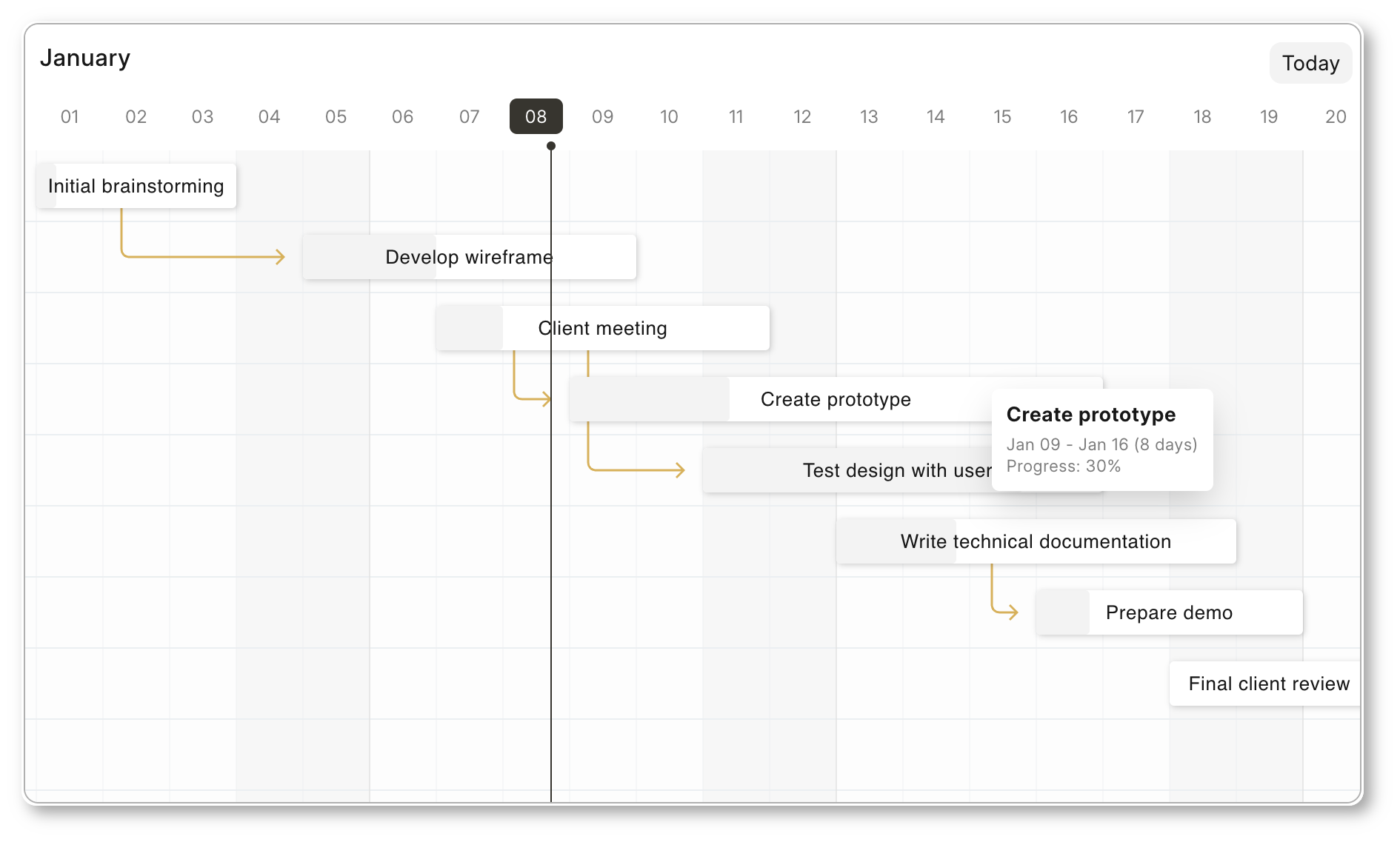
Frappe Gantt
Gantt charts are bar charts that visually illustrate a project's tasks, schedule, and dependencies. With Frappe Gantt, you can build beautiful, customizable, Gantt charts with ease.
You can use it anywhere from hobby projects to tracking the goals of your team at the worksplace.
ERPNext uses Frappe Gantt.
Motivation
We needed a Gantt View for ERPNext. Surprisingly, we couldn't find a visually appealing Gantt library that was open source - so we decided to build it. Initially, the design was heavily inspired by Google Gantt and DHTMLX.
Key Features
- Customizable Views: customize the timeline based on various time periods - day, hour, or year, you have it. You can also create your own views.
- Ignore Periods: exclude weekends and other holidays from your tasks' progress calculation.
- Configure Anything: spacing, edit access, labels, you can control it all. Change both the style and functionality to meet your needs.
- Multi-lingual Support: suitable for companies with an international base.
Usage
Install with:
npm install frappe-ganttInclude it in your HTML:
<script src="frappe-gantt.umd.js"></script>
<link rel="stylesheet" href="frappe-gantt.css" />
Or from the CDN:
<script src="https://cdn.jsdelivr.net/npm/frappe-gantt/dist/frappe-gantt.umd.js"></script>
<link
    rel="stylesheet"
    href="https://cdn.jsdelivr.net/npm/frappe-gantt/dist/frappe-gantt.css"
/>
Start using Gantt:
let tasks = [
  {
    id: '1',
    name: 'Redesign website',
    start: '2016-12-28',
    end: '2016-12-31',
    progress: 20
  },
  ...
]
let gantt = new Gantt("#gantt", tasks);

// Use .refresh to update the chart
gantt.tasks.append(...)
gantt.tasks.refresh()
Each task object accepts an optional bar_label string. When defined (including an empty string) and the global show_bar_label option is true, the bar renders bar_label instead of name. Only null or undefined falls back to name. To hide bar labels entirely, set the show_bar_label option to false.
Configuration
Frappe Gantt offers a wide range of options to customize your chart.
v1.0.25 note: Bar labels are now controlled by the
show_bar_labeloption (defaulttrue) rather than bytask_column.enabled. To preserve the previous behaviour of hiding bar labels when the task column is enabled, passshow_bar_label: falseexplicitly.
| Option | Description | Possible Values | Default |
|---|---|---|---|
allow_dependency_creation |
Enables interactive dependency creation by dragging between connector circles on task bars. When enabled, hovering a bar reveals circles at its start and end; drag from one circle to another to create a typed dependency. | true, false |
true |
arrow_curve |
Curve radius of arrows connecting dependencies. | Any positive integer. | 5 |
auto_move_label |
Move task labels when user scrolls horizontally. | true, false |
false |
bar_corner_radius |
Radius of the task bar corners (in pixels). | Any positive integer. | 3 |
bar_height |
Height of task bars (in pixels). | Any positive integer. | 30 |
container_height |
Height of the container. | auto - dynamic container height to fit all tasks - or any positive integer (for pixels). |
auto |
column_width |
Width of each column in the timeline. | Any positive integer. | 45 |
critical_path |
Automatically calculate and highlight the critical path. | true, false |
false |
date_format |
Format for displaying dates. | Any valid JS date format string. | YYYY-MM-DD |
dependencies_type |
Sets the default relationship type used to validate each arrow (turns it red on violation). Dragging is always free. | finish-to-start, start-to-start, finish-to-finish, start-to-finish |
finish-to-start |
dependency_shifting |
Controls how dependent tasks shift after a bar is dropped. See Dependency Shifting section below. | none, maintain_buffer_all, maintain_buffer_downstream, consume_buffer |
none |
upper_header_height |
Height of the upper header in the timeline (in pixels). | Any positive integer. | 45 |
lower_header_height |
Height of the lower header in the timeline (in pixels). | Any positive integer. | 30 |
snap_at |
Snap tasks at particular intervel while resizing or dragging. | Any interval (see below) | 1d |
infinite_padding |
Whether to extend timeline infinitely when user scrolls. | true, false |
true |
holidays |
Highlighted holidays on the timeline. | Object mapping CSS colors to holiday types. Types can either be a) 'weekend', or b) array of strings or date objects or objects in the format {date: ..., label: ...} |
{ 'var(--g-weekend-highlight-color)': 'weekend' } |
is_weekend |
Determines whether a day is a weekend | Function | (d) => d.getDay() === 0 || d.getDay() === 6 |
ignore |
Ignored areas in the rendering | weekend or Array of strings or date objects (weekend can be present to the array also). |
[] |
language |
Language for localization. | ISO 639-1 codes like en, fr, es. |
en |
lines |
Determines which grid lines to display. | none for no lines, vertical for only vertical lines, horizontal for only horizontal lines, both for complete grid. |
both |
padding |
Padding around task bars (in pixels). | Any positive integer. | 18 |
popup_on |
Event to trigger the popup display. | click or hover |
click |
readonly_progress |
Disables editing task progress. | true, false |
false |
readonly_dates |
Disables editing task dates. | true, false |
false |
readonly |
Disables all editing features. | true, false |
false |
scroll_to |
Determines the starting point when chart is rendered. | today, start, end, or a date string. |
today |
show_bar_label |
Whether to render the text label inside each task bar. When true, label text comes from task.bar_label when defined (including empty string), otherwise from task.name. |
true, false |
true |
show_expected_progress |
Shows expected progress for tasks. | true, false |
false |
task_add_icon_position |
Position of the add task icon relative to task bar. | null (hidden), 'before', 'after' |
null |
today_button |
Adds a button to navigate to today's date. | true, false |
true |
view_mode |
The initial view mode of the Gantt chart. | Day, Week, Month, Year. |
Day |
view_mode_select |
Allows selecting the view mode from a dropdown. | true, false |
false |
Apart from these ones, two options - popup and view_modes (plural, not singular) - have additional details and are listed separately below. dependencies_type is also described in more detail in the Dependencies Type section below.
Dependencies Type Configuration
The dependencies_type option controls how dependent tasks behave when their parent tasks are moved. This is set globally and can be overridden per dependency entry (see the task dependencies format below).
Available Types:
finish-to-start(default): Most common in project management. The dependent task can only start after the parent finishes.- Constraint: Dependent start date ≥ Parent end date
- Example: Development can only start after Design finishes
start-to-start: The dependent task can only start after the parent starts.- Constraint: Dependent start date ≥ Parent start date
- Example: Testing can start after Development starts (parallel work)
finish-to-finish: The dependent task can only finish after the parent finishes.- Constraint: Dependent end date ≥ Parent end date
- Example: Documentation must finish after Development finishes
start-to-finish: The dependent task can only finish after the parent starts (rare).- Constraint: Dependent end date ≥ Parent start date
- Example: Legacy system runs until new system starts
Usage:
// Global configuration (fallback for all dependencies)
let gantt = new Gantt("#gantt", tasks, {
    dependencies_type: 'finish-to-start'
});

// Per-dependency override via the dependencies array
let tasks = [
    {
        id: 'design',
        name: 'Design',
        start: '2023-01-01',
        end: '2023-01-05'
    },
    {
        id: 'dev',
        name: 'Development',
        start: '2023-01-05',
        end: '2023-01-15',
        dependencies: [
            { id: 'design', type: 'finish-to-start' } // Overrides global setting
        ]
    }
];
Behavior:
- Dragging is always free — tasks can be moved to any position
- When a dependency constraint is violated, the arrow turns red
- Each arrow is validated independently based on its own
type - Constraints respect ignored dates/weekends
Dependency Shifting Configuration
The dependency_shifting option controls how dependent tasks respond when a bar is dragged or resized.
Available Modes:
none(default): No shifting. Dependency arrows may visually overlap — no correction is applied.maintain_buffer_all: Shifts tasks by the same delta to preserve all gaps. Direction depends on the interaction:- Drag: both upstream and downstream tasks shift
- Right-resize (end date changes): downstream tasks shift
- Left-resize (start date changes): upstream tasks shift
maintain_buffer_downstream: Only downstream (child) tasks ever shift — regardless of whether the bar was dragged or resized. Left-resize does nothing.consume_buffer: Dependency-type-aware shifting. A shift only happens when a real conflict exists — remaining buffer is consumed silently. When buffer is exhausted, the minimum required shift is applied. Direction follows the same rules asmaintain_buffer_all(drag → both, right-resize → downstream, left-resize → upstream).Conflict conditions per dependency type:
Type Conflict when finish-to-startpredecessor end > successor start start-to-startpredecessor start > successor start finish-to-finishpredecessor end > successor end start-to-finishpredecessor start > successor end
Usage:
let gantt = new Gantt("#gantt", tasks, {
    dependency_shifting: 'consume_buffer'
});
Behavior notes:
- Shifting fires after release (mouseup), not during live dragging or resizing
- When a task has multiple predecessors, the maximum required shift is applied (ensures all constraints are satisfied)
- Cycles in the dependency graph are safely skipped
View Mode Configuration
The view_modes option determines all the available view modes for the chart. It should be an array of objects.
Each object can have the following properties:
name(string) - the name of view mode.padding(interval) - the time above.step- the interval of each columnlower_text(date format string or function) - the format for text in lower header. Blank string for none. The function takes incurrentDate,previousDate, andlang, and should return a string.upper_text(date format string or function) - the format for text in upper header. Blank string for none. The function takes incurrentDate,previousDate, andlang, and should return a string.upper_text_frequency(number) - how often the upper text has a value. Utilized in internal calculation to improve performance.thick_line(function) - takes incurrentDate, returns Boolean determining whether the line for that date should be thicker than the others.
Three other options allow you to override general configuration for this view mode alone:
date_formatcolumn_widthsnap_atFor details, see the above table.
Popup Configuration
popup is a function. If it returns
false, there will be no popup.undefined, the popup will be rendered based on manipulation within the function- a HTML string, the popup will be that string.
The function receives one object as an argument, containing:
task- the task as an objectchart- the entire Gantt chartget_title,get_subtitle,get_details(functions) - get the relevant section as a HTML node.set_title,set_subtitle,set_details(functions) - take in the HTML of the relevant sectionadd_action(function) - accepts two parameters,htmlandfunc- respectively determining the HTML of the action and the callback when the action is pressed.
Events
Frappe Gantt provides event callbacks to respond to user interactions:
| Event | Description | Parameters |
|---|---|---|
on_click |
Triggered when a task bar is clicked. | task - the task object |
on_double_click |
Triggered when a task bar is double-clicked. | task - the task object |
on_date_change |
Triggered while dragging a task (called multiple times during drag). | task, start (Date), end (Date) |
on_after_date_change |
Triggered after dropping a task, for parent and all affected children. | task, start (Date), end (Date) |
on_progress_change |
Triggered when task progress is changed. | task, progress (number) |
on_view_change |
Triggered when the view mode changes. | mode (string) |
on_hover |
Triggered when hovering over a task. | task, screenX, screenY, event |
on_task_add |
Triggered when the add task icon is clicked. | task - the parent task object |
on_arrow_click |
Triggered when a dependency arrow is clicked (activated). Clicking the same arrow again or clicking outside deselects it — deselection does not re-fire this event. | from_task, to_task — the connected task objects |
on_dependency_create |
Triggered when a new dependency is created via interactive linking (no prior connection between the two tasks). | from_task, to_task, type — the dependency type string (e.g. 'finish-to-start') |
on_dependency_changed |
Triggered when an existing dependency between two tasks is replaced with a different type. | from_task, to_task, old_type, new_type |
on_dependency_delete |
Triggered when a dependency is removed — either by pressing Delete/Backspace while an arrow is active, or by re-connecting the same two tasks with the same type (toggle off). | from_task, to_task, type |
Arrow Active State
Hovering over a dependency arrow highlights it and its connected bars, and shows a small badge near the destination bar indicating the dependency type (FS, SS, FF, or SF).
Clicking an arrow puts it into an active state — the highlight and badge persist even after the mouse moves away.
- Hover → highlights arrow and connected bars, shows dependency type badge
- Click an arrow or its badge → activates it, fires
on_arrow_click, badge stays visible - Click the same arrow again → deactivates (toggle off), no callback
- Click a different arrow → deactivates the previous, activates the new one
- Click anywhere outside (including outside the SVG) → deactivates
Example:
let gantt = new Gantt("#gantt", tasks, {
    on_arrow_click: (from_task, to_task) => {
        console.log(`Dependency: ${from_task.id} → ${to_task.id}`);
    }
});
Interactive Dependency Linking
When allow_dependency_creation is true (the default), hovering over any task bar reveals connector circles at its start (green) and end (orange). Drag from one circle to a circle on a different bar to create a dependency between them.
The dependency type is determined automatically by which circles are connected:
| From endpoint | To endpoint | Type created |
|---|---|---|
| End | Start | finish-to-start |
| Start | Start | start-to-start |
| End | End | finish-to-finish |
| Start | End | start-to-finish |
Behaviors:
- Only one dependency between any two tasks is stored at a time. If the two tasks are already linked, dragging replaces the old type with the new one.
- Dragging from one task to itself is ignored.
- If you re-connect the same two tasks with the same type, the dependency is toggled off (removed).
- Dependency creation is disabled when
readonly: true.
Deleting a dependency:
- Click a dependency arrow to activate it (it stays highlighted).
- Press Delete or Backspace — the arrow and its underlying dependency are removed.
let gantt = new Gantt("#gantt", tasks, {
    allow_dependency_creation: true,
    on_dependency_create: (from_task, to_task, type) => {
        console.log(`Created: ${from_task.id} → ${to_task.id} (${type})`);
    },
    on_dependency_changed: (from_task, to_task, old_type, new_type) => {
        console.log(`Changed: ${from_task.id} → ${to_task.id} (${old_type} → ${new_type})`);
    },
    on_dependency_delete: (from_task, to_task, type) => {
        console.log(`Deleted: ${from_task.id} → ${to_task.id} (${type})`);
    }
});
Example:
let gantt = new Gantt("#gantt", tasks, {
    on_date_change: (task, start, end) => {
        console.log('Task is being dragged:', task.name);
    },
    on_after_date_change: (task, start, end) => {
        console.log('Task dropped:', task.name, 'New dates:', start, end);
        // Perfect place to save changes to your backend
        // This event fires for the dragged task and all dependents that moved
    },
    on_task_add: (task) => {
        console.log('Add task button clicked for:', task.name);
        // Handle adding a new task relative to this task
        // You can use the task parameter to determine where to add the new task
    },
    task_add_icon_position: 'after' // Show plus icon after each task bar
});
API
Frappe Gantt exposes a few helpful methods for you to interact with the chart:
| Name | Description | Parameters |
|---|---|---|
.update_options |
Re-renders the chart after updating specific options. | new_options - object containing new options. |
.change_view_mode |
Updates the view mode. | view_mode - Name of view mode or view mode object (see above) and maintain_pos - whether to go back to current scroll position after rerendering, defaults to false. |
.scroll_current |
Scrolls to the current date | No parameters. |
.update_task |
Re-renders a specific task bar alone | task_id - id of task and new_details - object containing the task properties to be updated. |
Development Setup
If you want to contribute enhancements or fixes:
- Clone this repo.
cdinto project directory.- Run
pnpm ito install dependencies. pnpm run buildto build files - orpnpm run build-devto build and watch for changes.- Open
index.htmlin your browser. - Make your code changes and test them.