
Emerald
Emerald is a comprehensive 2D graphics engine that can help you create games easier than ever.
New to the engine? Start with the Getting Started guide — it walks from an empty page to a playable sprite with input, tiles, audio, saves, and a debug overlay.
Table of Contents
- Emerald
- Table of Contents
- Getting Started
- Core Systems
- Sprites: flipping, pivot & anchor
- Rendering Pipeline (post-processing, materials, batching)
- In-Engine UI
- Game Loop & Scene Transitions
- ScreenEffects (transitions)
- Coroutines
- Gamepads & Controllers
- Per-instance color & tinting
- Physics: collision layers & continuous detection
- RigidBody velocity helpers
- Tilemap colliders & auto-tiling
- Camera follow deadzone
- ParticleEmitter (pooled sprites)
- Advanced Particles
- Positional (spatial) Audio
- Audio buses & fades
- AssetManager
- Asset importers (Tiled & Aseprite)
- Networking (NetworkManager + Interpolator)
- DebugOverlay (upgraded)
- Storage (versioned saves)
- EmeraldDB (IndexedDB saves)
- Resolution independence
- Auto-pause & lifecycle
- Production hardening
- Usage
- Scene
- Game Objects
- Object methods
- Animations
- Instance System
- Physics Engine
- Particle System
- Lighting System
- Text Rendering
- EventManager
- AudioManager
- Camera
- FPSCounter
- Scene Management
- Time Management
- Advanced Features
Getting Started
To get started with Emerald, you need to have a canvas element in your HTML and import the necessary classes.
Core Systems
Everything below ships from the package root (import { ... } from "emeraldengine").
Game loop & Time
Emerald.drawScene(scene, dt) renders the scene and also advances global Tween/Timer updates using the time-scaled delta. Time is updated for you each call.
import { Time } from "emeraldengine";
Time.getDeltaTime(); // time-scaled seconds since last frame
Time.getUnscaledDeltaTime(); // raw delta, ignores timeScale
Time.getElapsedTime(); // total accumulated time
Time.setTimeScale(0.5); // 0 = paused, 1 = normal, 2 = double speed
Behaviour (component lifecycle)
import { Behaviour } from "emeraldengine";

class Spinner extends Behaviour {
  start() {
    this.speed = 2;
  } // once, before first update
  update(dt) {
    this.gameObject.transform.rotation += this.speed * dt;
  }
  onCollisionEnter(other, contact) {} // requires physics ticking
  onCollisionExit(other, contact) {}
  onDestroy() {}
}
obj.addComponent(new Spinner());
scene.update(dt); // ticks all Behaviours on active objects
Transform hierarchy
parent.addChild(child); // or child.setParent(parent)
child.setParent(null); // detach
// child.transform composes on top of the parent's position/rotation/scale
Cameras & split-screen
import { Camera, CameraController } from "emeraldengine";

// Multiple cameras, each with a normalized viewport (origin bottom-left)
const top = new Camera({ viewport: { x: 0, y: 0.5, width: 1, height: 0.5 } });
const bottom = new Camera({ viewport: { x: 0, y: 0, width: 1, height: 0.5 } });
emerald.setCameras([top, bottom]); // or emerald.addCamera(cam) / removeCamera(cam)

camera.setZoom(1.5);
camera.setPosition(x, y);
camera.clearColor = new Color(10, 14, 20); // optional per-viewport clear

// Per-camera layer visibility (e.g. translucent opponent in 2-player)
top.setIgnoreLayers([11, 20]); // skip these object layers in this camera

// Smooth follow / bounds / shake
const cam = new CameraController(emerald.camera);
cam.follow(player, 0.12).setBounds(-1000, -1000, 1000, 1000);
cam.shake(10, 0.3);
// each frame: cam.update(dt);
Input
import { InputManager } from "emeraldengine";
const input = new InputManager();
input.mapAction("jump", ["Space", " ", "pad:0:south"]); // keyboard + gamepad
input.mapAction("left", ["a", "ArrowLeft", "pad:0:dpadLeft"]);
// in the loop:
if (input.justPressed("jump")) player.jump();
const move = input.getAxis("left", "right"); // -1 / 0 / +1
input.update(); // call once per frame (edge detection + gamepad polling)
Gamepad tokens (pad:0:south, sticks, triggers, rumble, mapping for non-standard
pads) are documented in Gamepads & Controllers.
EventManager handles per-object click/hover; it now hits only the topmost object and screenToWorld(clientX, clientY) accounts for camera zoom, DPR, and viewport.
Tween & Easing
import { Tween, Easing } from "emeraldengine";
Tween.to(sprite.transform.position, { x: 200, y: -50 }, 0.6, {
  easing: Easing.outBack, // linear, inOutQuad, outCubic, outBounce, outElastic, ...
  delay: 0,
  loop: false,
  yoyo: false,
  onUpdate: (t) => {},
  onComplete: () => {},
}).then(() => console.log("done"));
Tween.killOf(target);
Tween.killAll();
// driven automatically by drawScene
Timer
import { Timer } from "emeraldengine";
Timer.after(2, () => spawnEnemy()); // once
const h = Timer.every(0.5, () => tick(), 10); // 10 times (omit count = forever)
Timer.clear(h);
Timer.clearAll();
StateMachine
import { StateMachine } from "emeraldengine";
const fsm = new StateMachine();
fsm.add("idle", {
  update: (dt, sm) => {
    if (seen) sm.set("chase");
  },
});
fsm.add("chase", { enter: () => roar(), update: (dt) => move(dt) });
fsm.set("idle");
// in update(dt): fsm.update(dt);  -> fsm.is("chase")
SpatialGrid
import { SpatialGrid } from "emeraldengine";
const grid = new SpatialGrid(64);
grid.clear();
for (const e of enemies)
  grid.insert(e, e.transform.position.x, e.transform.position.y);
const near = grid.queryRadius(px, py, 100); // or grid.queryRect(...)
Pool
import { Pool } from "emeraldengine";
const bullets = new Pool(
  () => new Bullet(),
  (b, x, y) => b.spawn(x, y),
  50
);
const b = bullets.acquire(px, py);
bullets.release(b); // bullets.releaseAll()
MathUtils
import { MathUtils } from "emeraldengine";
MathUtils.clamp(v, 0, 1);
MathUtils.lerp(a, b, t);
MathUtils.map(v, 0, 10, 0, 100);
MathUtils.degToRad(90);
MathUtils.randomRange(0, 5);
MathUtils.randomInt(1, 6);
MathUtils.distance(a, b);
MathUtils.normalize(v);
MathUtils.angleBetween(a, b);
Physics: fixed timestep, per-object collisions, raycast
physics.setFixedTimeStep(1 / 60); // stable, frame-rate independent
physics.process(dt); // accumulator-based stepping

// Per-object events fire on Behaviour components automatically (see Behaviour).
const hit = physics.raycast({ x, y }, { x: 1, y: 0 }, 500);
// -> { object, rigidBody, point, normal, fraction } | null
const objects = physics.queryPoint({ x, y }); // owners whose collider contains the point
Rendering extras
// Layers (sorted before z) and screen-space HUD
obj.setLayer(10);
hudObj.setScreenSpace(true); // ignores camera; position is pixels from viewport center

// Blend modes (per drawable)
drawable.setBlendMode("additive"); // "normal" | "additive" | "multiply"

// Off-screen culling (on by default): objects outside the view are skipped.
emerald.setCullingEnabled(true);
particles.alwaysVisible = true; // opt an object out (e.g. emitters with spread)

// Texture atlas
import { TextureAtlas } from "emeraldengine";
const atlas = await TextureAtlas.load("sheet.png", sheetJson, true);
atlas.applyTo(sprite, "player_idle_0"); // sets a UV sub-rect on the Drawable

// Dynamic system-font text
import { CanvasText } from "emeraldengine";
const label = CanvasText.create("Score: 0", {
  font: "bold 28px monospace",
  color: "#6ee7b7",
  screenSpace: true,
});
scene.add(label);
label.getComponent(CanvasText).setText("Score: 120");

// Shared/cached GL textures
import { TextureManager } from "emeraldengine";
await TextureManager.preload(["a.png", "b.png"], true);
Animator, Tilemap, Particles
import { Animator, Tilemap } from "emeraldengine";

const anim = new Animator();
anim
  .addClip("run", [0, 1, 2, 3], { speed: 100 })
  .addClip("jump", [8, 9], { loop: false });
obj.addComponent(texture);
obj.addComponent(anim);
anim.play("run");

const map = new Tilemap("level", "tiles.png", {
  tileSize: 32,
  frameWidth: 16,
  frameHeight: 16,
  framesPerRow: 4,
  totalFrames: 16,
});
map.setMap([
  [0, 0, 0],
  [1, -1, 1],
]); // -1 = empty; one instanced draw call
scene.add(map.gameObject);
AudioManager
audio.add("jump.wav", "jump", { volume: 0.8, loop: false });
audio.play("jump"); // restart from 0
audio.playOverlap("jump"); // overlapping copies for rapid SFX
audio.setMasterVolume(0.5);
audio.setBusVolume("music", 0.6); // mix buses: master * bus * sound
audio.crossfade("theme", "boss", 2.0); // timed fades: fadeIn/fadeOut/fadeTo too
Full mixing details: Audio buses & fades.
Serializer (save/load scenes)
import { Serializer } from "emeraldengine";
Serializer.register("coin", (data) => makeCoin(data.value));
coin.prefabType = "coin";
coin.serialize = () => ({ value: 5 });
const json = Serializer.toJSON(scene); // save
Serializer.fromJSON(json, new Scene()); // load
DebugOverlay
import { DebugOverlay } from "emeraldengine";
const debug = new DebugOverlay();
// after drawScene: debug.update(emerald, scene);  // FPS / objects / cameras
NPM scripts
| Script | Purpose |
|---|---|
npm test |
Node test suite (node --test test/) |
npm run types |
Regenerate dist/types from JSDoc via tsc |
npm run format |
Prettier |
Sprites: flipping, pivot & anchor
Any Texture (or other Drawable) can be mirrored and re-pivoted without
touching the GameObject's scale — handy for characters that face left/right and
for putting a sprite's origin at its feet.
const tex = gameObject.getComponent(Texture);

tex.setFlipX(facing < 0); // mirror horizontally (e.g. face left)
tex.setFlipY(true); // mirror vertically

// Pivot: which local point sits on the GameObject's position and acts as the
// rotation/scale center. (0,0) = center (default); x in [-1,1] left..right,
// y in [-1,1] bottom..top.
tex.setPivot(0, -1); // bottom-center — feet on the ground

// Anchor: the same thing in 0..1 with a top-left origin (CSS-style).
tex.setAnchor(0.5, 1); // bottom-center
tex.setAnchor(0.5, 0.5); // back to center
Rendering Pipeline (post-processing, materials, batching)
Everything in this section ships from the package root: import { ... } from "emeraldengine".
Post-processing
When post-processing is enabled, Emerald renders the whole scene into an offscreen
texture and then runs a chain of full-screen shader passes (ping-ponging between two
render targets) before drawing the final image to the canvas. You manage it entirely
through the Emerald instance:
emerald.enablePostProcessing(); // allocate the scene render target + processor
emerald.disablePostProcessing(); // turn it back off

const bloom = emerald.addPostEffect(PostEffects.bloom()); // returns the effect
emerald.removePostEffect(bloom);

// Effects run in the order they were added. Toggle one without removing it:
bloom.enabled = false;
drawScene automatically routes through the processor while any enabled effect
exists; if none do, it draws straight to the screen with zero overhead.
Write a custom pass by constructing a PostEffect. Your fragment shader gets
vUV (0–1 screen UV), uScene (the previous pass), uResolution, and uTime
for free — declare any extra uniforms and set them in setUniforms:
import { PostEffect } from "emeraldengine";

const tint = new PostEffect(
  "tint",
  `
  uniform vec3 uTint;
  void main() {
    gl_FragColor = texture2D(uScene, vUV) * vec4(uTint, 1.0);
  }`,
  {
    setUniforms: (gl, loc) => gl.uniform3f(loc("uTint"), 1.0, 0.85, 0.7),
    enabled: true,
  }
);
emerald.addPostEffect(tint);
Keep UI crisp by rendering it on a camera excluded from post-processing — it draws straight to the screen after the effect chain, so bloom never blows out your buttons and text:
const uiCam = new Camera({ excludeFromPost: true }); // or uiCam.setExcludeFromPost(true)
emerald.addCamera(uiCam);
hudObject.setLayer(100); // and restrict cameras via setOnlyLayers/ignoreLayers
PostEffects (built-in)
Factory functions on the PostEffects namespace return a ready PostEffect:
import { PostEffects } from "emeraldengine";

emerald.enablePostProcessing();
emerald.addPostEffect(
  PostEffects.bloom({ threshold: 0.6, intensity: 1.2, spread: 1.1 })
);
emerald.addPostEffect(
  PostEffects.vignette({ intensity: 0.5, radius: 0.75, softness: 0.45 })
);
emerald.addPostEffect(
  PostEffects.colorGrade({ brightness: 0.02, contrast: 1.08, saturation: 1.15 })
);
emerald.addPostEffect(PostEffects.chromaticAberration({ amount: 0.003 }));
emerald.addPostEffect(PostEffects.scanlines({ intensity: 0.15, count: 480 }));
emerald.addPostEffect(
  PostEffects.crt({ curvature: 4.0, scanlineIntensity: 0.2, vignette: 0.3 })
);
emerald.addPostEffect(PostEffects.grayscale());| Effect | Options (defaults) |
|---|---|
bloom |
threshold 0.7, intensity 1.0, spread 1.0 (multi-pass) |
vignette |
intensity 0.5, radius 0.75, softness 0.45 |
colorGrade |
brightness 0, contrast 1, saturation 1 |
chromaticAberration |
amount 0.003 |
scanlines |
intensity 0.15, count 480 |
crt |
curvature 4.0, scanlineIntensity 0.2, vignette 0.3 |
grayscale |
— |
bloom is exported as a class too (BloomEffect) if you want to subclass it.
RenderTarget
An offscreen framebuffer backed by a color texture (and an optional depth buffer). Used internally by the post-processor, but useful on its own for minimaps, mirrors, or picture-in-picture.
import { RenderTarget } from "emeraldengine";

const rt = new RenderTarget(512, 512, { depth: false, pixelart: false });
rt.bind(); // binds the FBO and sets the viewport to its size
// ...draw...
rt.unbind(); // restore the canvas framebuffer
// rt.texture now holds the rendered image (a WebGLTexture)
rt.resize(1024, 1024); // reallocates only if the size changed
rt.dispose(); // free GL resources
Material (custom shaders)
A Material replaces a Drawable's fragment shader while reusing the engine's
standard vertex shader, so transforms, the camera, and instancing keep working.
Your fragment program automatically has vTexCoord, vFragPos, vInstanceColor,
uSampler, uColor, uOpacity, and uTime — don't redeclare them; declare
any extra uniforms and push values with set(name, value).
import { Material, Square2D } from "emeraldengine";

const dissolve = new Material(
  `
  uniform float uAmount;
  void main() {
    vec4 c = texture2D(uSampler, vTexCoord);
    if (c.a < uAmount) discard;
    gl_FragColor = c * uColor * uOpacity;
  }
  `,
  { uniforms: { uAmount: 0.0 } }
);

const shape = new Square2D();
shape.setMaterial(dissolve); // any Drawable: Texture, Square2D, Circle2D…
gameObject.addComponent(shape);

// Animate a uniform (numbers, vec2/3/4 arrays, or functions are accepted):
dissolve.set("uAmount", 0.5);
dissolve.set("uPulse", () => 0.5 + 0.5 * Math.sin(performance.now() / 300));
A pulsing glow material (as used by the race example's finish line):
const glow = new Material(`
  void main() {
    float pulse = 0.5 + 0.5 * sin(uTime * 4.0 + vTexCoord.y * 6.2831);
    vec3 col = mix(vec3(0.40, 1.0, 0.70), vec3(1.0, 0.9, 0.4), pulse);
    gl_FragColor = vec4(col, 0.5 * pulse);
  }
`);
square.setMaterial(glow);
square.setBlendMode("additive");
SpriteBatch
A dynamic batched renderer with its own minimal shader. Instead of one draw call
per sprite, it accumulates sprites that share a texture into a single interleaved
buffer and submits them in one drawElements call — ideal for many same-atlas
quads (bullets, tiles, text glyphs).
import { SpriteBatch } from "emeraldengine";

const batch = new SpriteBatch({ maxQuads: 2000 });
batch.begin(projectionMatrix, viewMatrix); // gl-matrix mat4 / Float32Array(16)
for (const e of entities) {
  batch.draw({
    texture: atlasTexture, // a WebGLTexture; changing it flushes the batch
    x: e.x,
    y: e.y,
    w: 32,
    h: 32,
    rotation: e.angle,
    originX: 0.5,
    originY: 0.5,
    u0: e.u0,
    v0: e.v0,
    u1: e.u1,
    v1: e.v1, // UV sub-rect (defaults 0..1)
    r: 1,
    g: 1,
    b: 1,
    a: 1, // per-vertex tint
  });
}
batch.end(); // flushes remaining sprites
console.log(batch.drawCalls); // GL draw calls emitted this frame
In-Engine UI
UI is a retained-mode toolkit drawn entirely by the engine — no DOM/HTML overlay.
Elements are screen-space objects on a dedicated high layer with their own pointer
and keyboard hit-testing. Positions are pixels from the viewport center (y up),
either a literal {x, y} or a responsive (viewW, viewH) => ({x, y}) function;
call relayout() after a resize.
Pair it with a UI camera so the UI draws over the game and the game cameras skip the UI layer:
import { UI } from "emeraldengine";

const uiCam = UI.createCamera(); // a full-screen camera that renders ONLY UI.LAYER
gameCamera.ignoreLayer(UI.LAYER); // keep the UI out of the game viewport(s)
emerald.setCameras([gameCamera, uiCam]); // add the UI camera last

const ui = new UI(scene, canvas, { accent: [120, 200, 255] });

// Labels (return a handle with setText)
const score = ui.label(() => ({ x: 0, y: 200 }), "Score: 0", {
  font: "700 30px system-ui, sans-serif",
  color: "#eaf2ff",
});
score.setText("Score: 120");

// Buttons (panel + centered label, hover highlight, click handler)
ui.button(() => ({ x: 0, y: 0 }), "START", 240, 56, {
  accent: [120, 220, 160],
  onClick: () => startGame(),
});

// Panels and a modal dimmer behind a dialog
ui.dim(0.6); // full-screen backdrop
ui.panel(() => ({ x: 0, y: 0 }), 480, 320, { opacity: 0.94 });

// Editable single-line text field
const name = ui.textField(() => ({ x: 0, y: -80 }), 280, 44, {
  placeholder: "Your name",
  maxLength: 16,
  onChange: (v) => console.log(v),
});
name.getValue();
name.setValue("P1");

ui.relayout(); // after creating/anchoring or on window resize
ui.isOver(clientX, clientY); // true if an interactive element is under the pointer
ui.destroy(); // remove all UI objects + detach listeners

UI.LAYER; // 100000 — the default UI render layer
Game Loop & Scene Transitions
emerald.run(update, options) owns the requestAnimationFrame loop for you: it
computes a clamped delta time, optionally advances a fixed-timestep simulation,
and calls your update(dt, alpha) each frame. alpha is the 0..1 interpolation
factor between fixed steps (1 when no fixed step is configured), so you can render
smoothly between simulation ticks.
const stop = emerald.run(
  (dt, alpha) => {
    world.update(dt); // variable-step game logic
    emerald.drawScene(scene, dt);
  },
  {
    maxDelta: 0.25, // clamp dt after a tab-switch stall
    fixedStep: 1 / 60, // optional fixed simulation step (0 = off)
    fixedUpdate: (step) => physics.process(step),
    maxSubSteps: 5,
  }
);
// later: stop();  // or emerald.stop();
Switch scenes behind a fade with SceneManager.transitionTo (wired to
ScreenEffects), or drive the fade directly with ScreenEffects.transition:
import { SceneManager, ScreenEffects, Color } from "emeraldengine";

const fx = new ScreenEffects(overlayScene); // update()'d each frame by your loop

await SceneManager.transitionTo(nextScene, {
  screenEffects: fx,
  duration: 0.4,
  color: new Color(0, 0, 0, 255),
  onSwap: (scene) => buildLevel(scene), // runs while the screen is covered
});

// Or lower-level: fade out -> swap -> fade in
await fx.transition(() => swapScenes(), { duration: 0.4 });
ScreenEffects (transitions)
Full-screen camera transitions drawn with the engine's own screen-space quads
(no CSS overlay), so they survive resolution changes, post-processing and
split-screen. fadeOut/fadeIn/flash return promises. Call update(dt) each
frame before drawScene.
import { ScreenEffects, Color } from "emeraldengine";

const fx = new ScreenEffects(scene, { layer: 100000, size: 5000 });

await fx.fadeOut(0.4, new Color(0, 0, 0, 255)); // fade to black
loadNextLevel();
await fx.fadeIn(0.4); // fade back in

fx.flash(new Color(255, 255, 255, 255), 0.25); // quick screen flash
fx.setLetterbox(80); // animate cinematic bars to 80px; pass 0 to retract

// in the loop:
fx.update(dt);
// when leaving the scene:
fx.destroy();
Coroutines
Generator-based sequencing layered on the same per-frame delta the rest of the
engine uses. It's driven automatically from Emerald.drawScene (so coroutines
honor pause/slow-mo via Time.timeScale).
import { Coroutine } from "emeraldengine";

const handle = Coroutine.start(function* () {
  big.setText("3");
  audio.beep();
  yield 0.7; // wait 0.7 seconds
  big.setText("2");
  audio.beep();
  yield 0.7;
  yield Coroutine.waitFrames(3); // wait 3 frames
  yield Coroutine.waitUntil(() => player.ready); // block until predicate is truthy
  yield Coroutine.waitWhile(() => paused); // block while predicate is truthy
  yield fetch("/level.json"); // await any promise
  yield Coroutine.tween(0, 1, 0.5, (v) => (door.openAmount = v)); // drive a value
  yield otherCoroutineHandle; // wait for a nested coroutine
  start();
});

handle.cancel(); // stop it early
handle.isRunning(); // boolean
await handle.promise; // resolves when the coroutine finishes or is cancelled

Coroutine.count(); // number of running coroutines
Coroutine.clearAll(); // cancel + remove every coroutine (e.g. on scene exit)
Gamepads & Controllers
Full controller support is built into InputManager: analog sticks/triggers,
semantic button names that resolve through each pad's mapping, rumble,
connect/disconnect events, and a registry for non-standard controllers. Gamepad
input flows through the same isDown / justPressed / getAxis machinery as the
keyboard, so a token like "pad:0:south" works anywhere a key token does
(including justPressed edge detection).
Button tokens & names
pad:<i>:<name> targets pad index <i>. Names resolve through the pad's mapping,
so south is always the bottom face button whether the pad reports Xbox or
PlayStation ordering:
| Tokens | Buttons |
|---|---|
south/a/cross, east/b/circle, west/x/square, north/y/triangle |
face buttons |
l1/lb, r1/rb, l2/lt, r2/rt |
shoulders / triggers |
select/back/view/share, start/menu/options, guide/home |
center |
l3/leftStick, r3/rightStick |
stick clicks |
dpadUp/up, dpadDown/down, dpadLeft/left, dpadRight/right |
d-pad |
pad:<i>:<n> |
raw button index (mapping-independent) |
pad:<i>:axis<n>+ / axis<n>- |
analog axis past the deadzone |
pad:<i>:leftStickUp/Down/Left/Right, rightStick... |
analog stick as a d-pad |
Analog feel: radial deadzone, rescaling, response curve
getGamepadStick applies a radial deadzone (on the stick's distance from
center, not per axis), so diagonals aren't clipped square and direction is
preserved exactly. Values are rescaled — 0 at the deadzone edge, 1 at full
deflection — so there's no jump at the threshold and the full range stays
reachable. An optional response curve shapes the middle:
input.setGamepadDeadzone(0.25);
input.setGamepadCurve(2); // finer control near center (great for camera sticks)
const { x, y, magnitude, angle } = input.getGamepadStick("left", 0, { invertY: true });
Semantic stick-direction tokens (pad:0:leftStickUp...) fire once the rescaled
value passes stickPressThreshold (default 0.5, configurable), so drift never
triggers menus. Common DirectInput pads — Logitech Dual Action, generic
Twin-USB PS2 adapters, 8BitDo in D-input mode — are recognized out of the box;
InputManager.registerGamepadMapping() overrides always win.
input.mapAction("jump", ["Space", "pad:0:south"]);
input.mapAction("dash", ["Shift", "pad:0:west", "pad:0:r2"]); // X or right trigger
if (input.justPressed("jump")) player.jump();
Analog sticks, triggers & rumble
const { x, y } = input.getGamepadStick("left"); // deadzoned -1..1
const aim = input.getGamepadStick("right");
const t = input.getGamepadTrigger("right"); // 0..1
input.getGamepadButton("south").pressed; // also .value, .index
input.setGamepadDeadzone(0.25);

input.rumble(0, { duration: 120, strong: 0.6, weak: 0.4 }); // where supported
Connection events & diagnostics
input.onGamepadConnected((info) =>
  console.log(info.id, info.mapping, info.buttonCount, info.axesCount)
);
input.onGamepadDisconnected((info) => pauseFor(info.index));

input.isGamepadConnected(0);
input.getGamepadInfo(0); // { id, mapping, buttonCount, axesCount, standard }
input.getPressedButtons(0); // raw indices currently pressed (layout discovery)
Non-standard controllers
Most pads (and anything via XInput / Steam Input) report mapping === "standard"
and work out of the box. For a controller that reports a non-standard mapping (its
raw button indices differ), register a mapping once — it only applies to pads
whose id matches and that aren't already standard, so a correctly-reporting
pad is never remapped:
InputManager.registerGamepadMapping("my-controller-id", {
  buttons: { south: 1, east: 2, west: 0, north: 3, start: 9 },
});
D-pads reported as a hat axis (instead of buttons 12–15) are decoded into the
dpad* tokens automatically.
Per-instance color & tinting
InstancedTexture now supports an independent RGBA tint per instance (white =
unchanged, so existing scenes render identically). The tint multiplies the
texture in the shader.
import { Instance, Color } from "emeraldengine";

const inst = new Instance("coin", position, scale, rotation, frame);
instancedTexture.addInstance(inst);

// On the Instance directly (Color uses 0..255 channels; raw form is 0..1):
inst.setColor(new Color(255, 120, 60)); // warm tint
inst.setColor(1.0, 0.4, 0.2, 1.0); // same, as raw 0..1 RGBA

// Or drive it through the InstancedTexture by index:
instancedTexture.updateInstanceColor(0); // re-read instance 0's tint
instancedTexture.updateAllInstanceColors(); // re-read every instance's tint
Tip: for additive sparkle/coin glows, set the instanced texture's blend mode:
instancedTexture.setBlendMode("additive").
Per-instance atlas regions (setTexCoords)
Normally every instance samples the shared frame grid (instance.frame). With
setTexCoords an instance carries its own UV quad, so a single
InstancedTexture — one draw call — can batch tiles from an atlas with margins
and spacing, apply per-instance flips, or mix arbitrary sprite regions:
const inst = new InstancedTexture("atlas.png", count, 0, 0, 1, 1, 0, false, true, false);
const tile = new Instance("tile", new Vector3(x, y, 0), new Vector2(32, 32), rotation);
// 8 floats, one vec2 per corner in getFrameTexCoords order: (R,B) (L,B) (R,T) (L,T)
tile.setTexCoords([right, bottom, left, bottom, right, top, left, top]);
inst.addInstance(tile);
inst.setStatic(true); // non-moving batch: matrices upload once
This is exactly how the Tile Forge level loader renders a whole layer of
sliced, rotated, flipped tiles as one draw call. Pass null to return an
instance to the frame grid.
Physics: collision layers & continuous detection
Collision filtering (layers)
CollisionLayers maps human-readable layer names to the category bits planck uses
for filtering, so you can express "players collide with ground and enemies, but
not each other" without juggling bitmasks. Two fixtures collide only when each
one's category is in the other's mask (symmetric by construction; up to 16
layers).
import { CollisionLayers } from "emeraldengine";

CollisionLayers.define("ground", "player", "enemy", "pickup");

playerCollider
  .setCategory("player")
  .setCollidesWith(["ground", "enemy", "pickup"]);
enemyCollider.setCategory("enemy").setCollidesWith(["ground", "player"]); // ignore each other

// Or up front, in the collider constructor (8th arg):
new BoxCollider(body, size, 1, 0.2, 0, false, gameObject, {
  category: "pickup",
  collidesWith: ["player"],
});

// Raw control if you prefer bits:
collider.setFilter({ category: 0x0004, mask: 0xffff, group: 0 });
Continuous collision detection (CCD)
Fast bodies (a dash, a projectile, a hard fall) can move far enough in one physics step to tunnel through thin walls. Mark them continuous so planck solves the swept path against static geometry instead:
projectile.setContinuous(true); // bullet-mode CCD
projectile.isContinuous(); // boolean
Reserve it for the handful of bodies that actually move fast — it costs more per step.
RigidBody velocity helpers
RigidBody gained direct velocity/impulse control in world (pixel) units —
the engine converts to/from physics units internally, so you never touch the
scale factor.
rigidBody.setLinearVelocity(380, 0); // world units per second
const v = rigidBody.getLinearVelocity(); // { x, y } in world units/sec
rigidBody.applyImpulse(0, 900); // impulse at the body's center
rigidBody.setAwake(true); // wake (or sleep) the body

// Live world-space position/rotation (kept in sync with the simulation):
rigidBody.getPosition(); // Vector2 — current position (not the spawn point)
rigidBody.getInitialPosition(); // Vector2 — the position it was created at
These make velocity-driven movement (player controllers, knockback, dashes) straightforward without reaching into the underlying planck body.
Tilemap colliders & auto-tiling
A Tilemap can now generate physics colliders from its map and auto-pick tile
frames from a solidity grid.
// 1) Build solid colliders from the current map.
//    Solid cells are merged greedily into horizontal runs, so a row of N tiles
//    becomes ONE static box collider instead of N.
map.setMap(grid, { originX: 0, originY: 0, flipY: true });
map.buildColliders(physics, {
  isSolid: (frame) => frame != null && frame >= 0, // default
  friction: 0.2,
  restitution: 0,
  density: 0,
  ownerObject: map.gameObject, // collision callbacks resolve back to this
});
map.clearColliders(); // destroy the generated bodies (e.g. before a rebuild)

// 2) Auto-tiling: turn a boolean solidity grid into frame indices using a
//    4-bit edge bitmask (up|right|down|left = bits 1,2,4,8). Empty cells -> -1.
const frames = Tilemap.computeAutoTile(solidGrid, {
  frames: lookup16, // optional length-16 mask -> frame map matching your sheet
  base: 0, // added to every solid frame when no lookup is given
  edgesSolid: true, // treat out-of-bounds as solid
});
map.setAutoTiledMap(solidGrid, { base: 0, originX: 0, originY: 0 }); // compute + setMap
Camera follow deadzone
CameraController now supports a centered follow deadzone: the camera only scrolls
once the target leaves a box around the current focus, so small movements don't jitter
the view. Chainable with the existing follow/bounds/shake API.
const ctrl = new CameraController(camera);
ctrl
  .follow(player.gameObject, 0.12)
  .setDeadzone(90, 60) // half-extents in world units; 0/0 or null disables
  .setBounds(280, cy, finishX + 200, cy);
// each frame: ctrl.update(dt);
ParticleEmitter (pooled sprites)
ParticleEmitter is a reliable, allocation-free particle system built from a
fixed pool of ordinary textured GameObjects. Every live particle's transform, tint
and opacity are driven by hand each frame — there's no instanced-draw buffer
lifecycle to desync, so it keeps rendering for the whole session. Spawn with
burst(n, cfg) / emit(cfg) and advance with update(dt); every cfg field is
optional.
import { ParticleEmitter } from "emeraldengine";

const fx = new ParticleEmitter(scene, {
  texture: "spark.png", // sprite source (data URL / path / image)
  capacity: 256, // pool size (max live particles)
  layer: 50,
});

fx.burst(12, {
  x: 200,
  y: 120,
  dir: -Math.PI / 2,
  spread: Math.PI,
  speed: 180, // emission cone
  gx: 0,
  gy: -300,
  drag: 2, // forces
  life: 0.4,
  size: 8,
  sFrom: 1,
  sTo: 0.1, // scale over life
  aFrom: 0.7,
  aTo: 0, // alpha over life
  cr: 255,
  cg: 220,
  cb: 120,
  additive: true, // tint + blend
  rotSpeed: 6,
  shape: "ring",
  radius: 12, // "point" | "ring" | "circle" | "box"
});

// in the loop:
fx.update(dt);
fx.activeCount; // live particles
fx.reset(); // kill all immediately
fx.destroy(); // remove pooled objects from the scene
This is the go-to for one-off bursts (dust, sparkles, confetti, hit effects). For the curve-driven, instanced system see Advanced Particles below.
Advanced Particles
ParticleSettings gained emitter shapes and over-lifetime curves, plus per-particle
rotationSpeed and drag. These layer on top of the existing particle fields.
import { ParticleSettings, Vector2, Color } from "emeraldengine";

const settings = new ParticleSettings({
  lifetime: 1.0,
  amount: 24,
  velocity: new Vector2(0, 260),
  gravity: new Vector2(0, -300),

  // Emitter shape — where new particles spawn relative to the emit point:
  //   "point" | "circle" | "ring" | "box" | "cone" (default)
  shape: "ring",
  shapeRadius: 24, // used by circle/ring
  shapeSize: new Vector2(40, 10), // used by box

  // Over-lifetime curves ({ from, to } interpolated by normalized age):
  scaleOverLife: { from: 1.4, to: 0.0 }, // size multiplier
  alphaOverLife: { from: 1.0, to: 0.0 }, // opacity
  colorOverLife: {
    // 0..255 channels
    from: new Color(255, 240, 180),
    to: new Color(255, 90, 60),
  },

  rotationSpeed: Math.PI, // radians/sec per particle
  drag: 1.2, // velocity damping per second (0 = none)
});
Positional (spatial) Audio
AudioManager can attenuate and pan sounds based on a listener position. It uses
the Web Audio StereoPanner when available and falls back to volume-only panning
otherwise.
audio.setListener(player.x, player.y); // usually the camera/player each frame
audio.setSpatialRange(100, 800); // full volume <100px, silent >800px

audio.playSpatial("explosion", { x: 1200, y: 50 }); // one-shot, positioned

// Pure helper (also used internally) — handy for custom routing/tests:
const { volume, pan, distance } = audio.computeSpatial({ x, y });
Audio buses & fades
Every sound belongs to a named mix bus — "music" and "sfx" exist by
default (new sounds land on "sfx"), and any name you use creates a bus on the
fly. Effective volume is master × bus × sound × fade, so one slider mutes all
music without touching the SFX:
audio.add("theme.mp3", "theme", { bus: "music", loop: true });
audio.add("jump.wav", "jump"); // default bus: "sfx"

audio.setBusVolume("music", 0.5); // the settings-menu "music volume" slider
audio.setBusVolume("sfx", 0.8);
audio.setSoundBus("thunder", "ambience"); // move a sound, creating the bus
audio.getBusVolume("music"); // 0.5
Fades run on the manager's clock (self-driven via rAF by default; pass
{ autoTick: false } and call audio.update(dt) yourself to tie them to the
game loop):
audio.fadeIn("theme", 1.5); // play from silence to full over 1.5s
audio.fadeOut("theme", 2.0); // fade to silence, then stop
audio.fadeTo("theme", 0.2, 0.5); // duck under dialogue
audio.crossfade("theme", "boss", 2.0); // level -> boss music, one call
AssetManager (loading)
One async loader for everything a game needs at startup — images/textures, audio,
JSON, text, and web fonts — with deduplication and aggregate progress for a
loading bar. Images are routed through TextureManager, so the GL upload cache is
shared with the rest of the engine.
import { AssetManager } from "emeraldengine";

const assets = new AssetManager();
assets
  .image("player", "player.png", { pixelart: true })
  .audio("jump", "jump.wav")
  .json("level1", "levels/1.json")
  .text("credits", "credits.txt")
  .font("Press Start 2P", "fonts/press-start.woff2");

assets.onProgress((loaded, total) => bar.set(loaded / total));
await assets.load({ continueOnError: false }); // rejects on a failed asset unless true

assets.get("player"); // HTMLImageElement
assets.get("level1"); // parsed JSON
assets.has("jump"); // boolean
assets.progress(); // 0..1
await assets.getTexture("player"); // { texture, width, height } from the GL cache
assets.clear();
Asset importers (Tiled & Aseprite)
Import maps from Tiled and sprite-sheet animations
from Aseprite. Both are pure parsers — hand them the
already-parsed JSON (load it with AssetManager.json or fetch).
Tiled maps
import { TiledMap } from "emeraldengine";

// Build a ready-to-render Tilemap from a Tiled JSON map + its tile sheet.
const map = TiledMap.toTilemap(mapJson, "tiles.png", { layer: "ground" });
scene.add(map.gameObject);
map.buildColliders(physics);

// Or just the frame grid (for your own Tilemap.setMap call):
const grid = TiledMap.toFrameGrid(mapJson, { layer: "ground" });

// Object layers (spawn points, triggers) as plain data; Tiled `properties` are
// flattened into `props`, and flipY converts to a y-up world.
const spawns = TiledMap.objects(mapJson, { layer: "spawns", flipY: true });
// -> [{ name, type, x, y, width, height, gid, props, ... }]
Aseprite sheets
import { Aseprite, Texture, Animator } from "emeraldengine";

const cfg = Aseprite.spriteConfig(sheetJson); // { frameWidth, frameHeight, framesPerRow, totalFrames }
const tex = new Texture(
  "hero.png",
  cfg.frameWidth,
  cfg.frameHeight,
  cfg.framesPerRow,
  cfg.totalFrames,
  0,
  false
);
obj.addComponent(tex);

const anim = new Animator();
obj.addComponent(anim);
Aseprite.applyTo(anim, sheetJson); // registers a clip per frame-tag
anim.play("run");

// Or inspect the clips yourself (handles forward/reverse/pingpong):
Aseprite.toClips(sheetJson); // -> [{ name, frames:[...], speed }]
Networking (NetworkManager + Interpolator)
A thin, optional multiplayer layer over Colyseus.
colyseus.js is a peer dependency imported dynamically, so games that don't use
networking never load it. It bundles an Interpolator for smooth remote entities.
import { NetworkManager } from "emeraldengine";

const net = new NetworkManager({ interpolation: { delay: 0.1 } });
await net.connect("wss://my-server:2567"); // dynamically imports colyseus.js
const room = await net.join("arena", { name: "P1" });

net.onMessage("hit", (msg) => applyHit(msg));
net.onStateChange((state) => {
  for (const [id, p] of state.players) net.interpolator.push(id, p, net.now());
});
net.onLeave((code) => showDisconnected(code));

net.send("move", { dir: 1 });
net.sessionId; // this client's id
await net.leave();

// each frame, render remote entities "in the past" for smoothness:
const pos = net.interpolator.sample(remoteId, net.now()); // { x, y } | null
Interpolator is also exported standalone and is pure (no network/DOM), so you can
use it with any transport or in tests:
import { Interpolator } from "emeraldengine";

const interp = new Interpolator({ delay: 0.1, maxBuffer: 60 });
interp.push(entityId, { x, y }, serverTimeSeconds); // on each authoritative update
const smoothed = interp.sample(entityId, nowSeconds); // each frame
interp.prune(nowSeconds); // bound memory for long-lived entities
interp.remove(entityId); // when an entity leaves
interp.clear();
DebugOverlay (upgraded)
The overlay now shows a frame-time sparkline with min/avg/max milliseconds and heap usage, accepts custom metric rows, and can visualize physics colliders.
import { DebugOverlay } from "emeraldengine";

const debug = new DebugOverlay();
debug.setVisible(true); // toggle (e.g. bind to F3)
debug.setMetric("enemies", enemies.length); // add/refresh a custom row
debug.showColliders(scene, true); // overlay collider shapes for the scene
// after drawScene each frame:
debug.update(emerald, scene); // FPS / frame-time graph / objects / cameras
debug.destroy();
Storage (versioned saves)
Storage.save/Storage.load wrap your data in a versioned envelope
({ v, t, data }) with an automatic .bak mirror, so saves survive both
corrupted writes (a torn write recovers from backup) and schema changes
(old saves migrate forward instead of being discarded):
import { Storage } from "emeraldengine";

// Write: version + timestamp envelope, plus a .bak backup by default.
Storage.save("profile", { level: 3, coins: 120 }, { version: 2 });

// Read: falls back, recovers from backup, and migrates old versions.
const profile = Storage.load("profile", {
  version: 2,
  fallback: { level: 1, coins: 0 },
  migrate: (old, fromVersion) => {
    // v1 saves had no coins field — upgrade them instead of losing progress
    return { ...old, coins: old.coins ?? 0 };
  },
  // rewrite: true (default) re-saves migrated data in the new format
});

Storage.hasSave("profile"); // true
Storage.removeSave("profile"); // deletes the save AND its backup
Plain pre-versioning values load as version 0, so adopting the envelope on an
existing game is safe. (For whole-scene snapshots, see
Serializer; for raw key/value access,
Storage.saveToLocalStorage / readFromLocalStorage still exist.)
EmeraldDB (IndexedDB saves)
Storage lives on localStorage, which caps out around 5MB — plenty for
settings and high scores, not for a big persistent world (every tile's state,
chests, NPC relationships...). EmeraldDB is the async, big-world companion:
same versioned envelope, .bak backup, and migration semantics, backed by
IndexedDB — effectively unlimited, and values are structured-cloned (no
JSON round-trip), so Maps, Sets, Dates, and typed arrays save as-is and large
saves stay fast.
import { EmeraldDB } from "emeraldengine";

// Versioned world save — mirrors Storage.save/load, but async:
await EmeraldDB.save("world", world, { version: 3 });
const world = await EmeraldDB.load("world", {
  version: 3,
  fallback: makeNewWorld(),
  migrate: (old, fromVersion) => upgradeWorld(old, fromVersion),
});
await EmeraldDB.hasSave("world"); // true (checks the .bak too)
await EmeraldDB.removeSave("world"); // deletes save + backup

// Plain async key/value (no envelope):
await EmeraldDB.set("settings", { volume: 0.8, keybinds: new Map() });
const settings = await EmeraldDB.get("settings", {});
await EmeraldDB.keys(); // every key in the store

// Optional setup:
EmeraldDB.configure({ name: "my-game", store: "saves" }); // before first use
EmeraldDB.isSupported(); // feature-detect (falls back to Storage if false)
await EmeraldDB.importFromStorage("profile"); // one-time upgrade of an old localStorage save
The backup write happens in the same IndexedDB transaction as the save, so
a crash mid-write can never leave you with both copies torn. Rule of thumb:
Storage for small synchronous bits (settings, best times), EmeraldDB for
the world.
Resolution independence (design resolution)
Author your game at one fixed resolution and let the engine scale it to any screen. The world renders at the design size and is fitted per mode; input helpers convert back, so gameplay code never sees the difference:
// Design at 960x540, letterboxed onto whatever screen the player has:
emerald.setDesignResolution(960, 540, "fit");

// Modes:
//  "fit"     letterbox — whole design visible, bars if aspect differs
//  "fill"    cover — fills the screen, crops the overflow
//  "stretch" distorts to fill exactly (no bars, no crop)
//  "pixel"   integer scaling — crisp for pixel art
emerald.clearDesignResolution(); // back to 1:1 CSS pixels

// Mouse/touch coordinates -> world space (accounts for the design scale,
// letterbox offset, camera zoom/position, and DPR):
const world = emerald.screenToWorld(input.mouse.x, input.mouse.y);
Auto-pause & lifecycle
run() pauses the loop when the tab is hidden (stops audio-desync, timer
pileups, and giant delta-time spikes on return). Hooks let you pause music or
show an overlay; you can also pause manually:
emerald.run(update, {
  pauseOnBlur: true, // default: pause when the tab is hidden
  pauseOnWindowBlur: false, // stricter: also pause when the window loses focus
  onPause: () => audio.setMasterVolume(0),
  onResume: () => audio.setMasterVolume(1),
});

emerald.pause(); // e.g. from your own pause menu
emerald.resume();
The first dt after resuming is clamped (maxDelta, default 0.25s), so
physics never explodes after a long background stint.
Production hardening (resource lifecycle, context loss, render stats)
Freeing GPU memory
Removing an object from a scene keeps its GPU resources alive so it can be re-added. When something is gone for good, dispose it — shared textures are reference-counted and freed when their last user disposes:
scene.remove(enemy, { dispose: true }); // buffers + texture reference freed
gameObject.destroy();                   // same, plus physics bodies + Behaviour.onDestroy
scene.dispose();                        // tear down an entire level/screen
drawable.dispose();                     // lowest level, safe to call twice
WebGL context loss
Lost contexts (mobile tab switches, GPU resets, laptops waking) are survived
automatically: rendering pauses on loss, and on restore the engine recompiles
shaders, re-uploads every cached texture from the surviving image cache,
rebuilds all drawable buffers, custom Materials, post effects, and render
targets, then resumes. Optional hooks:
emerald.onContextLost(() => overlay.show("Recovering graphics..."));
emerald.onContextRestored(() => overlay.hide());
Render stats
Every draw site reports into per-frame counters, shown automatically by
DebugOverlay (draws / quads / binds) and readable in code:
const { drawCalls, quads, textureBinds } = emerald.getRenderStats();Draw calls growing with level size means something isn't batched — use
Tilemap, SpriteBatch, or the level loader's instanced tile path.
Pixel-perfect rendering
Spritesheet frame UVs are inset half a texel everywhere, so frames never bleed into neighboring cells (the classic "white seams between tiles" artifact). For pixel-art games also snap the camera to whole pixels:
emerald.camera.setPixelSnap(true); // rendered position rounds; stored position stays smoothUsage
Basic Setup
import { Emerald } from "emeraldengine";
import { Scene } from "emeraldengine";
import { Color } from "emeraldengine";
import { SceneManager } from "emeraldengine";

const emerald = new Emerald(canvas); // You should pass your own canvas element here
const scene = new Scene();
SceneManager.setScene(scene);
Set the background color for the engine
emerald.setBackgroundColor(color); // color = new Color(r, g, b, a = 255);Drawing the scene
To draw items in the screen you need some sort of animation loop. I use window.requestAnimationFrame for this. Here is a basic example:
let lastTime = 0;
const animate = (currentTime) => {
  const deltaTime = (currentTime - lastTime) / 1000;
  lastTime = currentTime;
  emerald.drawScene(scene, deltaTime); // You need this line to tell the engine what to draw
  window.requestAnimationFrame(animate);
};
animate(0);
Scene
Emerald has multiple scenes support. In order to render any object it has to be added to the scene using the add method.
Adding and removing items from the scene
// Adding an object to the scene
scene.add(gameObject);

// Removing an object from the scene
scene.remove(gameObject);
Set Active Scene
// When changing a scene you should deactivate current scene to not mess up the event manager.

// Activate Scene
scene.setIsActive(true);

// Deactivate Scene
scene.setIsActive(false);
Game Objects
Creating a new GameObject
import { GameObject } from "emeraldengine";
import { Vector3, Vector2 } from "emeraldengine";
/*
    ARGUMENTS:
    1. name: string = Name of the new GameObject
    2. position: Vector3 = Position of the new GameObject
    3. rotation: number = Rotation of the new GameObject
    4. scale: Vector2 = Scale of the new GameObject
*/
const gameObject = new GameObject(name, position, rotation, scale);
This will create a new empty GameObject. At this stage you will not see anything on the screen until you add some components.
Components
There are currently 8 components: Texture, InstancedTexture, Square2D, Circle2D, Triangle2D, RigidBody, BoxCollider, CircleCollider
Texture
import { Texture } from "emeraldengine";
/*
    ARGUMENTS:
    1. texturePath = Specify the path for the texture that you want to use.
    2. frameWidth: number = The width of each frame.
    3. frameHeight: number = The height of each frame.
    4. framesPerRow: number = How many frames are in one row in your spritesheet.
    5. totalFrames: number = How many total frames does your spritesheet have.
    6. animationSpeed: number = Speed of change of every frame.
    7. autoPlay: boolean = Specify if you want the animation to play automatically. If you don't want any animation then pass false for it.
    8. pixelart: boolean = Specify whether the texture should be rendered in pixel art style. (THIS IS OPTIONAL. If you don't specify it then it will be defaulted to true)
    9. useLighting: boolean = Specify whether the texture should react to lighting or not. If you don't want any lighting then pass false for it. (THIS IS OPTIONAL. If you don't specify it then it will be defaulted to true)
*/
const texture = new Texture(
  texturePath,
  frameWidth,
  frameHeight,
  framesPerRow,
  totalFrames,
  animationSpeed,
  autoPlay,
  (pixelart = true),
  (useLighting = true)
);

// Add the texture to a game object
gameObject.addComponent(texture);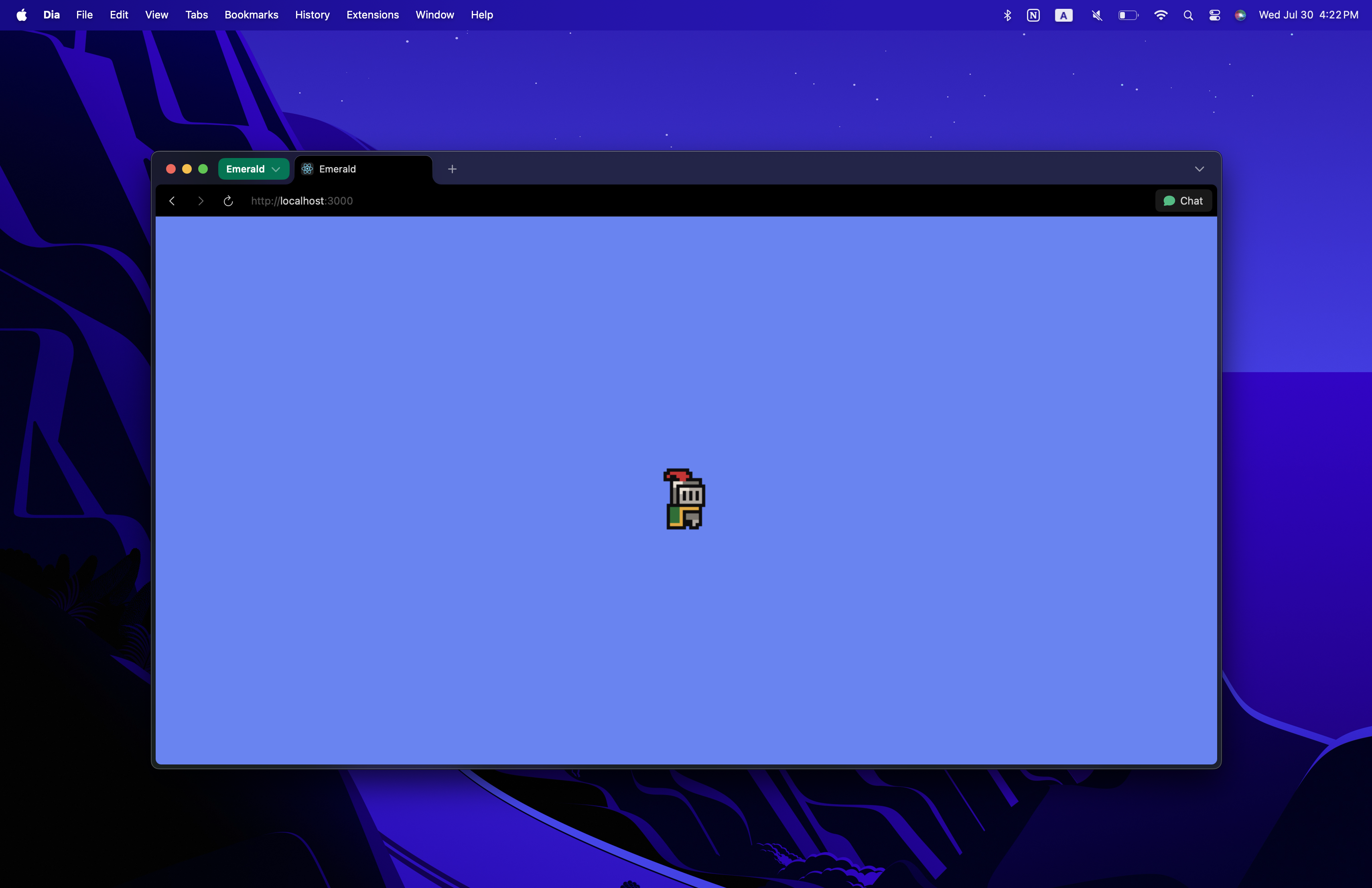
InstancedTexture
InstancedTexture is perfect for rendering many objects with the same texture efficiently, such as tiles, particles, or repeating elements.
import { InstancedTexture } from "emeraldengine";
/*
    ARGUMENTS:
    1. texturePath = Specify the path for the texture that you want to use.
    2. instanceCount: number = How many instances of the texture you want to create.
    3. frameWidth: number = The width of each frame.
    4. frameHeight: number = The height of each frame.
    5. framesPerRow: number = How many frames are in one row in your spritesheet.
    6. totalFrames: number = How many total frames does your spritesheet have.
    7. animationSpeed: number = Speed of change of every frame.
    8. autoPlay: boolean = Specify if you want the animation to play automatically. If you don't want any animation then pass false for it.
    9. pixelart: boolean = Specify whether the texture should be rendered in pixel art style. (THIS IS OPTIONAL. If you don't specify it then it will be defaulted to true)
    10. useLighting: boolean = Specify whether the texture should react to lighting or not. If you don't want any lighting then pass false for it. (THIS IS OPTIONAL. If you don't specify it then it will be defaulted to true)
*/
const instancedTexture = new InstancedTexture(
  texturePath,
  instanceCount,
  frameWidth,
  frameHeight,
  framesPerRow,
  totalFrames,
  animationSpeed,
  autoPlay,
  (pixelart = true),
  (useLighting = true)
);

// Add the instanced texture to a game object
gameObject.addComponent(instancedTexture);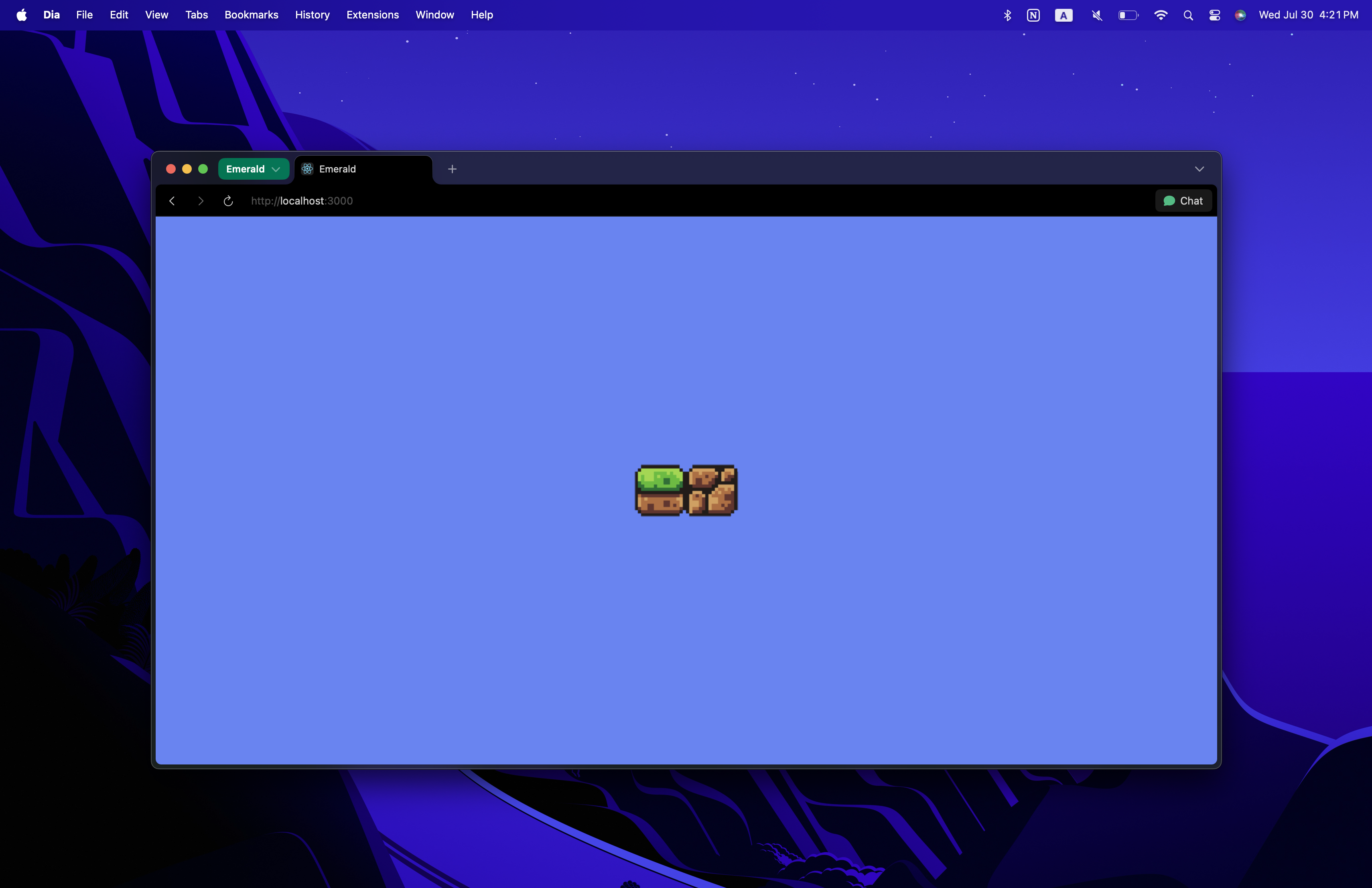
Square2D
import { Square2D } from "emeraldengine";
let square = new Square2D();
gameObject.addComponent(square);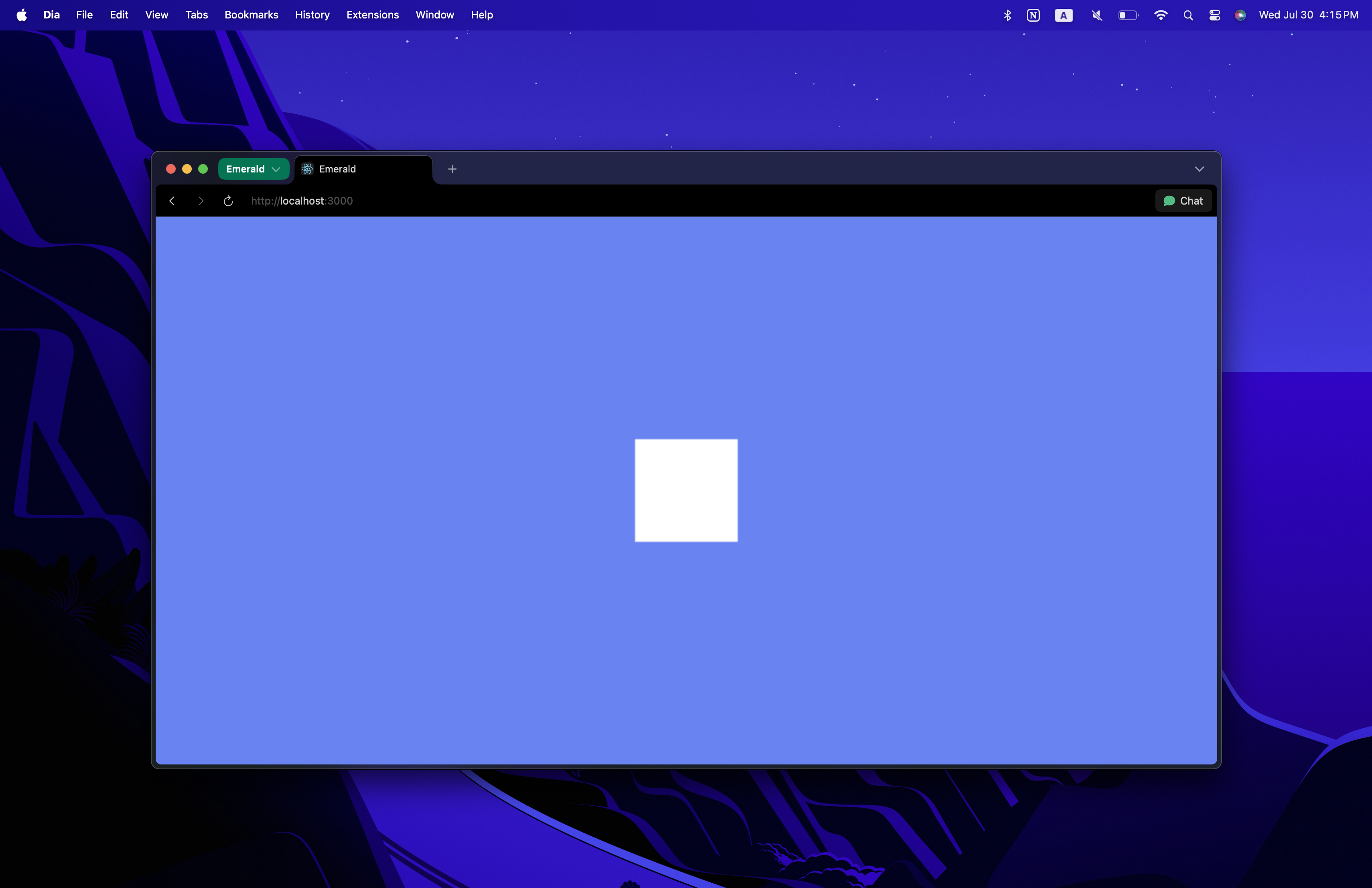
Triangle2D
import { Triangle2D } from "emeraldengine";
let triangle = new Triangle2D();
gameObject.addComponent(triangle);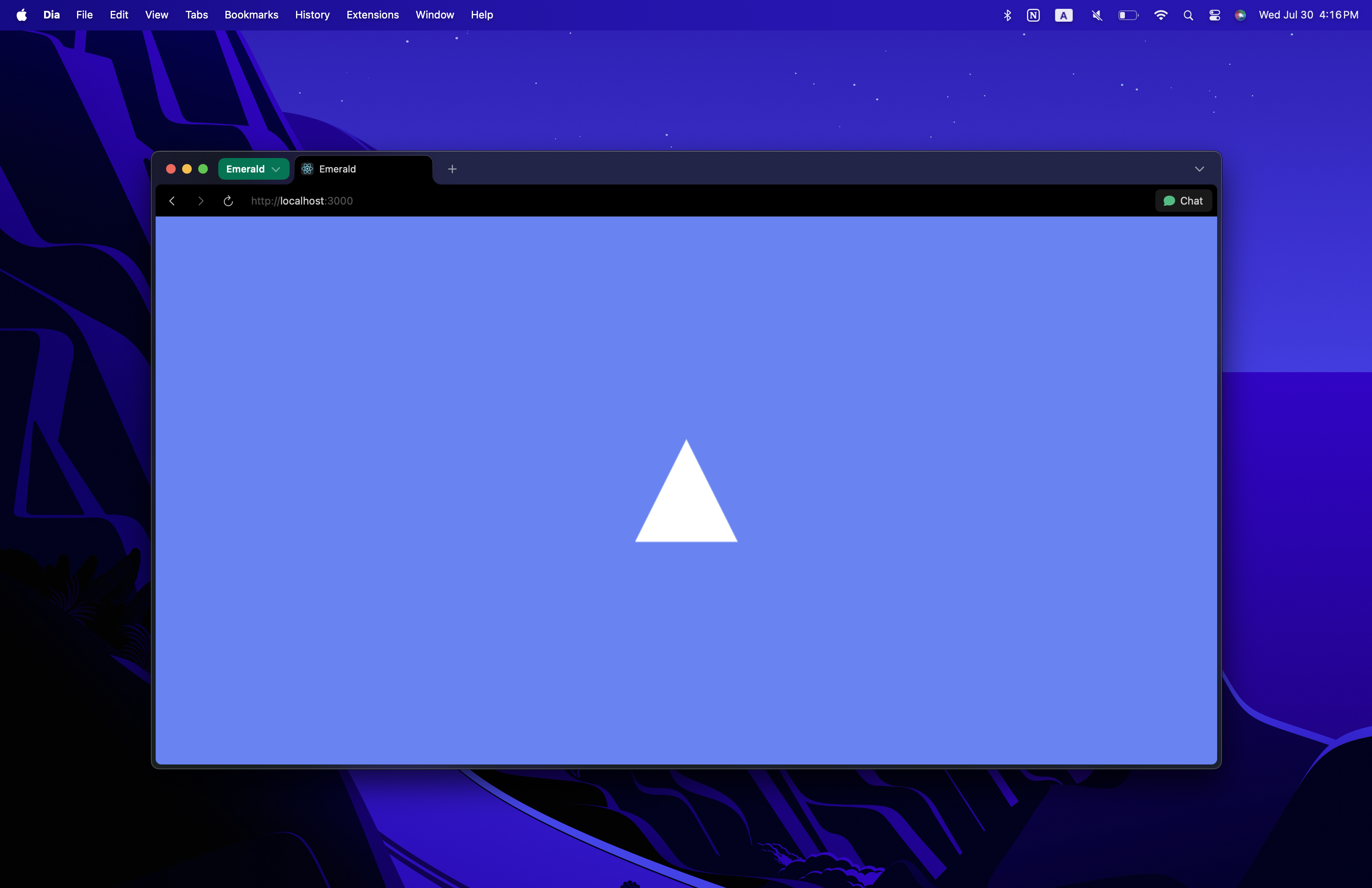
Circle2D
import { Circle2D } from "emeraldengine";
/*
    ARGUMENTS:
    1. segments = number of segments that the circle will have. Default is 32.
*/
let circle = new Circle2D(segments);
gameObject.addComponent(circle);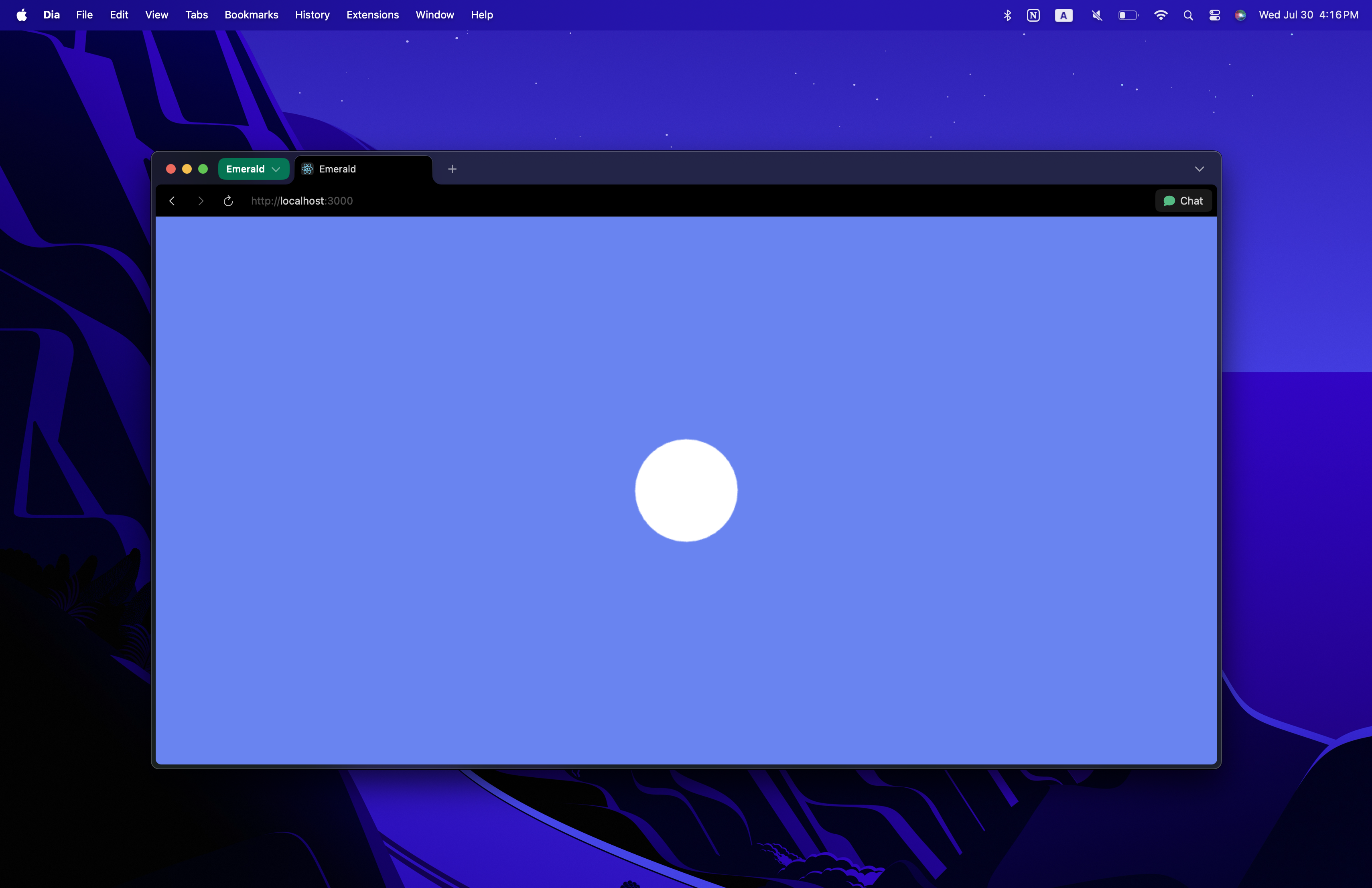
RigidBody
RigidBody is a component that allows you to add physics to your game objects. However, it won't work until you create a Physics instance at the top of your code.
import { RigidBody } from "emeraldengine";
import { Physics, Vector2 } from "emeraldengine";
// Create physics engine first
const physics = new Physics(-70, 32, 2); // gravity, scale, velocityThreshold

/*
    ARGUMENTS:
    1. physics: Physics = Instance of the Physics class that you created at the top of your code.
    2. type: string = Type of the rigid body. It can be "dynamic", "kinematic", or "static".
    3. position: Vector2 = Position of the rigid body is Vector2 because it doesn't need any Z index.
    4. fixedRotation: boolean = Specify whether the rigid body should have a fixed rotation or not. Default is false.
    5. parentObject: GameObject = (OPTIONAL) If you want to attach the rigid body to a GameObject you can pass it here. If you don't want to attach it to any GameObject then pass null.
    6. offset: Vector2 = (OPTIONAL) Offset from the GameObject's position.
*/
const rigidBody = new RigidBody(
  physics,
  "dynamic",
  new Vector2(0, 0),
  false,
  gameObject,
  new Vector2(0, 0)
);

gameObject.addComponent(rigidBody);
BoxCollider
import { BoxCollider } from "emeraldengine";

/*
    ARGUMENTS:
    1. rigidBody: RigidBody = The rigid body component that this collider will be attached to.
    2. size: Vector2 = Size of the box collider.
    3. density: number = Density of the collider.
    4. friction: number = Friction of the collider.
    5. restitution: number = Restitution (bounciness) of the collider.
    6. isSensor: boolean = Whether this collider is a sensor (triggers events but doesn't collide physically).
    7. parentObject: GameObject = (OPTIONAL) Parent GameObject.
*/
const boxCollider = new BoxCollider(
  rigidBody,
  new Vector2(1, 1),
  1,
  0.3,
  0.1,
  false,
  gameObject
);

gameObject.addComponent(boxCollider);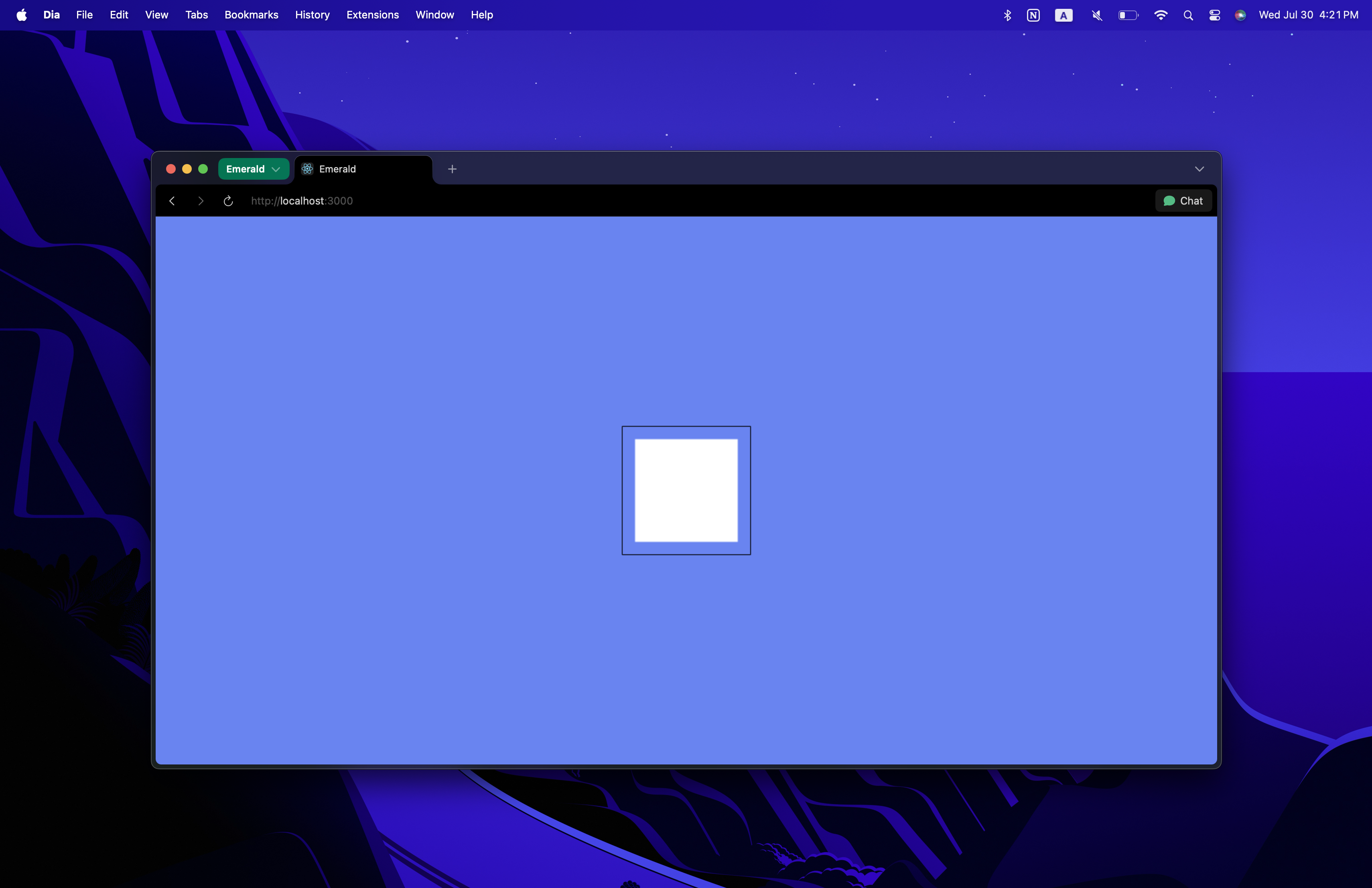
The BoxCollider is specifically made bigger than the Square2D component in this image to demonstrate how it works. You can adjust the size of the collider to fit your needs.
CircleCollider
import { CircleCollider } from "emeraldengine";

/*
    ARGUMENTS:
    1. rigidBody: RigidBody = The rigid body component that this collider will be attached to.
    2. radius: number = Radius of the circle collider.
    3. density: number = Density of the collider.
    4. friction: number = Friction of the collider.
    5. restitution: number = Restitution (bounciness) of the collider.
    6. isSensor: boolean = Whether this collider is a sensor.
    7. parentObject: GameObject = (OPTIONAL) Parent GameObject.
*/
const circleCollider = new CircleCollider(
  rigidBody,
  1.5,
  1,
  0.3,
  0.8,
  false,
  gameObject
);

gameObject.addComponent(circleCollider);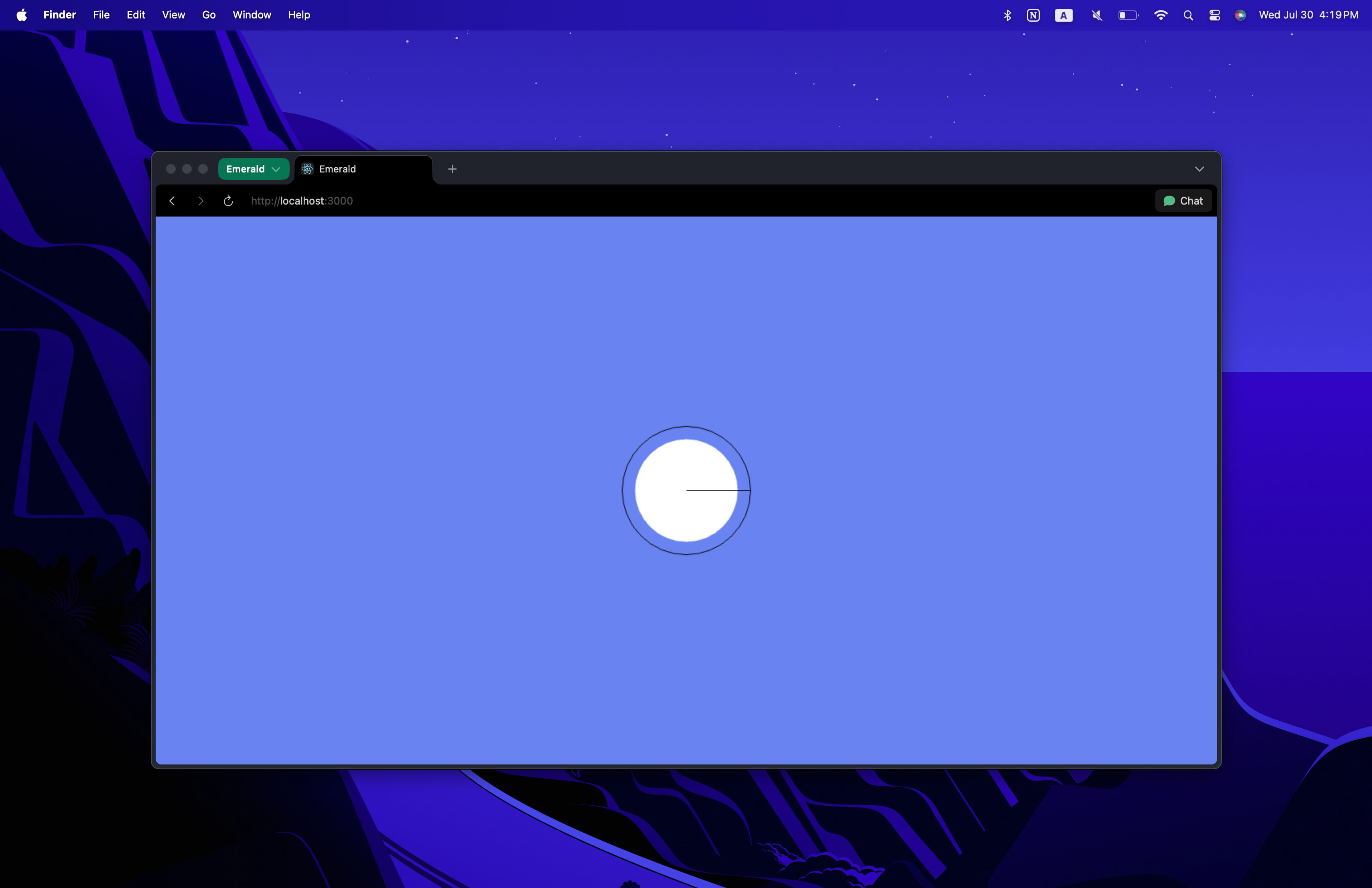
The CircleCollider is specifically made bigger than the Circle2D component in this image to demonstrate how it works. You can adjust the radius of the collider to fit your needs.
Object methods
Position
// Set position
gameObject.transform.position.x = 100;
gameObject.transform.position.y = 200;
gameObject.transform.position.z = 0;

// Or set all at once
gameObject.transform.position = new Vector3(100, 200, 0);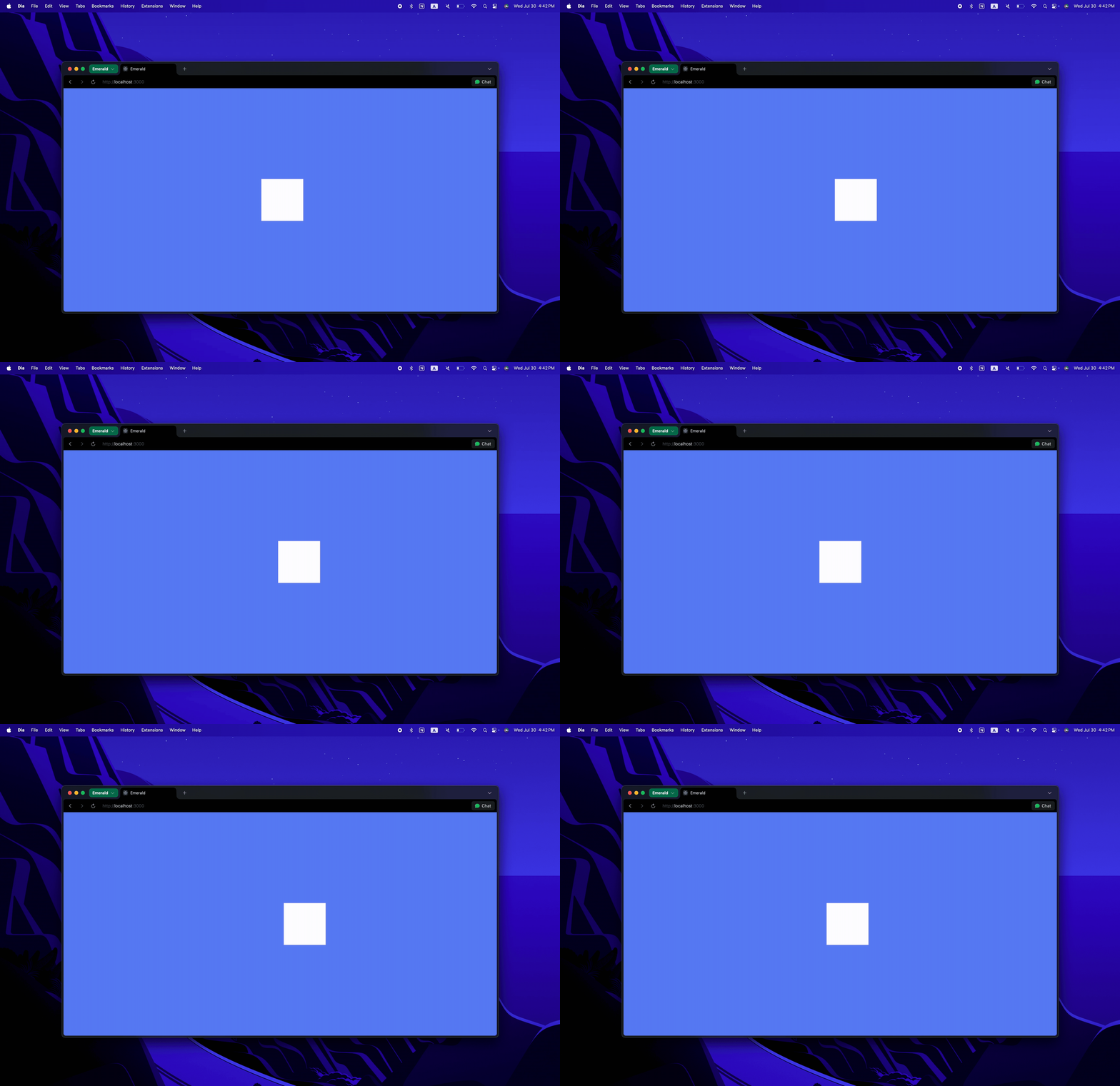
Rotation
// Set rotation (in radians)
gameObject.transform.rotation = Math.PI / 4; // 45 degrees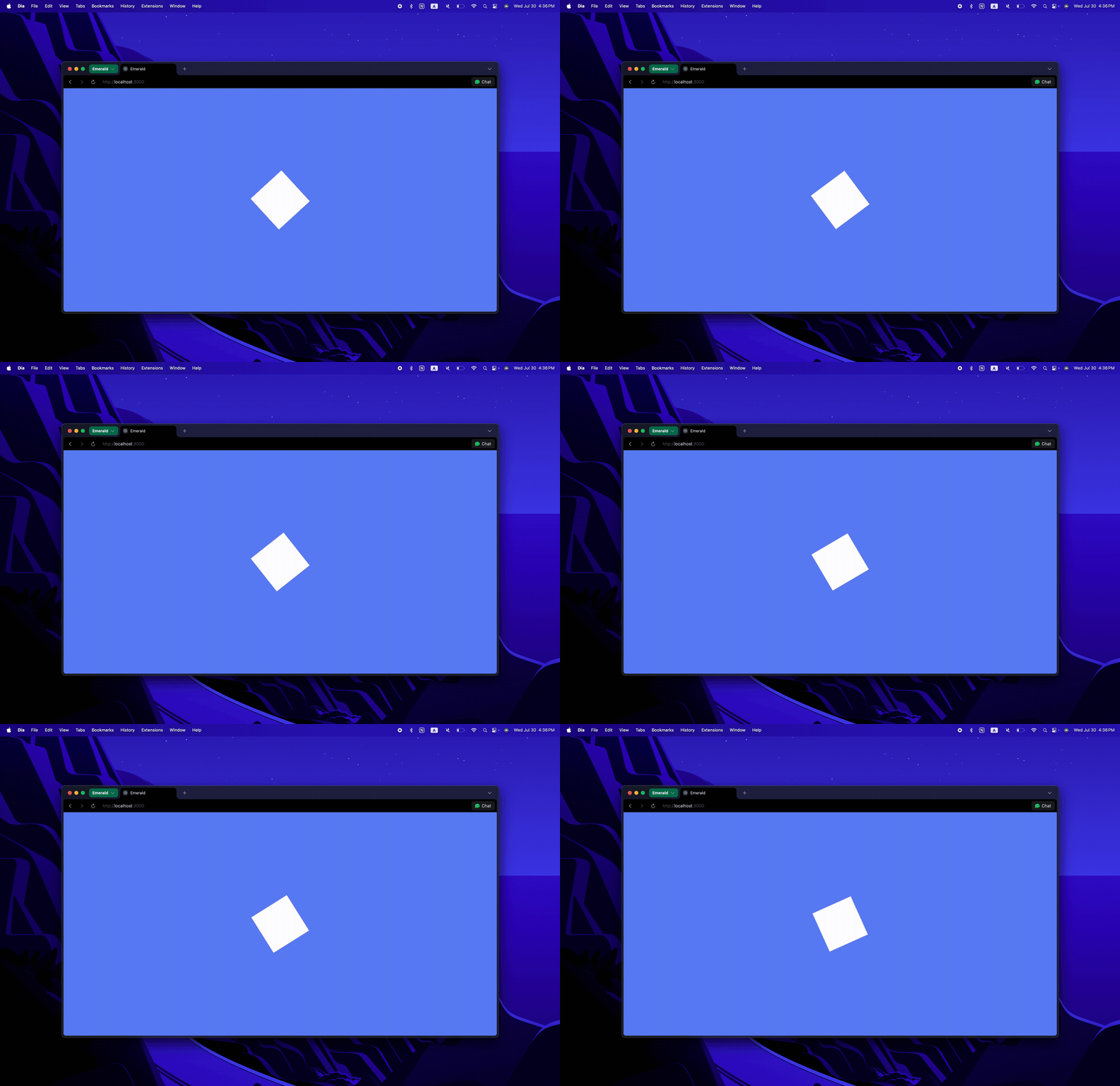
Scale
// Set scale
gameObject.transform.scale.x = 2;
gameObject.transform.scale.y = 2;

// Or set both at once
gameObject.transform.scale = new Vector2(2, 2);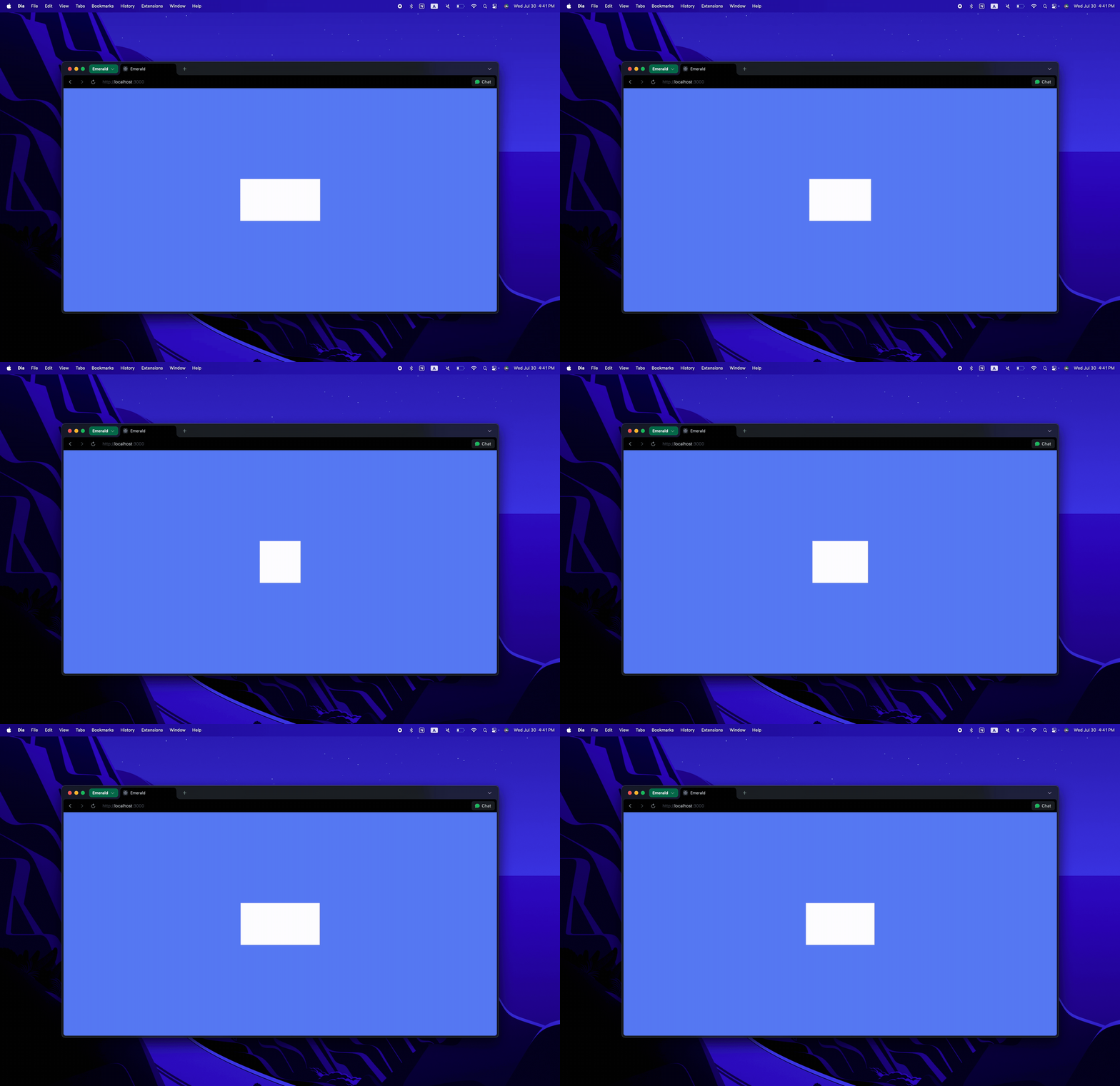
Change color
// For textures
const texture = gameObject.getComponent(Texture);
texture.setColor(new Color(255, 0, 0)); // Red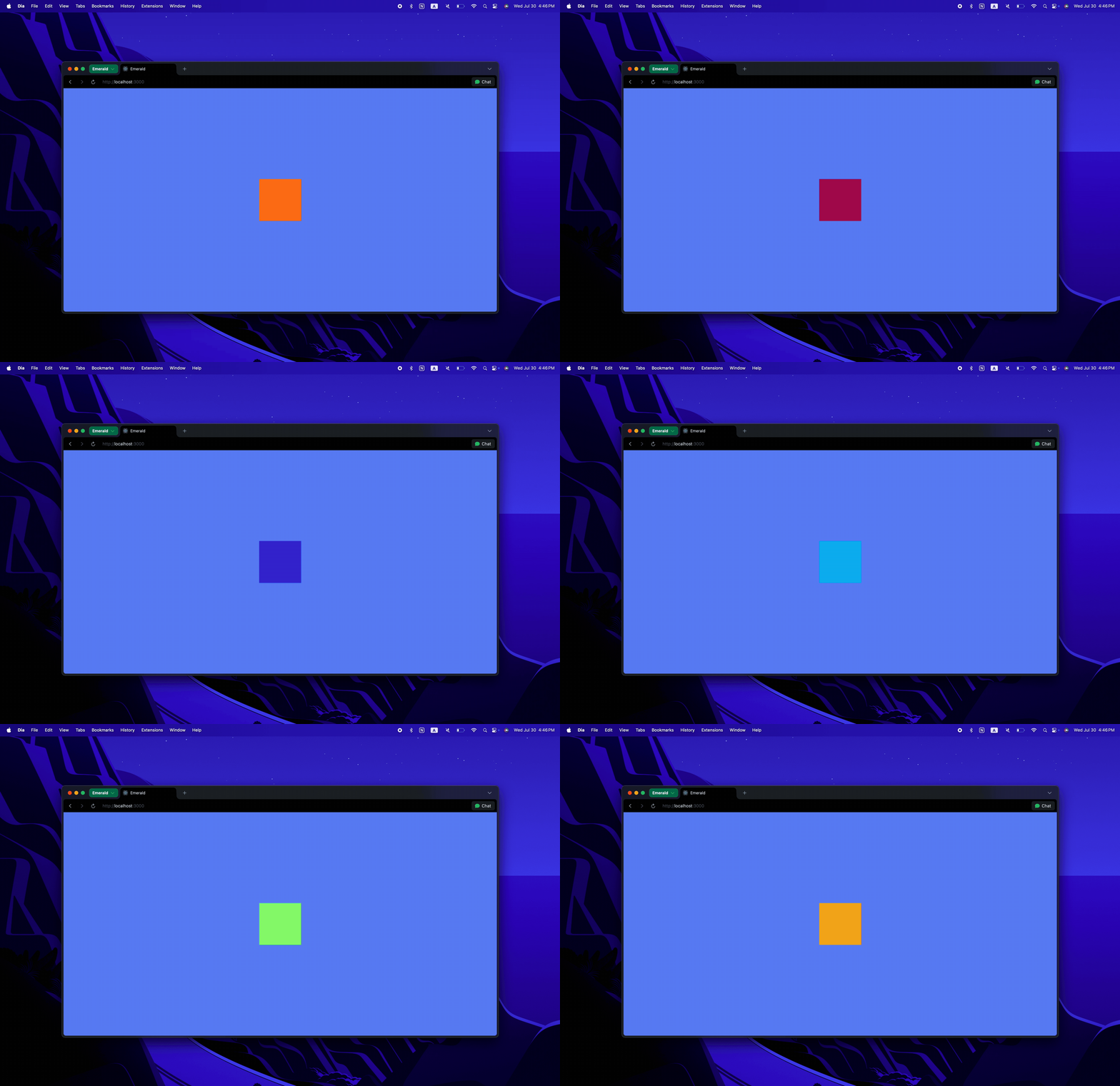
Set texture frame
// For animated textures
const texture = gameObject.getComponent(Texture);
texture.setFrame(2); // Set to frame 2
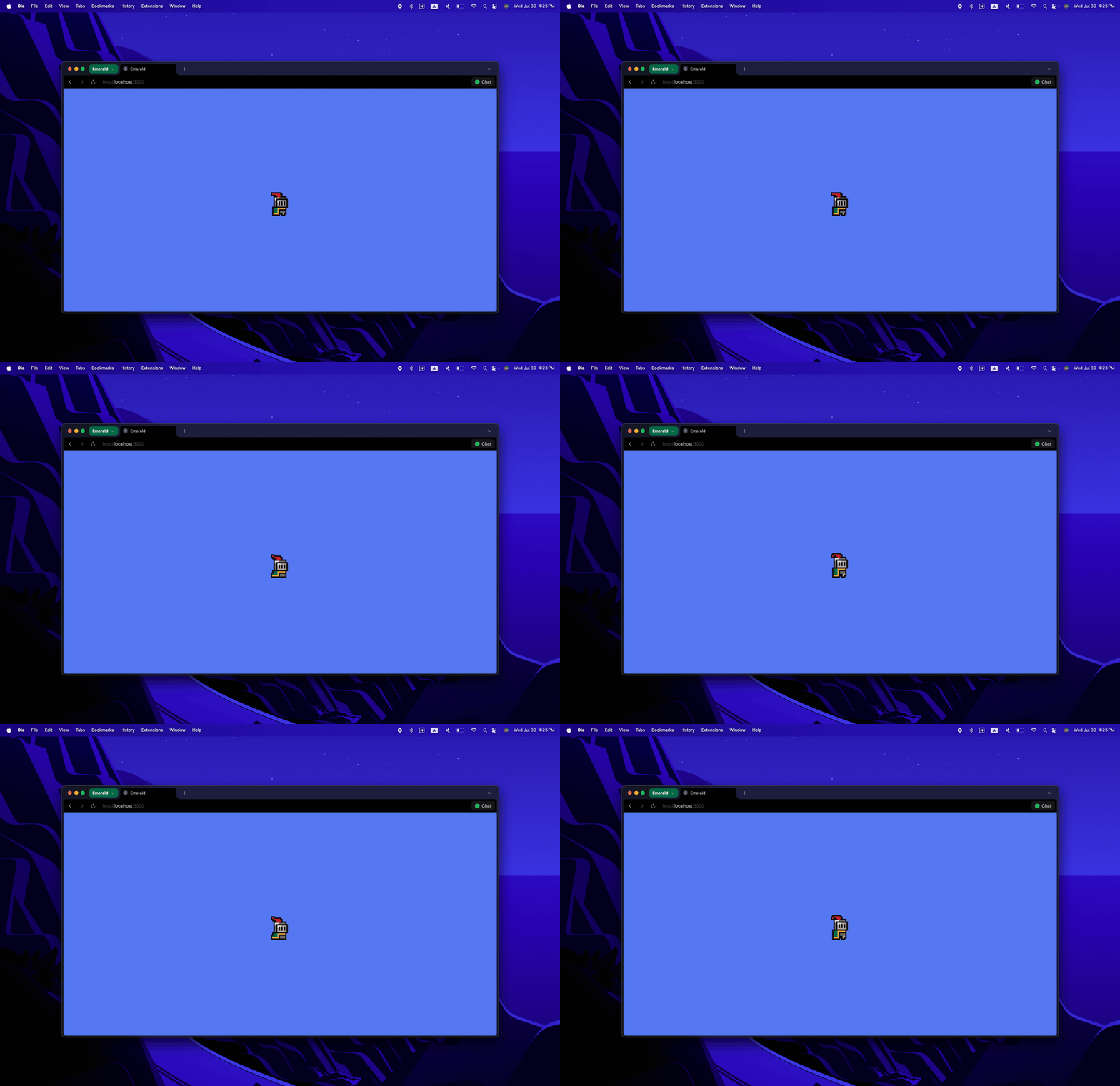
Animations
// Play animation
texture.playAnimation([0, 1, 2, 3], 200); // frames array, speed in ms

// Stop animation
texture.stopAnimation();

// Check if playing
if (texture.isPlaying) {
  // Animation is currently playing
}
Instance System
The Instance system allows you to efficiently manage multiple copies of the same object.
Creating Instances
import { Instance } from "emeraldengine";

// Create an instance
const instance = new Instance(
  "InstanceName",
  new Vector3(x, y, z),
  new Vector2(width, height),
  rotation,
  frame
);

// Add to InstancedTexture
const instancedTexture = gameObject.getComponent(InstancedTexture);
instancedTexture.addInstance(instance);
Instance Management
// Remove instance
instancedTexture.removeInstance(instanceId);

// Get instance by ID
const instance = instancedTexture.getInstanceWithId(instanceId);

// Get instance at position
const instance = instancedTexture.getInstanceAtPosition(position, tolerance);

// Clear all instances
instancedTexture.clearInstances();
Instance Events
// Add click event to specific instance
instancedTexture.addInstanceClickEvent(instanceId, (event) => {
  console.log("Instance clicked!");
});

// Add hover events to specific instance
instancedTexture.addInstanceHoverEvent(
  instanceId,
  (event) => console.log("Mouse entered"),
  (event) => console.log("Mouse left")
);
Physics Engine
Emerald includes a comprehensive physics engine built on top of Planck.js.
Setting up Physics
import { Physics } from "emeraldengine";
/*
    ARGUMENTS:
    1. gravity: number = Gravity force (negative for downward)
    2. scale: number = Scale factor for physics units to pixels
    3. velocityThreshold: number = Minimum velocity threshold
*/
const physics = new Physics(-70, 32, 2);
Physics Bodies
// Get the physics body from a RigidBody component
const body = rigidBody.getBody();

// Set velocity
body.setLinearVelocity(new Vector2(10, 0));

// Get velocity
const velocity = body.getLinearVelocity();

// Get position
const position = body.getPosition();
Collision Detection
// Handle collision enter
physics.onCollisionEnter((bodyA, bodyB, contact) => {
  console.log("Collision started!");

  // Get collision normal
  const normal = contact.getWorldManifold().normal;
  //normal.y = -1 when player is on the ground
  //normal.y = 1  when player hits the ceiling
  //normal.x = -1 when player hits the left wall
  //normal.x = 1  when player hits the right wall

  // Check if bodies are sensors
  const fixtureA = contact.getFixtureA();
  const fixtureB = contact.getFixtureB();
  if (fixtureA.isSensor() || fixtureB.isSensor()) {
    // Handle sensor collision
  }
});

// Handle collision exit
physics.onCollisionExit((bodyA, bodyB, contact) => {
  console.log("Collision ended!");
});
Collision Events
// Process physics in your update loop
const animate = (currentTime) => {
  physics.process(deltaTime);
};
Particle System
Emerald includes a powerful particle system for creating visual effects.
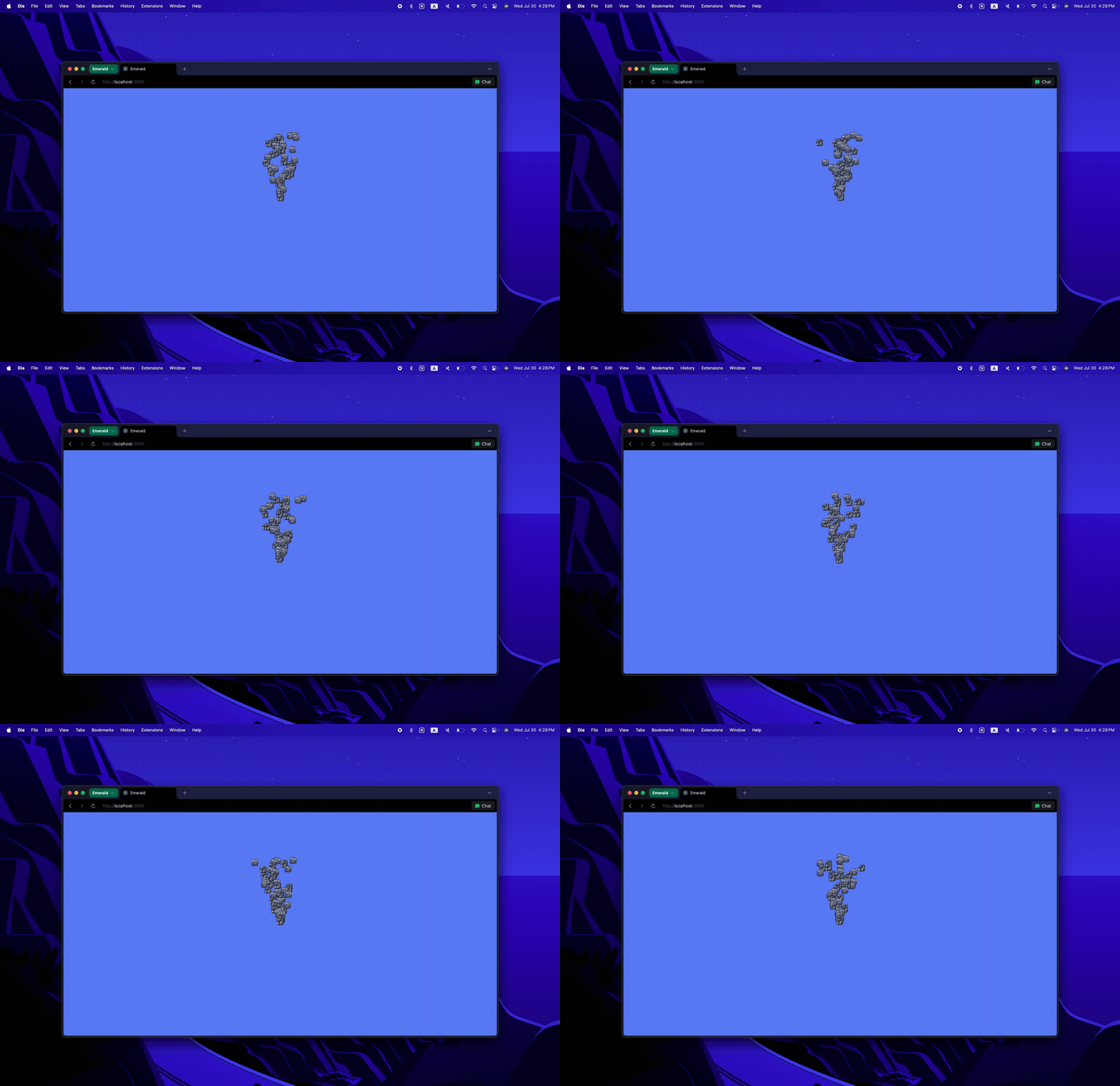
Particle Settings
import { ParticleSettings } from "emeraldengine";

const particleSettings = new ParticleSettings({
  lifetime: 1.2,
  velocity: new Vector2(200, 300),
  gravity: new Vector2(0, -400),
  amount: 16,
  direction: new Vector2(0, 1), // upward
  spread: Math.PI * 2,
  emissionRate: Infinity, // one-shot emission
  frame: 0,
  offset: 5,
  rotation: 0,
  scale: new Vector2(5, 5),
  animation: { frames: [0, 1, 2], speed: 200 },
});
Creating Particle Systems
import { Particles } from "emeraldengine";

/*
    ARGUMENTS:
    1. name: string = Name of the particle system
    2. texturePath: string = Path to the texture
    3. frameWidth: number = Width of each frame
    4. frameHeight: number = Height of each frame
    5. framesPerRow: number = Frames per row in spritesheet
    6. totalFrames: number = Total frames in spritesheet
    7. duration: number = Duration of the effect
    8. settings: ParticleSettings = Particle settings object
*/
const particles = new Particles(
  "explosion",
  texturePath,
  16,
  16,
  9,
  27,
  1.2,
  particleSettings
);

// Add to scene
scene.add(particles.gameObject);
Particle System Methods
// Play particle effect at position
particles.play(new Vector3(x, y, z));

// Stop particle system
particles.stop();

// Reset particle system
particles.reset();

// Update particles (call in your animation loop)
particles.update(deltaTime);

// Check if active
if (particles.active) {
  // Particles are currently active
}
Lighting System
Emerald supports ambient, point, and directional lighting.
Ambient Light
// Set ambient light
emerald.setAmbientLight(new Vector3(0.3, 0.3, 0.3)); // RGB values 0-1
Point Light
import { PointLight } from "emeraldengine";

/*
    ARGUMENTS:
    1. position: Vector2 = Position of the light
    2. color: Color = Color of the light
    3. intensity: number = Light intensity
    4. radius: number = Light radius
*/
const pointLight = new PointLight(
  new Vector2(100, 0),
  new Color(255, 204, 153),
  1.5,
  400
);

// Add to engine
emerald.addPointLight(pointLight);

// Update position
pointLight.position.x = newX;
pointLight.position.y = newY;
Directional Light
import { DirectionalLight } from "emeraldengine";

/*
    ARGUMENTS:
    1. position: Vector2 = Position of the light
    2. direction: Vector2 = Direction vector
    3. color: Color = Color of the light
    4. intensity: number = Light intensity
    5. width: number = Width of the light beam
*/
const directionalLight = new DirectionalLight(
  new Vector2(0, 300),
  new Vector2(0, -1), // pointing down
  new Color(255, 255, 255),
  3.0,
  200
);

// Add to engine
emerald.addDirectionalLight(directionalLight);

// Rotate direction
const angle = 0.1;
const newX =
  directionalLight.direction.x * Math.cos(angle) -
  directionalLight.direction.y * Math.sin(angle);
const newY =
  directionalLight.direction.x * Math.sin(angle) +
  directionalLight.direction.y * Math.cos(angle);
directionalLight.direction.x = newX;
directionalLight.direction.y = newY;
Text Rendering
BitmapText
Emerald supports bitmap font rendering using the BitmapText component. This allows you to display text with custom fonts and styles.
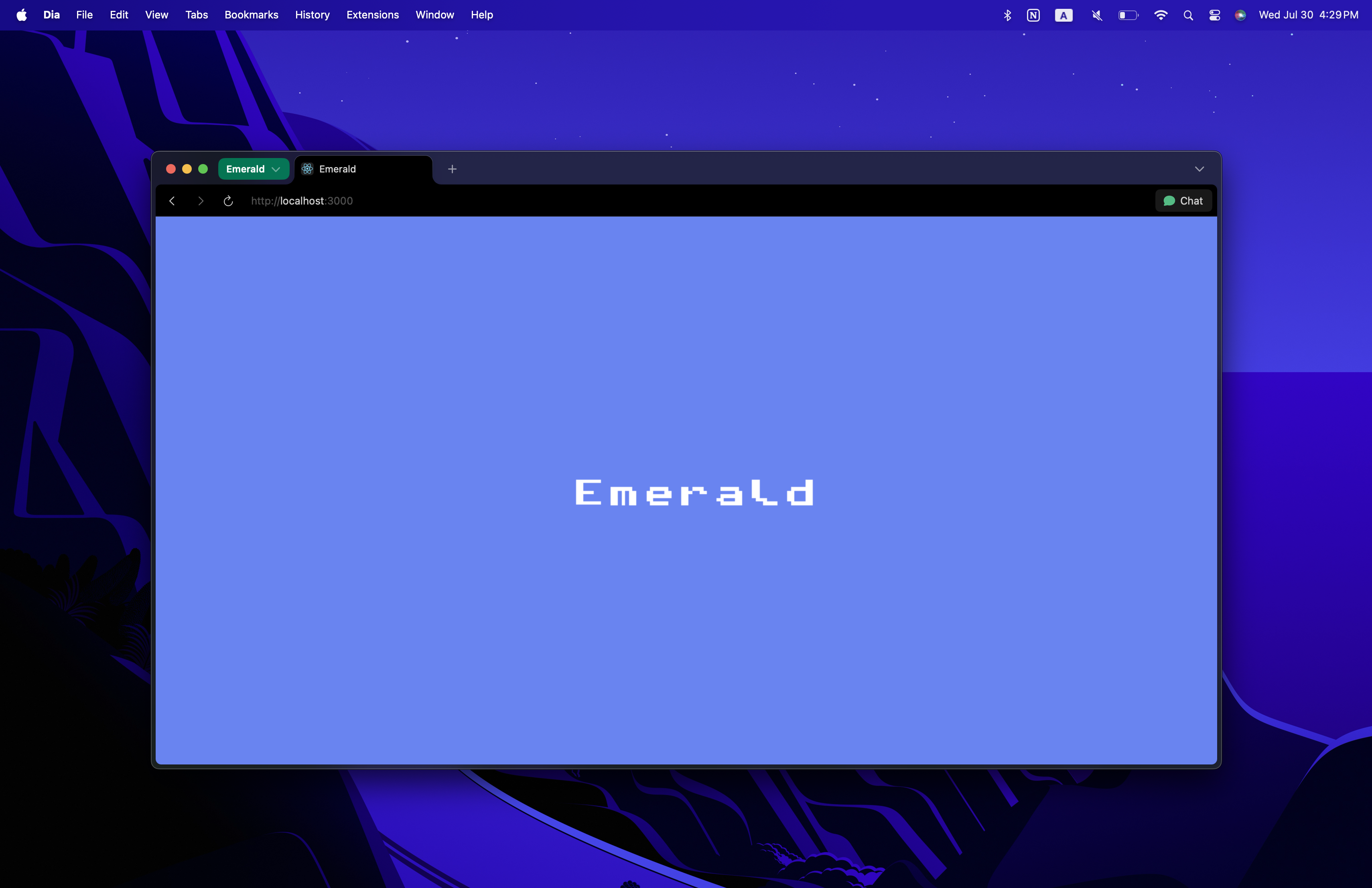
import { BitmapText } from "emeraldengine";

/*
    ARGUMENTS:
    1. text: string = Text to display
    2. texturePath: string = Path to bitmap font texture
    3. letters: string = String containing all available characters
    4. letterSpacing: number = Spacing between letters
    5. frameWidth: number = Width of each character frame
    6. frameHeight: number = Height of each character frame
    7. framesPerRow: number = Characters per row in font texture
    8. totalFrames: number = Total character frames
    9. pixelArt: boolean = Whether to use pixel art rendering
    10. fontSize: number = Font size
    11. color: Color = Text color
    12. position: Vector3 = Text position
    13. rotation: number = Text rotation
    14. useLighting: boolean = Whether text should react to lighting
*/
const bitmapText = new BitmapText(
  "Hello World!",
  fontTexturePath,
  "ABCDEFGHIJKLMNOPQRSTUVWXYZabcdefghijklmnopqrstuvwxyz0123456789!?.",
  16,
  32,
  32,
  10,
  95,
  true,
  24,
  new Color(255, 255, 255),
  new Vector3(0, 200, 0),
  0,
  false
);

// Add to scene
scene.add(bitmapText.gameObject);

// Update text
bitmapText.setText("New Text!");
bitmapText.setColor(new Color(255, 0, 0));
bitmapText.setFontSize(32);
bitmapText.setLetterSpacing(20);
CanvasText (system fonts, word-wrap, Retina-crisp)
CanvasText renders any CSS font (including loaded webfonts) into a texture.
It renders at the device pixel ratio, so text is crisp on Retina/HiDPI
displays, and it supports multi-line strings with word-wrapping and alignment:
import { CanvasText } from "emeraldengine";

// Factory: returns a GameObject already sized to the text
const label = CanvasText.create("Score: 0", {
  font: "700 24px 'Pixelify Sans', sans-serif",
  color: "#8fe0ff",
  screenSpace: true, // HUD: fixed on screen, position in px from center
  position: new Vector3(0, 240, 0),
});
scene.add(label);

// Multi-line + wrapping
const dialog = CanvasText.create(
  "A long line of dialogue that wraps automatically.\nExplicit breaks work too.",
  { font: "16px system-ui", maxWidth: 320, align: "left", lineHeight: 22 }
);

// Updating (re-renders the texture; attached GameObject rescales to fit)
const text = label.getComponent(CanvasText);
text.setText("Score: 120");
text.setColor("#ffd166");
text.setMaxWidth(400);
text.setAlign("center"); // "left" | "center" | "right"
Rule of thumb: BitmapText for retro/pixel fonts from a glyph sheet,
CanvasText for everything else (UI, dialogue, any real font).
EventManager
Emerald supports keyboard, mouse, click, and hover events. All events are handled using the built-in EventManager class.
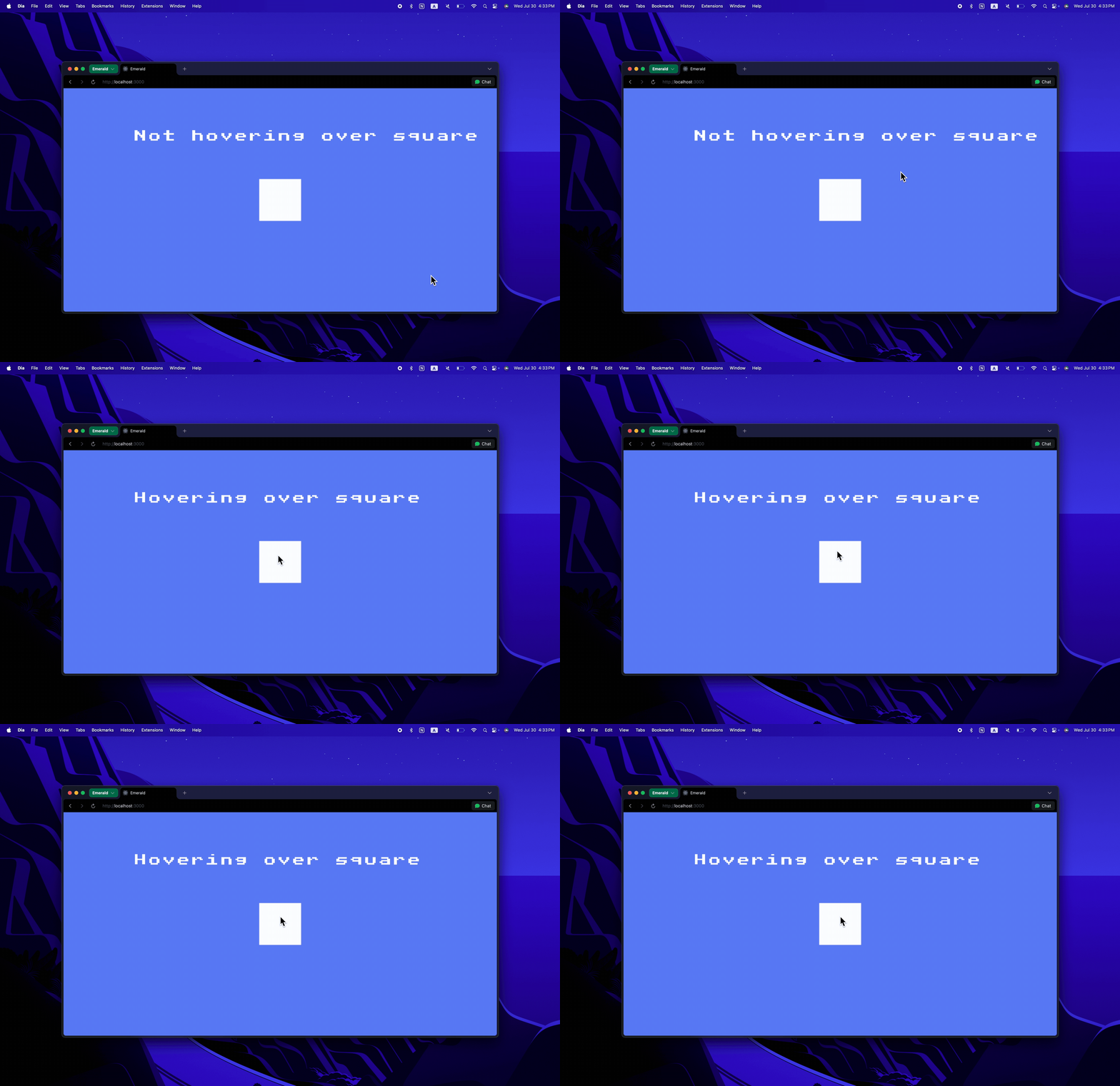
import { EventManager } from "emeraldengine";

let eventManager = new EventManager(canvas, scene, emerald.camera);
Keyboard Events
// Key down events
eventManager.addKeyDown("w", () => {
  console.log("W key pressed");
});

// Key up events
eventManager.addKeyUp("w", () => {
  console.log("W key released");
});

// Check if key is currently pressed
if (eventManager.isKeyPressed("w")) {
  // W key is currently held down
}

// Remove key events
eventManager.removeKeyDown("w", callbackFunction);
eventManager.removeKeyUp("w", callbackFunction);
Mouse Events
// Get mouse position
const mousePos = eventManager.getMousePosition();
console.log(mousePos.x, mousePos.y);

// Check if camera was moved
if (eventManager.wasCameraMoved()) {
  // Camera was moved by dragging
  eventManager.resetCameraMoved();
}
Object Events
// Click events
eventManager.addClickEvent(gameObject, (event, object) => {
  console.log("Object clicked!");
});

// Hover events
eventManager.addHoverEvent(
  gameObject,
  (event) => {
    console.log("Mouse entered object");
  },
  (event) => {
    console.log("Mouse left object");
  }
);

// Remove events
eventManager.removeClickEvent(gameObject, callbackFunction);
eventManager.removeHoverEvent(gameObject, enterCallback, leaveCallback);
Event Cleanup
// Clean up all events when done
eventManager.clean();

// Change scene
eventManager.changeScene(newScene);
AudioManager
Emerald includes a comprehensive audio management system.
Adding Audio
import { AudioManager } from "emeraldengine";

const audioManager = new AudioManager();

// Add audio files
audioManager.add("path/to/sound.wav", "soundName");
audioManager.add("path/to/music.mp3", "backgroundMusic");
Playing Audio
// Play audio
audioManager.play("soundName");

// Play exclusively (stops all other audio first)
audioManager.playExclusive("soundName");
Audio Control
// Stop specific audio
audioManager.stop("soundName");

// Stop all audio
audioManager.stopAll();

// Remove audio
audioManager.remove("soundName");

// Get audio object
const sound = audioManager.getSound("soundName");
Camera
The engine has simple controls for the camera. The camera is stored in the emerald variable.
// Set camera position
emerald.camera.setPosition(x, y, z);

// Access camera transform directly
emerald.camera.transform.position.x = 100;
emerald.camera.transform.position.y = 200;
emerald.camera.transform.scale.x = 1.5;
emerald.camera.transform.scale.y = 1.5;
FPSCounter
Emerald has a built-in FPS counter.
import { FPSCounter } from "emeraldengine";
let fpsCounter = new FPSCounter();

const animate = (currentTime) => {
  emerald.drawScene(scene, deltaTime);
  fpsCounter.update(); // Call this in your animation loop
  window.requestAnimationFrame(animate);
};
animate();
Scene Management
import { SceneManager } from "emeraldengine";

// Set active scene
SceneManager.setScene(scene);

// Get current scene
const currentScene = SceneManager.getScene();
Time Management
import { Time } from "emeraldengine";

// Get delta time
const deltaTime = Time.deltaTime;

// Time is automatically updated when you call emerald.drawScene()
// You can also manually set it
Time.setDeltaTime(deltaTime);
Advanced Features
Resize Handling
// Handle window resize
const handleResize = () => {
  const { width, height } = getCanvasDimensions();
  emerald.resize(width, height);
};

window.addEventListener("resize", handleResize);