
ioBroker.automatic-feeder





Tests: 

automatic-feeder adapter for ioBroker
This adapter turns any existing ioBroker switch (a smart plug, a relay, a GPIO output …) into a scheduled automatic feeder. It switches the output on for a defined number of seconds at the times you configure, and can take temperature and the day/night cycle into account so it never feeds at the wrong moment.
This document is a complete manual. If you have never used the adapter before, read it from top to bottom – the Quick start gets you to your first feeding in a few minutes, the rest explains every option in detail.
Deutsche Anleitung: doc/de/README.md · other languages: see Documentation at the bottom.
Table of contents
- What the adapter does
- Requirements
- Installation
- Quick start
- The settings page in detail
- Objects / data points
- Examples / recipes
- Telegram notifications
- Troubleshooting & FAQ
- Logging & debugging
1. What the adapter does
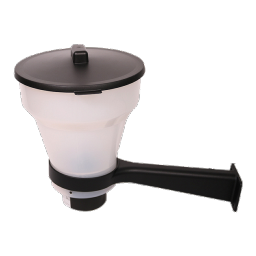
A "feeding" is simply: switch an output ON → wait a configurable number of seconds → switch it OFF again. For a converted feeder the running motor during those seconds dispenses the food.
The adapter can manage up to 5 switches, each completely independent and each with its own configuration tab named after the switch. Per switch you decide:
- when it feeds – either at fixed times (e.g. 08:00 and 18:00) or in an interval inside a time window (e.g. every 60 minutes between 08:00 and 18:00);
- how long the output stays on (feeding duration in seconds);
- whether to block feeding when the water or air temperature is too low/high;
- whether to skip feeding at night (based on the real sunrise/sunset for your location);
- whether to supervise the switch (check that it really turned on and off) and optionally send a Telegram message about the result;
- whether to reduce or pause feeding during a recurring winter season – optionally with Telegram reminders before it starts and ends;
- whether to adapt the interval and the portion to the water/air temperature automatically (dynamic feeding, Q10 model);
- whether to block feeding when the dissolved oxygen (O₂) is too low.
You can also trigger a feeding manually at any time – from the adapter's settings page (button with a freely selectable duration) or from a data point (e.g. a button in a VIS view).
Important: the adapter never creates the switch itself. It controls an object that already exists in your ioBroker system. You select that object in the configuration.
2. Requirements
| You need | Details |
|---|---|
| ioBroker with a recent admin (≥ 7) | The configuration page is built with React. |
| A switch object | Any writable ioBroker state that turns your feeder on/off – e.g. a smart plug (shelly.0.…, sonoff.0.…, zigbee.0.…), a relay, a script variable. |
| Geo-coordinates | Used to calculate sunrise/sunset. Either taken from the ioBroker system settings or entered per address/map. Mandatory. |
| (optional) Temperature objects | Existing states with air and/or water temperature, for temperature blocking or dynamic feeding. Assigned per switch on the switch tab. |
| (optional) Oxygen (O₂) objects | Existing states with the dissolved oxygen, to block feeding when it drops too low. Assigned per switch. |
| (optional) A Telegram instance | The official telegram adapter, configured and running, if you want push notifications. |
| Internet access on the ioBroker host | Only for the address search / map in the configuration. Normal operation works offline. |
3. Installation
- In the ioBroker admin, open the Adapters tab.
- Find automatic-feeder in the list and click Install.
- Create an instance of the adapter.
- Open the instance settings (the gear icon) – you should see the configuration page with the General settings tab. If it stays blank, see Troubleshooting.
4. Quick start – your first feeding
The goal: make one switch feed for 5 seconds, right now, to prove everything works.
- Open the settings of the automatic-feeder instance.
- On the General settings tab:
- Under Location, leave Use system settings selected if your ioBroker already has coordinates. Otherwise pick Define specific location, type your address, click Search, and confirm the marker on the map.
- Scroll down to Switches and click Add switch.
- Give it a Name (e.g.
Koi pond). This name becomes the title of its own tab. - Click the list icon next to Switch object and choose the state that switches your feeder (e.g. your smart plug). Make sure the switch is Active (checkbox on the left).
- Save (the disk/checkmark at the bottom). A new tab named after your switch appears.
- Open that switch tab. At the top under Manual feeding, set a duration (e.g.
5seconds) and click Feed now. The output should turn on for 5 seconds and off again. - Still on the switch tab, set up the real schedule under Feeding schedule (e.g. fixed times 08:00 and 18:00) and the Feeding duration under Feeding action, then Save.
That's it – the adapter will now feed automatically. Everything below explains the options in depth.
5. The settings page in detail
The configuration has a General settings tab plus one tab per switch (created automatically once a switch has a name). If a page does not scroll, drag the window larger or use the scrollbar on the right – all sections are reachable.
5.1 General settings tab
Location (mandatory)
The adapter needs your geographic position to calculate sunrise and sunset (for the night protection). Two options:
- Use system settings – takes latitude/longitude from the ioBroker system configuration (the recommended option if those are already set). The current values are shown.
- Define specific location – set the position yourself:
- Type an address and press Search. The adapter resolves it (via OpenStreetMap / Nominatim) and places a marker.
- Or click on the map / drag the marker to the exact spot.
- Latitude/longitude can also be typed directly; the map follows.
The address search runs in the adapter backend, so the instance must be running for it. The map tiles and the search need internet access.
Sun window (no feeding at night)
This defines the time window in which feeding is allowed:
- Minutes after sunrise – start feeding only this many minutes after sunrise.
- Minutes before sunset – stop feeding this many minutes before sunset.
Example: with sunrise 06:30, sunset 21:00 and offsets 30 / 30, feeding is only allowed between
07:00 and 20:30. Each switch can individually obey or ignore this window (see Restrictions
on the switch tab). The calculated times are also published as the sunrise / sunset data
points and recalculated automatically every night.
Switches
The list of feeders (up to 5). For each entry:
- Active (checkbox) – only active switches are scheduled.
- Name – free text; becomes the switch's tab title and the channel name in the object tree.
- Switch object – the existing ioBroker state to control. Use the list icon to browse, or the cross to clear.
Use Add switch to create another (max. 5) and the trash icon to remove one. Removing a switch also deletes its data points.
5.2 Switch tabs
Each configured switch gets its own tab, titled with its name. It contains the following sections.
Manual feeding
- Manual feeding duration (seconds) – the duration used by the button.
- Feed now – triggers a feeding immediately with that duration. Useful for testing or an extra portion. (Whether it ignores blocks depends on Manual trigger ignores all blocks in Restrictions.)
- The instance must be running and the configuration saved for the button to work.
Feeding schedule
Choose one mode:
- Fixed times – a list of clock times (
HH:mm). Add as many as you like; the feeder runs at each of them every day. Example:08:00and18:00. - Interval within a time window – feed repeatedly inside a window:
- Window start / Window end – e.g. 08:00 to 18:00.
- Interval (minutes) – e.g. 60 → feed at 08:00, 09:00, …, up to the end of the window, every day.
The next planned time is always visible in the status.nextFeeding data point.
Feeding action
- Feeding duration (seconds) – how long the output stays ON during a scheduled feeding.
- On value / Off value – the values written to the switch object. Defaults are
trueandfalse, which fit most smart plugs/relays. If your device expects numbers or text, enter e.g.1/0orON/OFFhere.
Temperature & oxygen sources
Each switch (feeding station) has its own sensors – different ponds/tanks can use different objects:
- Air temperature – tick the box and pick the state that holds this station's air temperature.
- Water temperature – tick the box and pick the state that holds this station's water temperature.
- Oxygen (O₂) – tick the box and pick the state that holds the dissolved oxygen.
Only number states make sense. The current values are mirrored to this switch's status.airTemperature,
status.waterTemperature and status.oxygen data points. The thresholds are set below (Temperature blocking),
and the temperatures also drive Dynamic feeding.
Temperature blocking
Only shown for the temperature sources you enabled above (Temperature & oxygen sources). Per switch you can:
- Block by water temperature – set Block if below and/or Block if above (°C).
- Block by air temperature – same, for air.
If the current temperature is outside the allowed range, the feeding is skipped and the reason
is written to status.blockReason. (If a temperature value is unknown, that source does not block.)
Restrictions
- Do not feed at night – obey the sun window (incl. the offsets). Turn off if this switch may feed around the clock.
- Manual trigger ignores all blocks – when on, the manual button and the
feedNowdata point feed even if a temperature/night block is active.
Dynamic feeding
Optional: adapt the feeding interval and duration to temperature using the Q10 model (metabolism roughly doubles per +10 °C). Requires an active temperature source; fixed times are then replaced by an interval within the window.
- Enable / source – turn it on and pick water or air temperature.
- Reference / Q10 – the base interval and duration apply at the reference temperature (e.g. 20 °C); Q10 is typically 2–2.5.
- Interval / duration (base, min, max) – bounds for the computed interval (minutes) and duration (seconds).
- Averaging window / hysteresis – a moving average (e.g. 24 h) smooths spikes; hysteresis avoids re-planning on tiny changes.
The current values are exposed in status.dynamicAvgTemperature, status.dynamicRate, status.dynamicIntervalMin and status.dynamicDurationSec. An optional oxygen (O₂) source can block feeding when the dissolved oxygen drops below a threshold. The winter pause takes precedence over dynamic feeding.
Winter pause
Per switch you can define a recurring winter pause (seasonal, given as MM-DD dates that repeat every year and may wrap around New Year).
- Enable winter pause – turn the pause on.
- Winter start / Winter end – pick the day and month from a calendar (shown as dd.mm), e.g. 01.11 to 15.03.
- Mode – during the pause either suspend feeding, feed with a reduced own interval, or once daily at a set time; a separate winter feeding duration applies.
- Reminders (Telegram) – a daily reminder is sent in the days before the start and before the end (last on the day itself), at the configured hour. Needs a Telegram instance (see below).
The current state is shown in the status.winterActive data point. Feeding resumes automatically when the pause ends.
Switching supervision
After switching, the adapter can verify that the switch actually reached the on and off state, and report one of three results per feeding:
| Result | Meaning | Message |
|---|---|---|
| success | switch turned on and off as expected | "Feeding triggered for x s." |
| on failed | the switch never confirmed the ON state | "Feeding could not be performed. Check the switch!" |
| off failed | it turned on, but did not turn off again | "Fault: the feeder did not switch off!" |
The message is sent in the configured ioBroker system language (English by default).
- Verify that the switch actually turns on and off – enables the supervision.
- Verification timeout (seconds) – how long to wait for the confirmation.
- Verification attempts – how many staggered re-checks to perform before reporting a fault (default 3). Each attempt also reads the current state back, so delayed status feedback (e.g. Homematic radio) no longer triggers a false fault.
Important: supervision works only if the switch reports its real state back, i.e. the target object is updated with
ack=true(typical for smart plugs/relays with status feedback). A plain helper boolean that nobody acknowledges would always report a fault – in that case turn supervision off for this switch.
The result is also stored in the status.lastResult (text) and status.error (boolean) data points, so you
can react to it (e.g. trigger a notification of your own).
Telegram notifications
Send the supervision messages to Telegram – configured per switch:
- Telegram instance – pick one of the installed
telegram.*instances (or None to disable Telegram for this switch). If none is installed, the field tells you so. - Telegram recipient (optional) – a specific user/chat name as configured in the telegram adapter; leave empty to send to all configured recipients.
- Checkboxes – choose which messages to send: successful feeding, could-not-feed, and/or switch-off fault.
The winter-pause reminders (if enabled, see Winter pause) are sent to the same Telegram instance, independently of these supervision checkboxes.
See Telegram notifications for the full setup.
6. Objects / data points
The adapter creates the following states under its namespace
(automatic-feeder.<instance>.).
Global
| Data point | Type | Meaning |
|---|---|---|
info.connection |
boolean (ro) | Adapter is running and the configuration is valid. |
sunrise / sunset |
string (ro) | Calculated sunrise/sunset for today. |
Per switch, under switches.<id>. (<id> is an internal id like sw-0)
Directly under the switch there is the manual trigger and two sub-channels:
status(switches.<id>.status.*) – the read-only status data points listed below.settings(switches.<id>.settings.*) – an editable mirror of this switch's configuration. Writing a new value there (from VIS or a script) changes the configuration and restarts the instance so the change takes effect. A few derived fields are read-only (e.g.winterWindow).
| Data point | Type | Meaning |
|---|---|---|
feedNow |
boolean (rw) | Write true to trigger a manual feeding. |
status.feedingActive |
boolean (ro) | A feeding is running right now. |
status.lastFeeding |
string (ro) | Timestamp of the last feeding. |
status.nextFeeding |
string (ro) | Timestamp of the next planned feeding. |
status.blocked |
boolean (ro) | The last attempt was blocked. |
status.blockReason |
string (ro) | Why it was blocked (night / temperature / oxygen). |
status.lastResult |
string (ro) | Result text of the last feeding attempt. |
status.error |
boolean (ro) | The last attempt had a switching fault. |
status.winterActive |
boolean (ro) | The winter pause is currently active. |
status.winterLastStartReminder |
string (ro) | Date of the last sent "winter starts" reminder. |
status.winterLastEndReminder |
string (ro) | Date of the last sent "winter ends" reminder. |
status.dynamicAvgTemperature |
number (ro) | Averaged temperature used by dynamic feeding. |
status.dynamicRate |
number (ro) | Q10 rate factor currently applied by dynamic feeding. |
status.dynamicIntervalMin |
number (ro) | Currently computed dynamic interval (minutes). |
status.dynamicDurationSec |
number (ro) | Currently computed dynamic duration (seconds). |
status.airTemperature |
number (ro) | This switch's own air-temperature source value. |
status.waterTemperature |
number (ro) | This switch's own water-temperature source value. |
status.oxygen |
number (ro) | This switch's own dissolved-oxygen source value. |
You can use these in VIS, scripts or other adapters – for example show status.nextFeeding on a
dashboard, or react on status.error = true to send your own alarm.
7. Examples / recipes
Koi pond, twice a day, only when warm enough
- Mode Fixed times →
08:00,18:00; duration6s. - On the switch tab, under Temperature & oxygen sources, enable Water temperature and pick
the sensor; then Block by water temperature → Block if below
8°C (no feeding when cold). - Do not feed at night on.
Aviary, frequent small portions during the day
- Mode Interval within a time window → 07:00–19:00, interval
90min; duration3s.
Koi pond, temperature-adaptive (dynamic feeding)
- On the switch tab, under Temperature & oxygen sources, enable Water temperature and pick the sensor.
- Then open Dynamic feeding, enable it, source Water temperature.
- Reference
20°C, Q102.2, base interval60min (min30, max480), base duration5s (min2, max15). It then feeds more often and a little more when warm, and less when cold.
Winter break for the pond
- On the switch tab open Winter pause, enable it, set Winter start
01.11and Winter end15.03, mode Suspend feeding. - Optionally tick the reminders so you get a Telegram note a few days before start/end.
Manual extra portion from a VIS button
- Put a button in VIS that writes
truetoautomatic-feeder.0.switches.sw-0.feedNow. - Optionally set Manual trigger ignores all blocks so it always feeds.
8. Telegram notifications
- Install and configure the telegram adapter (create a bot with @BotFather, enter the token, start a chat with your bot). Make sure the telegram instance is running.
- In a automatic-feeder switch tab, open Telegram notifications:
- Select your Telegram instance from the dropdown (e.g.
telegram.0). - Optionally enter a recipient (the user/chat name shown in the telegram adapter); leave empty to notify everyone.
- Tick the messages you want: successful feeding, could-not-feed, switch-off fault.
- Select your Telegram instance from the dropdown (e.g.
- Save. From now on the chosen supervision results are pushed to Telegram (prefixed with the switch name). This requires Switching supervision to be enabled for that switch.
- The winter-pause reminders use the same Telegram instance and recipient. They are controlled in the Winter pause section (days before start/end and the reminder hour) and do not require supervision to be enabled.
9. Troubleshooting & FAQ
The settings page is blank / white. Reload the browser with Ctrl+Shift+R (the admin may have cached an old page). If it persists, restart the instance and reopen the settings.
The new icon / a change does not show up. Browser cache – hard-reload with Ctrl+Shift+R.
Nothing gets fed.
Check, in order: the switch is Active; a switch object is selected; the schedule is
valid (status.nextFeeding shows a time); it is not blocked (look at status.blocked / status.blockReason);
the sun window is not excluding the time; set the instance log level to debug and
watch the log.
It never feeds at night although I want it to. Either disable Do not feed at night for that switch, or adjust the sun offsets. Without valid coordinates the night protection is disabled (and a warning is logged).
Supervision always reports a fault.
Your switch object probably does not report its real state back (ack=true). Either use a
switch with status feedback, or disable Switching supervision for that switch.
Dynamic feeding does not change anything.
Make sure the selected temperature source (water or air) is enabled on the switch tab
(Temperature & oxygen sources) and delivers values. Right after a restart the moving average is still filling up, so it starts from
the base values. Watch status.dynamicAvgTemperature and status.dynamicIntervalMin.
Nothing is fed although it is not winter (or it feeds although it should pause).
Check the Winter pause dates (Winter start / Winter end, format dd.mm) and the mode. The
status.winterActive data point shows whether the pause is currently active.
The address search says the instance must be running. Start the automatic-feeder instance – the geocoding runs in the backend.
Telegram messages do not arrive. Is a Telegram instance selected on the switch tab? Is the telegram adapter configured and running? Is at least one message type ticked, and is Switching supervision enabled?
10. Logging & debugging
The adapter logs on the standard ioBroker levels. To see detailed messages, raise the instance log level (Instances → automatic-feeder.x → log level) to debug or silly:
- error – failures that need attention (e.g. a write to the switch failed).
- warn – misconfiguration (no coordinates, invalid schedule …).
- info – milestones (startup, a feeding executed or blocked, manual trigger).
- debug – detailed flow (scheduling decisions, temperature updates, geocoding, on/off values, verification confirmed/timeout).
- silly – very verbose tracing (every timer, every block check, every state change).
Changelog
1.0.0 (2026-07-01)
- (ssbingo) First stable release
- (ssbingo) The per-switch status data points are now grouped in a
statussub-channel (switches.<id>.status.*) for a tidier object tree; existing flat status states are migrated automatically on first start - (ssbingo) The
settingssub-channel is now editable: writing a value from VIS or a script (feeding times, durations, temperature/oxygen limits, sources, …) changes the configuration and restarts the instance to apply it; a few derived fields (e.g.winterWindow) stay read-only - (ssbingo) Documentation updated to match in all 11 languages
0.7.0 (2026-07-01)
- (ssbingo) Temperature and oxygen sources are now assigned per switch (each feeding station can use its own sensors) instead of globally; the previous global sources are migrated into all switches automatically on first start
- (ssbingo) New per-switch mirror data points
airTemperature,waterTemperature,oxygen; the globalairTemperature/waterTemperaturestates were removed - (ssbingo) Documentation updated to match in all 11 languages
0.6.0 (2026-07-01)
- (ssbingo) New per-switch dynamic feeding (Q10 model): the feeding interval and the portion (duration) adapt to the water/air temperature, using a real moving average with configurable hysteresis; replaces fixed times with an interval inside the window
- (ssbingo) Optional global oxygen (O₂) source with a per-switch "block feeding when O₂ is too low" option
- (ssbingo) New status data points per switch:
dynamicAvgTemperature,dynamicRate,dynamicIntervalMin,dynamicDurationSec - (ssbingo) Documentation overhauled and completed in all 11 languages (feature overview, requirements, oxygen source, all data points, Telegram winter reminders, examples and FAQ)
0.5.3 (2026-07-01)
- (ssbingo) Each switch now exposes a read-only
settingssub-channel (switches.<id>.settings.*) that mirrors its configuration, so the settings can be shown in VIS or used in scripts
0.5.2 (2026-07-01)
- (ssbingo) Admin UI: all time fields (fixed feeding times, interval window start/end, winter once-daily time) now use a proper time picker instead of the native time input, fixing the hard-to-read floating label
0.5.1 (2026-07-01)
- (ssbingo) Admin UI: the winter pause start/end are now picked from a calendar (day + month, shown as dd.mm) instead of a raw MM-DD text field (adds @mui/x-date-pickers + dayjs)
0.5.0 (2026-07-01)
- (ssbingo) New per-switch Winter pause: during a recurring season (given as MM-DD dates that repeat every year and may wrap around New Year) feeding can be suspended, run on a reduced own interval, or once daily, each with its own winter feeding duration
- (ssbingo) Optional Telegram reminders a configurable number of days before the winter pause starts and ends (sent once daily up to and including the day itself, at a configurable hour), with mode-dependent texts in all 11 languages
- (ssbingo) New status data point
winterActiveper switch
0.4.1 (2026-06-30)
- (ssbingo) Admin UI: adding a switch no longer jumps to its (still empty) tab — the focus stays on the General settings tab so the switch object can be selected first; the new row is scrolled into view
0.4.0 (2026-06-30)
- (ssbingo) More reliable switch supervision for devices with delayed status feedback (e.g. Homematic radio): each verification now actively reads the current acknowledged state back and performs several staggered re-checks before reporting a fault, instead of failing after a single timeout
- (ssbingo) New per-switch option "Verification attempts" (default 3) to configure the number of staggered re-checks
0.3.0 (2026-06-30)
- (ssbingo) Localize the feeding result messages (Telegram and the
lastResultdata point) and the block reasons (blockReason) into all 11 ioBroker languages; the text now follows the configured system language and defaults to English - (ssbingo) Translate the adapter title (
titleLang) into all 11 languages - (ssbingo) Clean up the package keywords (removed "Futterautomat"; "Fisch" → "Fish")
Older changelogs can be found there
Documentation
- Deutsche Dokumentation
- Документация на русском
- Nederlandse documentatie
- Documentation française
- Documentazione italiana
- Documentación en español
- Dokumentacja polska
- Documentação portuguesa
- Документація українською
- 简体中文文档
License
MIT License
Copyright (c) 2026 ssbingo s.sternitzke@online.de
Permission is hereby granted, free of charge, to any person obtaining a copy of this software and associated documentation files (the "Software"), to deal in the Software without restriction, including without limitation the rights to use, copy, modify, merge, publish, distribute, sublicense, and/or sell copies of the Software, and to permit persons to whom the Software is furnished to do so, subject to the following conditions:
The above copyright notice and this permission notice shall be included in all copies or substantial portions of the Software.
THE SOFTWARE IS PROVIDED "AS IS", WITHOUT WARRANTY OF ANY KIND, EXPRESS OR IMPLIED, INCLUDING BUT NOT LIMITED TO THE WARRANTIES OF MERCHANTABILITY, FITNESS FOR A PARTICULAR PURPOSE AND NONINFRINGEMENT. IN NO EVENT SHALL THE AUTHORS OR COPYRIGHT HOLDERS BE LIABLE FOR ANY CLAIM, DAMAGES OR OTHER LIABILITY, WHETHER IN AN ACTION OF CONTRACT, TORT OR OTHERWISE, ARISING FROM, OUT OF OR IN CONNECTION WITH THE SOFTWARE OR THE USE OR OTHER DEALINGS IN THE SOFTWARE.