
Mountaineers MCP Server

Other projects you might like: PNW Climb Planner · mountaineers-assistant · peakbagger-cli · claude-mountaineering-skills

What is this?
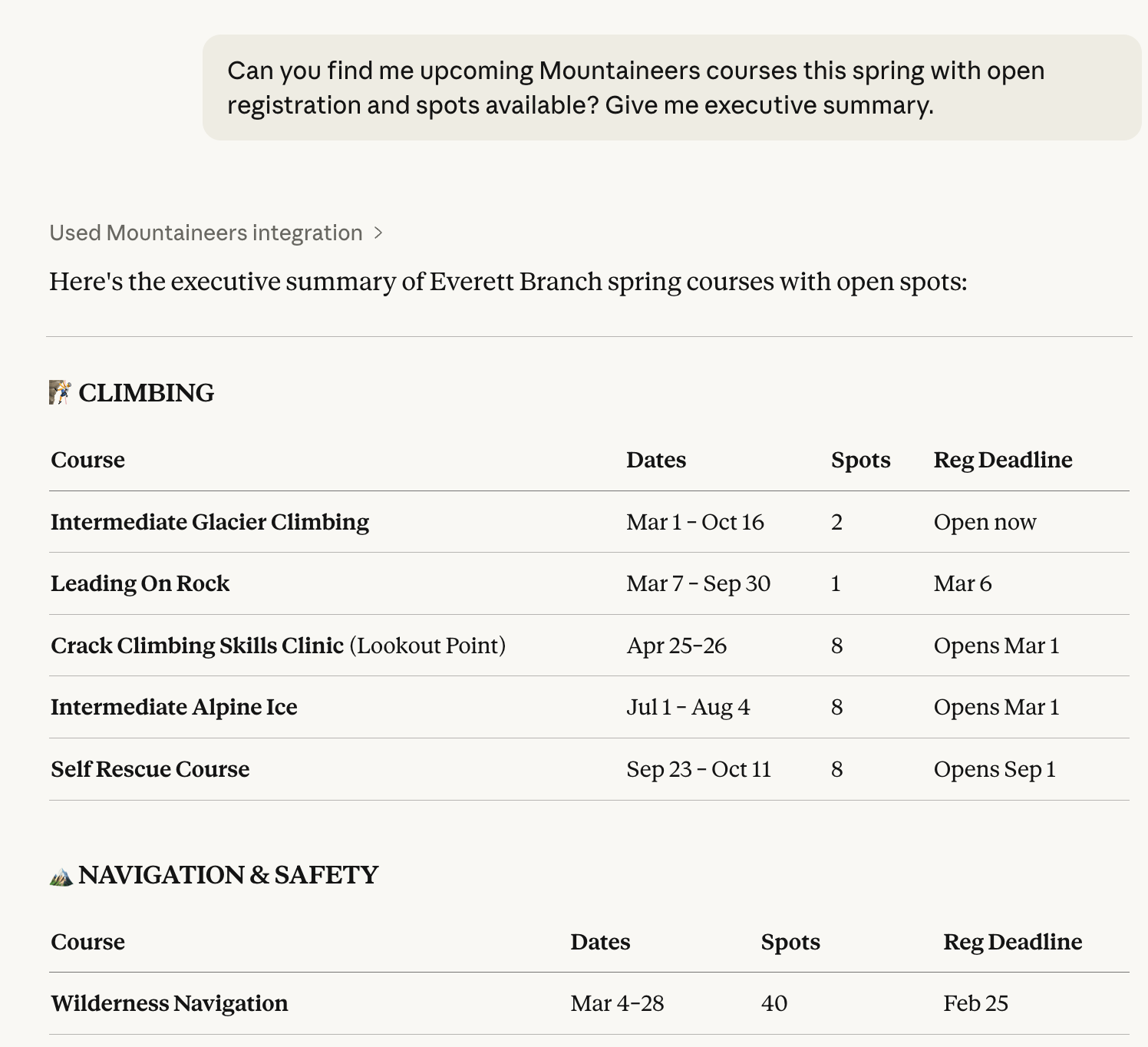
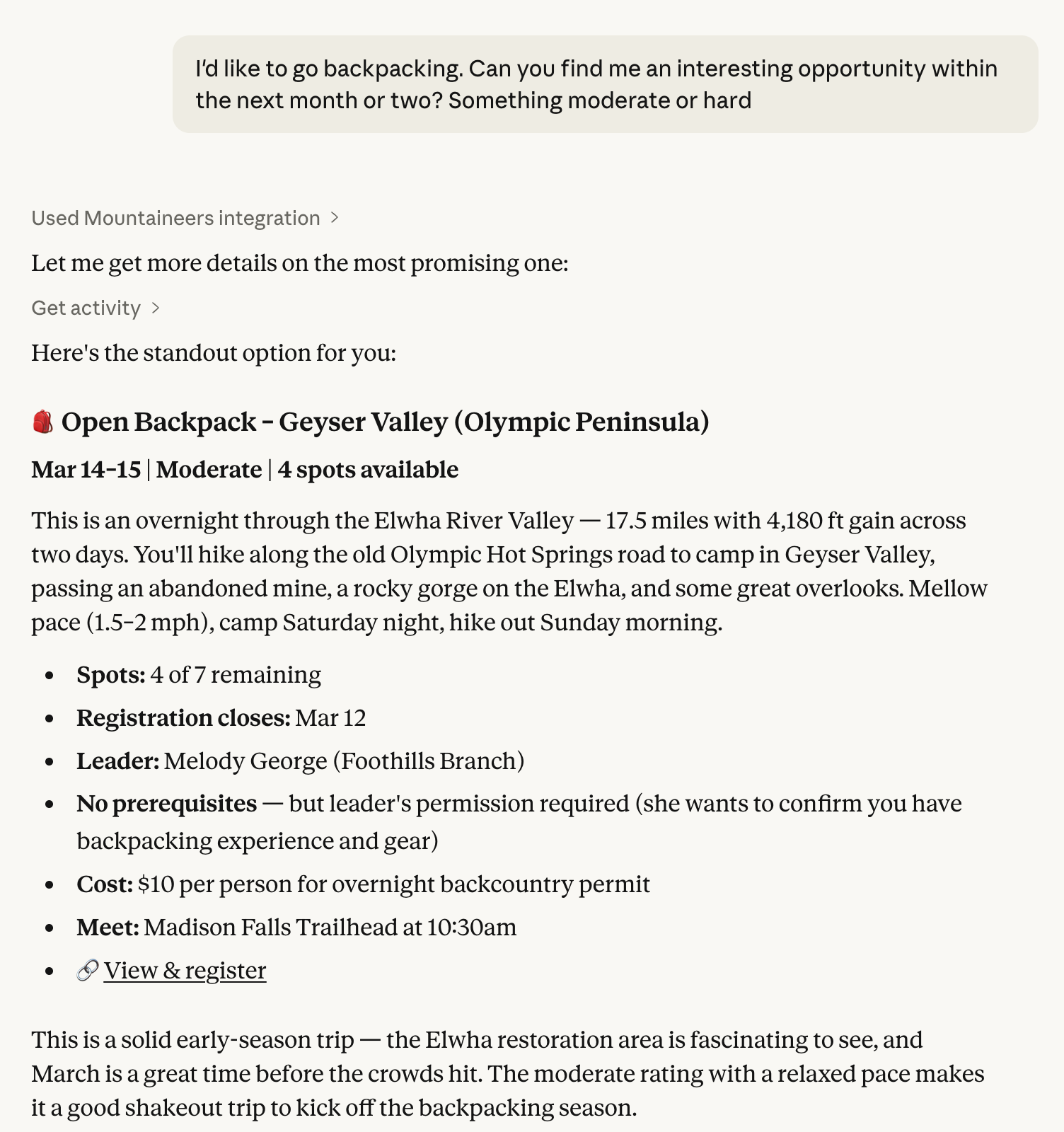
This lets AI assistants like Claude and ChatGPT search and browse mountaineers.org on your behalf. Instead of clicking through the website, you can ask questions in plain English:
- "Find me a beginner-friendly day hike near Seattle this weekend"
- "What scrambles are available in August?"
- "Show me trip reports for Mount Pilchuck"
- "What's the elevation gain on the Mount Si trail?"
- "What activities am I signed up for?"
- "What badges have I earned?"
The AI reads the Mountaineers website, understands the results, and gives you a conversational answer -- no manual searching required. Read the full story: I Built an MCP Server for Mountaineers.org.

What can it do?
Search public data:
- Search activities by type, branch, difficulty, date, and more
- Search courses, clinics, and seminars
- Browse trip reports
- Search routes and places
- Get full details for any activity, trip report, route, or course
Access your account:
- See your upcoming and past activities
- See your completed activity history
- See your course enrollments
- View your earned badges and certifications
- View member profiles and activity rosters
Setup
A one-time login is required for all tools, including public search. mountaineers.org is behind Cloudflare, which blocks plain HTTP clients. After installing the server (below), just ask your assistant to run the
logintool — a Chrome window opens, you sign in once on mountaineers.org, and the server caches the clearance + session cookies. Your password is typed into the real site, never into the chat or any config. See Authentication for details and the requirements (desktop with Google Chrome).
Follow the instructions for your AI app below.
Claude Desktop
- Download
mountaineers-mcp-X.Y.Z.mcpbfrom the latest release - Open Claude Desktop → Settings → Extensions → Install Extension
- Select the downloaded
.mcpbfile - Ask your assistant to run the
logintool (one time) — a Chrome window opens, you sign in, and authentication is cached. Required before any other tool works. See Authentication.
That's it -- no Node.js setup required. Just run the one-time Authentication step (the login tool) before using other tools.
Manual setup (alternative)
Requires Node.js 18+.
- Go to Settings > Developer > Edit Config
- Paste this and save:
{
  "mcpServers": {
    "mountaineers": {
      "command": "npx",
      "args": ["-y", "mountaineers-mcp"]
    }
  }
}- Quit and reopen Claude Desktop (not just close the window -- fully quit)
Then run the Authentication step (the login tool). Don't add MOUNTAINEERS_USERNAME/MOUNTAINEERS_PASSWORD to this config — the server reads the cached cookie, not env vars.
ChatGPT Desktop
ChatGPT Desktop supports MCP through Developer Mode, but only remote HTTP servers -- it cannot run local command-line tools like Claude Desktop can. To use this server with ChatGPT Desktop, you would need to run it behind a tunnel (e.g., mcp.run or ngrok). This is not yet streamlined; we plan to add Streamable HTTP transport in a future release.
Requires ChatGPT Plus, Pro, Team, or Enterprise.
Claude Code (CLI)
Run this in your terminal:
claude mcp add mountaineers -- npx -y mountaineers-mcpOr add to your .mcp.json:
{
  "mcpServers": {
    "mountaineers": {
      "command": "npx",
      "args": ["-y", "mountaineers-mcp"]
    }
  }
}
Then run the Authentication step (the login tool).
Codex CLI
Add to ~/.codex/config.toml:
[mcp_servers.mountaineers]
command = "npx"
args = ["-y", "mountaineers-mcp"]
Then run the Authentication step (the login tool).
Or use the CLI:
codex mcp add mountaineers -- npx -y mountaineers-mcpAuthentication
Mountaineers.org is behind Cloudflare, which blocks plain HTTP clients — so every tool (public search included) needs a valid Cloudflare clearance cookie, plus a session cookie for account tools. The server doesn't log in itself; it replays cookies you mint once with a real browser.
Recommended: the login tool
Just ask your assistant to run the login tool (e.g. "log in to mountaineers"). A Chrome window opens to the mountaineers.org sign-in page; you complete the login there (your password goes to the site, never to the chat, the server, or any config). The server then caches the cookies and every other tool works. If the browser is already signed in from a previous run, you won't need to type anything (it still takes a few tens of seconds to open Chrome, settle the session, and close).
The cookies are saved to ~/.cache/mountaineers-mcp/clearance.json (or under $XDG_CACHE_HOME), owner-readable only. The server reads the cache on startup and re-reads it automatically if the clearance expires mid-session — so re-running login takes effect without a restart.
Requirements: a desktop with Google Chrome installed and a visible display. (Headless servers can't show the sign-in window.)
When to re-run: Cloudflare clearance eventually expires (lifetime is set by Cloudflare and varies). When a tool reports the clearance expired, run login again.
Alternative: npm run login (from a checkout)
For scripted/automated setups you can mint the cache from a local checkout, auto-filling credentials from the environment:
git clone https://github.com/dreamiurg/mountaineers-mcp.git
cd mountaineers-mcp
npm install
MOUNTAINEERS_USERNAME=your-username MOUNTAINEERS_PASSWORD=your-password npm run login
This writes the same cache file the server reads. The credentials are used only by this command (passed as env vars, not persisted).
Tools reference
Run login once before anything else (Cloudflare gates the whole site); the data tools below then work, split by the kind of data they return.
Setup
| Tool | Description |
|---|---|
login |
Open a browser to sign in to mountaineers.org and cache the Cloudflare clearance + session cookies. Required once before any other tool; re-run when clearance expires. |
Public data
| Tool | Description |
|---|---|
search_activities |
Search activities with filters (type, branch, difficulty, date, day of week) |
search_courses |
Search courses, clinics, and seminars |
search_trip_reports |
Search trip reports by text and activity type |
search_routes |
Search routes and places with filters (activity type, difficulty, climbing category) |
get_activity |
Get full activity details (leader notes, route, equipment) |
get_trip_report |
Get trip report details (conditions, route info) |
get_route |
Get route details (difficulty, elevation, directions, maps, related routes) |
get_course |
Get course details (schedule, pricing, leaders, badges earned) |
Your account
| Tool | Description |
|---|---|
whoami |
Get your name, profile URL, and member slug |
get_my_activities |
Your registered activities (upcoming) with filtering |
get_my_courses |
Your course enrollments with filtering |
get_activity_history |
Your completed activity history with filtering by result, type, and date |
get_my_badges |
Your earned badges and certifications with dates |
get_member_profile |
View a member's profile, badges, and committees |
get_activity_roster |
See who's signed up for an activity |
Privacy
Your credentials are used only by npm run login (passed as environment variables, not persisted) and are sent only to mountaineers.org. What's saved on your computer is the resulting session cookie cache (~/.cache/mountaineers-mcp/clearance.json, owner-readable only). Nothing — credentials or cookies — is ever sent to any AI provider or third party.
Development
npm install
npm run dev          # Run from TypeScript sources via tsx (no build step)
npm run check        # Typecheck + lint
npm test             # Run tests
npm run ci           # Full CI: check + coverage + build
License
MIT
More from @dreamiurg
- PNW Climb Planner — pick a Washington peak, see the odds of a climbable day from 20 years of weather data, and line up backups (the story behind it)
- mountaineers-assistant — Chrome extension with your Mountaineers climbing stats, local-only
- peakbagger-cli — search and analyze PeakBagger.com peak data in your terminal
- claude-mountaineering-skills — automated route research: weather, hazards, and trip reports in one report
- more at dreamiurg.net/projects
Made by @dreamiurg in Seattle. If this project saved you time, you can buy me a coffee — appreciated, never expected.