
unduo
Un-Duo yourself by making it possible to use any 2FA application for Duo Security authentication.
unduo is a command-line tool that lets you use any standard two-factor
authentication app in place of Cisco's proprietary Duo Mobile software. It
registers a virtual device with Duo and hands you a QR code (and otpauth://
URI) you can add to Google Authenticator, Authy, or any other authenticator
app.
Is it secure?
Yes. Duo uses the same OTP standards as every other 2FA app in the security space — they just wrap that standard in their own software to lock you into their app. This tool tells Duo that you are the Duo app, allowing you to activate a 2FA key in whatever app you choose.
Why not just use Duo?
There are many reasons you might want to avoid the Duo app, from usability to ideology:
- You already use a 2FA app like Google Authenticator and don't want another.
- You prefer open-source or non-proprietary software.
- You are uncomfortable with the data collection in the Duo Mobile app.
- You would like Duo 2FA access on a computer, not just a mobile device that may die.
- You have multiple devices you would like to secure with a single 2FA solution.
- You would like 2FA autofill so you never have to deal with Duo notifications or codes.
Install
No install needed — run it with npx:
npx unduoRequires Node.js 18+. There are no external binary dependencies — QR codes are rendered in pure JS, and the whole CLI ships as a single bundled file.
Setup
Navigate to your organization's Duo Security portal.
Log in with your current Duo 2FA method.
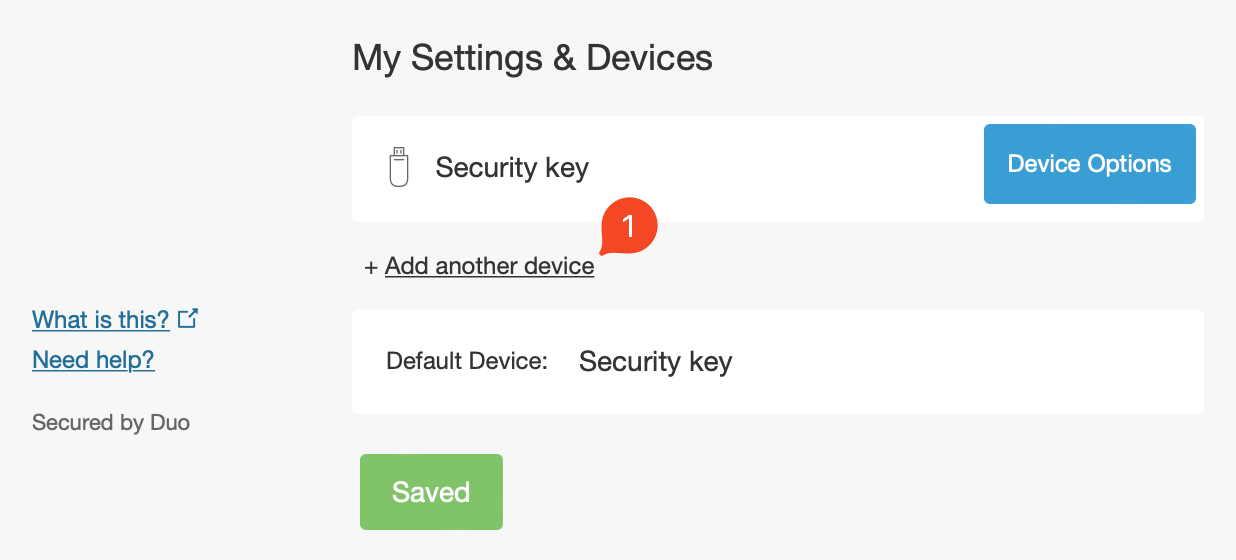
In the Security Portal, select + Add another device.
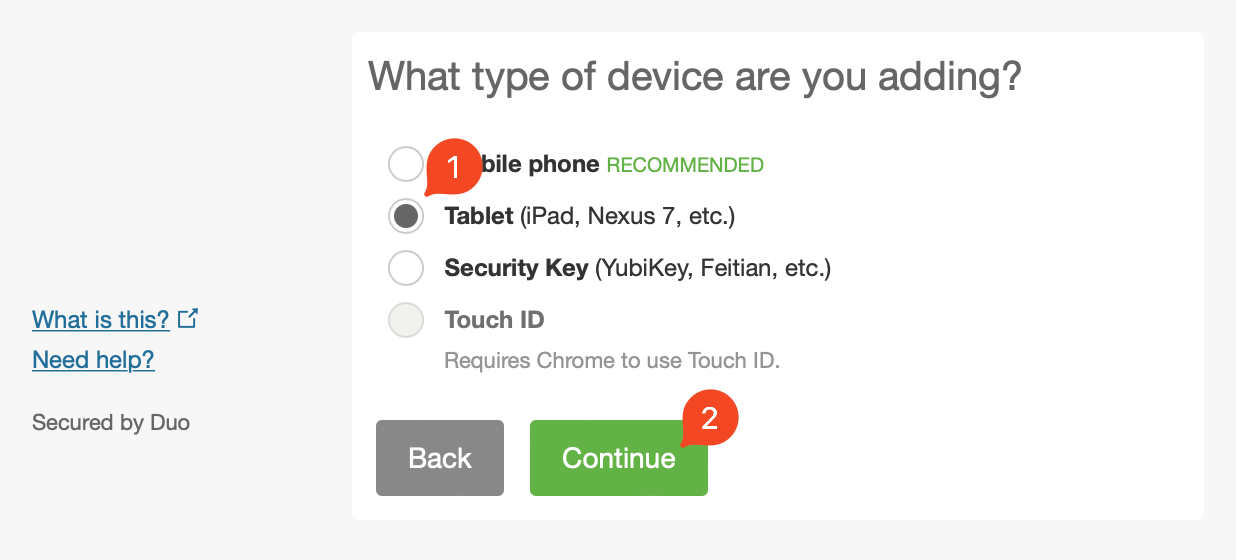
Select Tablet, then Continue.
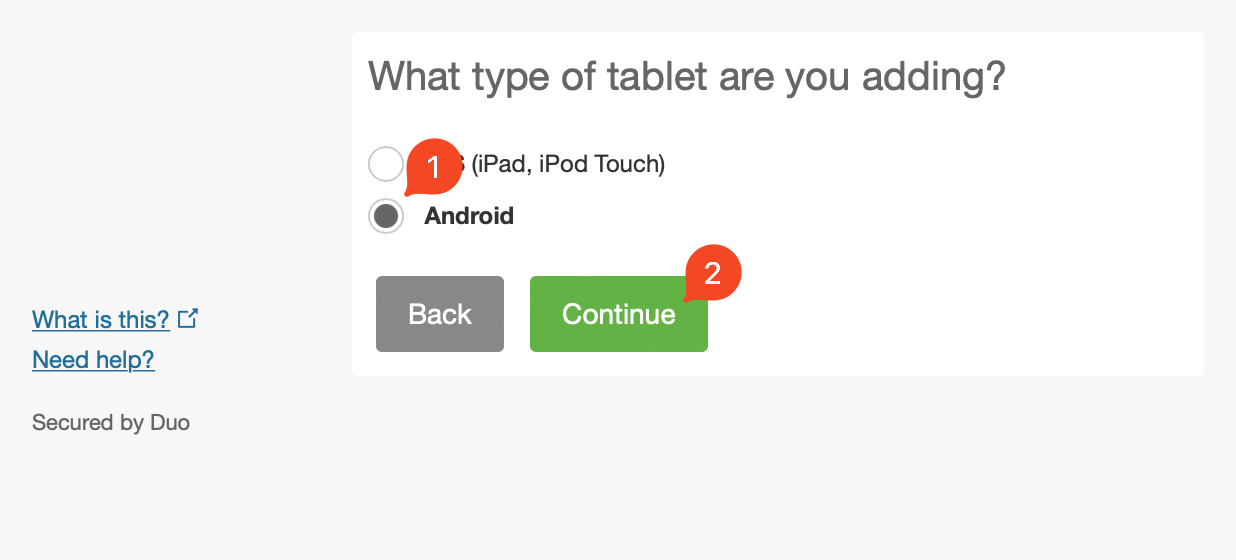
Select Android, then Continue.
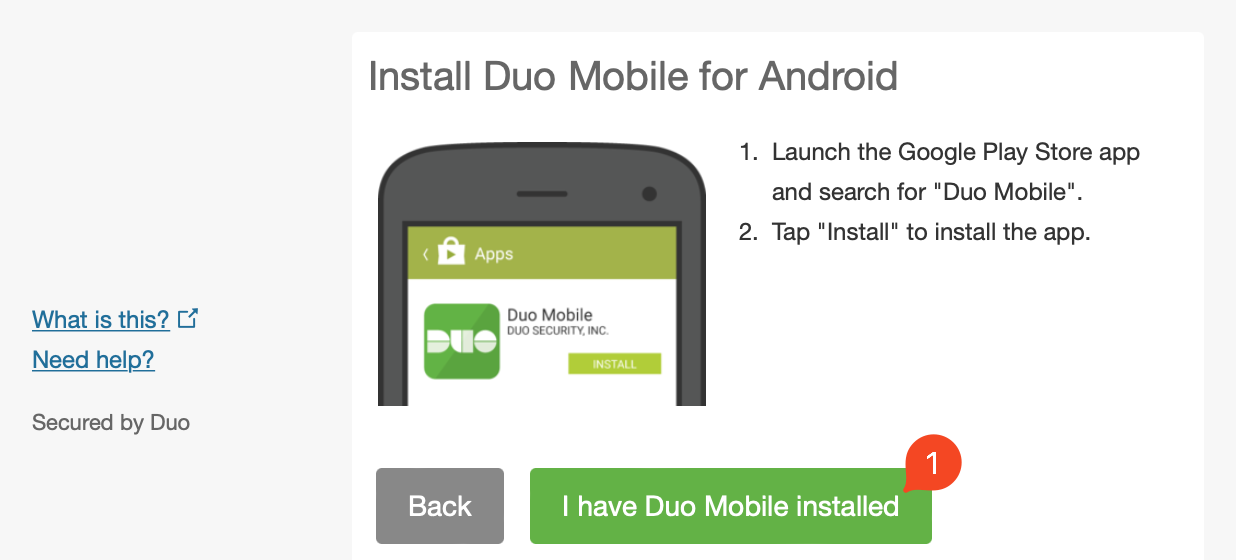
Select I have Duo Mobile installed.
Right-click the provided QR code and select Copy Image Address (or read the QR code yourself — its text is in the form
CODE-BASE64HOST).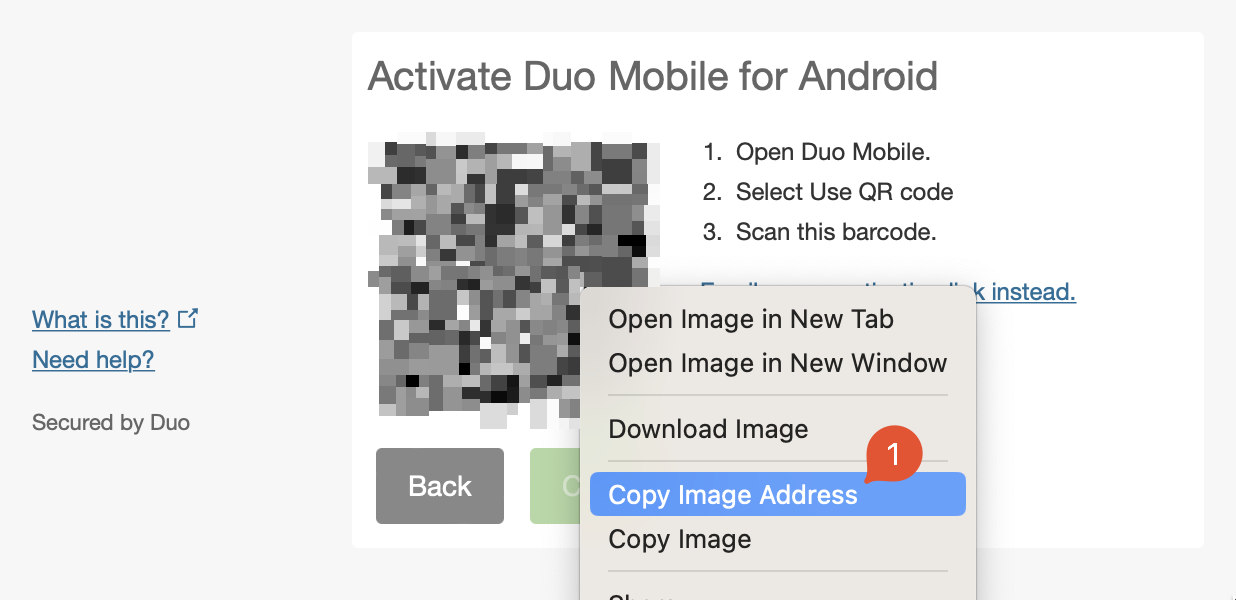
Run
unduoand paste in the value when prompted:npx unduoScan the QR code
unduoprints into a 2FA app such as Google Authenticator or Authy. If the app doesn't support QR codes, enter the Key shown below the QR code manually. Theotpauth://URI is also copied to your clipboard. You can also rename the device in Duo if you like.
Usage
Activate (the root command)
Register a virtual device against Duo and print its OTP secret.
npx unduo          # print only — nothing is written to disk
npx unduo --save   # also persist the secret for `gen`/`export`
unduo prompts you to paste in the QR code value (in the form
CODE-BASE64HOST) or the QR page URL. It then prints a QR code to scan,
with the base32 key and the otpauth:// URI as plain text underneath —
and copies that URI to your clipboard, so you can add the account to any 2FA app
right away. (The clipboard copy is skipped silently in headless environments
with no clipboard tool.)
By default nothing is written to disk — the secret only lives in your 2FA
app. Pass --save to also store the secret and activation response in a
per-user data directory (see State); this is what lets the gen and
export commands work later.
--saveis discouraged. It writes your OTP secret to a plaintext file on disk. You're better off adding the account to a 2FA app such as Google Authenticator or Authy straight from the printed QR code /otpauth://URI — it stays encrypted, syncs across your devices, and can autofill codes for you. Only reach for--saveif you specifically want the built-ingen/exportcommands on a machine you trust.
Generate a code
npx unduo gen        # prints the current 6-digit TOTP code
npx unduo generate   # alias
The bare code is printed to stdout, so it is easy to pipe:
npx unduo gen | pbcopyExport to another app
Re-print the otpauth:// QR code (and URI) at any time.
npx unduo export           # QR code + otpauth URI
npx unduo export --no-qr   # only the otpauth URI
State
By default unduo never touches disk. Only npx unduo --save writes state:
two files — the base32 secret and the response.json — which gen and
export read back. The location is resolved in this order:
- the
--dir <path>flag, - the
$UNDUO_DIRenvironment variable, - the platform per-user data directory (via
env-paths), e.g.~/Library/Application Support/unduoon macOS or~/.local/share/unduoon Linux.
gen and export require a saved secret, so they only work after an
npx unduo --save activation. Because that file is plaintext, prefer keeping
the secret in a 2FA app such as Google Authenticator or Authy instead — see the
note under Activate.
Debug output
This tool uses debug. Set DEBUG to
trace the activation URL, the raw Duo API response, and (with --save) where
state is written:
DEBUG='unduo:*' npx unduoNotes
- The generated codes are TOTP (time-based). Any standard authenticator app will stay in sync.
- Built on citty (CLI),
consola (output/prompts),
otpauth (TOTP),
@scure/base(base32), zod (response validation), destr (JSON parsing), unstorage (state persistence), env-paths (state directory), tinyclip (clipboard), and qrcode (QR rendering).
Credits
unduo stands on the shoulders of prior work:
- kop316/duo-cli — the Python CLI whose activate / generate / export flow this project ports to TypeScript.
- nilsstreedain/duo-bypass — whose setup guide is adapted above.
- revalo/duo-bypass — the original reverse-engineering of the Duo activation flow.
Development
This project uses Vite+ (vp) and bun.
bun install             # install dependencies
vp run src/cli.ts <cmd> # run the CLI from source
vp test                 # run the unit tests
vp check                # format, lint and type-check
vp pack                 # build the single-file bundle to dist/
Disclaimer
This tool is intended for legitimate use with accounts you control (for example, to use an open source authenticator instead of Duo Mobile). Do not use it against accounts you are not authorized to access.