instapack v6.5.3-beta1
instapack
All-in-one TypeScript and Sass compiler for web applications! :package: :rocket:



Install
Machine-Wide (simpler and convenient)
npm install -g instapack
If you encounter errors during installation, try:
Using command prompt as Administrator or elevated privileges (
sudo), update npm:npm install -g npm, clear the npm cache:npm cache clean --forceand then:npm install -g instapack --no-optionalOr use Yarn instead:
yarn global add instapack
Per-Project (consistent build)
npm install instapack@[version] -D -E or yarn add instapack@[version] -D -E
- Modify the project
package.json
{
  "scripts": {
    "build": "ipack"
  }
}
Invoke instapack using
npm run buildoryarn run buildAlternatively, invoke instapack without modifying
package.jsonusing:npx ipackornpx instapack
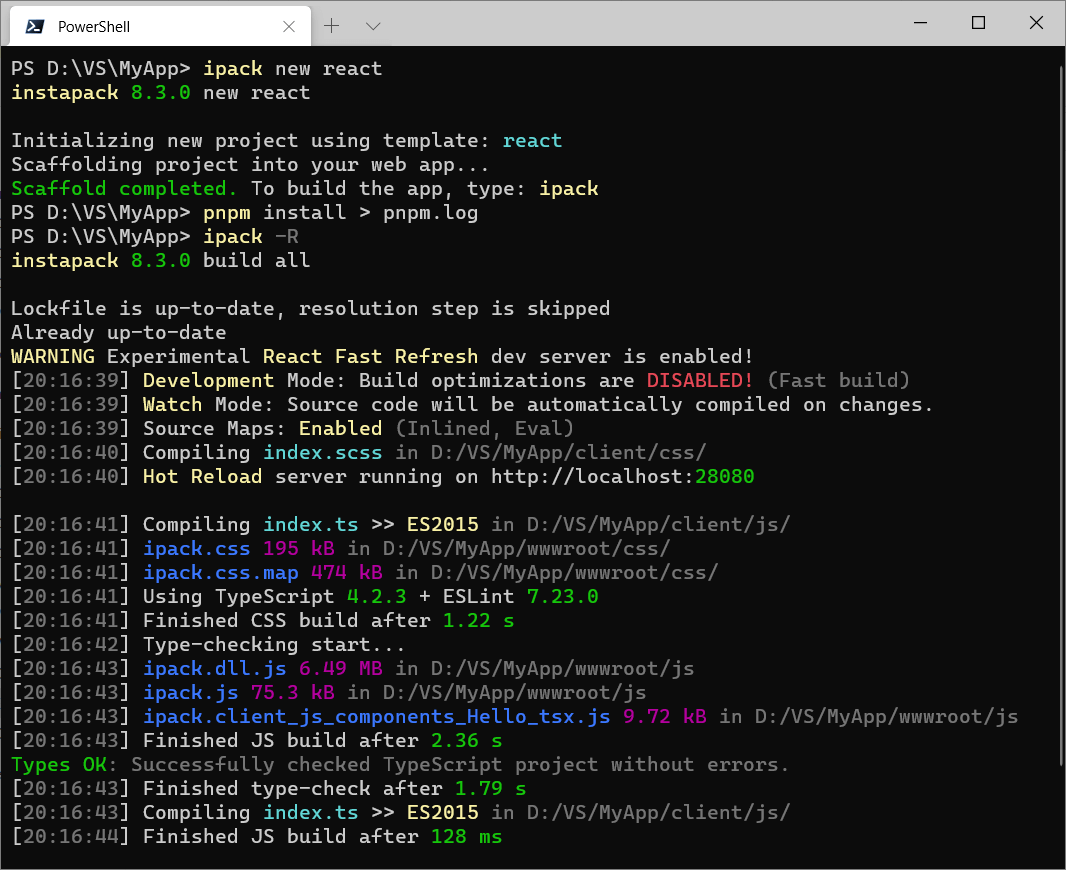
Quick Start Guide
cd E:\VS\MyWebApp
ipack new empty
ipack
Out of the box, these files will be used as the program entry points:
client/js/index.tscompiled towwwroot/js/ipack.jsInclude this file at the bottom of your HTML / before
</body>using<script>so the browser can render the page while downloading the script.Anything imported from
node_moduleswill be put intoipack.dll.js. Please also include this file in your HTML just beforeipack.js
client/css/index.scsscompiled towwwroot/css/ipack.cssInclude this file at the top of your HTML / before
</head>using<link>so the browser can style and render the page as it loads.Spiced :hot_pepper: with AutoPrefixer for applying CSS vendor-prefixes automatically!
Concatenate files listed in
package.json(Read more ↓)- Usually the output file should be included in the HTML before
ipack.js
- Usually the output file should be included in the HTML before
Practical guides can be read in the books folder.
System Requirements
Currently supported Node.js is the latest version 8 LTS.
When using Visual Studio 2017 (Update 2 or above), install the latest TypeScript SDK for Visual Studio 2017.
When using Visual Studio 2015 (Update 3 or above), install the latest TypeScript SDK for Visual Studio 2015.
If using the latest Visual Studio Code, it should come with the latest TypeScript support out of the box.
Design Philosophies
Zero configurations: Hyper-opinionated front-end project build system. It just works! :sparkling_heart:
Unify and standardize team build system across multiple projects, for any JS frameworks. :fist:
Built-in new project scaffold tool for assorted JS frameworks. :gift:
Rich debugging experience: set breakpoints, view variables, and step into the TypeScript source code! :mag:
Beginner-friendly: Lower the barrier of entry for developing a modern web app. :balloon:
Introduce structure to the front-end source code using standard module systems. :city_sunrise:
Improve source code quality and maintainability with type hints and compile-time checks. :eyeglasses:
Enforce best practices when building apps, which may significantly impact page load time. :hammer_and_wrench: (i.e. tree-shaking, code-splitting, bundling, and minification)
Blur the boundary between design-time and coding-time using lightning-fast
watch+devbuild mode. :zap:
But... Why?
Recently, every hecking framework on this planet :earth_asia: has their own CLI; but only few are able to support TypeScript as first-class feature. Thus, most people gave up on TypeScript right off the bat... :bat:
instapack is an initiative to develop a command line tool for compiling most apps developed using mainstream JS frameworks, with a :lemon: twist: It can easily build an app written in TypeScript with minimal configurations!
instapack is battle-tested :hocho: and is designed to cover most normal use cases when developing a modern web app. Powered by webpack, instapack effortlessly devours modules written using modern JS standards (ES Harmony, CommonJS, AMD, UMD) and more (HTML templates, Vue SFC).
With this powerful tool, you can save time :watch:, save precious SSD space :space_invader:, and save yourself from the pain of manually maintaining project build scripts! :coffee:
Commands
You may use instapack or ipack to invoke the command line interface.
new template
Scaffolds a new instapack project into your existing app folder where the command line is invoked. These templates are available:
emptyfor a minimal clean slate.vuefor developing a web app using Vue.js and Bootstrap 4.- Includes aspnet-validation for ASP.NET MVC client-side validation.
reactfor developing a web app using React and Semantic UI.angularfor developing a web app using the new Angular and Material Design. (Warnings: 1 2)preactfor developing a web app using Preact. (Fast 3kB alternative to React)infernofor developing a web app using Inferno. (Insanely fast, React-like)hyperappfor developing a web app using hyperapp. (1kB, with state management)mithrilfor developing a web app using Mithril and Tachyons. (hyperscript, provides routing and XHR)vue-mobilefor developing a Progressive Web Application using Vue.js and Onsen UI! (Cordova-compatible, read more on FAQ ↓)angularjsfor developing a legacy web app using AngularJS 1.7 and Bootstrap 3.- Includes jquery-validation-unobtrusive for ASP.NET MVC client-side validation.
If no template parameter is provided, vue will be chosen. :vulcan_salute:
build project
Performs compilation of selected project type. Available projects: all, js, css and concat. If no project parameter is provided, all will be chosen.
In addition, build flags are available:
--watchor-wenables automatic incremental build on source code changes. :robot:--devor-ddisables build outputs optimization and minification for FAST build! :fire:--xdebugor-xdisables source maps, producing undebuggable outputs. (Slightly improves build speed)--statsgeneratesstats.jsonnext to the TypeScript build outputs, which can be fed to webpack-bundle-analyzer or webpack-visualizer. For sanity, this flag will be ignored when using-dor-wflags.
You can combine multiple build flags, for example:
ipack -dw=dev+watchmode for massive productivity gainz! :muscle:
clean
Remove all files in the output folders.
set
package-managerallows setting default package manager to be used for restoring and integrity-checkingnode_modulesprior build. Possible values:yarn,npm,disabled(default:yarn)mute-notificationdisables toast alert on build fails in watch mode when set totrue. Possible values:trueandfalse(default:false)
Configurations
instapack puts configurations inside package.json to reduce project files clutter. For example, this is the included package.json with vue template:
name,version,private,dependencies, anddevDependenciesfields were removed for brevity.
{
  "instapack": {
    "output": "wwwroot",
    "concat": {},
    "alias": {
      "vue": "vue/dist/vue.esm",
      "jquery": "jquery/dist/jquery.slim"
    }
  }
}inputallows setting the input folder name. By default, it is set toclientoutputallows setting the output folder name. By default, it is set towwwrootjsOutallows setting the JS output file name. By default, it is set toipack.jscssOutallows setting the CSS output file name. By default, it is set toipack.cssaliasallows overriding moduleimportcalls from all files, including dependencies. Read more ↗TypeScript
pathscompiler option intsconfig.jsonwill be translated into aliases with caveats:- For non-
*paths: due to technical limitations, only the first path in the string array will be honored.
- For non-
externalsallows rewriting moduleimportcalls from all files, including dependencies, to globally exposed objects viawindowobject. Read more ↗
For example:
{
  "instapack": {
    "externals": {
      "jquery": "$"
    }
  }
}
// converts this...
import jQuery from 'jquery';
// into something similar to this...
// const jQuery = window["$"];so CDN can be used! :tada:
<script src="https://unpkg.com/jquery@3.3.1/dist/jquery.js"></script>concatallows packing browser libraries to be consumed directly from<script src="...">rather than as a module.The file names will be resolved node-style (but NOT their contents), which allows concatenating packages downloaded from
npmto be bundled, minified, and then placed into the output JS folder.Use concatenation for libraries that cannot be imported / do not need to be imported (for example, jQuery plugins). This hybrid approach allows excellent interop with older libraries!
For consuming the libraries within the TypeScript app code: include the concatenated file BEFORE the app bundle then...
Combo with the
externalsmodule configuration for easy import usingrequire/ CommonJS module syntax.Alternatively (for strongly-typed import), write a TypeScript module declaration (
declare module) then import using ES Modules syntax.Possible but not recommended: reference the library objects directly from the
window(e.g.window['$']).
A concat configuration example: (produces vendor.js bundle handy for ASP.NET MVC)
{
  "instapack": {
    "concat": {
      "vendor": [
        "jquery",
        "jquery-validation",
        "jquery-validation-unobtrusive",
        "./client/lib/my-ancient-jquery-plugin"
      ]
    }
  }
}
Environment Variables
instapack version 6.4.0+ supports defining variables in process.env global object. Variables coming from process.env are always strings.
Using
process.envin your TypeScript project requires@types/nodepackage installed.
.env
The file .env in the root project folder will be read and parsed.
For example: FOO=bar will define process.env.FOO as 'bar'
Due to technical reasons,
.envfile cannot be watched.
--env
Build flag --env accepts object-like notation:
Variables passed using the flag will be merged with variables defined in
.envVariables passed using the flag takes takes priority / overrides the variables defined in
.env
For example: ipack --env.FOO=bar --env.HELLO=world
TSLint Integration
instapack version 6.5.0+ supports tslint.json / tslint.yaml in the project root folder. Here are some sensible, useful rules which greatly reduce programming blunders:
{
  "rules": {
    "no-non-null-assertion": true,
    "ban-comma-operator": true,
    "curly": true,
    "no-conditional-assignment": true,
    "no-duplicate-super": true,
    "no-duplicate-switch-case": true,
    "no-dynamic-delete": true,
    "no-eval": true,
    "no-for-in-array": true,
    "no-object-literal-type-assertion": true,
    "no-shadowed-variable": true,
    "no-sparse-arrays": true,
    "no-string-throw": true,
    "no-unbound-method": true,
    "no-unsafe-finally": true,
    "no-var-keyword": true,
    "switch-default": true,
    "triple-equals": true,
    "use-isnan": true,
    "new-parens": true,
    "number-literal-format": true,
    "return-undefined": true,
    "type-literal-delimiter": true
  }
}
Source file will be linted only when it can be compiled correctly.
Babel Integration (BETA)
instapack version 6.4.0+ supports .babelrc in the project root folder. Here are some use cases where this feature can be useful:
You may use Babel instead of TypeScript to transpile JS to ES5: set TypeScript
targettoesnextthen use@babel/preset-envYou may use Babel instead of TypeScript to compile JSX: set TypeScript
jsxtopreservethen use the framework-compatible JSX plugin. For example:babel-plugin-transform-react-jsx,babel-plugin-transform-vue-jsx,babel-plugin-inferno
Module Systems
TypeScript / ES Modules
Imports and exports other .ts / .tsx files in the project or normal JS modules from node_modules. This technique allows the ease of development using intellisense for modules with type definitions:
The module has
"typings": "something.d.ts"in itspackage.json. For example:vue,linqThe module has @types installed. For example,
reactand@types/react
import List from 'linq';When the imported module does not have any type definitions, it will be imported as
anydata type (no intellisense).
ES Modules: Dynamic Import
instapack version 6.4.0+ supports code-splitting using ES Modules dynamic import() syntax:
import('lunr').then(lunr => {
  // similar to: import * as lunr from 'lunr'
});
An excerpt of build log when using dynamic import:
[02:41:10] ipack.0.js 70.1 kB
[02:41:10] ipack.dll.js 220 kB
[02:41:10] ipack.js 2.76 kB
Unlike
ipack.dll.jswhich must be referenced explicitly beforeipack.js, thelunrmodule inipack.0.jswill be automatically downloaded on-demand to reduce asset size during initial page load.The
import()method returns aPromiseobject which resolves to the downloaded module, which can beawait-ed in TypeScript!The number
0is an auto-generated chunk name, which can be overridden using the magic commentimport(/* webpackChunkName: "lunr" */ 'lunr')(generatesipack.lunr.jsinstead).This feature will be especially useful when a gigantic library is required in just one or two components, but not the whole app!
To use this syntax within TypeScript,
modulecompiler option intsconfig.jsonmust be set toesnext(instead of the usuales2015).
CommonJS / Node.js require
- Easily imports ordinary JS modules within the project or from
node_modules. However, you will NOT get intellisense! (Modules will be imported asanydata type.)
let $ = require('jquery');- Imports an
.htmlfile to be minified and then stringified. This technique is invaluable for working with frameworks relying on HTML-based templates such as AngularJS, mustache.js / Handlebars.js, and Vue.js:
let template: string = require('./mytemplate.html');CommonJS
requiremethod in TypeScript is provided through@types/requirejsor@types/nodepackages.
JSON Modules
Enables strongly-typed, static JSON file imports in the TypeScript project when resolveJsonModule compiler option in tsconfig.json is set to true
{
  "foo": "bar"
}
import settings from './settings.json';
let s: string = settings.foo;Requires TypeScript 2.9.0 / instapack 6.5.0 or above. Earlier versions support importing JSON files using
requiresyntax instead.
Vue Single-File Components (BETA)
instapack version 6.4.0+ can compile .vue files:
<template>
<h1>Hello from {{ compiler }} and {{ framework }}!</h1>
</template>

<script lang="ts">
import Vue from 'vue';
import Component from 'vue-class-component';
@Component({
    props: ['framework', 'compiler']
})
export default class Hello extends Vue {
    framework: string;
    compiler: string;
}
</script>
The HTML
<template>will be compiled Ahead-of-Time (AoT) for greater app startup performance!When using Visual Studio Code with Vetur extension, you will get fabulous intellisense! :star2:
Basic
<style>(or<style scoped>or<style module>) should work, but should not be used.This feature is not supported at least until webpack ships built-in CSS modules.
Limitations: You cannot use Sass. The CSS will not be auto-prefixed and minified.
Reduced project maintainability: Your CSS will be scattered across obscure files in the JS project. Non-scoped styles will pollute the global CSS namespace.
A global TypeScript definition file for
*.vuemodule is required for importing the.vuefile using ES Modules syntax from TypeScript.- This file will be created for you when using the
vuenew project template!
- This file will be created for you when using the
Sass @import
instapack also has a custom Node-like but standard-compliant Sass module system using @import syntax, which picks up CSS files for convenience:
Include files relative to the source, including _partial.scss files. (Standard Sass behavior)
Include files relative to the source in a named folder, but as
index.scssor_index.scss(Standard Sass behavior) orindex.cssInclude files resolved from
node_modules. Also readspackage.jsonto resolve.cssfile in thestylefield!
Release Cadence
Starting version 4.0.0, instapack follows Semantic Versioning.
Bi-weekly releases (usually on 14th and 28th date of each month) will be performed for updating package dependencies. Bug reports will be dealt promptly. These actions will increment the patch version.
New non-breaking features will increment the minor version. Breaking changes will increment the major version. View breaking changes here.
Occasionally, beta builds will be published (instapack@beta) for showcasing the bleeding edge version of the tool.
Alternatively, you may build directly from the source code repository:
git clone https://github.com/ryanelian/instapack.git
cd instapack
.\link.ps1
.\build.ps1
ipack --version
FAQ
Can I use insert_framework_name_here ?
Yes, absolutely!
If it worked when using standard JS, it WILL work with instapack.
Add the packages required for your project using npm / Yarn and then start hacking. We'll take care of the outputs.
Also, pull requests are welcomed if you have a great starting templates and books for those projects. We'd love to expand our collections!
How to debug using Visual Studio Code?
Install the VS Code extension: Debugger for Chrome, open the project using VS Code (package.json should be located on your workspace folder root).
Create a folder .vscode and a file launch.json inside it:
{
    "configurations": [
        {
            "name": "Chrome",
            "type": "chrome",
            "request": "launch",
            "url": "http://localhost:43371/",
            "webRoot": "${workspaceFolder}",
            "smartStep": true
        }
    ]
}
Replace the url parameter with the correct URL of your app, then press F5 on your keyboard!
How to develop a Cordova app using vue-mobile template?
cordova create MyProject
cd MyProject
ipack new vue-mobile
cordova platform add android ios browser
yarn
ipack -dw               # then change www/index.html <script> and <link> tags.
cordova run browser     # re-run commmand every time build outputs change
CAUTION:
cordova platform addandcordova plugin add(or remove) will destroy yournode_modules. Re-runyarn/npm installafter invoking those commands!
Alternatively, you can use phonegap serve for development due to Browsersync playing nice with instapack watch. You will need to remove / comment / edit the <meta http-equiv="Content-Security-Policy"> tag though.
Later on...
cordova build android
cordova build ios
I thought files should not be bundled because of HTTP/2?
Also, in IIS, HTTP/2 is only supported when using Windows Server 2016. Many of our customers are still using Windows Server 2012 R2 to date.
Can I change the index.ts / index.scss entry point?
Nope.
Can I change the js / css folder name?
Nope.
Can I build multiple entry points?
Nope.
However, you can eject the client folder out of the back-end project folder, rename the jsOut file, and then redirect the output folder path back into the assets folder of the back-end project. This is the preferred way of doing things because:
You may have multiple front-end projects for a single back-end project.
Every front-end project can have vastly different
tsconfig.jsonandpackage.jsonsetup.Prevents front-end projects from screwing around with each other's code.
My package restore / IDE is slow. Help!
Windows Defender or other anti-virus software appear to slow down package restore and IDEs when opening projects.
For this very reason, it is highly recommended to:
Add anti-virus exclusion to Yarn installation folder:
C:\Program Files (x86)\Yarn. To double check, type:where.exe yarnAdd anti-virus exclusion to Yarn cache folder:
C:\Users\Ryan\AppData\Local\Yarn. To double check, type:yarn cache dirAdd anti-virus exclusion to NodeJS installation folder:
C:\Program Files\nodejs. To double check, type:where.exe nodeAdd anti-virus exclusion to
%APPDATA%\npmand%APPDATA%\npm-cachefolders.Add anti-virus exclusion to Git installation folder:
C:\Program Files\Git. To double check, type:where.exe gitUse very short root folder name for projects, such as
D:\VS, to avoid potential problems with Windows system paths over 260 characters long. Then exclude the folder from the anti-virus.
Your PowerShell is cute. How to?
Set-ExecutionPolicy RemoteSigned -scope CurrentUser
iex (new-object net.webclient).downloadstring('https://get.scoop.sh')
scoop install concfg
concfg import firefly
For more information, visit http://scoop.sh/ and https://github.com/lukesampson/concfg
License
5 years ago
6 years ago
6 years ago
6 years ago
6 years ago
6 years ago
6 years ago
6 years ago
6 years ago
6 years ago
6 years ago
6 years ago
6 years ago
6 years ago
6 years ago
6 years ago
6 years ago
6 years ago
6 years ago
6 years ago
6 years ago
6 years ago
6 years ago
6 years ago
6 years ago
6 years ago
7 years ago
7 years ago
7 years ago
7 years ago
7 years ago
7 years ago
7 years ago
7 years ago
7 years ago
7 years ago
7 years ago
7 years ago
7 years ago
7 years ago
7 years ago
7 years ago
7 years ago
7 years ago
7 years ago
7 years ago
7 years ago
7 years ago
7 years ago
7 years ago
7 years ago
7 years ago
7 years ago
7 years ago
7 years ago
7 years ago
7 years ago
7 years ago
7 years ago
7 years ago
7 years ago
7 years ago
7 years ago
7 years ago
7 years ago
7 years ago
7 years ago
7 years ago
8 years ago
8 years ago
8 years ago
8 years ago
8 years ago
8 years ago
8 years ago
8 years ago
8 years ago
8 years ago
8 years ago
8 years ago
8 years ago
8 years ago
8 years ago
8 years ago
8 years ago
8 years ago
8 years ago
8 years ago
8 years ago
8 years ago
8 years ago
8 years ago
8 years ago
8 years ago
8 years ago
8 years ago
8 years ago
8 years ago
8 years ago
8 years ago
8 years ago
8 years ago
8 years ago
8 years ago
8 years ago
8 years ago
8 years ago
8 years ago
8 years ago
8 years ago
8 years ago
8 years ago
8 years ago
8 years ago
8 years ago
8 years ago
8 years ago
8 years ago
8 years ago
8 years ago
8 years ago
8 years ago
8 years ago
8 years ago
8 years ago
8 years ago
8 years ago
8 years ago
8 years ago
8 years ago
8 years ago
8 years ago
8 years ago
8 years ago
8 years ago
8 years ago
8 years ago
8 years ago
8 years ago
8 years ago
8 years ago
8 years ago
8 years ago
8 years ago
8 years ago
8 years ago
8 years ago
8 years ago
8 years ago
8 years ago
8 years ago
8 years ago
8 years ago
8 years ago
8 years ago
8 years ago
8 years ago
8 years ago
9 years ago
9 years ago
9 years ago
9 years ago
9 years ago
9 years ago
9 years ago
9 years ago
9 years ago
9 years ago
9 years ago
9 years ago
9 years ago
9 years ago
9 years ago
9 years ago
9 years ago
9 years ago
9 years ago
9 years ago
9 years ago
9 years ago
9 years ago
9 years ago
9 years ago
9 years ago
9 years ago
9 years ago
9 years ago
9 years ago
9 years ago
9 years ago
9 years ago
9 years ago
9 years ago
9 years ago
9 years ago
9 years ago
9 years ago
9 years ago
9 years ago
9 years ago
9 years ago
9 years ago
9 years ago
9 years ago
9 years ago
9 years ago
9 years ago
9 years ago
9 years ago
9 years ago
9 years ago
9 years ago
9 years ago
9 years ago
9 years ago
9 years ago